
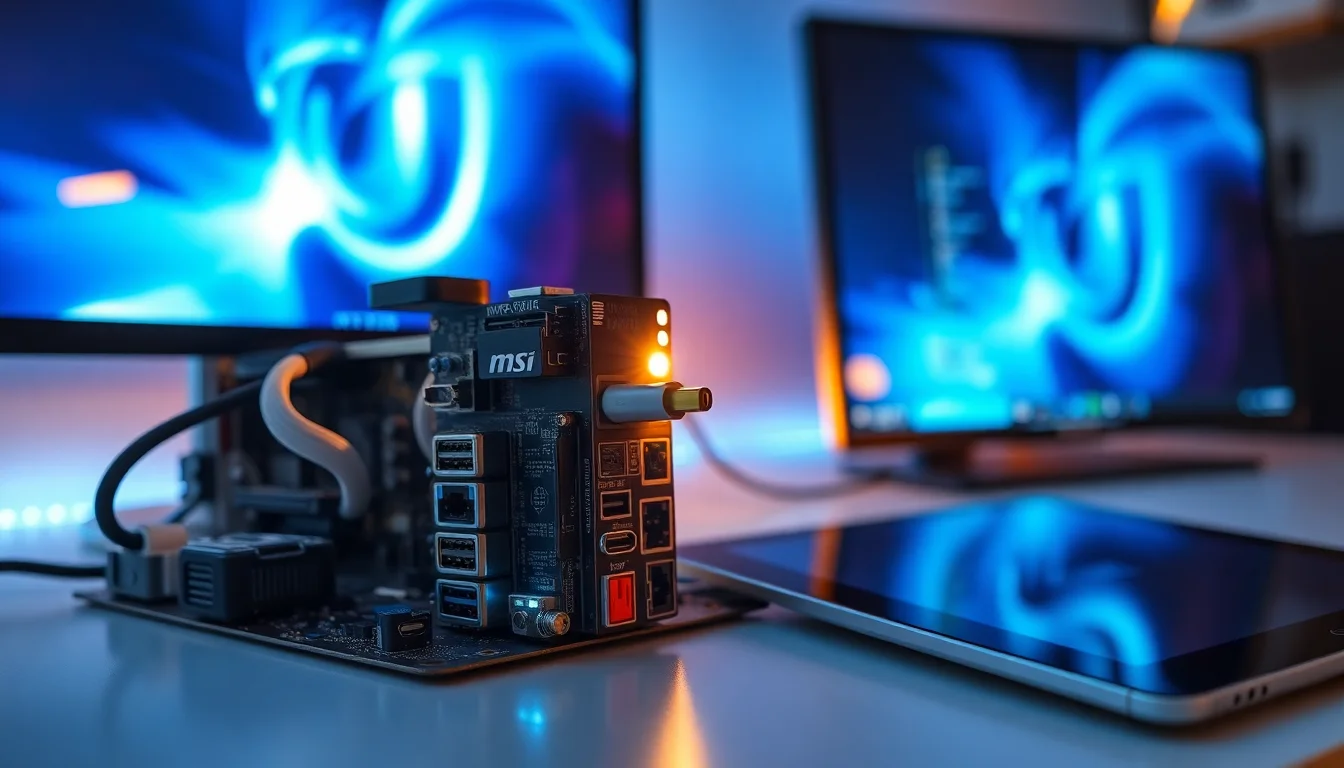
You've got a 40 Gbps USB4 port on the back of your MSI PRO X870E-P WiFi and your iPad is showing up as an unknown device, or not showing up at all. Before you assume the port is dead or start pricing up a new cable, know this: USB4 iPad not detected errors on this board are almost always a driver or BIOS configuration problem. Most people fix it in under 30 minutes without touching any hardware.
What Causes USB4 iPad Not Detected on MSI X870E?
The rear 40 Gbps USB4 port on the MSI PRO X870E-P WiFi is handled by a dedicated USB4/Thunderbolt controller, and that controller needs three things to work properly with an iPad: it has to be enabled in BIOS, it needs the correct Windows driver, and Windows itself needs Apple's driver stack installed. If any one of those is missing or broken, you get the unknown device error.
Here's what I see most often in practice. The X870E is a fairly new chipset, and people often install Windows before they've had a chance to load the full MSI driver pack. The AMD chipset driver and the USB4 controller driver don't always come down automatically through Windows Update, so the port sits there half-working. It'll charge the iPad fine (because USB power delivery doesn't need a driver) but it won't enumerate the device for data. That's why the iPad charges but doesn't appear in File Explorer or iTunes.
The second common cause is the Apple side. Windows doesn't natively know what an iPad is. It relies on Apple Mobile Device Support, which ships with iTunes, to identify the device and load the right driver. If iTunes was never installed, was installed incorrectly, or was removed at some point, every iOS device shows up as an unknown USB device regardless of which port you use. The USB4 port just makes it more confusing because people assume the newer, faster port is the problem.
BIOS configuration is the third culprit. On some X870E builds, the USB4/Type-C controller can end up disabled if someone has loaded a custom BIOS profile, fiddled with PCIe bifurcation for M.2 drives, or if the BIOS was flashed and defaults weren't reloaded. A disabled controller means the port does nothing at all, not even charging in some cases.
Finally, the cable. A surprising number of USB-C cables sold as accessories are charge-only. They have the right connector but they're missing the data lines. Plug one of those into a USB4 port and you'll get exactly this error. This is worth ruling out in the first 60 seconds before you spend any time in BIOS or Device Manager. Similar issues with devices not being detected at the controller level also show up with storage, as covered in our NVMe not detected Windows guide, where the same BIOS and driver logic applies.
USB4 iPad Not Detected: Quick Fix
Start here. These take five minutes and fix the problem for about a third of people.
Test Cable, Port and Basic Enumeration Easy
- Swap the cable first.
Grab an Apple-branded USB-C cable or one you know carries data. Charge-only cables cause this exact error. Plug the iPad in directly to the rear USB4 port with no hub, dock, or adapter in between. - Try a different port on the same PC.
Move the iPad to a rear USB-A port or a front USB-C port. If it's detected there, the iPad and cable are fine and the problem is specific to the USB4 controller. If it fails everywhere, the issue is the Apple driver stack, not the port. - Do a proper cold reboot.
Fully shut down Windows (not restart, not sleep). Disconnect the iPad. Wait 10 to 15 seconds. Power back on, log in, then plug the iPad in. This forces a fresh USB enumeration cycle and clears any stuck driver state. - Check Device Manager.
Open Device Manager, select View then Devices by connection. Plug and unplug the iPad and watch where the unknown device appears. If it appears under a USB4 or Thunderbolt controller node, the hardware is working but the driver is missing. That's actually good news.
More USB4 iPad Not Detected Solutions
These cover the two most common root causes: BIOS configuration and missing drivers. Work through both before jumping to the advanced section.
Enable USB4 in MSI BIOS Medium
- Enter BIOS.
Reboot and press Del repeatedly during POST. You should land in MSI Click BIOS 5. - Load Optimized Defaults.
Press F6 and confirm. This is MSI's own recommended first step when troubleshooting hardware issues. It clears any misconfigured settings that might be disabling the USB4 controller. - Find the USB4 controller setting.
Navigate to Settings then Advanced then Integrated Peripherals (sometimes labelled Onboard Devices). Look for a USB4 or Type-C Controller option and make sure it's set to Enabled. While you're here, confirm all rear USB ports are enabled under USB Configuration. - Save and exit.
Press F10, confirm, let Windows boot, then plug the iPad into the rear USB4 port and check Device Manager.
Install MSI Chipset and USB4 Drivers Medium
- Download from MSI's support page.
Go to the MSI PRO X870E-P WiFi support page and grab the latest AMD chipset driver and any USB/USB4/Thunderbolt controller driver package listed. If your main PC can't get online, download on another machine and transfer via USB stick. - Install chipset driver first.
Run the AMD chipset installer as administrator. Follow the prompts and reboot when asked. Don't skip the reboot. - Install the USB4/Thunderbolt driver.
Run the USB4 or Thunderbolt controller installer as administrator. Reboot again. After the second reboot, open Device Manager and confirm you see a properly named controller, something like AMD USB4 Router or similar, with no yellow warning triangle. - Run Windows Update.
Go to Settings then Windows Update and install everything available. Newer Windows builds include improved USB4 support and occasionally push Apple-related driver updates. According to Microsoft's USB4 driver stack documentation, Windows 11 22H2 and later have significantly better native USB4 enumeration.
Reinstall Apple Mobile Device Support Medium
- Uninstall all Apple components.
Go to Settings then Apps. Uninstall Apple Mobile Device Support, Apple Application Support (32-bit and 64-bit if both are listed), Apple Mobile Device USB Driver, Bonjour, and iTunes or the Apple Devices app. Order matters: remove iTunes or Apple Devices first, then the support components. - Reboot.
Don't skip this. Leftover driver files can cause the reinstall to fail silently. - Reinstall iTunes from Apple's website.
Download iTunes directly from Apple's support page rather than the Microsoft Store version, as the direct download includes all the necessary support components. Install as administrator. - Start the Apple Mobile Device Service.
Press Win + R, typeservices.msc, hit Enter. Find Apple Mobile Device Service in the list. Right-click it, go to Properties, set Startup type to Automatic, then click Start. Click OK. - Plug the iPad into the rear USB4 port.
Unlock the iPad and tap Trust on the Trust This Computer prompt if it appears. Give it 10 to 15 seconds. Check Device Manager to see if it now shows as Apple iPad rather than Unknown Device.
Advanced USB4 iPad Not Detected Fixes
These are the heavier fixes. They work when the quick and intermediate steps haven't sorted it, usually because the BIOS is outdated or there are corrupted USB device entries sitting in the registry causing conflicts.
Update MSI BIOS and Clear CMOS Hard
- Download the latest BIOS.
From the MSI PRO X870E-P WiFi support page, download the latest BIOS file. Copy it to a FAT32-formatted USB flash drive. Rename it if MSI's instructions require a specific filename (the download page will say). - Flash via M-FLASH.
Boot into BIOS (Del key during POST). Select M-FLASH from the main menu. Point it at the BIOS file on your USB drive and confirm. The system will reboot automatically and complete the flash. Don't touch anything during this process. It takes 3 to 5 minutes. - Clear CMOS after flashing.
Power off completely. Switch off the PSU at the back. Locate the JBAT1 jumper on the motherboard (check your MSI manual for the exact location, it's usually near the bottom-right of the board). Short it for 5 to 10 seconds using the jumper cap or a screwdriver. Alternatively, use the Clear CMOS button on the rear I/O panel if your board has one. - Reload settings.
Power on, enter BIOS, press F6 to load Optimized Defaults. Re-enable USB4 in Advanced then Integrated Peripherals. Re-enable XMP if you use it. Set your boot drive. Save with F10. - Retest.
Boot into Windows and plug the iPad into the rear USB4 port. A BIOS update often fixes USB4 enumeration issues that no amount of driver reinstalling will touch, because the bug is in the controller firmware itself.
Deep USB Cleanup: Ghost Devices and Power Rail Reset Hard
- Show hidden devices in Device Manager.
Open an elevated Command Prompt (right-click Start, select Terminal (Admin)). Typeset devmgr_show_nonpresent_devices=1and press Enter. Then typestart devmgmt.mscand press Enter. In Device Manager, click View then Show hidden devices. - Uninstall all ghost entries.
Expand Universal Serial Bus controllers and Portable Devices. Look for greyed-out entries: Apple iPad, Unknown USB Device, Apple Mobile Device USB Driver, and any stale USB4 or Thunderbolt entries. Right-click each one, select Uninstall device, and tick Delete the driver software for this device where that option appears. Work through all of them. - Power-cycle the USB rails.
Shut Windows down fully. Switch off the PSU at the rear. Disconnect the power cable from the wall. Wait 30 seconds. This fully discharges the USB power rails and forces a clean hardware reset. Reconnect power and boot. - Let Windows re-enumerate.
Boot into Windows without plugging the iPad in. Wait for the desktop to fully load. Then plug the iPad into the rear USB4 port and watch Device Manager. Windows will install drivers fresh from scratch.
Check PCIe Bifurcation and USB4 Resource Conflicts Medium
- Enter BIOS and check bifurcation settings.
Go to Advanced then PCI Subsystem Settings or PCIe Configuration. If you've set custom bifurcation for M.2 drives or PCIe expansion cards, check whether the USB4 controller's PCIe lanes are being shared or reassigned. MSI's documentation notes that devices sharing lanes can affect USB4 connectivity. - Verify USB4 firmware update availability.
Some MSI boards have a separate USB4 or Thunderbolt firmware update tool listed on the support page, separate from the main BIOS file. If one exists for the PRO X870E-P WiFi, download and install it following MSI's instructions. This is a separate firmware layer from the BIOS itself. - Check Windows USB4 device settings.
Go to Settings then System then About then Advanced system settings. Under Hardware, click Device Installation Settings and make sure Windows is allowed to download driver software automatically. On some builds, Settings then Bluetooth and devices has a USB or Thunderbolt/USB4 section where you can verify the controller is visible to Windows.
Preventing USB4 iPad Not Detected Problems
Most of these problems are avoidable. Here's what actually matters, in order of importance.
First, install your MSI drivers properly after every Windows installation. That means chipset driver, USB4 controller driver, and network drivers, all from the MSI support page, not from Windows Update alone. Windows Update is better than it used to be but it still misses board-specific USB4 drivers on new platforms.
Second, keep BIOS updated. On a new chipset like X870E, MSI is still pushing firmware fixes for USB4 compatibility. Check the support page every couple of months. It takes 10 minutes and it prevents a lot of headaches. Same logic applies to keeping iTunes or the Apple Devices app current, since Apple updates the Mobile Device driver stack with each release.
Third, use a proper cable. Buy an Apple-branded USB-C cable or a certified USB4 cable. Generic cables from random Amazon listings are often charge-only, and that will cause this exact error every single time. It's a £10 problem with a £10 solution.
Finally, connect the iPad directly to the rear USB4 port rather than through a dock or hub. Unpowered hubs and USB-C monitors with pass-through can interfere with power delivery negotiation on USB4, especially with high-draw devices like iPads. Direct connection is always the most reliable option. Similar physical connection principles apply when troubleshooting other peripherals, like when a capture card on Windows isn't working because it's going through a hub rather than a direct port.
USB4 iPad Not Detected: Summary
USB4 iPad not detected on the MSI PRO X870E-P WiFi is a solvable problem. The vast majority of cases come down to one of three things: a charge-only cable, a missing Apple Mobile Device driver, or a USB4 controller that's either disabled in BIOS or missing its Windows driver. Start with the cable swap and cold reboot, move to BIOS and driver fixes, and if those don't work, a BIOS update combined with a ghost device cleanup will fix it in almost every case. The port itself is rarely at fault.
If you've confirmed USB4 iPad not detected is happening on all ports, not just the USB4 one, the problem is entirely on the Apple driver side and reinstalling iTunes will sort it. If it's only the USB4 port, focus on BIOS settings and the USB4 controller driver. Either way, you shouldn't need a repair shop for this one.