
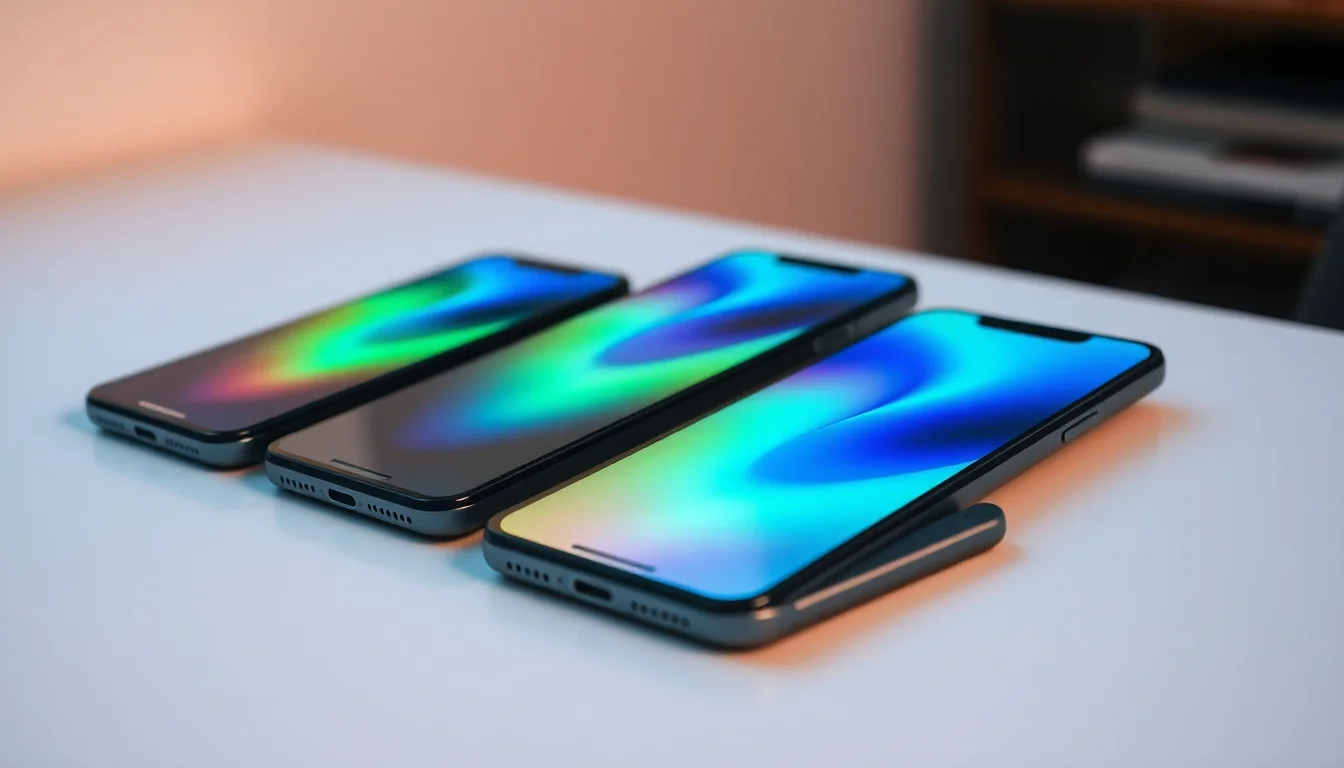
Your phone feels like it's burning your hand. You've just pulled it out of your pocket and it's uncomfortably warm, or maybe it's been acting sluggish and hot during gaming or video calls. Look, after more than 20 years of handling support tickets and remote sessions, I can tell you that phone overheating is one of those problems that looks terrifying but is often fixable in minutes. The trick? Most people don't know where to start. They panic and assume the device is dying, when really it's just working too hard or charging wrong. This guide breaks down exactly what's happening under the hood and walks you through the proven fixes, from quick cooldowns to deeper diagnostics.
What Causes Phone Overheating?
Your phone generates heat whenever the CPU, GPU, or battery is working hard. That's normal. But when the temperature climbs faster than your device can cool itself down, you get thermal throttling, where the processor intentionally slows down to prevent damage. Keep letting it heat up and you risk permanent battery degradation, component damage, or even a safety hazard if the battery swells.
The real culprit usually falls into one of five categories. Heavy workload is the most obvious: gaming, 4K video streaming, or running ten apps at once will push your processor and GPU into overdrive. Charging adds another layer of heat, especially if you're using the phone intensively whilst it's plugged in. Poor ventilation matters more than people think. A thick case, direct sunlight, or charging on a soft surface like a bed or pillow can trap heat and stop it escaping. Background radios that keep hunting for signal when you have weak connectivity force your modem to work at high power, burning energy and heat. Finally, after two to three years, batteries degrade and become less efficient, which means they have to work harder to deliver power, generating extra heat even during light use.
Understanding which of these is affecting your phone helps you pick the right fix. If your phone only gets hot when gaming, it's workload. If it's hot during charging, it's either the charger quality or the combination of use plus charging. If it's hot even at rest, that's a red flag for a degraded battery or hardware fault.
Quick Phone Overheating Fix: Cool It Down Right Now
Stop the Load and Move to a Cooler Spot Easy
- Close all active apps immediately. Exit games, video streaming, navigation, and any app you're using. Tap the recent apps button (usually at the bottom or side of the screen) and swipe up or close each one.
- Move the phone away from direct sunlight or heat sources. Take it out of your pocket, off a dashboard, out of a hot car, or away from a sunny windowsill. Heat from the environment compounds the problem.
- Place it on a hard, flat surface. A desk, table, or stone counter. Not on a bed, pillow, or carpet, which trap heat underneath. Hard surfaces let air flow around the device and help it shed temperature.
- Wait 5 to 10 minutes without touching it. Let the device cool passively. Resist the urge to use it while it's hot, as this just adds more heat.
Remove the Case and Unplug the Charger Easy
- Take off the phone case immediately. Thick or rubber cases act as insulators and trap heat. If the device is hot, removing the case lets air circulate around it and heat escape much faster.
- If the phone is charging, unplug the charger. Charging generates heat by itself. Combine that with the phone's internal heat and you get a compounding problem. Disconnect and let it cool for 10 to 15 minutes.
- If it's a wireless charger, remove the phone from the pad. Wireless charging is less efficient than wired charging and generates more heat. The charging pad and case together create a heat trap.
- Avoid touching the back or edges of the device. If it's too hot to hold comfortably, that's your signal to stop using it immediately.
Lower Screen Brightness and Enable Airplane Mode Easy
- Reduce screen brightness to minimum or switch to adaptive brightness. The display is one of the biggest power consumers on your phone. Lower brightness reduces power draw and heat. On most phones, swipe down from the top to access the brightness slider.
- If signal is weak and the phone feels hot, enable Airplane mode temporarily. When your phone can't find a strong signal, it forces the modem to transmit at higher power to hunt for a network. Airplane mode stops this radio activity entirely, which can cool the device quickly. Swipe down and tap Airplane mode.
- Turn off Bluetooth, WiFi, and GPS if you're not actively using them. These radios also consume power and generate heat, especially if they're constantly scanning for devices or signals.
Intermediate Phone Overheating Solutions: Fix It for Good
Once you've cooled the device down, the next step is to prevent it from overheating again. This involves identifying which apps are power hogs, updating your software, and changing your charging and usage habits.
Check Battery Health and Identify Power-Hungry Apps Easy
- On Android: Go to Settings > Battery > Battery usage or Battery details. You'll see a list of apps ranked by power consumption. If one app is using 20% to 40% of your battery and you're not actively using it, that's a problem.
- On iPhone: Go to Settings > Battery > Battery Health & Charging. Check the Maximum Capacity percentage. Anything below 80% suggests the battery is degraded and less efficient, which causes overheating during normal use.
- Look for apps running constantly in the background. Streaming apps like Netflix, YouTube, or Spotify that cache or sync content, social media apps with auto-refreshing, or buggy older apps often consume power even when you're not using them.
- Force stop or uninstall apps with excessive background usage. Long-press the app, select App info, and tap Force Stop. If an app regularly causes overheating and you don't use it often, uninstall it instead. This removes the power drain entirely.
- Disable background app refresh for non-essential apps. On Android, go to Settings > Apps > Permissions > Other permissions > Background Activity, then toggle off for apps that don't need constant updates. On iPhone, go to Settings > General > Background App Refresh and disable it for specific apps.
Update System Software and Manage Connectivity Easy
- Check for and install all available system updates. On Android, go to Settings > About phone > System update. On iPhone, go to Settings > General > Software Update. Updates often include performance improvements and fixes for apps that were causing excessive heat or power drain.
- Update all installed apps from your app store. Open Google Play Store or Apple App Store, tap your profile, select Manage apps and devices, and update each app. Newer versions often fix bugs that caused overheating.
- In areas with weak cellular signal, turn off 5G temporarily. 5G radios work harder to maintain connection and consume more power. On Android, go to Settings > Network > Mobile network and toggle off 5G. This reduces heat if signal is unstable.
- Disable location services for apps that don't need it. GPS drains power and generates heat. On Android, go to Settings > Location and disable location for apps that have Location permission but rarely use it. On iPhone, go to Settings > Privacy > Location Services and set location access to Never for non-essential apps.
- Switch to WiFi instead of mobile data when available. WiFi is more power-efficient than cellular data, so using it where your signal is strong reduces radio power and heat.
Optimise Your Charging Setup Medium
- Use only the manufacturer-approved charger or a certified third-party charger. Cheap, unregulated chargers deliver unstable power and often overheat the battery. Check the charger packaging for certification marks like UL, CE, or FCC. Counterfeit chargers are common on online marketplaces.
- Inspect your charging cable for damage. Look for cracks, bent pins, frayed wires, or discolouration. A damaged cable loses efficiency and generates excess heat. Replace it with an official cable if damaged.
- Never game, stream, or make video calls whilst charging. Using the phone intensively whilst plugged in combines charging heat with processing heat. This is the fastest way to overheat and degrade the battery. If you must use it whilst charging, use it lightly (messaging, emails).
- Charge on a hard, cool surface, never on soft surfaces like beds or pillows. Soft surfaces trap air and heat underneath the phone. Charge on a desk, counter, or table where air can circulate freely around the device.
- Avoid charging directly under the sun or in hot rooms. Environmental heat adds to charging heat. Charge in a cool, shaded space whenever possible.
- If you use a wireless charger, centre the phone on the pad. Misalignment forces the charger to work harder and generate more heat. Also remove the case before wireless charging if the device gets hot, as cases reduce efficiency.
Advanced Phone Overheating Fixes: When to Seek Professional Help
If your phone still overheats after cooling it down, removing apps, updating software, and changing your charging habits, you're likely dealing with a hardware problem. This is where things get more involved.
Run Diagnostics and Check for Physical Signs of Damage Medium
- Use manufacturer diagnostic tools to check battery health and thermal behaviour. Many phones include hidden diagnostics. On Android, try dialling *#0228# or *#*#4636#*#* to access Battery Stats or Service Menu (varies by manufacturer). On iPhone, open the Apple Support app and check battery condition. Look for warnings about battery health or thermal issues.
- Check for physical signs of battery degradation. Look at the back of your phone. If the case is bulging, the screen is separating from the frame, or the phone feels warped, the battery inside is likely swollen. This is a safety hazard.
- Note the pattern of overheating. Does it happen only during gaming? Only whilst charging? At rest with no apps open? Pattern recognition helps you and a technician pinpoint whether the issue is software, a specific app, or the battery itself.
- Try a factory reset as a last software step. Back up your data first. On Android, go to Settings > System > Reset > Reset phone. On iPhone, go to Settings > General > Transfer or Reset > Erase All Content and Settings. This wipes all apps and settings, returning the phone to factory state. If overheating stops after the reset but returns after you reinstall apps, a specific app is the culprit. If it still overheats after a clean reset, it's a hardware problem.
- Monitor temperature behaviour after the reset for 24 to 48 hours. Give the phone time to settle and run diagnostics again. If temperature readings show thermal throttling or warnings, or if the battery health still shows poor condition, proceed to professional service.
Identify and Replace a Failing Battery Hard
- Contact the phone manufacturer or visit an authorised service centre. If diagnostics or physical inspection show a swollen battery, a degraded battery (below 50% health), or persistent thermal throttling, the battery needs replacement. Do not attempt to replace it yourself unless you have experience with phone repairs, as lithium-ion batteries can catch fire if damaged.
- Provide the technician with your findings. Tell them the battery health percentage, whether you saw physical bulging, and when overheating started. This helps them diagnose faster and confirm they need a battery replacement rather than a full device swap.
- Expect a replacement to take 1 to 3 hours at an authorised centre. Battery replacement is straightforward for technicians but requires opening the device. Ask about warranty on the new battery (usually 1 year) and get a receipt.
- If the manufacturer is out of warranty but offers affordable replacement, take it. A £30 to £80 battery replacement is far cheaper than a new phone, though investing in one of the best CPU coolers and better thermal management earlier can help prevent battery degradation in the first place. If the manufacturer wants £200 plus, compare the cost against a used or refurbished phone of the same model.
- After replacement, avoid returning to old charging habits. A new battery will work great, but if you keep gaming whilst charging or leaving it in the sun, it will degrade again. Use the prevention tips below to extend battery life.
If your phone overheats persistently and even a factory reset doesn't solve it, there may be an underlying hardware fault beyond the battery: a short circuit, a faulty thermal sensor, or degraded thermal paste between the CPU and heat sink. At this point, professional service is not optional, as continued use risks damaging other components. Most repair centres like Vivid Repairs can run thermal imaging and component-level diagnostics to pinpoint the exact fault.
Preventing Phone Overheating: Long-Term Habits That Work
The best phone overheating fix is never having it happen in the first place. Once you've resolved the immediate problem, stick to these habits to keep your device cool and extend its lifespan.
Environment and Storage: Never leave your phone in a hot car, on a dashboard, or in direct sunlight for extended periods. Heat from the environment compounds internal heat and ages the battery faster. In summer, keep your phone in a bag or pocket rather than exposed. If you're gaming outdoors, find a shaded spot.
Charging Discipline: Use only certified or manufacturer-approved chargers. Avoid charging overnight regularly, as leaving the phone plugged in after it reaches 100% generates trickle heat. If your phone supports it, use a lower charging wattage (10W instead of 20W fast charging) in hot months. Never charge whilst gaming, streaming, or on a video call.
Usage Patterns: Take regular breaks during long gaming or streaming sessions. Aim for 30 to 45 minutes of intensive use, then pause for 10 to 15 minutes. Close apps you're not actively using, even if you think they're just sitting in the background. Turn off WiFi, Bluetooth, GPS, and 5G when you're not using them, especially in areas with weak signal where radios work harder.
Software Maintenance: Update your operating system and apps as soon as updates are available. These often include thermal and performance optimisations. Periodically review which apps are installed and uninstall ones you haven't used in three months, especially resource-heavy games and social media apps.
Battery Care: After two to three years, check your battery health at least quarterly. If it drops below 80%, plan for replacement before overheating becomes a daily problem. Avoid letting your battery drain completely on a regular basis, as this degrades it faster.
Case and Ventilation: Use a lightweight, heat-dissipating case rather than a thick rubber one. During heavy use or charging, remove the case to let heat escape. If you use a wireless charger, make sure it's an efficient, certified model, and remove the case before charging.
Phone Overheating: Summary and Next Steps
Phone overheating usually isn't a sign your device is dying. It's your phone telling you something is demanding too much power, the environment is too hot, or the battery is aging. Most of the time, a phone overheating fix is as simple as stopping intensive tasks, removing the case, moving to a cooler spot, and uncharging. If it happens regularly, disabling power-hungry apps and updating software sorts it out. If it persists even after those steps, the battery is likely degraded and needs professional replacement.
The key is to act early. If your phone starts overheating regularly, don't ignore it. Each time it overheats, you're stressing the battery and internal components. Address it now with the quick fixes above, then move to intermediate steps if needed. Prevent future overheating by keeping your phone out of direct heat, charging smartly, managing background apps, and replacing the battery if it's over three years old.
Remember, regular overheating is not normal even for older phones. If after trying all the fixes in this guide your phone still gets uncomfortably hot at rest or during light use, contact an authorised service centre. A small investment in a battery replacement now saves you the cost and hassle of a dead device later.