
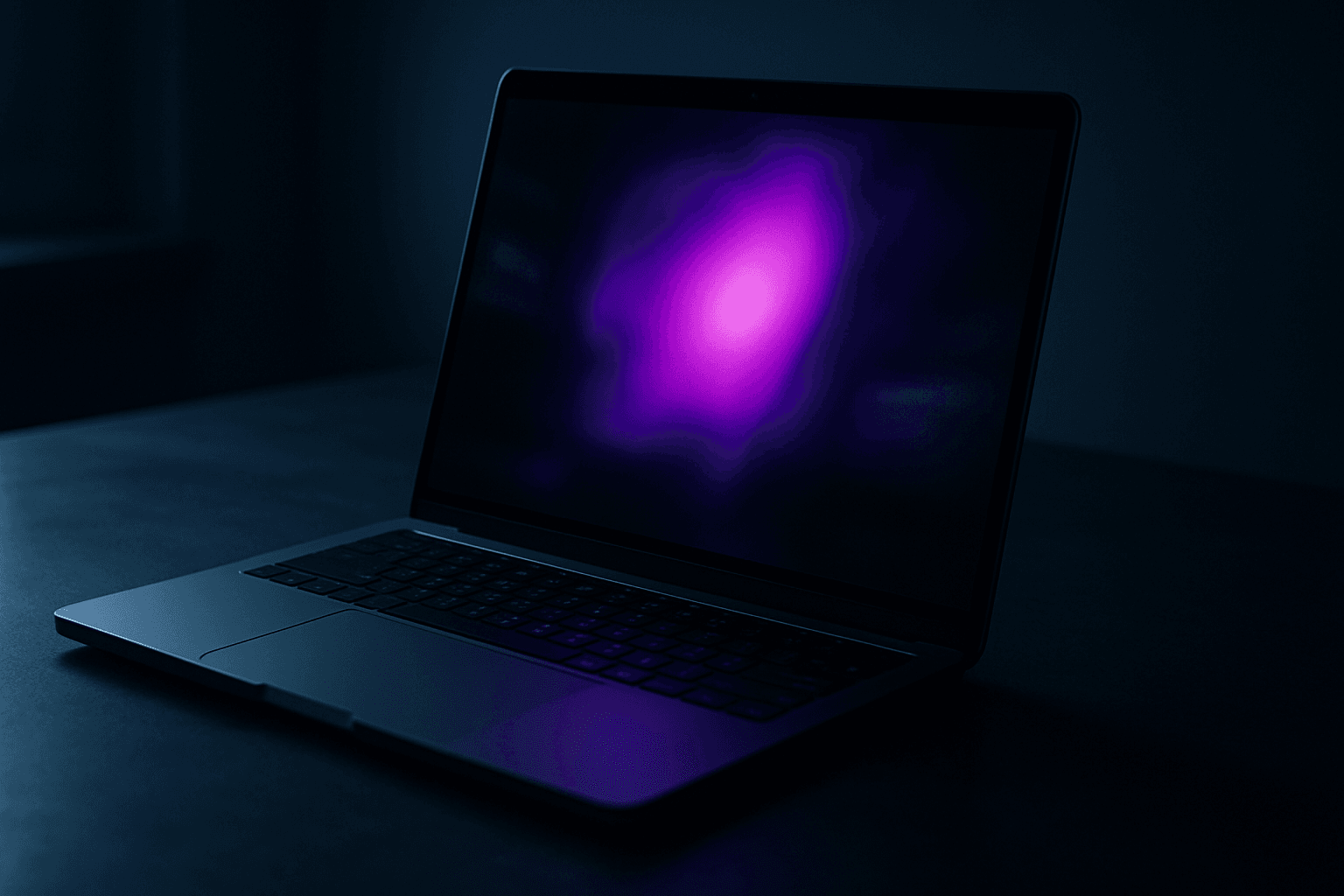
A purple spot on your MacBook display is one of those problems where the fix depends entirely on what's actually causing it. Throw random resets at it without diagnosing first and you can waste time and still end up with the same purple blob staring back at you. This guide works through the causes in order, from the quickest software checks to hardware-level diagnosis, so you know exactly what you're dealing with before spending any money.
What Causes a MacBook Purple Spot Screen?
First, check which kind of purple you've got, because two very different things get called a "purple dot".
A small purple dot in the menu bar. If it's a tiny dot at the top right of the screen, next to the Control Centre icon, it isn't a fault. It's macOS telling you that system audio is being recorded, in the same way an orange dot means the microphone is on and a green dot means the camera is. Apple explains these in its guide to the Mac menu bar. Fix 1 shows you how to check which app is doing it.
A purple patch, blob or tint on the picture itself. That's a display problem, and it comes from one of these places.
The display cable. The cable to the screen runs through the hinge and flexes every time you open the lid. Wear or a partial break can cause discoloured patches, lines or flicker that change with the lid angle.
Panel damage. Pressure on the lid, from a bag, a drop or closing it on something small, can damage the screen's layers and leave a fixed purple or dark mark that doesn't move.
The graphics hardware. If the purple also appears on an external display connected directly, or with a known-good cable and adapter, it points away from the built-in panel. If it's also in screenshots, check settings and software first. If it carries on across known-good external displays, cables and adapters after that, the graphics processor or logic board needs checking.
Settings or software. A colour filter or an odd colour profile can tint the whole screen purple and may clear when you change the setting. A temporary graphics driver glitch may clear with a restart, but persistent problems need further checks.
Liquid. Liquid damage near the hinge or display connector can lead to corrosion and display problems.
A Mac black screen battery fault is different again, because there the screen gets no picture at all. A purple spot means the screen is getting a picture, just a damaged one.
MacBook Purple Spot Screen: Quick Fix
These checks tell you whether it's a privacy indicator, a setting, or a hardware fault, before you spend anything.
Check the Menu Bar Purple Dot Easy
- Open Control Centre
Click the Control Centre icon (two small switches) at the right of the menu bar. The top of Control Centre may show a field naming apps that are using the microphone, camera or system audio. - Find the app
A purple indicator means an app is recording system audio, such as a screen recorder, a meeting app sharing your screen with sound, or a transcription tool. - Orange or green instead?
The same check works for the other dots. Orange means an app is using the microphone and green means the camera is on, and Control Centre may identify the app in its privacy field. - Stop it if you don't expect it
Quit that app. To stop it doing it again, open System Settings > Privacy & Security > Screen & System Audio Recording and turn it off for that app.
Isolation and Safe Mode Check Easy
- Restart
Choose Apple menu > Restart. If a graphics glitch caused the purple, it often goes with a restart. - Take a screenshot
Press Shift + Command + 3 and open the screenshot on your phone or another computer. If the purple spot is in the screenshot, check the app and macOS settings first. If the screenshot is clean, it points to the built-in display path or a display-specific setting. Carry on with the colour, lid-angle and external-display checks to narrow it down. - Check colour filters and profile
For a purple tint over the whole screen, look at System Settings > Accessibility > Display > Colour Filters and turn it off. Then open System Settings > Displays. If you see Colour profile, your Mac normally selects the recommended profile by default. If you changed it recently, switch it back to the profile you were using before. On a 14-inch or 16-inch MacBook Pro from 2021 or later, click Preset and choose Apple XDR Display (P3-1600 nits). - Move the lid slowly
On a plain white background, open the lid slowly from about halfway to fully open. If the spot changes, flickers or grows at certain angles, suspect the display cable. - Try an external display
Connect a monitor or TV with a known-good cable, and bypass any dock or video adapter if you can. If the external picture is clean, the built-in display path is the likely area. If it shows purple too, recheck settings and software, then test another monitor, cable and adapter or connect the display directly before treating it as a graphics hardware fault. - Try safe mode
On Apple silicon, shut down, hold the power button until you see the startup options, select your disk, hold Shift and click Continue in Safe Mode. On an Intel Mac, hold Shift straight after turning it on until the login window appears.
More MacBook Purple Spot Screen Solutions
If the checks pointed to software, try these next. The NVRAM reset is for Intel Macs only.
Reset NVRAM Easy
- Apple silicon
NVRAM reset steps don't apply to Apple silicon Macs and aren't needed. - Intel Macs
Shut down, turn the Mac on and immediately hold Option + Command + P + R for about 20 seconds, then release and let it start. - Check the display settings afterwards
Look at System Settings > Displays again, because an NVRAM reset can change the display resolution.
Update macOS Easy
- Install updates
Back up your Mac first. Then go to System Settings > General > Software Update and install the offered update. Keep the Mac on power and don't close the lid or let it sleep while it installs, as it may restart several times. - Watch over a few days
Software glitches can come back after sleep cycles, so keep an eye on it. - If the whole screen goes purple and the Mac restarts
That may be a crash rather than the same display fault. After it restarts, open Console and look through the reports from that time. Keep any relevant .ips report for the repairer or Apple.
Advanced MacBook Purple Spot Screen Fixes
If the screenshot was clean, the external display looked fine and the spot's still there, the fault is likely in the built-in display path. Run Apple Diagnostics before you arrange a repair. Fix 6 then gets your notes and photos together. A repairer can do far more with "it changes with the lid angle and isn't in the screenshot" than with "there's a purple mark".
Hardware Inspection and Display Cable Check Advanced
- Look at the panel closely
With the screen on a plain colour, look for cracks, a dark pressure mark or a bruise-like patch that's the same at every lid angle. Those point to the panel, and a new display assembly is the repair. - Check the lid-angle pattern again
If the spot or flicker changes as the lid moves, the cable or its connection is the likely cause. On many recent MacBooks the cable is part of the display assembly, so the repair is often still a display replacement. - Run Apple Diagnostics
Disconnect everything except power. On Apple silicon, shut down, hold the power button until the startup options appear, then press and hold Command + D until the Mac restarts. On an Intel Mac, turn it on and immediately press and hold D. Follow the onscreen instructions, then note any reference code for the repairer. - Don't open it yourself
MacBook display repairs are model-specific and need the right parts and tools. Unless you're experienced with this work and following Apple's repair manual for your exact model, leave it to Apple or a repairer with the right tools. - If the external display shows it too
Don't pay for a new screen yet. When a known-good external display has the same purple after the software checks, it's the graphics hardware or logic board that Apple or a repairer should assess. - Back up first
Run a Time Machine backup before you hand the Mac over for any repair. If you need to set Time Machine up, use an empty drive or a dedicated backup volume, because macOS may ask to erase the drive you choose.
Prepare for the Repair Easy
- Check cover first
Check your warranty and AppleCare status on Apple's coverage site, and if your home insurance covers accidental damage. Apple's own repair service page explains the available options. If you're sending it to Apple, back up your Mac and follow Apple's preparation steps for your macOS version, such as turning off Find My. - Photograph the fault
Take photos of the spot at different lid angles, with the screenshot and the external display for comparison. A fault that comes and goes is hard to show on the day. - Write down the history
Note when it started and anything that happened around then, such as a drop, liquid, or a macOS update.
Other devices need their own checks. The Dell Chromebook 11 3120 blank screen guide covers power, recovery and storage checks, and the iPad black screen of death guide covers separating a screen fault from a software one before paying for hardware work.
Preventing a MacBook Purple Spot Screen
Not every MacBook purple spot screen can be prevented, but pressure, debris and liquid can all damage the display, and so can rough handling around the hinge. A few habits help.
One habit to break is closing the lid on debris. A grain of rice, a small pebble, even a thick cable left on the keyboard. When the lid closes, all that pressure goes straight into the panel. It doesn't always crack immediately, but it creates a pressure mark that gradually turns into a permanent discoloration. Get into the habit of clearing the keyboard before closing the lid.
Carrying the MacBook in a bag without a sleeve is another. Books, chargers, and other bag contents press against the lid constantly. A padded sleeve can reduce that risk.
Open and close the lid gently. The hinge cable flexes every single time you do it. Opening and closing the lid forcefully can put extra strain on the hinge area. It's not about being precious with it, just not yanking the lid open from one corner.
Keep macOS updated. Display and GPU driver fixes do appear in point releases, and staying current means you're less likely to hit a known graphics bug that manifests as screen artifacts. Keep the vents clear too, and use it on a hard, flat surface rather than a pillow or your lap so air can get to them.
If liquid ever gets near the machine, power it down immediately. Don't wait to see if it's fine. Connector corrosion from liquid exposure is slow-moving but persistent, and it gets worse the longer the machine stays powered on after exposure.
MacBook Purple Spot Screen: Summary
A purple dot next to Control Centre is macOS showing that system audio is being recorded, not a fault. A purple patch on the picture comes from the display cable, panel damage, the graphics hardware or software settings. To tell them apart, take a screenshot, move the lid slowly, try an external display and safe mode. Some software causes may clear with a restart, a colour setting change or a macOS update. If it's still there after those checks, have a repairer look at it. For a hardware fault, what the repair involves depends on the Mac model and which part of the display path has failed. Don't skip the diagnostic steps and go straight to the expensive fix. A bit of methodical testing saves you money.
To show a repairer the fault, send a photo of the display along with the screenshot. The photo matters most when the mark isn't in the screenshot. A video can show it better, but film the MacBook's screen with your phone or a camera, because a screen recording can miss a panel or cable fault.