
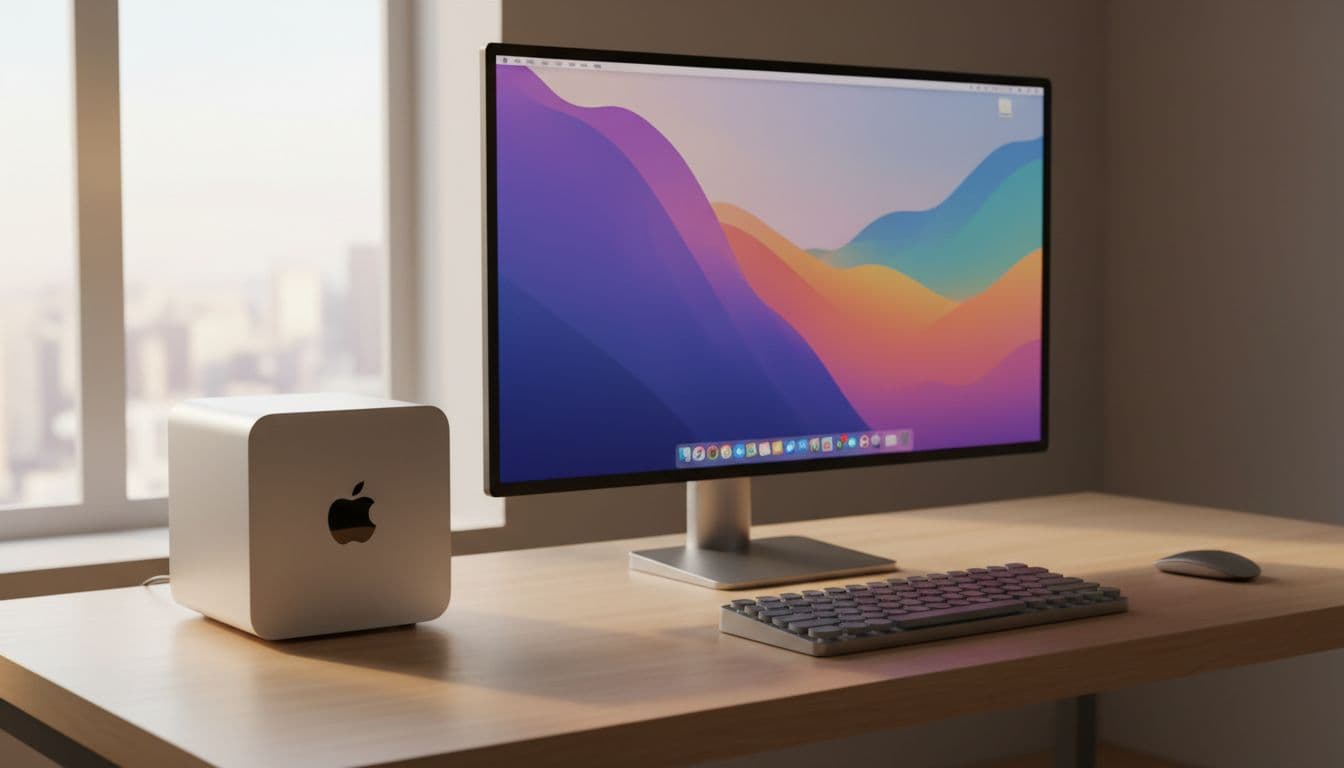
Honestly, this question comes up more than you'd think. Someone's been on Windows for years, they're curious about Mac mini M1 macOS, and they're wondering whether dropping a few hundred quid just to have a poke around is sensible or a bit mad. The answer is more nuanced than most forum posts let on, and a lot of the advice floating around Reddit gets the licensing side completely wrong. So here's a proper breakdown.
Why This Decision Is Trickier Than It Looks for Mac Mini M1 macOS
The core problem isn't really about the hardware. It's about what people assume they can do before they buy. Every week I see someone on a forum say something like "I'll just run macOS in a VM on my Windows machine to try it first" and, look, that sounds perfectly reasonable until you read Apple's macOS Software Licence Agreement. The licence is clear: macOS runs on Apple-branded computers. That's it. No Hackintosh. No Windows-hosted VM. The virtualisation permissions Apple grants are specifically for a Mac host running macOS, not for spinning up macOS on your gaming PC.
So why do people keep suggesting it? Partly because Hackintosh used to work reasonably well on Intel hardware years ago, and the memory lingers. But Apple silicon changed everything. The M1 and later chips use a completely different architecture and boot process, and there's no documented, supported path to running Mac mini M1 macOS on anything other than an actual Mac mini M1. Any guide telling you otherwise is either outdated or just wrong.
The other common misunderstanding is around longevity. People worry they'll buy an M1 mini and Apple will drop support for it in a year or two. That's not how Apple silicon has played out so far. The M1 mini is confirmed compatible with macOS Sequoia and the subsequent Tahoe release. Based on Apple's typical support pattern, you're looking at several more OS generations before the M1 becomes a concern. Compare that to an older Intel Mac, which might already be at or near the end of its update window, and the M1 mini is clearly the smarter choice if you're buying specifically to test Mac mini M1 macOS.
And then there's the reinstall anxiety. A lot of Windows users are comfortable reinstalling Windows because they've done it before. macOS Recovery feels unfamiliar. But once you know where it lives on an M1 machine, it's actually simpler than a Windows reinstall in most cases. More on that below.
Mac Mini M1 macOS Quick Fix: Try Before You Spend Anything
Get Hands-On With macOS Without Buying a Thing Easy
- Visit an Apple Store or authorised reseller
Walk in, ask to use a demo Mac mini or MacBook, and spend at least 45 minutes actually using it. Don't just look at it. Open Finder, use Spotlight (Cmd + Space), try Mission Control (swipe up with three fingers or F3), open a few apps from the App Store. This is the fastest way to know whether Mac mini M1 macOS feels right for you. - Check whether your essential apps exist on macOS
Before you leave the store, search the Mac App Store for the software you use daily. Some apps are cross-platform. Others have good macOS alternatives. A few Windows-only tools have no Mac equivalent at all. Knowing this upfront saves a lot of frustration later. - Borrow a friend's Mac for an afternoon
If you know someone with an M1 or M2 Mac, an afternoon with their machine is worth more than hours of YouTube walkthroughs. Ask them to log you in as a guest user so you're not messing with their files, then use it as if it were yours.
If you're a Windows user thinking about Mac mini M1 macOS for creative work, you might also find our comparison of Mac and Windows for creative workflows useful before making any decisions.
More Mac Mini M1 macOS Options: The Buy-and-Resell Strategy
Plan a Low-Risk Purchase With Resale in Mind Intermediate
- Confirm the M1 mini's current macOS support status
Head to Apple's macOS compatibility page and verify that the Mac mini M1 is listed as compatible with the current release. As of August 2026 it supports both Sequoia and Tahoe. Apple silicon Macs are first in line for new OS features, so the M1 mini is in a good position for continued support compared to any Intel Mac you might consider instead. - Buy used from a reputable source
Check eBay, Back Market, or a local Apple authorised reseller for a used Mac mini M1. Prices vary but the M1 mini holds its value better than most PC hardware because demand stays consistent. Buying used means your resale loss if you decide macOS isn't for you is minimal, sometimes as little as £20 to £40 after a few weeks of use. - Set a test period and stick to it
Give yourself two to four weeks of daily use. Don't just boot it up occasionally. Use it as your main machine for that period. That's the only way to know whether Mac mini M1 macOS genuinely fits your workflow or whether you're just enjoying the novelty. - Integrate it with your existing Windows setup
Connect the mini to a spare monitor via HDMI or DisplayPort. If you only have one monitor, a cheap HDMI switch (around £15 on Amazon) lets you flip between the mini and your Windows PC without unplugging cables. For keyboard and mouse sharing, a basic USB switch works fine, or you can use Apple's Universal Control if you later add a MacBook to the mix. Set up SMB file sharing via System Settings > General > Sharing > File Sharing so both machines can see the same folders over your local network. No special software needed. - Resell if it's not for you
If after your test period Mac mini M1 macOS doesn't click, list it. The M1 mini sells quickly on the secondhand market. You'll recover most of your spend, and you'll have a definitive answer rather than a nagging "what if".
Advanced Mac Mini M1 macOS Setup: Legal Virtualisation and Recovery
Once you own a Mac mini M1, the options open up considerably. And this is where a lot of the confusion about Mac mini M1 macOS virtualisation gets cleared up, because the rules change completely once you're on Apple hardware.
Set Up macOS Virtualisation on the Mac Mini M1 Intermediate
- Understand what Apple's licence actually permits
Apple's macOS Software Licence Agreement allows you to run one copy of macOS on each Apple-branded computer you own, plus additional virtual instances on that same Mac for development, testing, macOS Server use, and personal non-commercial purposes. So once you own the mini, you can legally spin up macOS VMs on it. You cannot do this on a Windows PC. The permission is tied to the Mac host. - Install a compatible virtualisation app
On Apple silicon, your main options are UTM (free, open source, available from the App Store or utm.app) and Parallels Desktop (paid, more polished). Both use Apple's Virtualization framework, which is the only supported path on M1 hardware. VMware Fusion is also available. For basic macOS VM testing, UTM works fine and costs nothing. - Download an official macOS installer
Open the App Store on your mini and search for the macOS version you want to test. Download it. The installer lands in your Applications folder. In UTM, create a new VM, select Virtualise, choose Apple, and point it at the installer. The process takes 20 to 30 minutes for the initial setup. - Use the VM as a sandbox
Run beta versions of macOS in the VM without touching your main install. Break things, test software compatibility, experiment with system settings. If the VM gets into a state you can't recover, just delete it and create a new one from the installer. Your main macOS install on the mini stays clean.
Master macOS Recovery on the Mac Mini M1 Easy
- Enter macOS Recovery
Shut the mini down completely. Hold the power button until you see "Loading startup options" on screen, then release. Click Options, then Continue. This is macOS Recovery on Apple silicon. It's different from Intel Macs where you held Cmd + R, so don't mix them up. - Use Disk Utility to erase if needed
In Recovery, open Disk Utility. Select Macintosh HD in the sidebar, click Erase, choose APFS as the format, and confirm. This wipes the drive completely. Then close Disk Utility and select Reinstall macOS from the main Recovery menu. The installer downloads the latest compatible version over the internet and installs it cleanly. You need an active internet connection for this. - Create a bootable installer as a backup option
Download a macOS installer from the App Store. Open Terminal and run:sudo /Applications/Install\ macOS\ Sequoia.app/Contents/Resources/createinstallmedia --volume /Volumes/MyUSB(replace the app name and volume name to match yours). This creates a bootable USB you can use to reinstall without an internet connection. Useful if you're experimenting heavily and want a fast recovery option.
One thing that trips people up: if you're planning to run Windows on the Mac mini M1 as well, the supported route is a Windows VM via Parallels or UTM rather than Boot Camp, which Apple dropped on Apple silicon. Parallels handles this well and lets you switch between Mac mini M1 macOS and Windows without rebooting. For anyone coming from a Windows background, this is actually a pretty comfortable setup because you're not losing access to your Windows apps entirely.
And if you ever need help getting a macOS install sorted remotely, whether that's a stuck update, a failed reinstall, or software that won't behave, take a look at our remote Mac support options for a quick fix without needing to take the machine anywhere.
Preventing Wasted Spend on Mac Mini M1 macOS
Most of the regret I hear from people who bought a Mac and didn't get on with it comes down to one thing: they didn't test the right things before committing. So here's what to actually check, in order of importance.
First, your software. Make a list of every app you use more than once a week on Windows. Then check each one: does it have a native macOS version? A web app that works just as well? A Mac alternative with feature parity? For most productivity and creative tools the answer is yes. For some specialist industry software, particularly older engineering or accounting packages, the answer is no, and that's a dealbreaker you need to know upfront.
Second, your peripherals. Most USB and Bluetooth devices work fine on macOS. Some older printers, drawing tablets and audio interfaces need driver updates or have limited macOS support. Check the manufacturer's site for your specific model before assuming everything will just work.
Third, read the basics of the macOS Software Licence Agreement. Not the whole thing. Just the section on permitted use and hardware requirements. It takes five minutes and it means you won't waste time chasing a Hackintosh setup that's both non-compliant and increasingly impossible to maintain on modern macOS releases.
Fourth, if you do buy, buy a model with good resale value. The Mac mini M1 is ideal for this. It's widely available secondhand, buyers know what they're getting, and prices are stable. An obscure or older model might be cheaper to buy but harder to sell, which increases your effective cost if you change your mind.
Finally: learn Recovery before you need it. Seriously. Five minutes in macOS Recovery before you start experimenting means you'll never be stuck with a machine you can't get back to a working state. It's the single most useful thing a new Mac user can do.
Mac Mini M1 macOS: What's the Verdict?
For pure curiosity, buying a Mac mini M1 macOS setup is probably overkill. An afternoon in an Apple Store or on a friend's Mac will tell you most of what you need to know about whether the OS suits you. That's free, it's legal, and it takes a few hours rather than a few weeks.
But if you've already done that and you want to go deeper, the buy-and-resell approach with a used M1 mini is genuinely sensible. The hardware holds its value, Mac mini M1 macOS is well supported and likely to stay that way for years, and you get a proper, compliant, full-featured test environment rather than a compromised Hackintosh or an illegal VM. The effective cost of a few weeks of testing, once you factor in resale, is often less than £50. That's a reasonable price for a definitive answer.
What it's not worth doing is spending time on a Hackintosh or a macOS VM on Windows. Both are non-compliant, both are increasingly difficult to maintain, and neither gives you an accurate picture of what Mac mini M1 macOS actually feels like on supported hardware. The shortcuts aren't really shortcuts at all.