
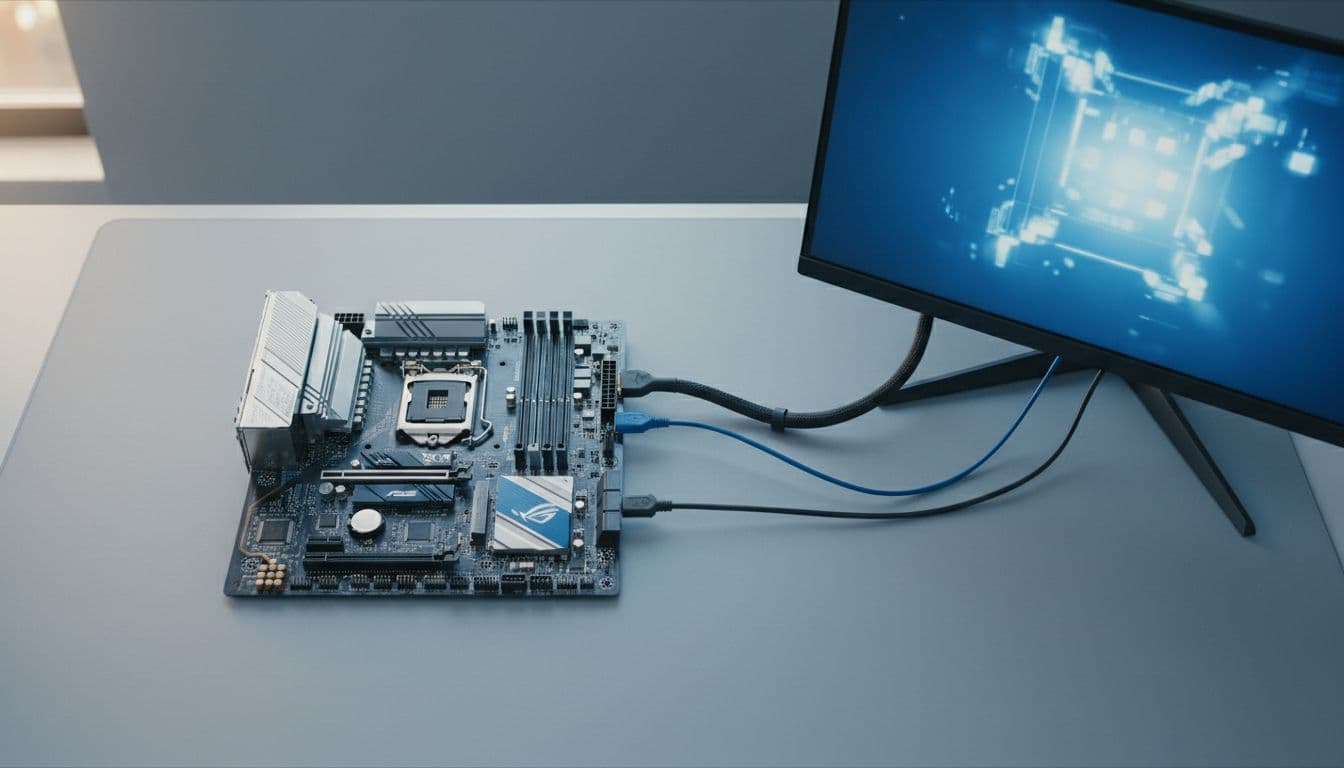
Crosshair VIII Dark Hero USB issues follow a pattern that most generic forum advice misses entirely. The board isn't faulty by design, but it's sensitive to BIOS version and driver state in ways that cheaper boards simply aren't. Get those two things wrong and you'll see disconnects, missed wake events, and devices that vanish from Device Manager for no obvious reason. Get them right and the board is rock solid. This guide works through every layer, from the five-minute port swap to a full BIOS flash, in order of effort.
What Causes Crosshair VIII Dark Hero USB Issues?
The Crosshair VIII Dark Hero sits on AMD's X570 platform, and X570 has had a documented history of USB instability tied closely to AGESA firmware versions. AGESA is the low-level code that AMD provides to board partners like ASUS, and it controls how the CPU and chipset handle USB power, enumeration, and device detection. When AGESA has a bug in its USB stack, every board built on that firmware inherits it. ASUS has pushed multiple BIOS updates for the Dark Hero specifically to incorporate fixed AGESA versions. If you haven't updated the BIOS since you built the system, that's almost certainly where the problem lives.
The second biggest cause is AMD chipset drivers. A lot of people assume Windows Update handles this automatically. It doesn't, not reliably. The AMD chipset driver package covers the USB host controllers, the storage controller, and power management for the entire X570 chipset. When this package is missing or outdated, Windows falls back on generic Microsoft drivers that don't fully support the Dark Hero's USB topology. You'll see devices drop out under load, fail to enumerate after sleep, or simply not appear in Device Manager at all.
Below those two, there are a few other causes that come up regularly. USB root hub driver corruption in Windows is one. It's not common but it does happen, especially after a Windows feature update that partially overwrites driver state. Power-saving features are another. Windows has a setting called USB selective suspend that cuts power to idle USB devices to save energy. On paper that's fine. On an X570 board with certain peripherals, it causes devices to drop off and fail to reconnect. And then there's the physical side: front-panel USB headers, cheap hubs, and long cables all introduce resistance and signal degradation that a borderline USB controller can't compensate for. The fix there is simple but easy to overlook.
One thing that catches people out is overclocking. If you've pushed the CPU or tuned the memory with EXPO or manual timings, platform instability from those settings can produce symptoms that look exactly like USB hardware failure. Devices disconnect under load, the system freezes briefly, Device Manager shows errors. Before you go deep into USB diagnostics, return everything to stock clocks and defaults in the BIOS. If the USB issues disappear, you've found your culprit and it's nothing to do with USB at all.
Crosshair VIII Dark Hero USB Issues: Quick Fix
Start here. These steps take under ten minutes and fix a surprising number of Crosshair VIII Dark Hero USB issues that turn out to be port, cable, or basic enumeration problems rather than anything firmware-level.
Port Swap and Power Cycle Easy
- Strip back connected devices.
Unplug everything except your keyboard and mouse. If either of those is connected through a hub or a front-panel port, move them to rear motherboard ports now. - Move the problem device to a rear port.
Plug the device directly into a rear USB port on the motherboard. For storage drives and high-speed peripherals, use a rear USB 3.x port (the blue or teal ones). For low-bandwidth devices like a DAC or a basic dongle, try a rear USB 2.0 port instead. Sometimes the match between device speed and port type matters more than you'd expect. - Try a different cable.
Swap the cable if you have a spare. A dodgy cable is embarrassingly common and wastes hours of deeper troubleshooting. - Do a proper power cycle.
Shut Windows down fully (not restart, not sleep). Unplug the AC power cable from the back of the PSU. Wait 30 to 60 seconds. Reconnect and boot. This clears residual state in the USB controller that a normal restart doesn't touch. - Check Device Manager.
If the device still doesn't appear, open Device Manager (right-click Start, select Device Manager), look under Universal Serial Bus controllers, and check for any yellow warning triangles. If the device shows up with an error, right-click it and choose Disable device, wait five seconds, then Enable device again.
More Crosshair VIII Dark Hero USB Issues Solutions
If the quick fix didn't sort it, the problem is almost certainly in the driver or firmware layer. These steps cover the Windows side first, then the BIOS, which is the right order because a BIOS update that goes wrong on a system with corrupted Windows drivers can make diagnosis harder. Sort Windows first, then flash.
Update Windows and AMD Chipset Drivers Easy
- Run Windows Update fully.
Open Settings, go to Windows Update, and install everything including optional updates. Restart when prompted. Some USB-related fixes ship as optional driver updates rather than mandatory ones, so don't skip that section. - Download the AMD chipset driver package.
Go to AMD's X570 chipset support page and download the latest chipset driver package for Windows. This is separate from your GPU drivers. Run the installer and accept all components. The package covers USB host controller drivers, storage drivers, and power management for the X570 chipset. - Restart and retest.
After the reboot, reconnect your problem device and watch it for a few minutes. If it previously dropped after a specific action (like waking from sleep or transferring a large file), reproduce that scenario now.
Reinstall USB Root Hub Drivers Intermediate
- Open Device Manager.
Right-click the Start button and select Device Manager. Expand the Universal Serial Bus controllers section. - Uninstall every USB Root Hub entry.
Right-click the first USB Root Hub listed, choose Uninstall device, and confirm. Do not tick the box to delete driver software. Repeat for every USB Root Hub entry in the list. There will likely be several. - Restart the PC.
Windows detects the missing drivers on boot and reinstalls them automatically. - If symptoms persist, uninstall USB Host Controllers too.
Return to Device Manager, find any entries labelled USB Host Controller or AMD USB 3.x Host Controller, and uninstall those the same way. Restart again. Windows and the AMD chipset driver package will rebuild the full USB stack.
Disable USB Selective Suspend for Wake-from-Sleep Fixes Easy
- Open Power Options.
Press Windows + R, typepowercfg.cpl, and press Enter. Click Change plan settings next to your active power plan, then click Change advanced power settings. - Find USB selective suspend.
Scroll down to USB settings, expand it, expand USB selective suspend setting, and change the value to Disabled. Click Apply and OK. - Test wake behaviour.
Put the system to sleep manually (Start menu, Power, Sleep) and wake it. Check whether your keyboard, mouse, and any other USB devices respond immediately. If this fixes the wake problem, leave selective suspend disabled permanently. The power saving it provides on a desktop is negligible.
Advanced Crosshair VIII Dark Hero USB Issues Fixes
These steps require a bit more care but they're the ones that actually solve Crosshair VIII Dark Hero USB issues at the root rather than working around them. The BIOS update in particular is the fix that ASUS themselves point to in their release notes, and it's the one that makes the biggest difference long-term. Tom's Hardware's coverage of the Dark Hero platform confirms that AGESA firmware revisions have been central to USB stability improvements on X570 boards throughout the platform's life.
If you're not comfortable flashing a BIOS, the BIOS update walkthrough on Vivid Repairs covers the process step by step for ASUS boards. It's genuinely not as scary as it sounds, and ASUS EZ Flash 3 is one of the more forgiving implementations out there.
Update BIOS via ASUS EZ Flash 3 Advanced
- Download the correct BIOS file.
Go to the ASUS Crosshair VIII Dark Hero BIOS page. Download the latest BIOS version. Read the release notes and look for entries mentioning USB connectivity or AGESA version changes. Extract the zip file. You'll get a file with a .CAP extension. - Copy the file to a FAT32 USB drive.
Format a USB drive as FAT32 (not exFAT, not NTFS). Copy just the .CAP file to the root of the drive. Don't put it in a folder. - Enter the BIOS.
Restart the PC and press Delete or F2 repeatedly as it posts to enter the BIOS setup. Once inside, press F7 to enter Advanced Mode if you land on the EZ Mode screen. - Run EZ Flash 3.
Navigate to the Tool menu at the top. Select ASUS EZ Flash 3 Utility. Select the USB drive, locate your .CAP file, and confirm. The system will flash the BIOS and reboot automatically. Do not touch the power button during this process. - Load optimised defaults after flashing.
After the reboot, enter the BIOS again. Press F5 to load optimised defaults, then F10 to save and exit. This clears any settings that might conflict with the new firmware. - Reinstall AMD chipset drivers after the BIOS update.
A BIOS update can change how the chipset presents USB controllers to Windows. Reinstalling the AMD chipset driver package after flashing ensures Windows has the correct driver mapping for the new firmware.
Clear Ghost USB Devices and Rebuild the Device Tree Intermediate
- Show hidden devices in Device Manager.
Open Device Manager, click the View menu, and tick Show hidden devices. You'll now see greyed-out entries for devices that were previously connected but are no longer present. - Uninstall all greyed-out USB entries.
Right-click each greyed-out USB device and choose Uninstall device. Work through the Universal Serial Bus controllers section and any other categories where you see ghost entries for USB peripherals. - Restart and reconnect devices one at a time.
After the reboot, reconnect your USB devices one by one with a minute between each. Watch Device Manager as you plug each one in to confirm it enumerates correctly. This also tells you if one specific device is causing the others to misbehave.
Minimal Hardware Boot Test Advanced
- Strip the system down.
Power off and disconnect everything except CPU, one RAM stick (in the A2 slot), your system drive, and a keyboard and mouse plugged into rear USB ports. No GPU if you have integrated graphics via a discrete APU, though the Dark Hero needs a GPU for display output, so keep that in. - Boot and test stability.
Run the system for 15 to 20 minutes in this minimal state. If USB is now stable, the issue is with one of the devices or ports you removed. Reconnect them one at a time to identify the culprit. - Check memory settings.
If you're running EXPO or XMP, disable it in the BIOS and run at stock JEDEC speeds while diagnosing. Aggressive memory tuning on Ryzen platforms can cause platform-wide instability that presents as USB failure. If USB stabilises at stock memory speeds, your tuning is the problem, not the USB stack.
For persistent storage-related USB issues, it's also worth checking whether the problem device works correctly on a different controller path. The Dark Hero has both CPU-attached and chipset-attached USB ports, and they behave differently under load. If you're seeing issues with a specific NVMe or SATA device, the NVMe and SSD troubleshooting guide on Vivid Repairs covers controller path isolation in more detail.
Preventing Crosshair VIII Dark Hero USB Issues
Most of these problems are entirely avoidable once the system is stable. Here's what actually keeps Crosshair VIII Dark Hero USB issues from coming back, in order of importance.
Keep the BIOS current. This is number one. ASUS continues to release BIOS updates for the Dark Hero that incorporate newer AGESA versions. Check the ASUS support page every few months and read the release notes. If a new version mentions USB connectivity, install it. You don't need to chase every release, but don't let the board sit on a two-year-old firmware either.
Reinstall AMD chipset drivers after major Windows updates. Windows feature updates (the big ones that effectively reinstall parts of the OS) can overwrite or partially reset chipset driver state. After any major Windows update, download a fresh copy of the AMD chipset driver package and reinstall it. Takes five minutes and prevents a lot of grief.
Use rear motherboard ports for anything critical. Headsets, audio interfaces, capture cards, external drives. All of these should live on rear ports. Front-panel headers are fine for casual use but they're the first thing to cause trouble when a device is borderline. Hubs are even worse. If you're overloading a single USB hub with a capture device, an RGB controller, and an audio interface, you're asking for dropouts.
Keep cables short and decent quality. A 50cm cable from a reputable brand will outperform a 2-metre generic cable for sensitive USB devices every time. This sounds trivial but it genuinely matters for devices like DACs and external drives that are sensitive to signal integrity.
Document which ports are stable. Once you've found rear ports that work reliably for your specific devices, note them down. If you ever rebuild or move the system, you'll know exactly where to plug things back in without going through the whole diagnostic process again.
Return to stock settings before diagnosing. If USB instability appears after you've changed memory timings or CPU clocks, reset to defaults first. Platform instability from overclocking is a very convincing USB impersonator and you don't want to spend three hours chasing a driver problem that turns out to be a 200MHz overclock that's just slightly too far.
Crosshair VIII Dark Hero USB Issues: Summary
Crosshair VIII Dark Hero USB issues almost always trace back to one of two things: outdated BIOS firmware or stale AMD chipset drivers. The board is genuinely capable hardware, but it's more sensitive to firmware and driver state than most mid-range boards because of the complexity of the X570 platform. Work through the steps in order, start with the simple port and cable checks, move to driver reinstalls, and if those don't fix it, update the BIOS. That sequence resolves the vast majority of Crosshair VIII Dark Hero USB issues without any hardware changes at all. If you've done all of that and still have problems, the minimal hardware boot test will tell you whether you're dealing with a device conflict, a memory stability issue, or something that genuinely needs hands-on attention.