
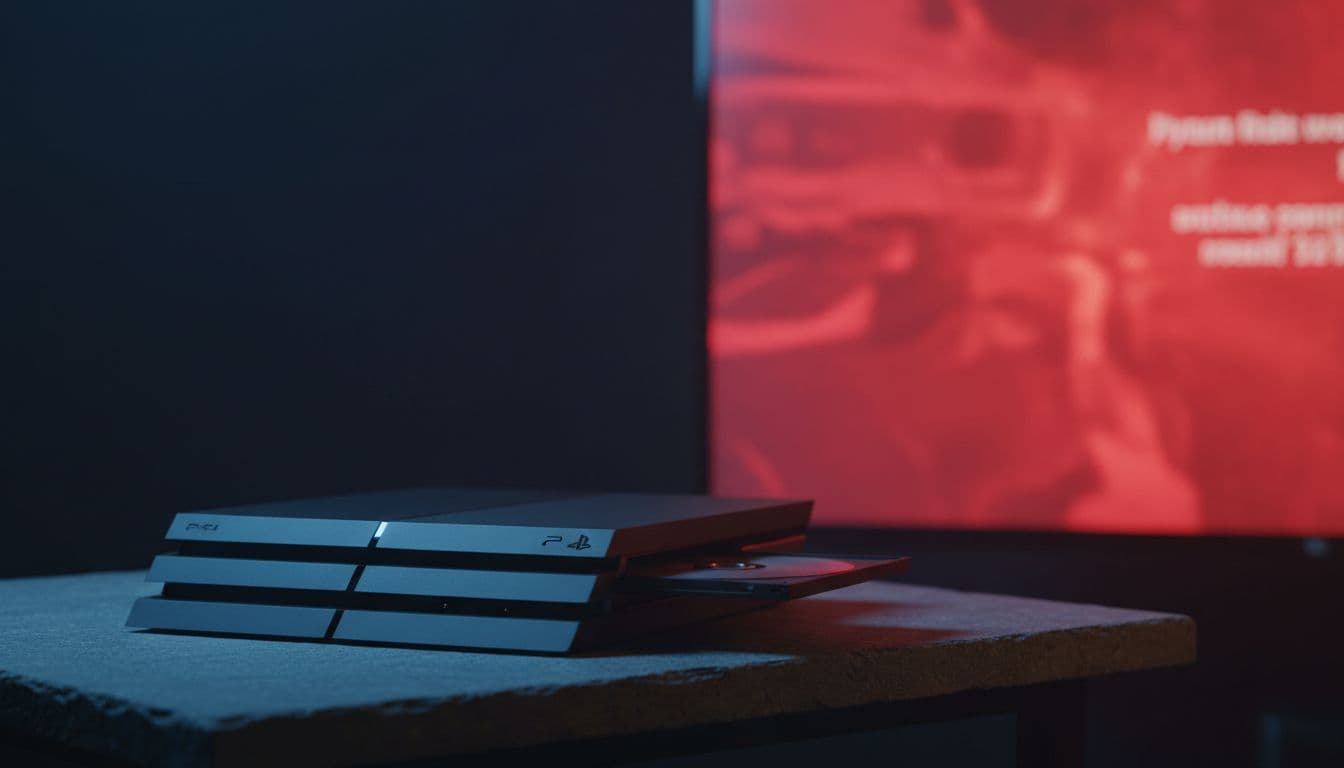
You sit down, slot in a disc, and instead of your film starting you get a cryptic code staring back at you. The CE-35491-2 error is one of those problems that sends people down rabbit holes of forum posts full of outdated advice that simply does not work anymore. I fix this kind of thing every week via remote support, and the good news is that most cases are sorted in under ten minutes. Let's get you there.
What Actually Causes the CE-35491-2 Error?
Here's the thing: a lot of people assume this is a Windows error because they searched for it after their PC DVD drive stopped working. It is not. CE-35491-2 is a PlayStation 4 disc playback error code. Sony uses the CE prefix for PS4 system errors, and this particular one means the console could not read or play the disc you inserted. If you are on a Windows PC and your DVD drive is misbehaving, the underlying problem is the same category of fault, but Windows will show you a completely different error message.
So what actually triggers it? The causes split into a few distinct buckets. The most common by a mile is a dirty or damaged disc. Fingerprints, smudges and even light scratches scatter the laser beam just enough to make the drive give up. Second most common is a disc that simply should not be in that player, either because the region code is wrong or because the format is not supported. Think about an imported disc from a different region, or a home-burned DVD that was never properly finalised by the burning software.
Beyond the disc itself, you can run into firmware and software problems. An outdated PS4 system version can cause compatibility headaches with newer disc pressings. On Windows, a corrupted DVD driver or a pair of rogue registry values called UpperFilters and LowerFilters (left behind by old disc-burning software like Nero or Roxio) will stop the drive working entirely even though it shows up fine in Device Manager. And at the far end of the scale, the optical drive hardware itself can fail. The laser diode degrades over time, especially in consoles that have had heavy use or poor ventilation.
The root causes in order of likelihood: dirty or damaged disc, region or format mismatch, firmware or driver issue, and hardware failure. Work through them in that order and you will fix this efficiently without wasting time on advanced steps you do not need.
CE-35491-2 Error Quick Fix: Start Here
Before touching any settings, do the physical checks. They fix this more often than you would expect.
Clean the Disc and Power Cycle Easy
- Inspect the disc
Take the disc out and hold it up to a light. Look for fingerprints, smudges, water marks or scratches. Even a light coating of skin oil is enough to cause the CE-35491-2 error. - Clean it properly
Use a soft, lint-free cloth (a microfibre cloth is ideal). Wipe in straight lines from the centre hole outward toward the edge. Never wipe in circles. That follows the data tracks and can push grit into scratches rather than lifting it off. - Check the disc type and region
Flip the disc over and look for the region code printed near the centre. PS4 consoles sold in the UK are Region 2 for DVDs and Region B for Blu-ray. An imported disc from the US (Region 1 / Region A) will not play. If you burned the disc yourself, check that your burning software finalised it as a standard DVD-Video disc, not a data disc or multi-session project. - Power cycle the console or player
Hold the PS4 power button until it fully shuts down (not Rest Mode). Unplug the power cable from the back. Wait two to three minutes. Plug back in, power on and re-insert the disc. This clears temporary faults in memory that can cause the CE-35491-2 error to stick around even after you swap discs. - Test a second disc
Grab a different commercial disc you know works and try that. If it plays fine, the problem is with the original disc, not the player. If the second disc also fails, move to the next solution.
More CE-35491-2 Error Solutions: Software and Firmware Fixes
Still seeing the error after the quick fix? This is where we get into the software side of things. These steps cover both PS4 and Windows, so scroll to whichever applies to you.
Rebuild the PS4 Database (Safe Mode) Intermediate
- Enter Safe Mode
Make sure the PS4 is fully off, not in Rest Mode. Hold the power button on the console itself (not the controller) and keep holding it. You will hear one beep when it powers on, then a second beep about seven seconds later. Release after that second beep. The PS4 will boot into Safe Mode. - Connect your controller via USB
Safe Mode does not use Bluetooth. Plug your DualShock 4 into the PS4 with a USB cable and press the PS button to pair it. - Select Rebuild Database
From the Safe Mode menu, choose option 5: Rebuild Database. The console will scan and reorganise all the data on the hard drive. This can take anywhere from a few minutes to about an hour depending on how much is installed. Do not power off during this process. - Restart and test
Once complete, the PS4 restarts normally. Insert your disc and test. Rebuilding the database resolves disc-reading inconsistencies caused by corrupted index files without deleting any of your games or saves.
Update PS4 System Software Easy
- Check for updates
Go to Settings, then System Software Update. If an update is available, download and install it. Sony pushes compatibility and stability fixes through these updates, and running an old firmware version is a genuine cause of the CE-35491-2 error with newer disc pressings. - Verify parental controls
While you are in Settings, check Parental Controls and confirm that disc playback is not restricted. It sounds obvious, but a parental control block produces the same error and is easy to overlook, especially on a shared console. - Test again
Re-insert the disc after the update completes. If it still fails, try two or three different commercial discs of the correct region before concluding the drive is at fault. You can find more detail on Sony's official PS4 Safe Mode support page if you need guidance on firmware reinstallation.
Fix DVD Drive on Windows: Reinstall the Driver Intermediate
On a Windows PC, the CE-35491-2 error equivalent usually shows up as the drive not reading discs or the disc being ejected immediately. The fix starts in Device Manager.
- Open Device Manager
Press Win + X and select Device Manager from the menu. Expand the DVD/CD-ROM drives section. If your drive is listed there with no warning icon, the hardware is being detected. If it is missing entirely, check your BIOS/UEFI to confirm the drive is enabled under the SATA or storage settings. - Uninstall the driver
Right-click the DVD drive entry and select Uninstall device. Tick the box to delete the driver software if that option appears, then click Uninstall. Restart the PC. Windows will detect the drive on boot and reinstall the driver automatically. This one often needs a second reboot before it sticks, so if the drive still misbehaves after the first restart, reboot once more. - Update chipset and storage controller drivers
Head to your PC or motherboard manufacturer's support page and download the latest chipset and storage controller drivers for your model. Outdated Intel RST or AMD SATA drivers are a common culprit for optical drive problems that look like hardware failures but are purely software. You can find further detail on this approach in HowToGeek's guide to Windows optical drive problems. - Check Autoplay settings
Go to Settings, then Bluetooth and devices, then AutoPlay. Make sure AutoPlay is on and the default action for DVDs is set to Play DVD video or your preferred player application. Sometimes the disc is being read fine but Windows is just not launching anything.
Advanced CE-35491-2 Error Fixes: Registry and Hardware
These are the steps most guides skip or get wrong. If you are on Windows and the driver reinstall did not sort it, there is a very good chance the problem is a pair of corrupted registry values left behind by old disc software. On PS4, this is where we talk about initialisation and hardware.
Delete UpperFilters and LowerFilters in Registry Advanced
- Open Registry Editor
Press Win + R, typeregeditand press Enter. Accept the UAC prompt. - Navigate to the CD/DVD class key
In the left panel, expand through:HKEY_LOCAL_MACHINE, thenSYSTEM, thenCurrentControlSet, thenControl, thenClass, then find and click{4D36E965-E325-11CE-BFC1-08002BE10318}. That long string is the device class key for CD and DVD drives. - Delete the filter values
In the right panel, look for values namedUpperFiltersandLowerFilters. If either exists, right-click it and select Delete. These values are left behind by disc burning applications like Nero, Roxio and similar software. They hook into the driver stack and can completely break disc playback even though the drive appears healthy in Device Manager. You can read more about this on Microsoft's official support page for CD/DVD drive problems. - Restart and test
Close Registry Editor and restart the PC. Insert a known-good disc and test. In most cases the drive will work immediately after this restart.
Initialise PS4 or Replace the Optical Drive Advanced
- Initialise the PS4 (last software resort)
Boot into Safe Mode (hold power button until second beep). Select option 6: Initialise PS4. This reinstalls the system software and wipes all local data. If a corrupted system file was causing the CE-35491-2 error, this will fix it. If the error returns after initialisation with a known-good disc, the optical drive hardware has failed. - Hardware diagnostics
On a Windows PC, run your PC manufacturer's built-in hardware diagnostics (usually accessed by pressing F12 or a similar key at boot). If the optical drive fails the diagnostic test, it needs replacing. On PS4, if three different commercial discs all fail after initialisation, the laser assembly is worn out. - Service or replacement
PS4 optical drives are replaceable but the process involves opening the console, which voids the warranty. For consoles still under warranty, contact Sony. For out-of-warranty consoles, a qualified repair shop can replace the drive. If you are dealing with a broader hardware issue on your PC, our guide on laptop hardware repairs covers what to expect from a professional service. For Windows PCs, an external USB DVD drive is often the most cost-effective fix and avoids the internal drive entirely.
Preventing the CE-35491-2 Error Coming Back
Most of the people I speak to who keep getting disc errors are making the same few avoidable mistakes. Here are the ones that matter most, in order of importance.
First: always use original commercial discs with the correct region code. Imported discs are the single biggest cause of region mismatch errors, and cheap no-name blank discs burn inconsistently and cause read errors even when the drive is perfectly healthy. If you do burn your own discs, use decent branded media (Verbatim is reliable), burn at a moderate speed rather than maximum, and always finalise the disc before ejecting it from the burning software.
Second: handle discs by the edges. This sounds like something your parents told you in 1998, but it is still true. Skin oils from fingerprints are the number one physical cause of the CE-35491-2 error. Store discs in their cases when not in use and keep them away from direct sunlight and heat, both of which warp the substrate over time.
Third: keep your system software and drivers current. On PS4, enable automatic updates so firmware installs overnight. On Windows, check your motherboard or PC manufacturer's support page every few months for chipset and storage controller driver updates. These are not pushed through Windows Update and are easy to miss. If you are managing multiple devices and want to understand how driver updates fit into broader PC maintenance, our article on keeping Windows drivers up to date is a good reference.
Fourth: ventilation. A PS4 running hot throttles its components, and the optical drive is one of the first things to suffer. Keep the vents clear, do not stack things on top of the console, and if you hear the fan running loud constantly, clean the vents with a can of compressed air. Never move the console while a disc is spinning. That is a reliable way to scratch both the disc and the drive's internal components.
Finally, test your drive with a known-good commercial disc every couple of months. Optical drives degrade gradually, and catching a failing laser early means you can plan a repair rather than dealing with it as an emergency when you actually want to watch something.
CE-35491-2 Error: Summary
The CE-35491-2 error is a PS4 disc playback error that also maps onto the same category of optical drive failures on Windows PCs. The fix in most cases is simple: clean the disc, check the region code, power cycle the console, and if that does not work, rebuild the PS4 database or reinstall the DVD driver on Windows. The registry UpperFilters and LowerFilters fix catches a lot of the Windows cases that survive a driver reinstall. If you have worked through every step here and multiple known-good discs still fail, the optical drive hardware is the problem and needs replacing. For anything you are not comfortable doing yourself, our remote support team handles CE-35491-2 errors and disc playback faults regularly and can walk you through it live.