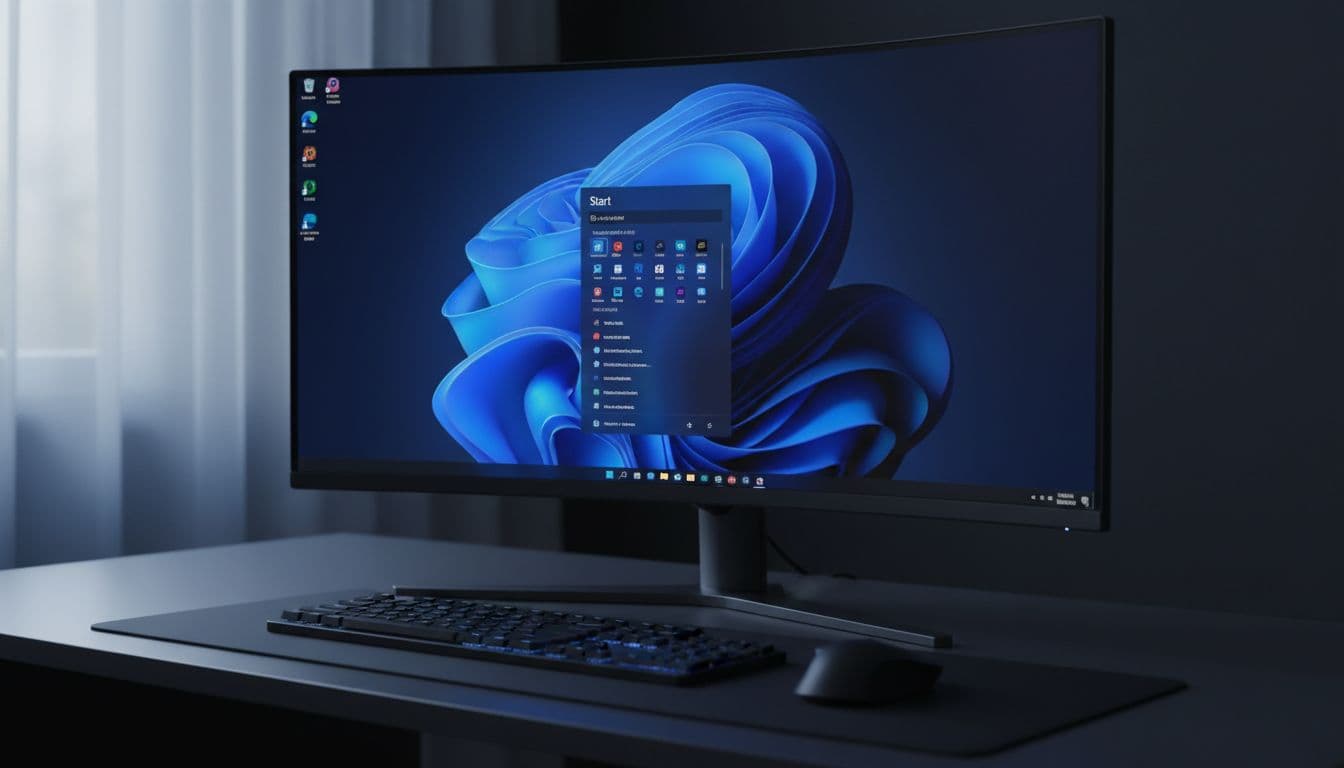
Start menu app name wrapping is one of those things that sounds like it should just... exist. You bump up the font size for readability, a few app names get chopped off with an ellipsis, and you assume there must be a setting somewhere to fix it. There isn't. Windows does not wrap long app titles in the Start menu onto a second line, and it never has. The layout is fixed by design, and no registry key, group policy or accessibility setting changes that behaviour. What you can do is work around it properly, and that's what this guide covers.
What Actually Causes Start Menu App Name Wrapping to Fail?
The core issue is architectural. The Start menu in Windows 10 and Windows 11 renders app names in a single text line per entry. The layout region allocated to each name has a fixed horizontal width, and when the rendered text exceeds that width, Windows clips it and appends an ellipsis. That's it. There's no overflow container, no dynamic height adjustment, no second line. The design team made a deliberate call to keep the list compact, and that decision has held across multiple major Windows releases.
Now, where it gets worse is when you increase text size. The Windows Accessibility text size slider (found at Settings, Accessibility, Text size) increases the font rendering size across the system. But the Start menu's layout container doesn't grow proportionally. So a name that just about fitted at 100% text size now clips two or three words earlier at 125%. You've made the text bigger but the box holding it stayed the same size. That's the crux of the problem.
Display scaling compounds this further. If you're on a high DPI monitor and running custom scaling above the recommended value, the effective pixel width available to each app name shrinks. A 4K display at 200% scaling with 125% text size is a particularly bad combination for long names. The Start menu is rendering into a physically smaller region than it looks, and long names like Microsoft Visual Studio Community 2022 (64-bit) or Adobe Acrobat DC (32-bit) have no chance of fitting.
For UWP and modern apps, the name comes from the DisplayName element inside Package.appxmanifest. The spec allows up to 256 characters, which is absurdly generous for a UI element this constrained. Many developers just dump the full product name including version, edition and architecture into that field without ever checking how it looks in Start under accessibility settings. For classic desktop apps, the name comes from the shortcut (.lnk) file sitting in the shell:programs folder, which is usually C:\ProgramData\Microsoft\Windows\Start Menu\Programs or the user-specific equivalent at C:\Users\\AppData\Roaming\Microsoft\Windows\Start Menu\Programs. Rename that file and the Start menu reflects it immediately.
Localisation can make things worse too. Some app names are significantly longer in certain languages, and if you're running Windows in a language other than English, a name that fits fine in the English locale might clip badly in yours. That's a developer problem at the source, but it's useful to know when diagnosing why a specific app looks worse than others.
Start Menu App Name Wrapping: Quick Fix
This is the fastest route and it works for the vast majority of cases. If the app is a classic desktop application, its Start menu name is just a file name. You can change it in about 30 seconds.
Rename the Shortcut to a Shorter Name Easy
- Find the app in Start
Press the Windows key and type the app name. When it appears in results, right-click it and choose Open file location. This opens File Explorer directly to the shortcut file inside the Start Menu programs folder. - Rename the shortcut
Right-click the .lnk file and choose Rename. Replace the long name with something concise. For example, rename Adobe Photoshop 2025 (64-bit) to simply Photoshop. The shortcut's target doesn't change, only the display name. - Verify in Start
Open Start and scroll the app list to find the renamed entry. At your current text size it should now display fully without the ellipsis. If it still clips, the name is still too long or your text size is very high. Shorten it further. - Repeat for other offenders
Go through any other apps with long names and apply the same rename. Common culprits are anything with a year, edition label, or architecture suffix in the name.
One thing that catches people out: if the app was installed for all users, the shortcut lives in C:\ProgramData\Microsoft\Windows\Start Menu\Programs and you'll need administrator rights to rename it. If it was installed for your user account only, it's in C:\Users\\AppData\Roaming\Microsoft\Windows\Start Menu\Programs and you can rename it without elevation. The right-click, Open file location method takes you to the right one automatically.
Also, some installers recreate shortcuts on update. If an app updates and the long name comes back, you'll need to rename it again. It's a minor annoyance but not a dealbreaker for most people.
More Start Menu App Name Wrapping Solutions: Tuning Text Size and Scaling
Renaming shortcuts fixes the symptom for specific apps. But if you've increased text size significantly and lots of names are clipping, the real fix is finding a better balance between text size and display scaling. These two settings interact in ways that aren't immediately obvious, and getting them right means you can have readable text without sacrificing Start menu legibility.
Balance Text Size and Display Scaling Medium
- Open Accessibility text size settings
Go to Settings, Accessibility, Text size. Note your current slider value. Try reducing it by 10 to 15 percentage points. The goal is the smallest value that's still comfortable for you to read. Even dropping from 125% to 110% can make a meaningful difference to how many names fit. - Check your display scaling
Go to Settings, System, Display. Under Scale, check what value you're running. Windows shows a recommended value for your display. If you're above the recommended value, try dropping to it. Recommended scaling is calculated based on your resolution and physical display size to give you a comfortable pixel density. - Enable advanced scaling fixes
Still in Settings, System, Display, click Advanced scaling settings and turn on Let Windows try to fix apps so they are not blurry. This helps apps that don't handle custom DPI well, meaning you can run a lower scaling value without everything looking fuzzy. - Restart and check Start
Some scaling changes need a sign-out or restart to fully apply. After restarting, open Start and scroll the app list. Most names that were clipping should now display more fully, especially if you've combined a slight text size reduction with a recommended scaling value.
Here's the thing: a lot of people increase text size because their display scaling is too low, not because they actually need larger text specifically. If you're on a 1080p 24-inch monitor at 100% scaling and text feels small, bumping scaling to 125% is often a better solution than leaving scaling at 100% and cranking text size to 150%. The former scales the whole UI proportionally. The latter just makes text bigger inside fixed-size containers, which is exactly what causes the truncation problem.
The Microsoft typography guidelines for Windows apps actually address this: the recommended approach for accessibility is to use system scaling rather than app-level text size overrides wherever possible, precisely because fixed-width layout containers don't adapt well to text-only size changes. The Start menu is a perfect example of that constraint in practice.
If you're helping someone else with this problem remotely, the combination of a slightly reduced text size slider and switching to the recommended scaling value fixes the majority of Start menu app name wrapping complaints without requiring any shortcut renaming at all. It's a good first stop before touching individual shortcuts.
For high DPI monitors specifically, try a slightly lower resolution if scaling adjustments alone don't help. A 4K monitor running at 1440p with 150% scaling often gives a better Start menu experience than 4K at 200% scaling, because the layout regions are physically wider in the former configuration. It's counterintuitive but it works.
Advanced Start Menu App Name Wrapping Fixes for Developers
If you're a developer and you're seeing your own app's name clip in the Start menu, the fix is in the manifest. This section is specifically for people who build or deploy apps, not for end users trying to fix someone else's software.
Shorten DisplayName in the UWP App Manifest Advanced
- Open Package.appxmanifest
In Visual Studio, double-clickPackage.appxmanifestto open the manifest designer, or right-click and choose View Code to edit the XML directly. Look for the<DisplayName>element inside the<Properties>block and also inside<Applications><Application><VisualElements>. - Replace with a concise string
The DisplayName element accepts 1 to 256 characters, but for Start menu display you want to stay well under 30 characters at typical scaling. Drop version numbers, architecture labels and edition suffixes. Use the brand name and product name only. - Check uap:DisplayName entries
Search the manifest foruap:DisplayNameelements. These appear on protocol registrations, file type associations and other extension points. Shorten these too, as they can surface in the Start menu and in search results. - Rebuild and test at multiple scaling values
Rebuild the package and deploy it locally. Open Start and check the name at 100%, 125% and 150% text size (Settings, Accessibility, Text size) to confirm it fits at each level. Also test at 125% and 150% display scaling.
Use VisualElementsManifest for Desktop App Tile Control Advanced
- Create the manifest file
In the same directory as your .exe, create a file namedYourApp.VisualElementsManifest.xmlwhere YourApp exactly matches the .exe filename without the extension. The file must sit alongside the executable, not in a subdirectory. - Define the XML content
The file should contain aVisualElementselement with your tile logo paths and theShowNameOnSquare150x150Logoattribute set toonoroff. Setting it tooffhides the name on the medium tile entirely, which sidesteps the truncation issue for pinned tiles. The shortcut name in the app list is separate and still controlled by the .lnk file name. - Ensure the shortcut uses a concise name
In your installer script, create the Start menu shortcut with a short name. For IT admins deploying via PowerShell or SCCM, script the shortcut creation using$WshShell.CreateShortcut()with a concise.lnkfilename in$env:ProgramData\Microsoft\Windows\Start Menu\Programs\. - Test after sign-out
VisualElementsManifest changes require a sign-out and sign-in to apply. After signing back in, check the pinned tile and the app list entry to confirm the name displays as expected.
For IT admins managing a fleet of machines, scripted shortcut creation is the cleanest long-term solution. If your deployment tool creates shortcuts with concise names from the start, you never have to rename them manually after the fact. This is especially useful in environments where apps update frequently and the installer recreates shortcuts each time. If you're dealing with broader Windows deployment issues, our guide on Windows accessibility settings not applying correctly covers some related edge cases with text size and scaling in managed environments.
Preventing Start Menu App Name Wrapping Issues
Prevention comes down to a few habits, and the most important one is this: keep shortcut names short from the start. Version numbers, architecture labels and edition suffixes add nothing to usability in the Start menu. Nobody needs to see (64-bit) in the app list. They just need to find the app. If you're writing an installer, use the brand name and product name only in the shortcut filename. That single change prevents the problem entirely for desktop apps.
For display settings, use the smallest text size value that's genuinely comfortable for you. The accessibility text size slider is there for people who need it, but it's often cranked up as a substitute for proper display scaling. If text looks small across your whole desktop, the right fix is usually increasing display scaling in Settings, System, Display rather than increasing text size specifically. Scaling adjusts the whole UI proportionally. Text size only adjusts text inside fixed containers.
Stick to recommended scaling values where possible. Windows calculates the recommended scale based on your display's resolution and physical size. Going above it isn't wrong, but it does reduce the effective pixel width available to Start menu names and other UI elements. If you're on a high DPI display and the recommended scaling feels too small, try the next step up (usually 125% or 150%) rather than jumping straight to 200%.
If you're a developer, test your app's Start menu appearance under at least three configurations before shipping: 100% scaling with default text size, 125% scaling with 125% text size, and 150% scaling with 125% text size. Those three cover the vast majority of real-world accessibility setups. If your DisplayName clips in any of them, shorten it. Also consider whether localised strings in other languages will be longer than the English version, and test those too. Our article on Windows 11 display scaling problems goes into more detail on how scaling affects different parts of the UI, which is useful context when testing your app across configurations.
Start Menu App Name Wrapping: Summary
Start menu app name wrapping is not something Windows supports, and that's unlikely to change. The layout is fixed, the text containers don't grow, and no setting or registry key enables a second line. But the workarounds are solid. Renaming shortcuts is instant and effective for desktop apps. Balancing text size and display scaling fixes the problem system-wide without touching individual shortcuts. And for developers, shortening DisplayName in the manifest is the proper long-term fix that helps every user of your app, not just the ones who know how to rename a shortcut.
The key thing to understand is that Start menu app name wrapping complaints almost always come from two compounding factors: names that are longer than they need to be, and text size or scaling settings that are higher than they need to be. Fix either one and you usually fix the problem. Fix both and it's sorted properly. If you're still seeing truncation after working through the solutions above, or if you're dealing with UWP apps where you can't edit the manifest, a remote support session can get it sorted quickly. For related display and accessibility issues, our guide on Windows text size changes not applying covers cases where the text size slider doesn't behave as expected, which sometimes overlaps with this problem.