
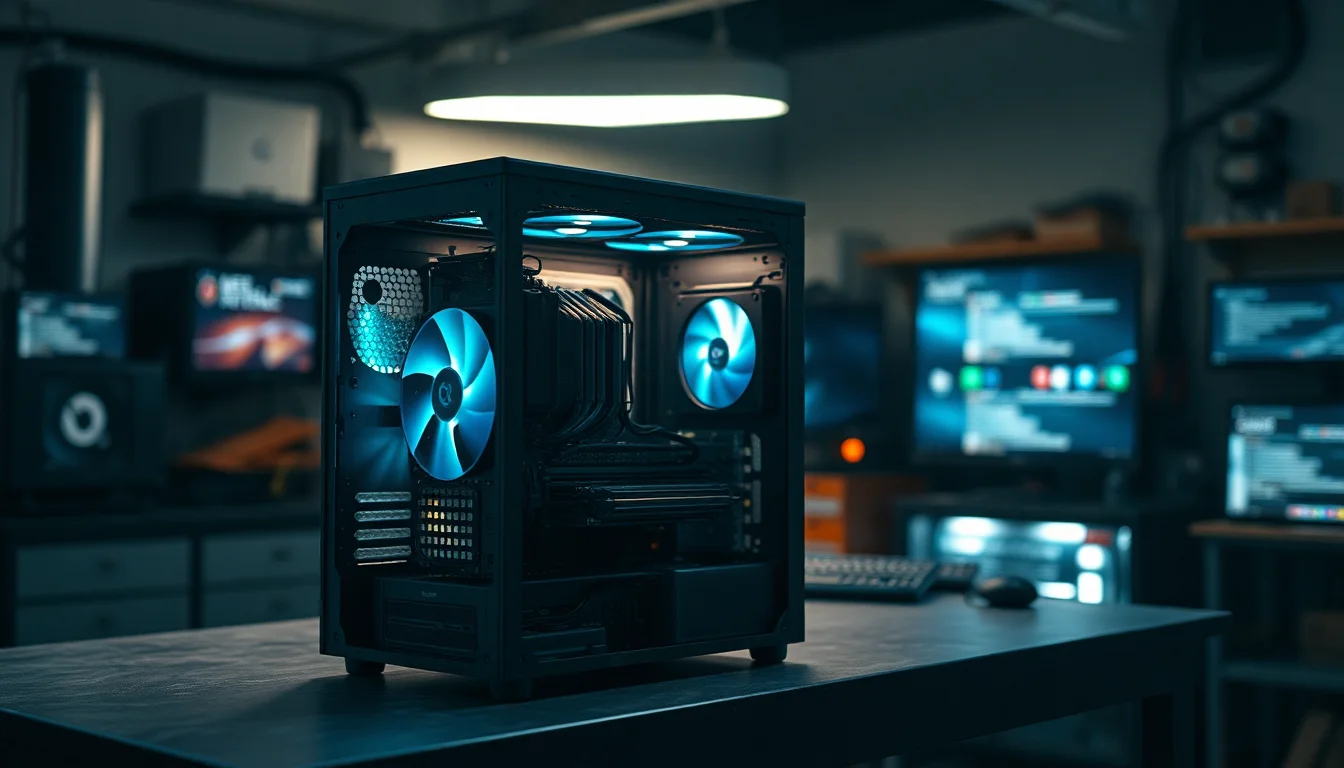
A PC weird noise is one of those problems where the temptation is to Google it, get 20 possible causes, try three random things, and give up. That's not how this works. This guide goes through the actual causes in order of likelihood, tells you exactly what each noise sounds like, and gives you clear steps to fix it without pulling the machine apart unless you genuinely need to.
What Causes a PC Weird Noise?
The first thing to figure out is what type of noise you're actually hearing. Not all PC weird noise problems are the same, and the fix depends entirely on the source. Here's what each sound usually points to.
Whirring or whooshing that gets louder under load. This is almost always fans. Your CPU fan, GPU fan, case fans, and laptop fan all speed up when temperatures rise. If the noise gets worse when you open a game or a video editor, that's load-induced fan ramp-up. It's normal to a point, but if it's constant or very loud, dust or poor airflow is usually the reason the fans are working so hard.
Clicking or grinding, especially from the area where your hard drive sits. This one is serious. Mechanical hard drives (HDDs) produce clicking, grinding, or rhythmic ticking sounds when they're starting to fail. The clicking is often called the "click of death" in the industry. If you're hearing this, your drive may be on its way out. Do not ignore it. Back up your files before anything else.
Buzzing or electrical hum from inside the case. This is usually the power supply unit (PSU). Coil whine is a high-pitched buzzing caused by electrical components vibrating at frequency. It's more annoying than immediately dangerous in mild cases, but a loud or worsening buzz from the PSU is a sign something isn't right inside it. According to Tom's Hardware, distinguishing PSU buzz from HDD noise is one of the more common diagnostic challenges for home users.
Rattling that changes with vibration or movement. Loose screws, unsecured cables, or a panel that isn't properly seated can rattle against the case. This one's easy to fix once you find it, but it can be maddeningly hard to locate because the vibration travels through the chassis.
Constant high fan speed regardless of what you're doing. If the fans are screaming even when the PC is idle, software is often the culprit. Malware, a runaway background process, or a poorly optimised app can keep the CPU pinned at high usage, which forces fans to maximum speed. Task Manager will show you this in seconds.
So. Now you know what you're dealing with. Let's fix it.
PC Weird Noise Quick Fixes (Start Here)
These take five to ten minutes and no tools. Do these first before opening anything up.
Rule Out Speakers and Peripherals Easy
- Mute your system volume
Click the speaker icon in the taskbar and drag volume to zero, or press the mute key on your keyboard. - Unplug speakers, headset, and external devices
Disconnect everything plugged into USB ports too, including external drives, hubs, and docking stations. - Listen again
If the noise stopped, the source is external. If it's still there, it's coming from inside the machine.
Check Task Manager for High CPU Load Easy
- Open Task Manager
PressCtrl+Shift+Esc. Go to the Processes tab. - Sort by CPU, then by GPU
Click the CPU column header to sort highest usage to the top. Note anything above 20 to 30% at idle. - Close high-usage apps
Right-click any process using excessive CPU and select End Task. Common offenders: browsers with many tabs, video editors left open, game launchers running in the background. - Wait 30 seconds and listen
Fans should slow down within half a minute if load was the cause.
Improve Airflow Without Opening Anything Easy
- Check vent clearance
Desktop PCs need a few inches of space at the rear and sides. Laptops must not sit on beds, sofas, or carpet. These surfaces block the bottom vents completely. - Move the PC away from walls
Even a few centimetres makes a difference to rear exhaust airflow. - Elevate a laptop
A book under the rear edge, or a cheap laptop stand, can drop temperatures by 5 to 10 degrees Celsius in some cases. - Blow out external vents
Power down and unplug first. Use a hand blower or a vacuum held at a distance to clear visible fluff from vents and front filters.
Intermediate PC Weird Noise Fixes
If the quick fixes didn't sort it, these go a bit deeper. You'll be using Windows built-in tools and doing a basic physical inspection. No specialist knowledge needed, but take your time.
Run a Disk Health Check for Hard Drive Clicking Medium
- Open This PC
PressWin+Eto open File Explorer, then click This PC in the left panel. - Right-click your hard drive and open Properties
Go to the Tools tab. Under Error checking, click Check, then Scan drive. - Run manufacturer diagnostics if available
Seagate drives: download SeaTools and run a Short Drive Self Test followed by a Long Generic test. Western Digital drives have a similar free utility called WD Dashboard. - Check the results
Any bad sectors, SMART errors, or test failures alongside clicking or grinding sounds mean the drive is failing. Back up everything immediately and plan a replacement.
Do a Clean Boot to Find Software Causing Constant Fan Noise Medium
- Open System Configuration
PressWin+R, typemsconfig, press Enter. - Disable third-party services
Go to the Services tab. Check the box that says Hide all Microsoft services. Then click Disable all. - Disable startup items
Go to the Startup tab and click Open Task Manager. Disable every non-Microsoft startup item by right-clicking and selecting Disable. - Restart and listen
If the noise improves, a third-party app was causing the load. Re-enable services and startup items in small groups, restarting each time, until the noise returns. That last group contains the culprit.
Basic Case Inspection for Rattling and Loose Cables Medium
- Power off and unplug the PC completely
Hold the power button for five seconds after unplugging to discharge any remaining charge. - Remove the side panel
Most modern cases use thumbscrews at the rear. Slide the panel off carefully. - Look for cables near fan blades
SATA cables, power cables, and even zip tie tails can drift into fan paths over time. Gently push any loose cables away from fans and secure them with a cable tie if needed. - Check for loose screws or debris
Tilt the case gently and listen for anything rolling around. A single loose screw rattling against the case floor can sound alarming. - Reattach the panel and test
Power back on and listen. Case rattling should be gone.
Advanced PC Weird Noise Fixes
These are for when the above hasn't worked, or when you've confirmed a specific hardware source. Take your time with these. If you're not comfortable opening a laptop or touching internal components, this is the point where professional service makes sense.
Full Internal Clean with Compressed Air Advanced
- Get the right tools
A can of compressed air is ideal. Hold the can upright to avoid propellant spray. Work outdoors or in a well-ventilated space because the dust goes somewhere. - Clean fans and heatsinks
Short bursts of air through each fan, holding the blade still with a finger or pencil so it doesn't spin and generate back-current. Blow through the CPU heatsink fins from multiple angles. Do the same for the GPU heatsink. - Clean the PSU intake and front filters
The PSU fan at the rear or bottom of the case collects a lot of dust. Blow through the grille. Remove and rinse front dust filters if they're removable (let them dry fully before replacing). - Spin each fan by hand with the PC off
Each fan should spin freely with no resistance or grinding feeling. A fan that catches or grinds when spun by hand needs replacing. - Reassemble and test under load
Run a game or a stress test for a few minutes and listen. Temperatures should be lower and fan noise should be reduced.
Adjust Fan Curves in BIOS to Reduce Computer Fan Noise Advanced
- Enter BIOS or UEFI
Restart the PC and press Del, F2, or F10 at the manufacturer logo screen (the key varies by motherboard brand, it'll usually flash up briefly on screen). - Find fan control settings
Look for Hardware Monitor, Fan Control, or Cooling. This is usually under Advanced or a dedicated monitoring section. - Adjust the fan curve
Set fans to ramp up more gradually at lower temperatures. For example, if the fan is currently at 60% at 50 degrees Celsius, try dropping it to 40% at that temperature. Don't reduce the maximum speed or the temperature at which it hits maximum. - Save and verify temperatures
Save changes and exit. Use a monitoring tool like HWiNFO64 or your motherboard's OEM utility to watch CPU and GPU temperatures under load. Stay below 85 degrees Celsius for most CPUs and 90 degrees for most GPUs under sustained load.
Replace a Failing Component (HDD, Fan, or PSU) Advanced
- HDD replacement
If diagnostics confirmed bad sectors or SMART failures, back up everything first using Windows Backup or a tool like Macrium Reflect Free. Replace with an SSD for better performance and no moving parts. An SSD will never produce clicking or grinding noise. See our HDD to SSD upgrade guide for the full process. - Fan replacement
Note the fan size (usually printed on the label, common sizes are 80mm, 120mm, 140mm) and connector type (3-pin or 4-pin PWM). Order a direct replacement from a reputable brand. Noctua and be quiet! are well regarded for low noise. Fitting takes five minutes once you have the part. - PSU replacement
If the power supply buzzing is loud, persistent, or getting worse, replace the PSU. Match or exceed the wattage of the current unit and buy from a known brand. A dodgy PSU failure can take other components with it, so don't cut corners here.
Preventing PC Weird Noise
Most of the people I see with PC weird noise problems haven't cleaned their machine in years. That's the number one thing. Dust is the enemy of cooling, and poor cooling means loud fans. Clean external vents every few weeks with a cloth or hand blower. Do a proper internal clean with compressed air two or three times a year, more often if you have pets or live somewhere dusty.
Keep vents clear. Sounds obvious, but laptops on beds and desktop PCs shoved against walls are the two most common setups I see. Both strangle airflow. A cheap laptop stand or just moving the desktop a few inches from the wall makes a real difference.
Check Task Manager now and then. If something is sitting at 30 to 40% CPU constantly when you're not doing anything intensive, that's worth investigating. It might be a legitimate background process, or it might be something you'd rather not have running. Either way, constant high load means constant fan noise.
Update your drivers. GPU and chipset driver bugs can cause unnecessary high load, which translates directly to noise. Check your GPU manufacturer's support page (Nvidia, AMD, or Intel) every few months. And if you do any internal upgrades, take five minutes to re-route cables neatly and make sure everything is secured. A loose cable that drifts into a fan blade is a common cause of a PC grinding sound that panics people into thinking something serious has failed.
Finally, act on early warning signs. A PC weird noise that starts as a faint clicking and gets gradually louder over a few weeks is almost certainly a hard drive on its way out. Don't wait. Run diagnostics, back up your files, and replace the drive before it takes your data with it.
PC Weird Noise: Summary
A PC weird noise is almost always traceable to one of five things: overworked fans, a dusty or poorly ventilated case, a failing hard drive, loose cables or components vibrating, or a dodgy power supply. The fix for most of these is either free (better airflow, Task Manager check, cable management) or inexpensive (replacement fan, SSD upgrade). The key is identifying the type of noise first, because grinding from a hard drive needs a completely different response to buzzing from a PSU or whirring from a dusty CPU cooler. Work through the tiers in this guide and you'll have the source identified within 20 minutes in most cases. And if you're ever unsure whether a sound is serious, err on the side of caution and back up your data first. That's always the right call.