
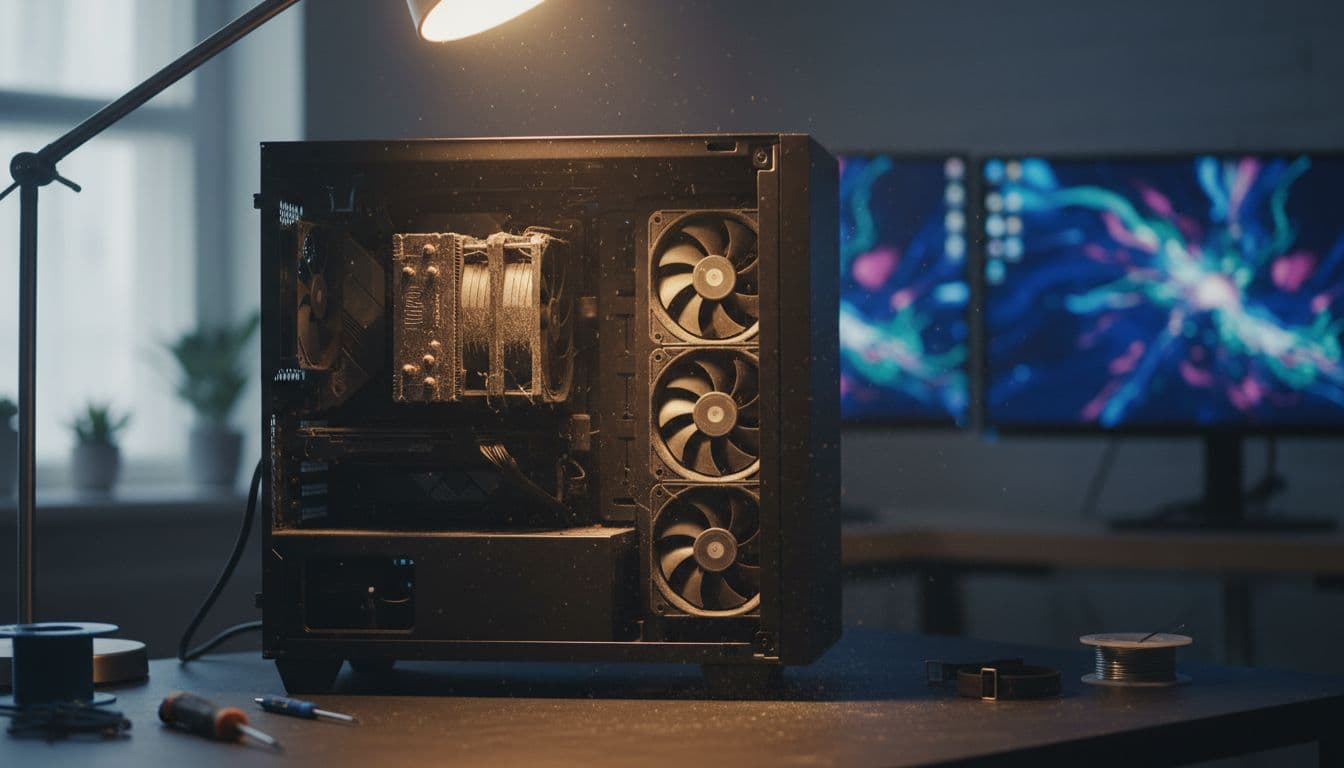
A loud PC startup noise is one of those problems that sounds catastrophic but usually has a completely fixable cause. The key is working out what kind of noise you're dealing with, because a brief high-RPM whoosh from the fans is totally different from a grinding or clicking sound that keeps going. Get that distinction right and you're already halfway to a fix.
What Actually Causes Loud PC Startup Noise?
Before you start pulling things apart, it helps to understand what's actually going on inside the case when you press that power button. The moment a PC gets power, the fans spin up fast. Deliberately fast, in many cases. The BIOS runs a POST (Power-On Self-Test) and during that phase, fan control is often set to maximum or near-maximum RPM because the system hasn't yet read temperatures from the sensors. On some boards this lasts only a second or two. On others, especially older systems or those with aggressive OEM fan curves, it can last 30 to 60 seconds. That's normal. Annoying, but normal.
What's not normal is a grinding, whining, or rhythmic clicking sound. Those point to physical wear or damage. Here are the main culprits:
- Dust-clogged or worn fans. Dust builds up on fan blades and cooler fins over time. It unbalances the blades, adds load to the bearings, and causes a rough whirring or grinding noise, especially on cold starts when the bearing lubricant hasn't warmed up yet.
- Failing mechanical hard drive. A classic clicking or grinding sound from the front of the case at startup is the hard drive's read/write head struggling to initialise. This is the one you really don't want to ignore.
- Aggressive BIOS fan curve. Some motherboard manufacturers ship with fan profiles that ramp fans to 100% on every boot regardless of temperature. It's a safety default, but it makes the PC sound like it's about to take off.
- High CPU load from startup apps. If Windows loads a heavy antivirus scan, a cloud sync client, or a game launcher right at login, CPU usage spikes and the fans respond accordingly. The noise isn't a hardware fault, it's the cooler doing its job.
- Loose panels or components vibrating. A case panel that's slightly unlatched, a loose drive bracket, or even a misrouted cable touching a fan blade can all create rattling or buzzing that sounds much worse than it is.
The reason it matters which category you're in is simple: a dusty fan needs cleaning, a failing drive needs replacing and urgent data backup, and a software-driven fan spike needs a Task Manager session. The fix is completely different depending on the cause, so diagnosis comes first.
Loud PC Startup Noise: Quick Fixes to Try First
These take five to ten minutes and require no tools. Start here before opening anything up.
Localise the Noise and Check for Loose Panels Easy
- Listen carefully during the next boot.
Put your ear close to different parts of the case. Noise from the back or top usually points to the PSU fan or rear exhaust fan. Noise from the centre points to the CPU cooler or GPU fans. Noise from the front or bottom points to case intake fans or the hard drive cage. Write down where it seems loudest. - Check for grinding versus whooshing.
A clean whoosh that fades after 30 to 60 seconds is almost certainly normal fan ramp-up during POST. A grinding, whining, or rhythmic clicking sound that continues after Windows loads is the problem you need to fix. - Press gently on each case panel while the PC is running.
If the buzzing changes when you press a side panel or the top panel, that panel is vibrating. Check that all thumbscrews or clips are properly seated. Sometimes one screw is missing and that's all it is. - Check that vents aren't blocked.
Make sure nothing is pressed against the front intake, rear exhaust, or top vent. Even a monitor cable draped over the rear exhaust can restrict airflow enough to make fans work harder.
More Loud PC Startup Noise Solutions: Software and Settings
These intermediate fixes take 15 to 30 minutes and don't require opening the case. They target software-driven causes: startup apps spiking CPU load, aggressive power plans, and Fast Startup quirks. According to Microsoft's own power plan documentation, running a High Performance plan permanently keeps the processor at maximum state even at idle, which generates unnecessary heat and keeps fans spinning faster than needed.
Check Startup Apps and CPU Load Easy
- Open Task Manager.
PressCtrl + Shift + Esc. On the Processes tab, sort by CPU. If anything is consuming 20% or more CPU within the first few minutes of login, that's your fan noise culprit. - Switch to the Startup tab.
Look at the Startup impact column. Disable anything rated High impact that you don't actually need running at boot. Right-click and choose Disable. Common offenders: game launchers, cloud backup clients, manufacturer bloatware. - Restart and observe.
Sign back in and wait five minutes. If the loud PC startup noise settles faster or doesn't appear at all, a startup app was the cause.
Run a Clean Boot to Isolate Third-Party Services Easy
- Open System Configuration.
PressWin + R, typemsconfig, and press Enter. Go to the Services tab. - Hide Microsoft services and disable the rest.
Tick Hide all Microsoft services first (important, otherwise you'll disable things Windows needs to run). Then click Disable all and hit Apply. - Restart and listen.
If the loud PC startup noise is noticeably quieter or gone, a third-party service was keeping CPU load elevated. Re-enable services in batches to identify which one. Remember to re-enable everything in msconfig once you've identified the culprit.
Switch Power Plan and Disable Fast Startup Easy
- Change the power plan.
Open Control Panel, go to Power Options, and select Balanced. If you're on High Performance, the processor runs at 100% state constantly. Balanced lets it throttle down at idle, which directly reduces fan speed. - Disable Fast Startup.
In Power Options, click Choose what the power buttons do, then Change settings that are currently unavailable. Uncheck Turn on fast startup and save. Fast Startup uses a hybrid hibernation state that can cause fans to ramp aggressively on the next cold boot because the system resumes a partially warm state rather than initialising cleanly. - Use compressed air on external vents.
Without opening the case, use short bursts of compressed air at intake and exhaust vents to dislodge surface dust. Keep the can upright and use short bursts, not a continuous stream.
Advanced Loud PC Startup Noise Fixes: Hardware Inspection
If the noise is still there after the software checks, you need to get inside the case. This is where most persistent loud PC startup noise cases actually get fixed. Dust accumulation on CPU coolers and case fans is far more common than most people expect, and a fan that's been running dirty for a couple of years will sound rough on every cold start. The bearing lubricant dries out, the unbalanced blades create vibration, and the whole cooler works harder than it should.
Before you open anything: power down fully, switch off the PSU at the rear switch, unplug the power cable from the wall, and hold the power button for about 10 seconds to discharge any residual voltage in the capacitors. This is non-negotiable. Don't skip it.
Clean Fans and Inspect for Physical Damage Medium
- Open the case and locate all fans.
You'll typically find a CPU cooler fan, one or two GPU fans (on a dedicated graphics card), one or more case fans at the front and rear, and a PSU fan at the top or bottom rear. Check each one for visible dust build-up, bent blades, or cables routed too close to the blades. - Hold each fan blade still before spraying.
This is the step most people skip. If you spray compressed air without holding the blades, the fan spins freely and can generate a voltage spike that damages the fan controller. Hold the blades gently with a finger and use short bursts to blow dust outward, away from the cooler fins. - Clean the CPU cooler fins.
Dust compresses into a solid mat between the fins over time. Blow through from one side, then the other. If the mat is very thick, a soft brush (a clean paintbrush works well) loosens it before the air blast. - Check cable routing.
Look for any cables that are near or touching fan blades. A cable intermittently catching a fan blade makes a rapid clicking or buzzing sound that's easy to mistake for something more serious. Re-route and cable-tie anything that's too close. - Verify fan screws are tight.
A fan that's slightly loose in its mount vibrates against the case and creates a low-frequency buzzing. Tighten all fan mounting screws. Anti-vibration mounts (rubber standoffs) help here if your case supports them.
Diagnose and Replace a Failing Hard Drive Hard
- Confirm the noise is coming from the drive.
Listen at the front drive cage during boot. Mechanical hard drives produce a characteristic rhythmic clicking (sometimes called the click of death) when the read/write head is failing. This is distinct from fan noise. - Run drive diagnostics.
If you have a Dell, run Dell SupportAssist. HP users should boot into HP Hardware Diagnostics UEFI (press F2 at startup on most HP systems). For custom-built PCs, download CrystalDiskInfo, which reads S.M.A.R.T. data from the drive and flags reallocated sectors, pending sectors, and uncorrectable errors. Any of those in a non-zero state on a mechanical drive is a red flag. - Back up immediately.
Copy everything important to an external drive or cloud storage before the drive fails completely. Don't delay this step. - Replace with an SSD.
A mechanical hard drive making abnormal noises rarely recovers. Replacing it with a solid-state drive eliminates the noise entirely (SSDs have no moving parts) and makes the whole PC noticeably faster. For guidance on choosing the right replacement, our SSD upgrade guide covers the main options for desktop and laptop builds.
Reset BIOS Fan Curve and Update Firmware Medium
- Enter BIOS at startup.
The key varies by manufacturer. Common options: Delete or F2 on most desktop boards, F2 on Dell laptops, Esc on HP. Tap it repeatedly immediately after pressing the power button. If you miss it, just reboot and try again. - Load Optimised Defaults.
Look for a Load Optimised Defaults or Load Setup Defaults option, usually accessible from the main BIOS screen or via F5. This resets any misconfigured fan curve back to the manufacturer's intended settings. - Apply a Quiet or Balanced fan profile if available.
Many modern BIOS versions (especially ASUS, MSI, and Gigabyte boards) have a dedicated fan control section where you can select Silent, Balanced, or Performance profiles. Silent or Balanced significantly reduces the aggressive ramp-up on cold boot that causes loud PC startup noise. - Update BIOS and chipset drivers.
Visit your PC or motherboard manufacturer's support page and check for BIOS updates. Thermal and fan-control improvements are a common reason for BIOS updates, particularly on systems that launched with known fan noise issues. Tom's Hardware maintains a useful overview of component generations if you need to identify your hardware. Chipset drivers from the manufacturer's site (Intel or AMD) also improve thermal management on supported platforms.
If you've worked through all of this and the noise is still there, the fan itself may have a worn bearing that no amount of cleaning will fix. Replacing a single case fan costs very little, and if you're not sure which fan is the culprit, our PC fan replacement guide walks through identifying and swapping individual fans without needing to rebuild the whole system.
Preventing Loud PC Startup Noise
Most of the causes above are preventable with a bit of routine maintenance. Here's what actually makes a difference, in order of importance:
- Clean fans and vents every three to six months. More often if you have pets or live in a dusty environment. A quick blast of compressed air at the intake and exhaust vents takes two minutes and keeps fans running smoothly for years longer than they otherwise would.
- Keep the PC off carpet and away from walls. Carpet is a dust magnet and blocks bottom intake vents. Walls restrict rear exhaust. Both force fans to work harder and accumulate dust faster.
- Keep startup apps lean. Every few months, open Task Manager's Startup tab and disable anything you don't recognise or don't need at login. Fewer startup apps means lower CPU load at boot, which means quieter fans.
- Use a Balanced power plan. High Performance is rarely necessary for everyday use and keeps the processor running hot even when it has nothing to do.
- Act on new noises immediately. A new clicking or grinding sound from the drive cage is not something to monitor for a few weeks. Back up and run diagnostics the same day you notice it.
- Keep BIOS and drivers updated. Manufacturers regularly release firmware that improves fan control. It takes ten minutes and can make a real difference to how the system behaves on cold boot.
If you've had a hard drive fail before, it's also a good idea to check out our data backup guide for Windows so you've got a proper recovery plan in place before the next one goes.
Loud PC Startup Noise: Summary
Loud PC startup noise is almost always fixable once you know what you're dealing with. A brief high-RPM whoosh at boot is normal. Grinding, clicking, or noise that continues well after Windows loads is not. Work through the diagnosis in order: localise the sound, check for loose panels, look at startup apps and power settings, then clean the fans and run drive diagnostics if the noise persists. A BIOS fan curve reset fixes a surprising number of cases where the system just ramps fans too aggressively on every cold boot. And if you hear clicking from the drive cage, treat it as urgent. Back up first, fix second.