
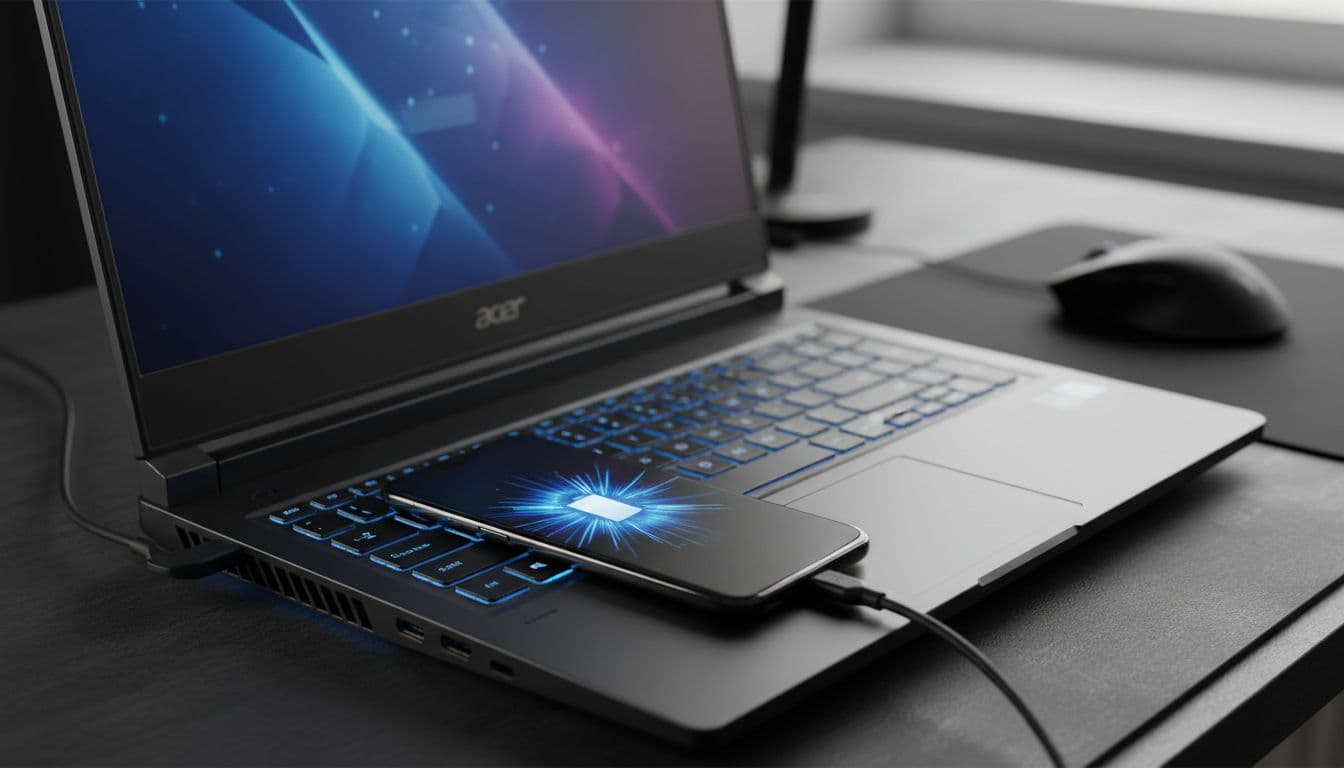
Laptop fast charging stops after roughly sixty seconds and nobody online seems to have a straight answer. Most threads are full of people saying 'update your drivers' with no further detail, or suggesting you buy a powered hub. Skip all of that. This guide covers the actual causes and the actual fixes, in order of how often they work, based on fixing this exact problem for Acer Predator users regularly.
What Actually Causes Laptop Fast Charging to Stop?
The one-minute mark is the tell. It's almost never random. Windows has a feature called USB selective suspend that monitors connected USB devices and, when it decides a device looks idle (which a charging phone often does, because it's not sending data), it reduces or cuts power to the port entirely. The phone drops from fast charge to trickle charge or stops charging altogether. You'll sometimes hear the USB disconnect sound, or the phone will switch from showing a fast-charge lightning bolt to a standard charging icon.
But selective suspend isn't the only thing at play. Windows also lets itself turn off USB root hubs and generic hubs separately, through Device Manager's power management tab. Even if you disable selective suspend in Power Options, the hub powering that port can still get switched off. You need to fix both. This trips up a lot of people who disable selective suspend, see no improvement, and assume the fix doesn't work.
Then there's the battery factor. Acer Predator laptops, like most gaming laptops, limit USB output current when running on battery. The port might start fast charging because the phone negotiates a high-current contract, but the laptop's firmware then steps that back as it tries to protect its own battery. Plug into the wall and this particular cause disappears immediately.
PredatorSense and Acer Care Center are worth calling out specifically. These OEM utilities run their own power profiles that can override whatever you've set in Windows. If PredatorSense is in an eco or battery-saving mode, it will aggressively suspend USB ports regardless of your Control Panel settings. A lot of users fix everything in Windows and still have the problem because PredatorSense is quietly undoing it.
Finally, the cable and the phone itself can be the issue. USB Power Delivery and Qualcomm Quick Charge both require a negotiation handshake between the phone and the charger. If the cable has high resistance (old cables, very long cables, cheap unbranded cables), the voltage drops during that handshake and the phone steps down to standard 5V charging. This can look identical to a power-management problem because it also happens within the first minute or two of connecting.
Laptop Fast Charging Stops: Quick Fixes First
Before touching any settings, run through these. They take two minutes and they catch a surprising number of cases.
Test Ports, Cable and Power State Easy
- Plug the Acer into AC power first.
Seriously, do this before anything else. If the laptop is on battery, USB current limits may already be active at the firmware level. Plug in, wait ten seconds for the charging state to register, then reconnect your phone. - Try a different USB port.
Check every port on the laptop. Some Acer Predator models have one USB-C port that supports USB-PD at higher wattage than the others. Look for a port labelled with a lightning bolt or charging icon. If fast charging holds on one port but not another, that tells you the hardware is fine and the problem is port-specific power management. - Swap the cable.
Use the cable that came with your phone, or a certified USB-C cable rated for fast charging or USB-PD. Avoid anything over about 1.5 metres. Long cables have enough resistance to cause the phone to drop its fast-charge negotiation. If you're using a USB-A to USB-C cable, be aware that USB-A ports on most laptops cap out at 5V/0.9A anyway, which isn't fast charging at all. - Reboot both devices.
A failed USB-PD negotiation can get stuck in a bad state. Reboot the laptop and power-cycle the phone. Reconnect and watch the phone's charging indicator for a full two minutes.
More Laptop Fast Charging Stops Fixes: USB Power Management
This is where most cases get sorted. Two separate settings, both need changing. Miss one and the problem usually comes back.
Disable USB Selective Suspend Easy
- Open Control Panel.
Press Windows + R, typecontroland hit Enter. Go to Hardware and Sound, then Power Options. - Edit your active power plan.
Next to whichever plan is currently selected (Balanced, High performance, or an Acer OEM plan), click Change plan settings, then Change advanced power settings. - Find USB selective suspend.
In the advanced settings window, scroll down and expand USB settings. Inside that, expand USB selective suspend setting. You'll see two entries: On battery and Plugged in. Set both to Disabled. - Apply and verify.
Click Apply then OK. Reconnect your phone. Windows should play the USB connect sound once and not repeat it. If it keeps playing the connect sound every minute or so, selective suspend is still active somewhere (check whether you edited the correct active plan).
Stop Windows Turning Off USB Hubs Easy
- Open Device Manager.
Right-click the Start button and select Device Manager. Expand the Universal Serial Bus controllers section. - Edit every hub and controller.
You're looking for entries labelled USB Root Hub, Generic USB Hub, and USB 3.x eXtensible Host Controller (or similar, depending on your chipset). Right-click the first one and open Properties. - Uncheck the power management option.
Go to the Power Management tab. Uncheck Allow the computer to turn off this device to save power. Click OK. Repeat this for every USB Root Hub, Generic USB Hub and Host Controller listed. There may be four to eight entries depending on your Predator model. - Reboot.
This one often needs a reboot before it sticks. After restarting, plug in your phone and monitor it for two to three minutes.
Fix PredatorSense and Acer Care Center Profiles Easy
- Open PredatorSense or Acer Care Center.
Find it in the system tray or search for it in the Start menu. Look at the currently active power or performance profile. - Switch to Balanced or Performance.
If it's set to eco, battery-saving, or any similar low-power mode, switch it to Balanced or Performance. These modes are less aggressive about suspending USB ports. - Check for a dedicated USB charging setting.
Some versions of Acer Care Center have an explicit USB charging toggle. Enable it if present.
For context on how USB power delivery negotiation actually works at the protocol level, Microsoft's own documentation on USB selective suspend is the definitive reference. And if you're also having issues with your phone not being recognised at all rather than just dropping charge speed, see our guide to fixing USB device not recognised errors in Windows which covers the detection side separately.
Advanced Laptop Fast Charging Stops Fixes
Still happening after all of the above? These go deeper. BIOS settings, driver updates and registry-level USB power policy. None of these are dangerous if you follow the steps carefully, but back up before touching the registry.
Check BIOS for USB Charging Settings Medium
- Enter BIOS.
Restart the Acer Predator and press F2 (or Del on some models) repeatedly as it boots. You should land in the UEFI BIOS interface. - Find USB charging options.
Look under Advanced or Power settings for options labelled USB charging in sleep, Always on USB, or USB port power in off state. The exact label varies by Predator model. Enable any option that allows the USB port to deliver power regardless of system state. - Save and exit.
Press F10 to save and exit. Boot back into Windows and test again.
Update Chipset and USB Controller Drivers Medium
- Find your chipset.
Press Windows + R, typedxdiagand hit Enter. Note your processor (Intel or AMD). For Intel systems, download the latest chipset driver from Intel's driver download centre. For AMD systems, use AMD's support page. - Check Acer's support page too.
Go to Acer's UK support page, enter your Predator model number (printed on the underside of the laptop), and download any USB controller or chipset driver packages listed there. Acer sometimes ships customised driver bundles with USB power management fixes that the generic Intel or AMD packages don't include. - Install and reboot.
Install chipset drivers first, reboot, then install any USB-specific drivers. Test charging again after the second reboot.
Audit USB Power Policy via Registry and powercfg Advanced
- Run a power report.
Open an elevated Command Prompt (right-click Start, Run as administrator). Typepowercfg /energyand press Enter. Windows will monitor the system for 60 seconds and generate an HTML report, usually saved toC:\\Windows\\System32\\energy-report.html. Open it and look for USB selective suspend warnings or USB device errors. - Check which devices can wake the system.
In the same elevated Command Prompt, runpowercfg /devicequery wake_armed. This lists devices allowed to wake the PC, which sometimes indicates aggressive power cycling on USB controllers. - Inspect registry values for the USB controller.
Open Registry Editor (regedit). Navigate toHKEY_LOCAL_MACHINE\\SYSTEM\\CurrentControlSet\\Enum\\USBand find the node for your USB host controller. Look for values named DeviceIdleEnabled, DefaultIdleState and DefaultIdleTimeout. If DeviceIdleEnabled is set to 1, the device is allowed to idle-suspend. Setting it to 0 disables that for the specific controller. Back up the key before editing by right-clicking and selecting Export. - Apply and test.
Reboot after any registry change. Monitor charging for a full three minutes before concluding it's fixed.
HowToGeek has a solid explainer on disabling USB selective suspend that's worth a look if you want more background on why Windows behaves this way. And if you're finding that Windows power management is causing broader issues beyond USB charging, our Windows power plan troubleshooting guide covers the full picture.
Preventing Laptop Fast Charging from Stopping Again
Once you've got it working, keep it that way. The most important thing: leave USB selective suspend disabled permanently if you regularly charge devices from the laptop. It's a power-saving feature designed for office environments where every milliwatt matters, and it's a genuine nuisance for anyone using their Acer Predator as a charging hub.
Second priority is the cable. Certified USB-C cables rated for USB-PD or fast charging are cheap and make a real difference. Replace any cable that's over a couple of years old or longer than about 1.5 metres. A good cable removes one variable entirely.
Keep PredatorSense or Acer Care Center in Balanced or Performance mode whenever you're plugged into AC power. There's no reason to run eco mode when you're on the wall anyway. And keep the Acer plugged in while charging phones. Running on battery and charging a phone simultaneously puts the laptop's firmware in a position where it has to choose, and it'll choose the laptop's battery every time.
Driver hygiene matters too. Acer pushes chipset and USB controller updates through Acer Care Center and their support site. Check every few months, or at least when a Windows major update drops, since those sometimes reset power management settings or introduce new USB policy defaults.
Finally, avoid plugging multiple power-hungry USB devices into the same hub or controller at once. Most Acer Predator models share USB bandwidth and power budgets across ports on the same controller. A USB hub with an external hard drive and a phone charging simultaneously can push the controller into current-limiting territory, and the phone loses the fast-charge negotiation first.
For related issues on the same machine, if you're also seeing USB devices drop connection under load, our USB device keeps disconnecting guide covers the overlap between power management and USB stability in more detail.
Laptop Fast Charging Stops: Summary
Laptop fast charging stops on Acer Predator laptops almost always because of USB selective suspend, Windows USB hub power-off settings, or PredatorSense running an aggressive power profile. Start with the obvious: AC power, a good cable, a different port. Then disable USB selective suspend in Power Options and remove the power-off permission from every USB hub in Device Manager. Check PredatorSense isn't quietly overriding all of that. If it still happens, BIOS settings and driver updates are the next step, with registry-level USB power policy as the last resort. The fix is almost always software-side, not a broken port.