
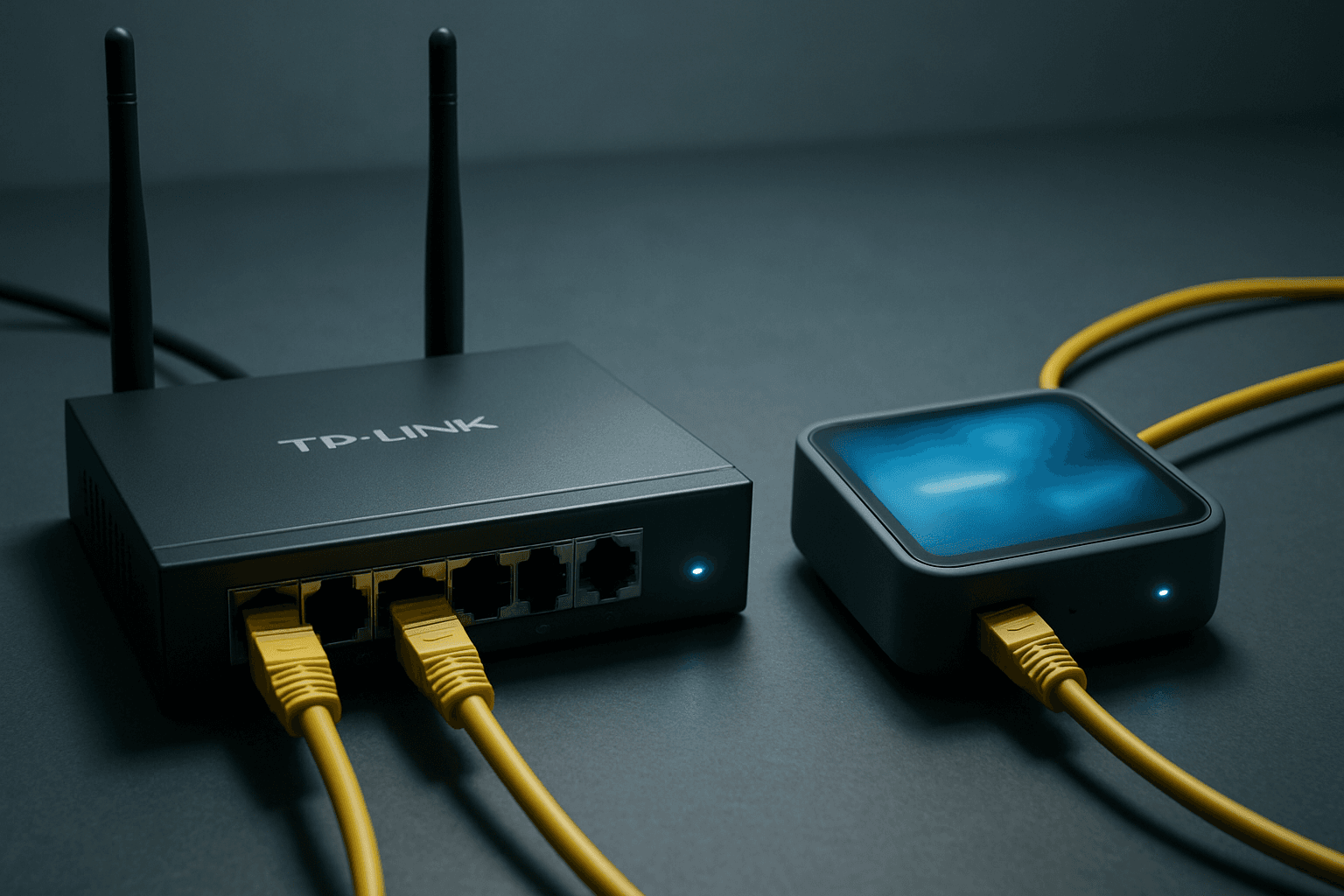
Spent about 25 minutes on a remote session last month sorting this exact problem. The customer had a perfectly connected VPN tunnel, a Brume 2 sitting on the LAN, and absolutely zero client traffic going through it. Turns out they'd been trying to use port forwarding. That's the wrong tool entirely. Here's what actually works for ER605 VPN policy routing.
What Causes ER605 VPN Policy Routing to Fail?
The most common mistake is using Virtual Server or Port Forwarding to try to push traffic through a VPN. TP-Link's own documentation is clear: port forwarding over VPN is not supported on the ER605. Full stop. If you've got a Virtual Server rule set up for this, delete it now. It won't work and it won't give you a useful error message either. It'll just silently do nothing.
The second cause is a bit more subtle. The VPN tunnel can be fully connected, showing green in the Omada dashboard, and client traffic will still go straight out the normal WAN. Why? Because a connected tunnel doesn't automatically become a route for client traffic. The ER605 needs a Policy Routing rule to tell it which source IPs should be steered through the tunnel interface. Without that rule, the router just uses its default route, which is your ISP's WAN.
Dynamic IP addresses cause problems too. If your client devices are getting DHCP leases that change, any IP Group you build today might not match those devices tomorrow. A client that renews its lease and gets a different address will silently fall out of the routing rule and start using the normal WAN again. You won't notice until someone checks their public IP and wonders why the VPN isn't working.
Role mismatch between the two devices is another one. The ER605 needs to be the VPN client and the Brume 2 needs to be the VPN server or gateway. If both are set to client mode, or if the protocol doesn't match (say, the ER605 is trying L2TP and the Brume 2 is serving OpenVPN), the tunnel won't form at all. And finally, if you're using the Brume 2 purely for DNS filtering rather than as a full traffic gateway, you don't need a VPN tunnel at all. You just point DHCP DNS at the Brume 2's LAN IP. Much simpler.
ER605 VPN Policy Routing Quick Fix
Confirm Tunnel Status and Remove Wrong Rules Easy
- Log into the ER605
Open your browser and go to the ER605 web interface or Omada controller. Head to the VPN section and confirm the VPN client connection to Brume 2 shows asConnected. Note the tunnel interface name, usually something likeVPN1orOpenVPN1. - Delete any Virtual Server or Port Forwarding rules
Go to NAT or Forwarding and remove any rules you created trying to push traffic through the VPN. These do nothing useful here and can cause confusion. - Test basic connectivity
From any client device, ping the Brume 2's LAN IP to confirm it's reachable. If it's not, sort the tunnel first before worrying about policy routing. - Quick check: is this a DNS-only job?
If your only goal is ad blocking through Brume 2's AdGuard or similar, skip the VPN tunnel entirely. Go to DHCP settings on the ER605 and set the DNS server to the Brume 2's LAN IP address. Done. No tunnel needed.
Worth mentioning: if you're also dealing with the related question of whether VPN port forwarding on Windows is causing conflicts with your client-side routing, that's a separate issue but it can interact with what we're doing here. Sort the router side first.
More ER605 VPN Policy Routing Solutions
Create Static DHCP Reservations for Target Clients Intermediate
- Find the MAC addresses of your client devices
On Windows, runipconfig /allin Command Prompt and note the Physical Address. On Android or iOS, check Settings, then About, then Wi-Fi address. - Create DHCP reservations on the ER605
In the ER605 interface, go to DHCP, then Address Reservation (sometimes called Static DHCP). Add each client device's MAC address and assign it a fixed IP in your LAN range, for example192.168.1.50for a laptop and192.168.1.51for a desktop. Save each one. - Force clients to renew their leases
On Windows, runipconfig /releasethenipconfig /renewfrom an elevated Command Prompt. On other devices, toggle Wi-Fi off and on. Confirm each device picks up its reserved IP.
Build the IP Group and Policy Routing Rule Intermediate
- Create an IP Group
In the ER605 interface, go to Preferences (or Objects, depending on firmware version) and find IP Group or IP Address Group. Create a new group, name it something useful likeVPN-Clients, and add the static IP addresses you just reserved. For example,192.168.1.50and192.168.1.51. Save it. - Open Policy Routing
Go to Advanced Routing, then Policy Routing (sometimes under Routing or Traffic Control depending on your firmware). Click Add. - Configure the rule
Set Source to theVPN-ClientsIP Group you just created. Set Destination toAny. Set WAN Interface (or Next Hop Interface) to your VPN tunnel interface, for exampleVPN1orOpenVPN1. Leave other fields at default unless you have a specific reason to change them. Save and enable the rule. - Check rule order
If you have other routing rules, make sure this one sits above any default WAN rules in the list. The ER605 processes policy routing rules top to bottom and stops at the first match.
Verify Traffic and Fix DNS Leakage Intermediate
- Run a traceroute from a client device
On Windows, open Command Prompt and runtracert 8.8.8.8. Before the rule was active, the first external hop would have been your ISP's gateway. Now it should show a different path through the VPN exit. If it still shows your ISP, the rule isn't matching. Go back and check the IP Group contains the correct IP. - Check your public IP
Open a browser on the client device and visit a site that shows your public IP. It should now show the VPN exit IP rather than your home IP. If it doesn't, the tunnel is either not routing that traffic or the Brume 2 isn't configured as a proper gateway. - Fix DNS leakage if needed
If the Brume 2 is also running DNS filtering (AdGuard, Pi-hole style), your clients might still be using the ISP's DNS even though traffic flows through the VPN. Go to DHCP settings on the ER605 and set the DNS server to the Brume 2's LAN IP, for example192.168.1.2. This forces all DNS queries through the Brume 2's resolver.
If you're running into issues specifically on Windows client machines, it's worth checking whether Windows-side VPN port forwarding settings are interfering with the router's policy routing. A static gateway set manually on the Windows network adapter will override whatever the ER605 is trying to do.
Advanced ER605 VPN Policy Routing Fixes
Deep Packet Path Verification and Route Table Inspection Advanced
- Check the ER605 live route table
In the Omada controller or ER605 web interface, look for a route table or routing status view. You should see an entry for the VPN tunnel interface with a status of Active. If the tunnel interface doesn't appear in the route table at all, the VPN connection has likely dropped or failed to fully establish. Re-check the VPN client settings and confirm the Brume 2 is accepting connections on the correct port and protocol. - Inspect VPN client configuration for protocol mismatch
The ER605 supports PPTP, L2TP, and OpenVPN in client mode, as documented by TP-Link's support pages. The Brume 2 supports OpenVPN, WireGuard, and others per GL.iNet's documentation. If you're using OpenVPN, import the correct .ovpn profile into the ER605 VPN client section rather than manually entering server details. A mismatched profile or wrong port is the most common cause of a tunnel that looks connected but doesn't actually pass traffic. - Check Windows clients for static network settings
On any Windows machine that's supposed to be routed through the VPN, open Network Connections, right-click the adapter, go to Properties, then IPv4 Properties. If there's a static gateway or static DNS set there, it will override the router's DHCP and policy routing entirely. Set both to Obtain automatically and retest. - Confirm Brume 2 is configured as a gateway, not a passive LAN host
GL.iNet devices can operate in several modes. If the Brume 2 is sitting on your LAN as a regular device rather than as a drop-in gateway or VPN server, it can't route traffic for other clients. Check the Brume 2's admin panel and confirm it's in the correct mode for your topology. GL.iNet's documentation distinguishes clearly between drop-in gateway mode and simple LAN attachment. - Build split-routing rules if you only need selective traffic through the VPN
Rather than routing all traffic from a client through the VPN, you can create multiple Policy Routing rules on the ER605 to send only specific destination ranges through the tunnel. For example, you might route traffic to certain IP ranges through the VPN and everything else through the normal WAN. This keeps the router authoritative for path selection and avoids client-side workarounds. Understanding how VPN tunnelling works at a network level helps when designing split-routing rules.
Preventing ER605 VPN Policy Routing Problems
Most of the grief with this setup comes down to three things: wrong tool (port forwarding instead of policy routing), dynamic IPs breaking IP Group rules, and firmware updates quietly changing interface names. Fix those three and you'll rarely have to touch this again.
Reserve static DHCP leases for every device you plan to route through the VPN. Do this before you build the IP Group, not after. It takes two minutes and saves a lot of head-scratching later when a client's lease renews and they mysteriously stop going through the tunnel.
Document your topology. Write down which devices go through the VPN, which use the normal WAN, and whether the Brume 2 is acting as a full gateway or just a DNS resolver. Sounds obvious. Nobody does it. Then six months later someone adds a new device and can't remember why some machines are in the IP Group and others aren't.
After every firmware update on the ER605 or Omada controller, check the VPN status and Policy Routing rules before assuming everything is fine. TP-Link has changed interface naming conventions between Omada versions before, and a rule pointing at an interface name that no longer exists will silently fail. Also worth checking: if you've got VPN port forwarding configured on any Windows machines, review those settings after updates too since Windows updates occasionally reset network adapter configurations.
Test with one device first. Always. Get one machine routing correctly through the VPN, verify the tracert path and public IP, then expand the IP Group to include other devices. Trying to debug six devices at once is a proper nightmare.
ER605 VPN Policy Routing Summary
The core of this fix is simple: ER605 VPN policy routing requires a Policy Routing rule, not port forwarding. Port forwarding over VPN is explicitly unsupported on this hardware. The correct path is to assign static DHCP reservations to your target clients, build an IP Group containing those addresses, and create a Policy Routing rule that steers traffic from that group through the VPN tunnel interface. Verify with tracert and a public IP check. If the Brume 2 is also doing DNS filtering, point your DHCP DNS at its LAN IP to prevent leakage. For more complex setups where only some traffic should go through the tunnel, build split-routing rules on the ER605 rather than fighting with client-side settings. That keeps the router in charge of path selection, which is exactly where that decision should live.