
Your Windows PC slow fix doesn't need to be complicated. Whether your machine is grinding to a halt on startup, freezing mid-task, or just generally feeling like it's wading through treacle, the cause is almost always one of five things. And most of them you can sort yourself in under 30 minutes. This guide walks through every fix in order, from the quick wins to the deeper stuff, so you're not wasting time on advanced steps when a simple restart would've done it.
What Actually Causes a Slow Windows PC?
Before throwing fixes at the wall, it's worth knowing what you're dealing with. A slow Windows PC rarely has one cause. It's usually a combination of things that have built up over time, and understanding the pattern helps you pick the right fix first.
The most common culprit, by a long stretch, is startup bloat. Every time you install an app, it tends to add itself to your startup list. Spotify, Discord, Teams, OneDrive, your printer software, your graphics card overlay, your webcam driver utility. They all want to run at boot. By the time Windows has loaded, you've already got 20 processes competing for CPU and RAM before you've even opened a browser tab. This is why a machine that was quick when you bought it feels sluggish two years later.
Low disk space is another one people underestimate. Windows needs free space on your system drive to write temporary files, manage virtual memory (the page file), and run system processes. When your C: drive drops below 10 to 15% free space, you'll notice real slowdowns. Not just 'slightly slower', proper stalls and freezes. According to Microsoft's own performance guidance, keeping adequate free space is one of the top recommendations for maintaining Windows speed.
Then there's malware. It doesn't always announce itself. A lot of the time it just sits there, quietly using your CPU and internet connection in the background. You'll notice your fan spinning up when you're not doing anything, or your disk activity light staying on constantly. We'll cover how to check for this properly below.
Outdated drivers and Windows updates can also cause high CPU usage Windows-wide. The Windows Update service itself sometimes causes a spike right after a major update, but that usually settles within an hour. If it doesn't, something went wrong. And finally, hardware: if you're on 4 GB of RAM running Windows 11, or still using a mechanical hard drive, no amount of software tweaking will make it feel fast. That's just physics.
Windows PC Slow Fix: Quick Wins (Under 10 Minutes)
Start here. Seriously. I've seen machines that were apparently 'completely broken' fixed by a restart and disabling three startup apps. Don't skip these because they seem too simple.
Restart, Close Heavy Apps, and Disable Startup Clutter Easy
- Restart Windows properly
Go to Start > Power > Restart. Not Shut down and power back on, actual Restart. This clears the memory properly and resets stuck processes. Sleep mode doesn't do this. - Open Task Manager after boot
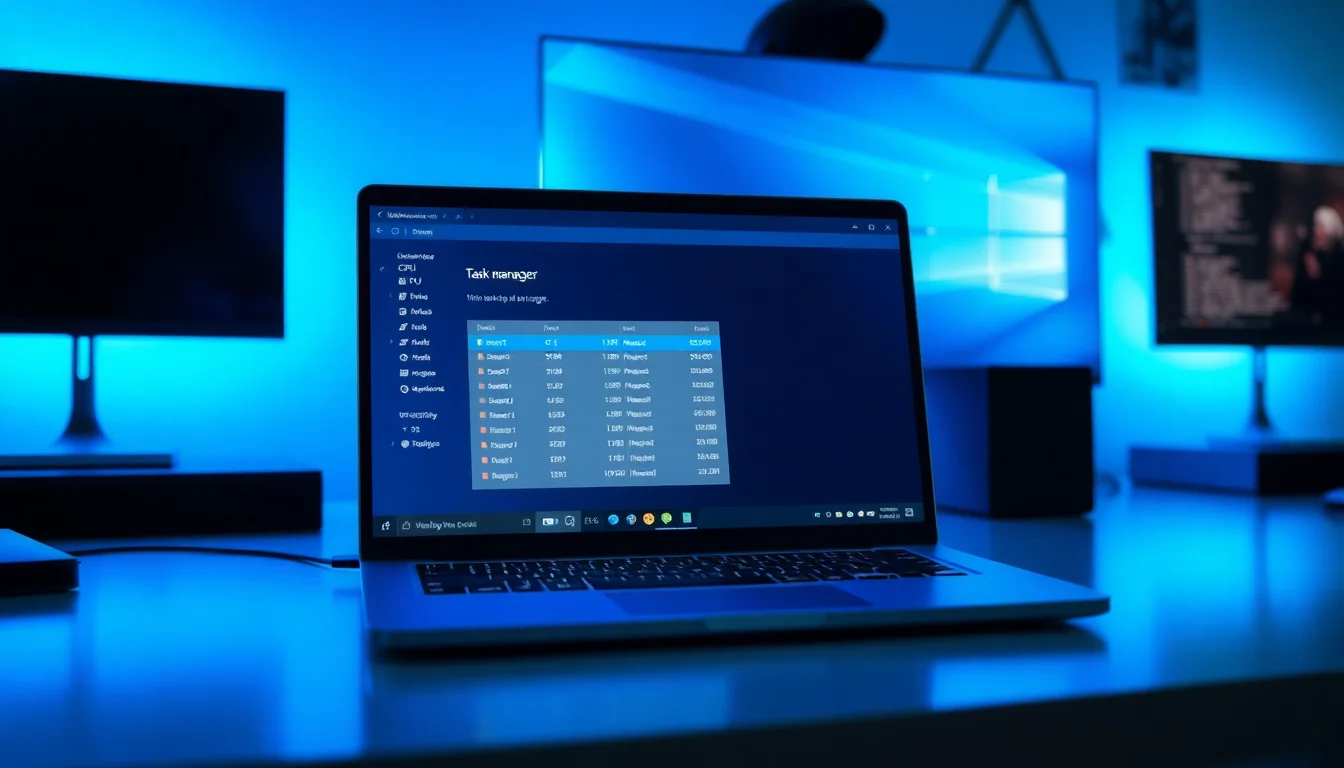
PressCtrl + Shift + Esc. On the Processes tab, click the CPU column header to sort by CPU usage, then do the same for Memory. Note anything sitting above 10 to 15% that you don't recognise or need right now. - End tasks for non-essential apps
Right-click anything you don't need (a game launcher, a video editor you're not using, a browser with 40 tabs) and select End task. You're not uninstalling anything, just freeing up resources now. - Disable startup apps
Still in Task Manager, click the Startup apps tab. Right-click anything non-essential and select Disable. Safe targets: Spotify, Discord, Steam, OneDrive (if you don't need it syncing constantly), Teams, manufacturer update utilities. Don't disable your antivirus. - Switch power mode to Best performance
Go to Start > Settings > System > Power and battery. Set Power mode to Best performance. On laptops especially, the default Balanced mode throttles your CPU to save battery, which causes noticeable lag.
More Windows PC Slow Fix Solutions (15 to 30 Minutes)
Still slow after the quick fixes? These intermediate steps tackle the next most common causes: accumulated junk, outdated software, and malware. None of these are risky, but they take a bit more time.
Install Windows Updates Easy
- Check for updates
Go to Start > Settings > Windows Update. Click Check for updates. Download and install everything available, including optional updates. These often contain driver fixes that directly affect slow computer performance. - Grab optional driver updates too
In Windows Update, go to Advanced options > Optional updates. If there are driver updates listed (graphics, chipset, network), install them. These don't install automatically but they fix real bugs. - Restart and check
After updates install, do a full restart. Give it 10 minutes after boot before judging speed, as Windows sometimes does background indexing after updates.
Clean Up Disk Space and Temporary Files Easy
- Open Storage settings
Go to Start > Settings > System > Storage. You'll see a breakdown of what's using space on your C: drive. - Remove temporary files
Click Temporary files. Tick everything listed (Windows Update Cleanup, Temporary Internet Files, Recycle Bin, Delivery Optimisation Files). Click Remove files. This can free several gigabytes on a typical machine. - Enable Storage Sense
Back on the Storage page, toggle on Storage Sense. Set it to run monthly. This automates the cleanup so you don't have to remember. - Run Disk Cleanup for system files
Press the Windows key, type Disk Cleanup, open it. Select your C: drive. Click Clean up system files (this requires admin rights). Tick everything, click OK. On older machines this can recover 10 GB or more.
Run a Malware Scan Easy
- Open Windows Security
Go to Settings > Privacy and security > Windows Security (Windows 11) or Settings > Update and Security > Windows Security (Windows 10). Click Virus and threat protection. - Run a Full scan
Select Scan options, choose Full scan, click Scan now. This takes 20 to 60 minutes depending on how much is on your drive. Let it run fully. A Quick scan misses things that live in less obvious locations. - Deal with anything found
If threats are detected, follow the quarantine or removal prompts. Restart afterwards. If Windows Defender flags something but can't remove it, that's a sign of a deeper infection. See our malware removal guide for next steps. - Check for a second opinion
If you're suspicious but the scan came back clean, upload any dodgy files to VirusTotal.com for a free check against 70+ antivirus engines. It's not a replacement for a full scan but it's a good sanity check.
Advanced Windows PC Slow Fix Steps (30+ Minutes)
These are for when the basics haven't shifted things. They're not dangerous if you follow the steps carefully, but a couple of them (BIOS updates, Reset this PC) deserve a bit of respect. Back up anything important before you start this section.
Identify and Kill the Specific High CPU Process Medium
- Find the offender
Open Task Manager (Ctrl + Shift + Esc), click More details if needed, and sort the Processes tab by CPU. Watch it for 2 to 3 minutes. You want something that's consistently sitting above 30%, not just spiking briefly. - Research the process
Note the exact process name. Search it in a browser (something like 'svchost.exe high CPU Windows 11' or whatever you're seeing). Reliable sources include Microsoft's own documentation and Tom's Hardware forums. This tells you whether it's a Windows component, a driver, or third-party software. - End the task and investigate
If it's a third-party app, right-click and End task. Then go to Settings > Apps > Installed apps and either uninstall it or adjust its settings (for example, reducing sync frequency in a cloud backup app). If it's a Windows service like Windows Management Instrumentation (WMI), pressWin + S, type Services, open it, find the service, right-click and choose Restart. - Check Device Manager for driver warnings
PressWin + Xand choose Device Manager. Look for anything with a yellow warning triangle. Right-click those devices and try Update driver. If the problem started after a recent driver update, choose Properties > Driver tab > Roll Back Driver instead.
Check Hardware: RAM, Storage, and Overheating Medium
- Check your RAM
Go to Settings > System > About. Look at Installed RAM. If it's under 8 GB and you run a browser with multiple tabs plus other apps, you're hitting the ceiling. Task Manager's Performance tab > Memory shows real-time usage. If it's consistently above 80 to 85%, more RAM will help. - Check disk usage
In Task Manager, look at the Disk column on the Processes tab. If it's sitting at 100% constantly, that's a major bottleneck. On mechanical hard drives (HDDs), this is normal under load but still painful. An SSD upgrade is the most impactful hardware fix you can make. Tom's Hardware's SSD guide covers the best options at different price points. - Check for overheating
If your PC slows down specifically when doing something demanding (gaming, video editing, long browser sessions), thermal throttling is likely. Your CPU reduces its speed to protect itself from heat damage. Clean the vents with compressed air, especially on laptops. Make sure nothing is blocking airflow. On desktops, check that all case fans are spinning.
System Restore or Reset This PC Advanced
- Try System Restore first
If the slowness started at a specific point (after an update, after installing something), System Restore can roll Windows back without affecting your personal files. Search 'Create a restore point' in the Start menu, open it, click System Restore, and pick a restore point from before the problem started. Follow the wizard. - Use Reset this PC as a last resort
Search 'Reset this PC' in the Start menu. Click Get started. Choose Keep my files (this removes apps and settings but keeps your documents and photos) or Remove everything (full clean install). Keep my files is the safer option for most people. The process takes 30 to 60 minutes. - Reinstall your apps selectively
After a reset, only reinstall what you actually use. This is a good opportunity to avoid reinstalling the bloat that slowed things down in the first place. See our Windows fresh install setup guide for what to install first and what to skip.
Preventing Your Windows PC from Slowing Down Again
Here's the honest truth: most Windows PC slowness is maintenance failure. Not your fault necessarily, Windows doesn't make it obvious that you need to do these things. But once you know, it takes maybe 15 minutes a month to keep things running properly.
The most important habit is restarting your PC fully at least once a week. Not sleep mode, actual Restart or Shut down and power back on. Sleep mode accumulates stuck processes and memory leaks over days. A proper restart clears all of that. It's boring advice but it genuinely works.
Second most important: check your startup apps every couple of months. Every app you install tries to add itself to startup. Go to Task Manager > Startup apps, sort by Startup impact, and disable anything marked High that you don't need immediately on boot. This one habit alone keeps boot times fast.
For disk space, enable Storage Sense (Settings > System > Storage) and set it to run monthly. It handles temp file cleanup automatically. Aim to keep at least 15 to 20% of your C: drive free at all times. If you're storing a lot of photos or videos, move them to an external drive or cloud storage rather than leaving them on C:.
On the hardware side: if you're still on a mechanical HDD, budget for an SSD at some point. Prices have dropped significantly. A decent 500 GB SSD costs around £40 to £60 now, and the difference in day-to-day speed is not subtle. It's the kind of upgrade that makes an old machine feel new. And if your PC is running hot, a £5 can of compressed air used on the vents every 6 months prevents thermal throttling and extends the life of the hardware.
Finally, don't ignore Windows Update. The optional driver updates especially. They're optional in name only; they fix real bugs including ones that cause high CPU usage Windows users have been reporting for years. Check for them monthly alongside your temp file cleanup and you'll rarely need to do any of the advanced fixes in this guide.
Windows PC Slow Fix: What to Try and When
To pull it all together: start with the 10-minute fixes (restart, disable startup apps, switch power mode). That handles the majority of cases. If you're still seeing slow computer performance after that, clean up disk space, install updates, and run a malware scan. Those three together sort out most of what's left. Only move to the advanced steps if you've genuinely done all of the above and the machine is still dragging. And if you're on an old HDD with 4 GB of RAM, accept that software can only do so much. Hardware upgrades are the real Windows PC slow fix for those machines.
Got a specific process eating your CPU that you can't identify? Drop the name into a search engine alongside 'high CPU fix' and you'll usually find the answer quickly. And if you're stuck, our remote support team at Vivid Repairs deals with exactly this kind of thing every day.