
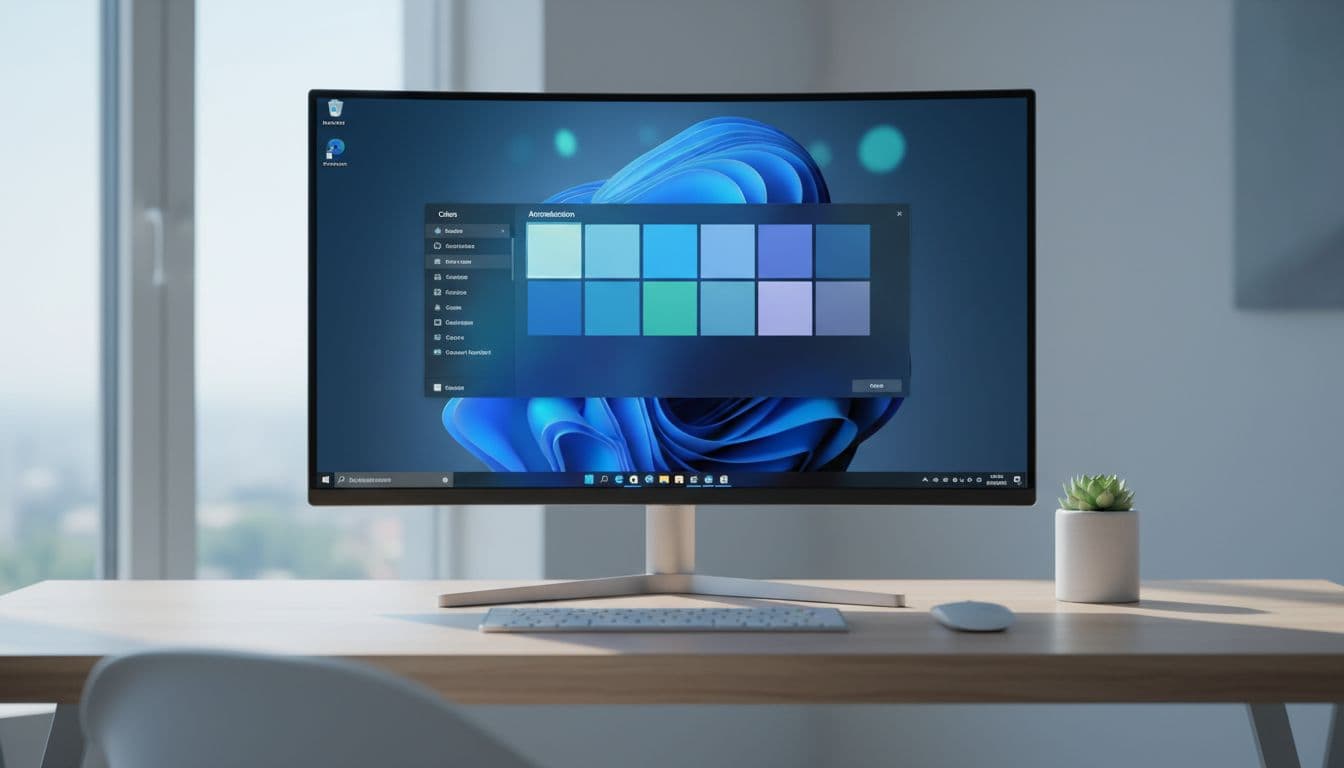
You've picked a colour, clicked apply, and nothing happened. The taskbar is still the same grey or black it's always been. This is a proper nuisance, but it's almost never a hardware fault or anything that needs a repair shop. A taskbar colour fix usually takes 10 minutes once you know what's actually blocking it, and that's what this guide covers.
What Actually Causes a Taskbar Colour Fix to Be Needed?
The short answer is that Windows ties taskbar accent colours to your colour mode setting, and if the mode is wrong, the controls either grey out or appear to work but don't visually apply. This confuses a lot of people because it's not obvious that a cosmetic colour choice depends on a completely separate mode setting.
Here's the thing: on Windows 11 specifically, the taskbar accent colour feature is essentially locked behind Dark mode (or a compatible Custom mode). Microsoft made this decision when they redesigned the taskbar for Windows 11, and it catches people out constantly, especially those who prefer Light mode for their apps but want a coloured taskbar. You can't have both by default. Microsoft's own support page confirms that the taskbar colouring option requires the appropriate mode to be active.
Beyond the mode issue, there are a few other culprits worth knowing about before you start clicking through settings:
- The 'Show accent colour on Start and taskbar' toggle is simply switched off, which is easy to miss.
- Automatic accent colour is enabled, so Windows keeps picking a colour from your wallpaper and overriding your manual choice every time the background changes.
- A theme (either a built-in one or a downloaded third-party pack) is overriding your personalisation settings. Themes can lock colour behaviour silently.
- An enterprise group policy is blocking personalisation changes entirely. This one shows up a lot on work laptops that people also use at home.
- A corrupted personalisation registry value, usually after a dodgy update or a botched theme installation, is preventing the shell from reading your colour preference correctly.
Knowing which of these applies to your situation saves a lot of time. Start with the quick fix below. If that doesn't sort it, work down through the intermediate and advanced sections in order.
And if you're dealing with broader display oddities alongside this, like colours looking washed out or oversaturated across the whole screen, that's a different problem entirely. Our Windows display colour calibration guide covers that separately.
Taskbar Colour Fix: Quick Method (5 to 10 Minutes)
This fixes the problem for the majority of users. It covers the three most common causes in one pass.
Colour Mode and Accent Toggle Fix Easy
- Open Colours settings
PressWindows + Ito open Settings, then go to Personalisation > Colours. - Set your colour mode to Dark
Under 'Choose your mode', select Dark. If you want to keep Light mode for your apps, select Custom instead, then set 'Choose your default Windows mode' to Dark and 'Choose your default app mode' to whatever you prefer. Return to the Colours page after doing this. - Turn on accent colour for the taskbar
Scroll down to find 'Show accent colour on Start and taskbar' and toggle it on. If this is greyed out, your mode selection isn't compatible yet. Double-check step 2. - Disable automatic accent colour
Turn off 'Automatically pick an accent colour from my background'. While it's on, Windows ignores your manual choice. - Pick your colour
Click any colour in the Windows colours palette. Avoid the 'Recent colours' tiles for now as they occasionally don't apply correctly. Pick a standard palette swatch and watch the taskbar update immediately. - Verify it sticks
Lock your screen withWindows + Land log back in. The taskbar should hold the colour. If it reverts, the automatic accent colour setting may have re-enabled itself, or a theme is fighting you.
More Taskbar Colour Fix Solutions (Intermediate)
Still not working? These are the next most likely causes. None of them require command line access, just a bit more digging through settings.
Reset Your Active Theme Easy
- Switch to the default Windows theme
Go to Settings > Personalisation > Themes. Click on the default Windows theme (usually labelled 'Windows' or 'Windows (light)'). This strips out any theme-level colour overrides. - Reboot
Don't skip this. Some theme changes don't fully release their grip on personalisation settings until the shell restarts. A full reboot is more reliable than just signing out. - Reapply your colour settings
After rebooting, go back to Personalisation > Colours, confirm Dark or Custom mode is still set, and pick your accent colour again. Check whether the taskbar updates this time.
Check Accessibility Colour Settings Easy
- Open Accessibility settings
Go to Settings > Accessibility > Colour Filters. Check whether any filter is enabled. Greyscale, inverted or any other active filter can make your taskbar colour appear unchanged even when it technically has changed. - Disable the filter and retest
Toggle the filter off and look at the taskbar. Also check Settings > Accessibility > Contrast Themes. High Contrast mode completely ignores personalisation colour choices, so if it's active, your accent colour will never show. - Disable third-party theme tools
If you use anything like StartAllBack, ExplorerPatcher, Windhawk, or any other shell customisation tool, disable it temporarily. These tools hook into the Windows shell and can override personalisation settings without any warning. Restart after disabling them, then retest.
Run Windows Update Easy
- Check for pending updates
Go to Settings > Windows Update and install anything pending. Known shell and personalisation bugs have been patched in several cumulative updates. Microsoft's configuration documentation notes that personalisation policy behaviour has changed across builds. - Restart and retest
After updates install and the system restarts, go back to Personalisation > Colours and check whether the taskbar colour now applies correctly.
Advanced Taskbar Colour Fix: Registry and Policy
If you've worked through everything above and the taskbar still won't change colour, the problem is almost certainly in the registry. Either a group policy is blocking personalisation, or a corrupted value in the DWM (Desktop Window Manager) key is causing a mismatch. This is more common than people think, particularly on machines that were previously managed by a workplace IT department, or on systems that had a botched theme tool installed at some point.
Before touching the registry, make a backup. Open Registry Editor by pressing Windows + R, typing regedit and pressing Enter. Go to File > Export and save a full backup somewhere you can find it. This takes about 30 seconds and can save you a lot of grief.
Check for a Personalisation Policy Block Advanced
- Open Registry Editor
PressWindows + R, typeregedit, press Enter. Accept the UAC prompt. - Navigate to the policy key
Go toHKEY_LOCAL_MACHINE\SOFTWARE\Policies\Microsoft\Windows\Personalisation. If this key doesn't exist, a policy block isn't your problem. If it does exist, look for values likeNoColorChoiceorNoChangingLockScreen. Any value set to1here is blocking personalisation. - Export the key first
Right-click the Personalisation key and choose Export. Save it somewhere safe. This is your rollback if anything goes wrong. - Remove the offending value
If you're on a personal PC and this key exists with blocking values, right-click the specific value (not the whole key) and choose Delete. If the whole key only contains blocking values, you can delete the key itself. - Reboot and retest
Restart the machine. Go back to Personalisation > Colours and try setting your accent colour again.
Inspect the DWM Accent Value Advanced
- Navigate to the DWM key
In Registry Editor, go toHKEY_CURRENT_USER\Software\Microsoft\Windows\DWM. This is where Windows stores your current accent colour as a DWORD value calledAccentColorandAccentColorInactive. - Check for stale or corrupted values
If the AccentColor value looks wrong (all zeros, or a colour that doesn't match what you selected), it may be stale. You can delete the AccentColor value entirely. Windows will recreate it from your current personalisation settings on the next restart. - Restart Explorer
Open Task Manager withCtrl + Shift + Esc, find Windows Explorer in the Processes list, right-click it and choose Restart. This forces the shell to reload personalisation settings without a full reboot. Check the taskbar colour immediately after Explorer restarts. - Full reboot if needed
If restarting Explorer doesn't apply the change, do a full restart. The DWM reads some values only at boot.
Test With a New Local User Profile Intermediate
- Create a new local account
Go to Settings > Accounts > Other users > Add someone else to this PC. Create a local account (no Microsoft account needed for this test). Log into it. - Test the taskbar colour
On the new account, go to Personalisation > Colours, set Dark mode, enable the accent toggle and pick a colour. If it works perfectly on the new profile, your original profile has personalisation corruption. - Migrate if needed
Back up your documents, desktop and any important files from the old profile, then use the new profile going forward. Profile corruption rarely fixes itself. HowToGeek's accent colour guide also notes that profile-level issues are a known cause of persistent personalisation failures.
If your taskbar issues are part of a broader pattern of Windows settings not saving or reverting after reboot, that can sometimes point to a deeper system file problem. Our guide on Windows settings reverting after restart covers that scenario in detail.
Preventing Taskbar Colour Fix Issues Coming Back
Once you've got it working, a few habits will stop this from happening again. The most important one: turn off automatic accent colour. Full stop. If it's on, Windows will override your manual choice whenever your wallpaper changes, which means every time you set a new background you'll be back to square one. Pick a colour, turn automatic off, leave it off.
Second, be careful with Windows feature updates. Major updates (like the annual Windows 11 releases) sometimes reset personalisation settings or change how colour mode interacts with the taskbar. After any big update, check Personalisation > Colours and confirm your mode and accent settings are still correct. Takes 30 seconds and saves the frustration.
Third priority, in order of importance:
- Stick to built-in Windows themes. Third-party theme packs are the single biggest source of recurring taskbar colour problems. They're often not updated to match the current Windows build and they hook into shell settings in ways that conflict with personalisation.
- Check Accessibility > Colour Filters after any upgrade. These sometimes get reset or re-enabled during feature updates, and an active filter will make your accent colour invisible even when it's technically applied.
- If you're on a work PC, check with IT before changing personalisation settings. A group policy may be in place intentionally, and fighting it will just mean it gets reapplied at the next policy refresh.
- Keep Windows updated. Several personalisation and shell bugs have been patched in cumulative updates over the past year. Staying current means fewer of these quirks to deal with.
Taskbar Colour Fix: Summary
The taskbar colour fix almost always comes down to one of three things: the wrong colour mode is set, the accent toggle is off, or something else (a theme, a policy, a third-party tool) is overriding your choice. Start with Dark mode and the accent toggle. If that doesn't work, reset your theme and check accessibility settings. If you're still stuck, the registry is where to look, specifically the Personalisation policy key and the DWM accent value.
The vast majority of people get their taskbar colour fix sorted within the first two solutions. The registry and profile steps are there for edge cases, but they do come up, especially on machines with a complicated history of theme tools or workplace management. Work through the steps in order and you'll get there.
And if you'd rather not dig through the registry yourself, that's what remote support is for. No guesswork, no risk of deleting the wrong key.