

QoS sounds intimidating. It isn't. Once you understand what it's actually doing, tweaking it takes ten minutes and the results on a congested home network are immediate. Here are the ten things that genuinely move the needle.
Set Your Bandwidth Limits to Your Real Speeds, Not Your ISP's Promise

QoS can only prioritise traffic when it knows how much bandwidth it actually has to work with. Feed it your ISP's advertised figure instead of your measured speed and the whole system miscalculates, quietly failing while you wonder why it isn't helping.
- Run a speed test at peak hours (evenings, not 2 am) to find your real upload and download figures.
- Enter 80 to 90% of those measured speeds into the QoS bandwidth fields. That headroom stops the router from over-saturating the link.
- Save, apply, then run the test again while a device streams video. Check that latency stays flat.
Watch out for
- Using advertised speeds leads to over-saturation on most real-world connections, which are rarely as fast as the plan promises.
- Setting limits too low wastes capacity; too high makes QoS effectively blind. The 80 to 90% rule is the sweet spot.
Put Gaming, VoIP, and Video Calls at the Top of the Queue

Latency-sensitive traffic suffers first when a network gets congested. A fraction of a second of jitter ruins a VoIP call or costs you a kill in a multiplayer game. Everything else can wait a moment. These applications cannot.
- Open your router's QoS or Media Prioritization panel.
- Assign the highest priority tier to gaming consoles, VoIP applications, and video conferencing tools such as Teams or Zoom.
- Drop bulk downloads, cloud backups, and peer-to-peer traffic to the lowest tier.
Watch out for
- Over-prioritising too many device types dilutes the benefit for the ones that genuinely need it. Keep the top tier short.
- Routers label tiers differently. Highest/High/Normal/Low is common, but some use numbers or colours. Check your manual if you're unsure.
Prioritise by Device MAC Address for Granular Control

Application-type rules are convenient, but device-based QoS is more reliable. Pinning priority to a specific machine's MAC address means the router never misidentifies traffic, and it works regardless of which apps that device happens to be running.
- Find the MAC address of your priority device (usually under Settings, About, or Network on the device itself).
- In the router's QoS settings, add the device by MAC address and assign it a high-priority tier.
- Assign static IPs to those devices while you're in there, so IP-based rules don't break when DHCP hands out a different address.
Watch out for
- Devices using DHCP can change IP addresses at any lease renewal. MAC address binding sidesteps that entirely.
- Too many high-priority devices cancel each other out. Three to five is a sensible ceiling.
Turn On Adaptive QoS If Your Router Supports It

Some routers include adaptive or smart QoS that automatically classifies and prioritises traffic by type without you touching a single manual rule. It's not perfect, but for most households it gets you 90% of the benefit with none of the configuration headache.
- Log in to your router admin panel and look for Adaptive QoS, Smart QoS, or similar under the traffic management section.
- Select a preset profile that matches your household's main activity: Gaming, Streaming, or Web Surfing.
- Enable it, then watch the traffic statistics panel for a few days to confirm it's classifying things sensibly.
Watch out for
- Running adaptive QoS alongside manual QoS rules simultaneously can cause conflicts. Pick one approach.
- ISP-supplied routers rarely support this. You may need a third-party router to access it.
Keep Streaming at Medium-High Priority to Stop Buffering

Video streaming eats bandwidth steadily and falls apart when that supply gets interrupted. It doesn't need to be at the very top of the queue (gaming and VoIP are more sensitive to latency), but leaving it at the default level on a busy network is asking for buffering.
- Identify the traffic associated with your streaming services by device or application type in the QoS panel.
- Assign streaming traffic to a high or medium-high tier, one step below real-time communication.
- Confirm that 4K streaming stays smooth while a separate device runs a large download at low priority.
Watch out for
- Streaming services use encrypted traffic increasingly, which can confuse application-based classification on older hardware.
- 4K streaming needs sustained high bandwidth. Get your bandwidth limits set correctly first or this won't help.
Demote Background and Bulk Traffic to the Lowest Tier

Software updates, cloud backups, and torrent clients compete aggressively for bandwidth without announcing themselves. They'll happily saturate your connection while you're mid-call. Pushing them to the bottom of the queue costs them nothing in the long run and fixes a lot of mysterious slowdowns immediately.
- Identify the devices and applications that do background work: backup drives, update servers, BitTorrent clients.
- Assign all of them to the lowest QoS priority tier.
- Schedule truly heavy tasks (large backups, OS updates) to run overnight as a belt-and-braces measure.
Watch out for
- Don't block background traffic entirely. Low priority keeps it moving; blocking can cause updates to stall permanently.
- Some operating systems retry updates aggressively. Low priority is always safer than a block rule.
Enable WMM to Extend QoS Prioritisation Over Wi-Fi

QoS rules you set on the router only fully work over the air if WMM (Wi-Fi Multimedia) is enabled. Without it, your carefully configured priority tiers get flattened the moment traffic goes wireless. It's a setting most people leave at default without realising it matters.
- In your router's wireless settings, find the WMM or Wi-Fi Multimedia option under advanced wireless configuration.
- Enable it on both the 2.4 GHz and 5 GHz bands.
- Verify that your client devices also support WMM (most devices made after 2010 do) for end-to-end prioritisation.
Watch out for
- Disabling WMM can break 802.11n and 802.11ac speeds on some devices, not just QoS.
- Apple recommends keeping WMM enabled at all times for best compatibility across its product range.
Create Port-Based Rules for Applications That Need Pinpoint Control
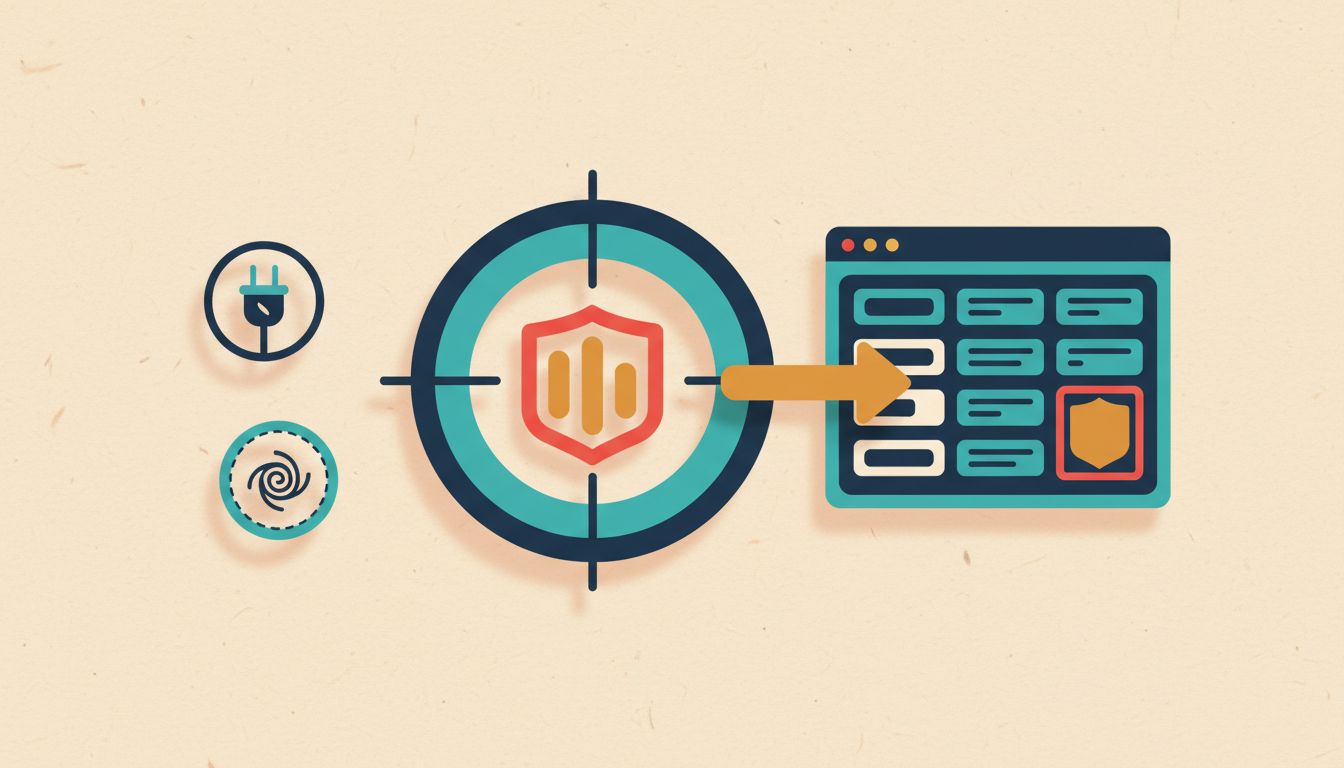
Device-level prioritisation is great, but sometimes you need to target one specific service rather than an entire machine. Port and protocol rules let you do exactly that, which is handy in households where a single PC is used for both work calls and casual browsing.
- Look up the ports and protocols your priority application uses (for example, UDP 3074 for Xbox Live, or your VoIP provider's documented port range).
- Create a QoS rule in your router targeting those specific ports and assign the appropriate priority level.
- Test by running the application under realistic load and checking that latency or throughput holds steady.
Watch out for
- Many modern apps use dynamic ports or fully encrypted traffic, which makes port-based rules unreliable on their own.
- Large rule sets get messy fast. Review them regularly or they'll accumulate stale entries that slow down the router's processing.
Don't Enable QoS If Your Connection Is Nowhere Near Capacity

QoS only does something useful when your connection is congested or close to it. On a fast, lightly loaded line it adds CPU overhead with no real payoff and can actually reduce peak throughput on routers with weaker processors. Sometimes the right move is leaving it off.
- Monitor your network utilisation during peak usage using your router's built-in traffic tools or a free app like the one in most modern router admin panels.
- If utilisation rarely exceeds 60 to 70% of your total bandwidth, consider leaving QoS disabled entirely.
- Revisit the decision if you add more users, devices, or bandwidth-heavy services to the network.
Watch out for
- Enabling QoS on a gigabit connection with light use is unlikely to help and may reduce peak throughput on budget hardware.
- The processing cost scales with the number of active rules and connected devices. Complexity isn't free.
Review Your QoS Rules Every Few Months

QoS rules go stale. Devices get replaced, streaming services change their traffic patterns, kids grow up and start gaming. Rules you set a year ago might now be prioritising a console that lives in a box under the bed while the new laptop struggles for bandwidth.
- Schedule a quick review every two to three months, or immediately after adding a major new device or service.
- Remove or demote rules for devices and applications that are no longer in regular use.
- Re-run speed tests and readjust your bandwidth limits if you've changed your ISP plan since the last review.
Watch out for
- DHCP address changes can silently break IP-based rules. Prefer MAC address rules wherever your router allows it.
- Router firmware updates sometimes reset QoS settings. Back up your configuration before applying any firmware update.