
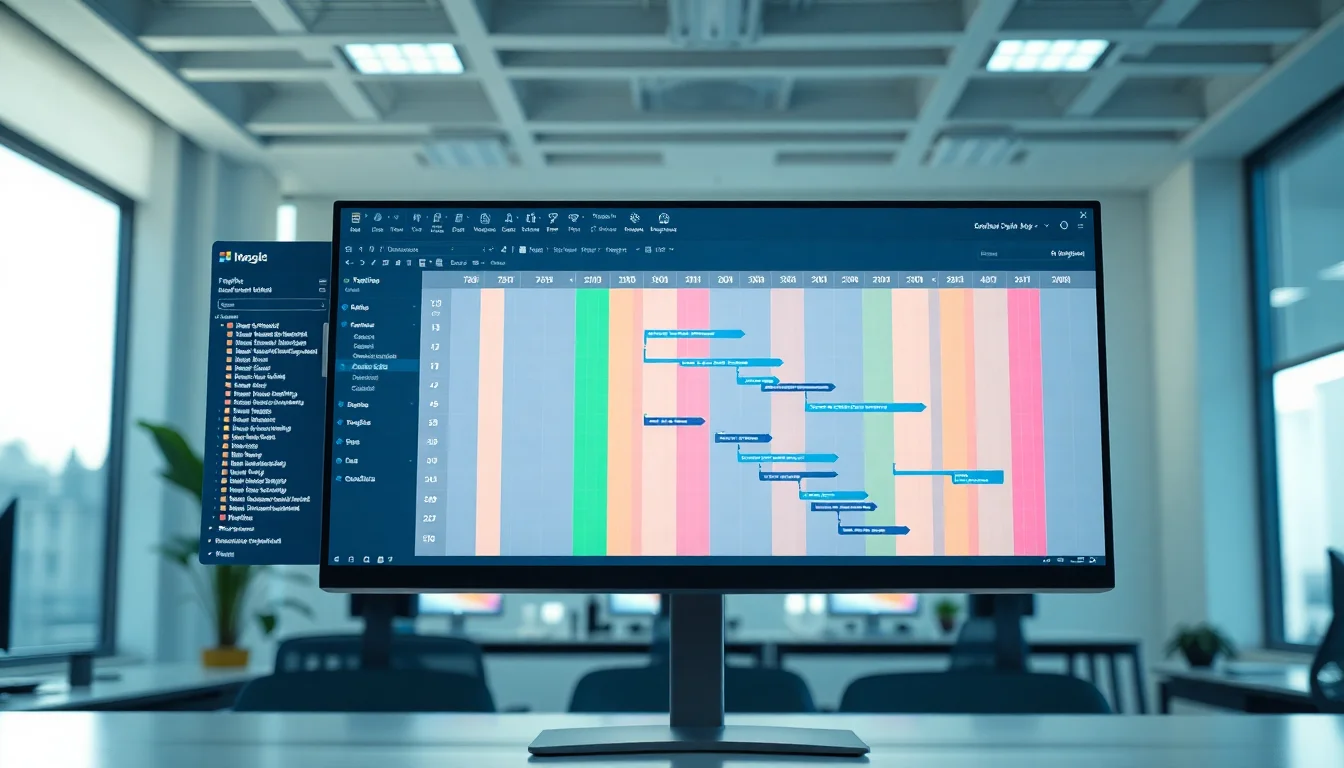
Your project schedule looks fine on paper, but the predecessor and successor tasks aren't linking the way they should. Successors start on the same day predecessors finish. Tasks don't move when you delay a predecessor. Critical path analysis breaks because dependencies aren't honoring your logic. The frustrating bit: you've checked everything three times and the links look correct. Before you rebuild the entire schedule from scratch, understand that most predecessor successor task problems aren't actually broken software. They're usually one of five specific configuration issues that hide in plain sight once you know where to look.
What Causes Predecessor Successor Tasks to Break?
Project scheduling tools like Microsoft Project treat predecessor successor tasks as the backbone of schedule logic. When you link Task B to Task A as a predecessor, you're telling the software: Task B cannot start (or finish, depending on the link type) until Task A has completed its portion. In theory, that's simple. In practice, there are five layers where this can silently fail.
The first problem is almost never the link itself. More often, it's the type of link you've created without thinking about it. Microsoft Project and similar tools offer four dependency types: Finish-to-Start (FS), Start-to-Start (SS), Finish-to-Finish (FF), and Start-to-Finish (SF). Most projects default to FS, which makes sense: Task B waits for Task A to finish before it starts. But if you accidentally set up Task B as SS (Start-to-Start), both tasks will begin on the same day, which is correct for parallel work but wrong if you need sequential work. Many schedule problems trace back to someone clicking the wrong link type months ago and nobody catching it during review.
The second issue is lag and lead time. Every predecessor/successor link can have a lag (positive delay) or lead (negative delay, shown as negative lag). A lag of 3 days means the successor starts 3 days after the predecessor finishes. A lead of 2 days (shown as -2 days) means the successor starts 2 days before the predecessor finishes, enabling overlap. Most project managers don't intentionally set these. But they get added accidentally, or inherited from templates, or copy-pasted from other projects. A mysterious 5-day lag hidden on a dependency can make the entire downstream schedule slip without anyone understanding why.
Third, task constraints are silent schedule killers. Every task has a constraint type: the default is usually As Soon As Possible (ASAP), which means the task will start as soon as its predecessors allow. But if someone changes it to Must Start On [specific date], the task locks to that date regardless of when its predecessor finishes. I've seen projects where a successor task was constrained to start on a date that's before the predecessor even finishes. The scheduler then ignores the predecessor link entirely because the hard constraint takes priority. Constraints are essential for certain situations (e.g., external dependencies), but they're used far more often than they should be, and they're rarely documented.
Fourth, calendar mismatches break predecessor/successor logic in ways that are hard to spot. If your predecessor task runs on a standard five-day work week calendar but the successor uses a 24/7 calendar (or vice versa), the finish date of the predecessor won't align with the start date of the successor the way you'd expect. A task finishing on Friday at 5 PM on a standard calendar should start its successor on Monday morning. But if the successor is on a 24/7 calendar, the software calculates differently. Multiply this by a few tasks with different calendars and the entire schedule drifts.
And fifth, the display format hides what's really happening. If your project tool is set to show dates as dd/mm/yyyy without time of day, you see that Task A finishes on 2026-06-15 and Task B starts on 2026-06-15, so they appear to overlap. You can't tell that Task A finishes at 5 PM and Task B starts at 8 AM the same day, which is perfectly correct for Finish-to-Start. The tasks aren't broken; your display is just lying to you.
Predecessor Successor Tasks Quick Fix
Enable Time-of-Day Display Easy
- Open your project tool
If you're in Microsoft Project, go to File > Options > General. - Find the Date Format setting
Look for a dropdown labeled Date Format or similar. Current setting usually shows something like dd/mm/yyyy. - Select a format that includes hours and minutes
Choose dd/mm/yyyy hh:mm or similar (exact naming varies by version). Click OK and apply. - Look at your task list or Gantt chart again
Now your dates should show times like 2026-06-15 17:00 (5 PM) for predecessor finish and 2026-06-15 08:00 (8 AM) for successor start. This is correct Finish-to-Start. If they now show different times, the schedule is working; the display was misleading you.
More Predecessor Successor Tasks Solutions
If time-of-day display didn't solve it, or if your schedule still shows misalignment, move to these intermediate fixes. They take 15 to 30 minutes and address the most common configuration errors.
Verify Predecessor Links and Dependency Types Medium
- Click the suspect successor task
Right-click it and open Task Information, Properties, or Details (wording varies by tool). - Navigate to the Predecessors or Dependencies tab
You should see a list of predecessor tasks. Each row shows: Task ID, Task Name, Type (FS/SS/FF/SF), and Lag (often empty or showing 0d for zero lag). - Confirm the predecessor field is not empty
If the predecessor field is blank, the task has no predecessor link at all. Click Add and select the correct predecessor task ID and type. Most of the time, you want Finish-to-Start (FS). - Check the Type column
If it shows SS, FF, or SF instead of FS, and you need sequential work (predecessor finishes, then successor starts), change the type to FS. Right-click the row and edit, or highlight and select from a dropdown. - Check the Lag column
If it shows a number like 5d or -3d, that's lag or lead time. If you didn't intentionally add this, delete it and set lag to 0d or blank. Unexpected lag is one of the top three schedule killers. - Click OK and check the Gantt chart
The successor task should now start immediately after (or at the same time as, depending on type) the predecessor finishes. Look for dependency arrow lines connecting the tasks visually.
Remove Hard Date Constraints Medium
- Open the task that isn't moving when you delay its predecessor
Right-click and select Task Information > Advanced or Schedule tab (varies by tool). - Look for Constraint Type
You'll see a dropdown showing the current constraint. Options usually include: As Soon As Possible (ASAP), As Late As Possible (ALAP), Start No Earlier Than, Start No Later Than, Must Start On, Must Finish On, Must Finish By. Most tasks should be ASAP or ALAP. - If it shows Must Start On, Must Finish On, or Must Finish By with a date
This is your culprit. The task is locked to that date, and the predecessor link is ignored. Change the constraint to As Soon As Possible (ASAP) or, if you truly need a minimum start date, Start No Earlier Than with an appropriate date. - Click OK
The task should now recalculate its start and finish dates based on its predecessors. If it moves to a different date, the constraint was the problem. - Update your project plan documentation if this was intentional
If the Must Start On date was there for a reason (external requirement, resource availability), note that in the task notes and use Start No Earlier Than instead, which is more flexible and allows the schedule to shift if predecessors are delayed.
Align Task Calendars and Working Time Medium
- Open the predecessor task and note its calendar
Right-click, select Task Information. Go to the General or Schedule tab. Look for a Calendar field or dropdown. It often shows something like Standard or Project Calendar. - Open the successor task and check its calendar
Same process. Does it show the same calendar as the predecessor? - If calendars differ, align them
Change the successor's calendar to match the predecessor's calendar. Click the Calendar dropdown and select the same option. Click OK. - Check your project-level calendar settings
Go to Project > Properties > Calendar (or equivalent) and confirm the Standard/Project Calendar is set to the correct work week (Monday-Friday, 8 AM-5 PM for typical office work). If the predecessor and successor both use the project calendar, they'll align automatically. - Verify the successor now calculates correctly
The successor's start date should now be the next working day after the predecessor finishes, using the same work schedule.
Advanced Predecessor Successor Tasks Fixes
If your schedule still has issues after the quick and intermediate fixes, the problem is likely structural. You may have a more complex network of dependencies with circular references, orphaned tasks, or a mix of link types that no longer make sense. Advanced fixes take 30 minutes to several hours but address root causes that simple adjustments can't touch.
Split Multi-Stage Work into Separate Tasks Advanced
- Identify tasks where overlap is necessary
For example, you have Task A (Design) as the predecessor and Task B (Build) as the successor. You want Task B to start before Task A finishes because some building can happen in parallel with design refinement. This is legitimate, but it's usually a sign that Task A should be split. - Break the predecessor into subtasks
Instead of Task A (Design), create Task A1 (Design: Requirements) and Task A2 (Design: Detailed Planning). Link Task B to Task A1 only, allowing Task B to start while Task A2 is still underway. This is clearer than using lead time. - Set up the dependency links
Task A1 should be FS to Task A2 (requirements must be done before detailed planning starts). Task B should be FS to Task A1 (build can start as soon as requirements are done). This gives the same schedule result as a lead time on a single link, but it's much more transparent to anyone reading the schedule. - Update task durations
If Task A was originally 10 days, split it into Task A1 (3 days) and Task A2 (7 days) based on the actual work phases. Add realistic durations; don't just divide the original duration equally. - Verify the critical path and overall schedule finish date
The total duration should be roughly the same, but the schedule is now clearer and easier to update if requirements change.
Audit the Schedule for Structural Problems Advanced
- Identify all tasks with no predecessors
These should only be your true start tasks (e.g., Project Start, Kickoff). If regular work tasks have no predecessors, they're orphaned. Click the task, check the Predecessor field in Properties. If empty, add the correct predecessor. - Identify all tasks with no successors
These should only be your true end tasks (e.g., Project End, Closure). If regular work tasks have no successors, they're dead ends and don't feed into the project finish. Click the task, check if any tasks list this one as a predecessor. If not, add a successor link or mark it as unnecessary and delete it. - Look for hard constraints that conflict with dependency dates
Run through your task list and note any task with a Must Start On or Must Finish On constraint. For each one, check whether its predecessors actually finish in time to honor that constraint. If not, you have a conflict. Document these conflicts and decide whether to adjust the constraint, delay the predecessor, or find a workaround (e.g., adding resources to speed up the predecessor). - Check for unexpected lag values across the project
Filter or sort by the Lag column (if available in your tool's Gantt view) and look for any positive or negative values. Each one represents a deliberate delay or overlap. If you didn't explicitly set it, document what it's for or remove it. - Check for circular dependencies
These are rare but catastrophic if they exist. Task A depends on Task B, which depends on Task C, which depends on Task A. Most tools will warn you, but if your schedule is old or imported from another system, circular links can hide. Look for any task that lists itself (directly or indirectly through a chain) as a predecessor or successor of itself. Delete one link in the chain to break the circle. - Standardise dependency types across similar phases
Run through your critical path and key phases. Most should be Finish-to-Start (FS). If you see clusters of Start-to-Start (SS) or Finish-to-Finish (FF), ask yourself whether those link types are truly necessary or whether they're holdovers from old planning. Replace with FS where possible to simplify the schedule.
Enforce Predecessor/Successor Rules via Automation Advanced
- Document your dependency policy
Write a one-page standard for your project (or organisation): All tasks default to Finish-to-Start (FS) with zero lag unless project manager explicitly approves an exception in writing. Hard constraints are used only for external fixed dates, documented with a reason. Every task except Project Start and Project End must have at least one predecessor and one successor. - Create a macro or script to validate the schedule
If you use Microsoft Project, write a VBA macro that iterates through all tasks and checks: (a) Does this task have a predecessor? (b) Does it have a successor? (c) Is the dependency type FS unless marked as exception? (d) Is lag/lead zero unless documented? (e) Is the constraint ASAP or ALAP, or justified? The macro can run monthly and flag violations. - For smaller teams, use a template with pre-tested dependencies
If macros are overkill, create a blank project template with your standard phases (Planning, Design, Build, Test, Deploy, Close) already linked with correct dependency types. New projects start from this template, reducing ad-hoc configuration errors. - Run the validation check before publishing a baseline
Before you save the baseline (the reference schedule used for tracking progress), run your audit or macro. Fix any violations. This ensures the baseline is clean and comparable to actual progress.
Preventing Predecessor Successor Tasks Problems Long Term
Once you've fixed your current schedule, the goal is never to have this problem again. Prevention is about culture and discipline more than software. Most schedule problems happen because someone makes one small mistake (adding lag without documenting it, or setting a hard constraint to meet a deadline and forgetting to remove it later), and then that mistake gets copied across the rest of the project or used as a template for the next project. After a few cycles, the entire scheduling process is corrupted.
Start with a one-page dependency policy. This is not a long document. It says: all tasks use Finish-to-Start (FS) with zero lag by default, except where the project manager explicitly approves an exception and documents the reason in the task notes. Hard constraints are reserved for true external dependencies (e.g., a vendor delivery date that's fixed, or a regulatory compliance deadline). Flexible constraints like As Soon As Possible or Start No Earlier Than are preferred. Every task except start and end milestones has both a predecessor and a successor. If a task truly has no predecessor or successor, delete it or ask why it's there.
Set your date display format to include time of day from day one. This removes the visual ambiguity that makes schedules look broken when they're actually fine. dd/mm/yyyy hh:mm is clearer than dd/mm/yyyy. Make this the standard for all project files in your organisation.
Use templates for your most common project types. If you run projects with similar phases (Planning, Design, Build, Test, Deploy), create a blank template with those phases already set up and linked with correct dependency types and realistic durations based on your historical data. New projects start from the template, not from scratch or copied files that might carry hidden errors.
Train your team on the four dependency types and why Finish-to-Start is the default. Many project managers don't consciously choose a link type; they just accept the software's default or copy what they see elsewhere. A one-hour session covering FS (sequential work), SS (parallel work starting together), FF (work finishing together), and SF (rarely used, avoid) will prevent most mistakes.
Before you baseline or publish a schedule, run a final audit. Look at your critical path and verify all tasks use consistent link types and realistic lag values. Spot-check a few tasks to confirm they have predecessors and successors. This takes 30 minutes for a medium-sized project and catches most issues before they cause problems during execution.
Document exceptions visibly. If a task has a hard constraint, lead time, or a non-FS link type, add a note in the task notes field explaining why. When someone else (or you, months later) opens the schedule, they'll understand the decision instead of assuming it's a mistake.
Predecessor Successor Tasks Summary
Predecessor successor tasks problems are almost never a sign that your project software is broken. They're a sign that one of five configuration layers got out of alignment: the date display format is hiding time-of-day offsets, the dependency type or lag is wrong, a hard constraint is overriding the dependency logic, task calendars don't match, or the schedule network has structural issues like orphaned tasks or circular dependencies.
Start with the quick fix: enable time-of-day display. This resolves most false-positive issues instantly. Then move to intermediate fixes: verify predecessor links exist, confirm dependency types are Finish-to-Start, remove hard constraints, and align task calendars. If your schedule still has issues, the advanced fixes help you audit the network for structural problems, split complex work into clearer subtasks, and implement automation to prevent future drift.
The long game is preventing these problems from happening again. Use a one-page dependency policy, enforce consistent date display formats, use templates for common project types, train your team on dependency fundamentals, and audit schedules before publishing them. Most organisations that run projects with predictable, accurate schedules do so because they've standardised their predecessor/successor practices, not because they've bought fancier software.