
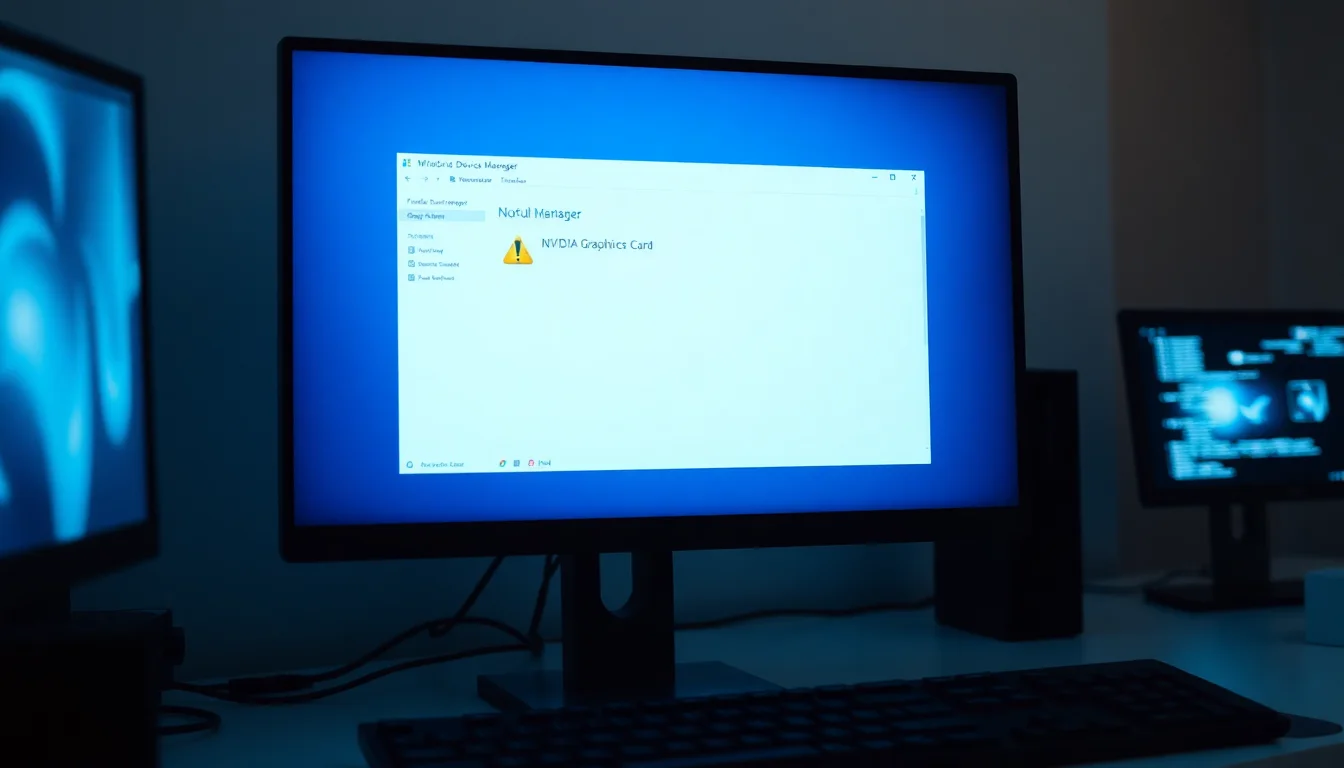
Your NVIDIA graphics card is showing a yellow exclamation mark in Device Manager with the message 'Windows has stopped this device because it has reported problems (Code 43)'. Your screen's locked at low resolution. Games won't launch. And your system feels like it's running on fumes.
Here's the thing: this error is fixable, and you don't need to buy new hardware or wipe your system. I've fixed this issue hundreds of times via remote support, and the vast majority resolve with proper driver management. Let's get your NVIDIA graphics driver code 43 error fix sorted.
TL;DR
NVIDIA graphics driver code 43 error disables your GPU when Windows detects driver problems. Quick fix: restart, update drivers through Device Manager, and reinstall the device. If that fails, boot into Safe Mode, use Display Driver Uninstaller to completely remove NVIDIA drivers, install fresh drivers from nvidia.com, then update Windows and your system's BIOS and chipset drivers. This resolves 70-80% of cases. Persistent errors after these steps indicate potential hardware issues requiring professional inspection.
Key Takeaways
- Code 43 is caused by driver corruption (most common), outdated firmware, or hardware connection issues
- 50-60% of cases fix with simple restart and Device Manager updates
- Clean driver removal and reinstallation solves 70-80% of stubborn cases
- Always download NVIDIA drivers from nvidia.com or your hardware manufacturer, never third-party sites
- Update BIOS and chipset drivers from your PC/laptop manufacturer's website after driver fixes
- If code 43 persists after all software fixes, the GPU or motherboard likely has hardware failure
What Causes NVIDIA Graphics Driver Code 43 Error?
Windows has built-in protection. When your NVIDIA GPU reports a problem, corrupted driver files, communication failures, incompatible versions, Windows immediately disables it rather than let it crash your system. That's code 43. It's Windows being protective, not your GPU being broken.
The error happens for three main reasons. Most commonly (60-70% of cases), driver corruption follows failed installations or Windows Updates. You'll see this especially after major Windows updates that downgrade or replace your NVIDIA drivers with generic Microsoft versions. The new drivers conflict with your existing installation, causing communication breakdown between the operating system and your GPU.
The second cause (20-30% of cases) is outdated or missing system components. Your BIOS firmware might be years old. Your chipset drivers might never have been updated since you bought the machine. Windows Update might have installed a kernel update that changed how the system communicates with PCIe devices. Any of these can break GPU detection even if your drivers are current.
The third cause (10-20% of cases) is hardware-related: a loose GPU in its PCIe slot, disconnected power cables, insufficient PSU wattage for your graphics card, or, rarely, actual GPU failure. Hardware issues persist even after software fixes, which is how you'll know whether you're dealing with corruption or a dead component.
The good news is that driver corruption is fixable with the right process. The bad news is that Windows' standard uninstall doesn't fully remove driver files, which is why I recommend Display Driver Uninstaller for complete removal.
NVIDIA Graphics Driver Code 43 Error: Quick Fix
Quick Driver Reset and Update Easy
- Restart your computer
Power down completely and restart. This clears temporary driver conflicts and reinitializes hardware connections. Yes, it's the oldest tech support cliché. Yes, it works about 30% of the time for this particular error. - Open Device Manager
PressWin+X, click Device Manager. Or go to Settings > System > Device Manager. - Find your NVIDIA GPU
Expand Display adapters. You'll see your NVIDIA card (might say GeForce RTX 4090, RTX 3080, MX330, or similar) with a yellow exclamation mark. Right-click it. - Update the driver
Select Properties. Go to Driver tab. Click Update Driver. Choose Search automatically for drivers. Let Windows search its repository for a compatible version and install it automatically. - Reinstall the device
Right-click the NVIDIA GPU again. Select Uninstall device. Important: do NOT check the box that says Delete the driver software. Just click Uninstall. Then go to Action menu > Scan for hardware changes. Windows will redetect your GPU and attempt installation again. - Verify the fix
Check Device Manager. The yellow exclamation mark should be gone. Runpnputil /enum-devices /problemin Command Prompt (Admin) to confirm no code 43 errors remain. Open a GPU-intensive application (game, video editor) to verify it actually works.
More NVIDIA Graphics Driver Code 43 Error Solutions
If your GPU still shows code 43 after the quick fix, the driver corruption is too deep for Windows automatic repair. Time for complete driver removal and fresh installation. This is where most people succeed.
Clean NVIDIA Driver Installation Intermediate
- Download Display Driver Uninstaller and your driver beforehand
On another computer or phone, download Display Driver Uninstaller (DDU) from wagnardsoft.com. It's free and trusted by thousands of technicians. Also download the latest NVIDIA driver from nvidia.com/drivers matching your exact GPU model. Save both to a USB drive if your GPU is completely non-functional, or to your Downloads folder if Windows still displays at low resolution. - Boot into Safe Mode
PressWin+R, typemsconfig, press Enter. Go to Boot tab. Check Safe boot. Select Minimal. Click OK. The system will restart into Safe Mode (minimal drivers, no network in most cases, lower resolution display). Alternatively, hold Shift whilst clicking Restart, navigate to Troubleshoot > Advanced options > Startup Settings > Restart, then press F4 during the boot screen for Safe Mode. - Run Display Driver Uninstaller
Launch the DDU executable. On the right side, select GPU type: NVIDIA. Select Device type: NVIDIA. Click the big red button labelled Clean and restart. DDU will remove every trace of NVIDIA drivers from your system, executable files, registry entries, temp files, and force a restart. - After restart, install fresh NVIDIA driver
Windows restarts in Safe Mode. Find your downloaded NVIDIA driver installer. Run it. When the setup wizard appears, select Custom installation (Advanced). Important: check the box Perform a clean installation. This ensures no conflicting old driver fragments remain. You can uncheck GeForce Experience if you don't want the overlay software, the driver itself is what matters. Complete installation and allow the system to restart when prompted. - Update Windows and system firmware
Back in normal Windows mode, go to Settings > Update & Security > Windows Update. Click Check for updates. Install everything available, including optional driver updates. Then visit your PC or laptop manufacturer's support website (Dell, HP, Lenovo, Asus, Apple, etc.). Download and install the latest BIOS/UEFI firmware and chipset drivers. This is crucial: Windows Device Manager sometimes installs generic drivers that conflict with vendor-optimized versions. Chipset drivers specifically are often the missing piece. - Verify GPU functionality
Check Device Manager again. Your NVIDIA GPU should appear with no errors. Open a game or GPU-intensive application to confirm it actually runs. Check Settings > System > Display to verify your monitor resolution is no longer capped at 800x600.
Advanced NVIDIA Graphics Driver Code 43 Error Fixes
You're reading this section because code 43 is still lurking. The driver corruption was deeper than expected, or a system-level problem is preventing your GPU from functioning. These fixes address both possibilities. If you have a desktop PC, hardware inspection becomes relevant here.
System File Repair and Hardware Diagnostics Advanced
- Run system file integrity checks
Open Command Prompt as Administrator. Runsfc /scannow. This scans every Windows system file and repairs corruption. It takes 10-15 minutes. Restart when finished. Then runDISM /Online /Cleanup-Image /RestoreHealth. This repairs your Windows image using Microsoft's online repository. Both commands fix corruption that might prevent your GPU from communicating with Windows. - Update and reset BIOS/UEFI firmware
Restart your computer. During startup, press Delete, F2, F10, or F12 (varies by manufacturer) to enter BIOS setup. Inside BIOS, look for an option to load optimized defaults or reset to factory settings. Select it and save. Exit BIOS and let the system restart. Then visit your motherboard or laptop manufacturer's website. Download the latest BIOS update for your exact model. Follow their instructions carefully to flash the update. Outdated BIOS is a surprisingly common culprit; manufacturers release BIOS updates specifically to fix PCIe detection issues. - Physically inspect and reseat GPU (desktop PCs only)
Power off completely and unplug the system from the wall. Wait 30 seconds. Open the case. Locate your graphics card in the PCIe slot. Gently push the small release clip on the right end of the slot. Carefully pull the GPU straight out. Inspect the gold contacts on the GPU, they should be clean and shiny. If they're dirty, clean them with a soft, dry cloth or isopropyl alcohol. Inspect the PCIe slot itself for bent pins or debris. Push the GPU firmly back into the slot until the release clip clicks. Verify any PCIe power cables (6-pin or 8-pin connectors) are pushed fully onto the GPU's power receptacles. Close the case and restart. - Check power supply capacity
Your GPU draws power through the PCIe slot (up to 75W) and via dedicated power cables. If your PSU is underpowered, it can't deliver clean power to the card, causing Windows to disable it. Check your current PSU wattage in BIOS or System Information. Modern GPUs like RTX 4090 need 450W+ systems; RTX 3080 typically needs 750W+; even mobile GPUs in laptops need proper firmware-level power management. If you're borderline on power, this is worth investigating. - Test with alternative configuration (desktop only)
If possible, try inserting the GPU into a different PCIe x16 slot on your motherboard. Some boards have multiple slots. If it works in a different slot, your original slot might be failing. Alternatively, if you have access to a different graphics card, test it in your system to determine whether the problem is GPU-specific or motherboard-specific. - Clean Windows installation (last resort)
Back up all important data to external storage. Download Windows Media Creation Tool from Microsoft's website. Create a bootable USB drive. Restart and boot from the USB. Follow the installation wizard to perform a clean Windows install (not an upgrade, a complete fresh install). After Windows finishes, DO NOT install other software yet. Install NVIDIA drivers immediately before anything else. This eliminates 100% of software conflicts. If code 43 appears even after clean Windows and fresh drivers, your GPU or motherboard has hardware failure.
When to Seek Professional Help for NVIDIA Graphics Driver Code 43 Error
At this point, if code 43 is still showing after clean Windows installation and fresh NVIDIA drivers, your GPU or motherboard has likely suffered hardware failure. This happens in roughly 5-10% of code 43 cases.
Hardware failure manifests differently than driver corruption: your GPU doesn't appear in Device Manager at all, or it appears but code 43 returns immediately even with fresh drivers and zero conflicts. VRAM failure (bad memory chips on the GPU) won't fix with software. A failed PCIe controller on the motherboard won't fix with software. A physically damaged GPU from thermal stress or voltage spike won't fix with software.
Professional technicians can test your GPU in another system, perform detailed electrical diagnostics on your motherboard, or swap components to isolate the fault. For warranty coverage, contact your GPU or laptop manufacturer directly. Outside warranty, a local IT repair shop can diagnose and repair or replace the defective component.
Preventing NVIDIA Graphics Driver Code 43 Error
Once your GPU is working, keep it that way.
Use proper driver management: When updating NVIDIA drivers, always use Display Driver Uninstaller before installing a new version. Don't just run the new installer on top of the old one. Use GeForce Experience for updates if available, it handles clean installations automatically. After major Windows Updates, check nvidia.com manually; Windows sometimes installs older drivers that aren't optimal.
Keep your system updated: Enable Windows automatic updates. Check your motherboard or laptop manufacturer's support website every 3-4 months for BIOS updates and chipset drivers. These aren't exciting, but they prevent compatibility issues. Many users never update BIOS after initial purchase, leaving years of fixes on the table.
Monitor temperatures: GPU overheating can cause Windows to disable the card. Download HWMonitor or GPU-Z. Check your GPU temperature during gaming or video rendering. If it exceeds 85°C consistently, clean dust from heatsinks or improve case airflow. Thermal throttling or failure is rare but preventable.
Verify power delivery: Check your PSU wattage meets your GPU's requirements. Ensure all power cables to your GPU are firmly seated. A loose 8-pin connector causes intermittent detection failures, not permanent ones, but they cascade into code 43 if Windows gives up trying.
Avoid unnecessary drivers: Don't install driver management software, game optimization tools, or overclocking utilities unless you need them. Each extra driver or utility is another thing that can conflict with your GPU drivers. Simpler systems are more stable systems.
NVIDIA Graphics Driver Code 43 Error: Summary
Code 43 feels like a major problem. Your GPU is disabled. Your display looks like a 1995 monitor. Games won't run. But in reality, it's usually just driver corruption, not hardware death.
Start with the quick fix: restart, update drivers through Device Manager, reinstall the device. If that doesn't work, boot into Safe Mode, completely remove NVIDIA drivers with Display Driver Uninstaller, and install fresh drivers from nvidia.com. Update Windows and your system's BIOS and chipset drivers. This sequence fixes 70-80% of cases.
If code 43 still lingers, run system file repairs (sfc /scannow and DISM), reseat your GPU if it's a desktop, and consider a clean Windows installation. Persistent code 43 after all of these steps indicates hardware failure, which requires professional diagnosis.
The key to resolving NVIDIA graphics driver code 43 error fix is completeness: don't just update the driver, completely remove the old one first. Don't just update Windows, also update BIOS and chipset drivers. These thorough approaches are why the success rate is so high. Your GPU isn't broken. It just needs proper driver management to trust Windows again.