
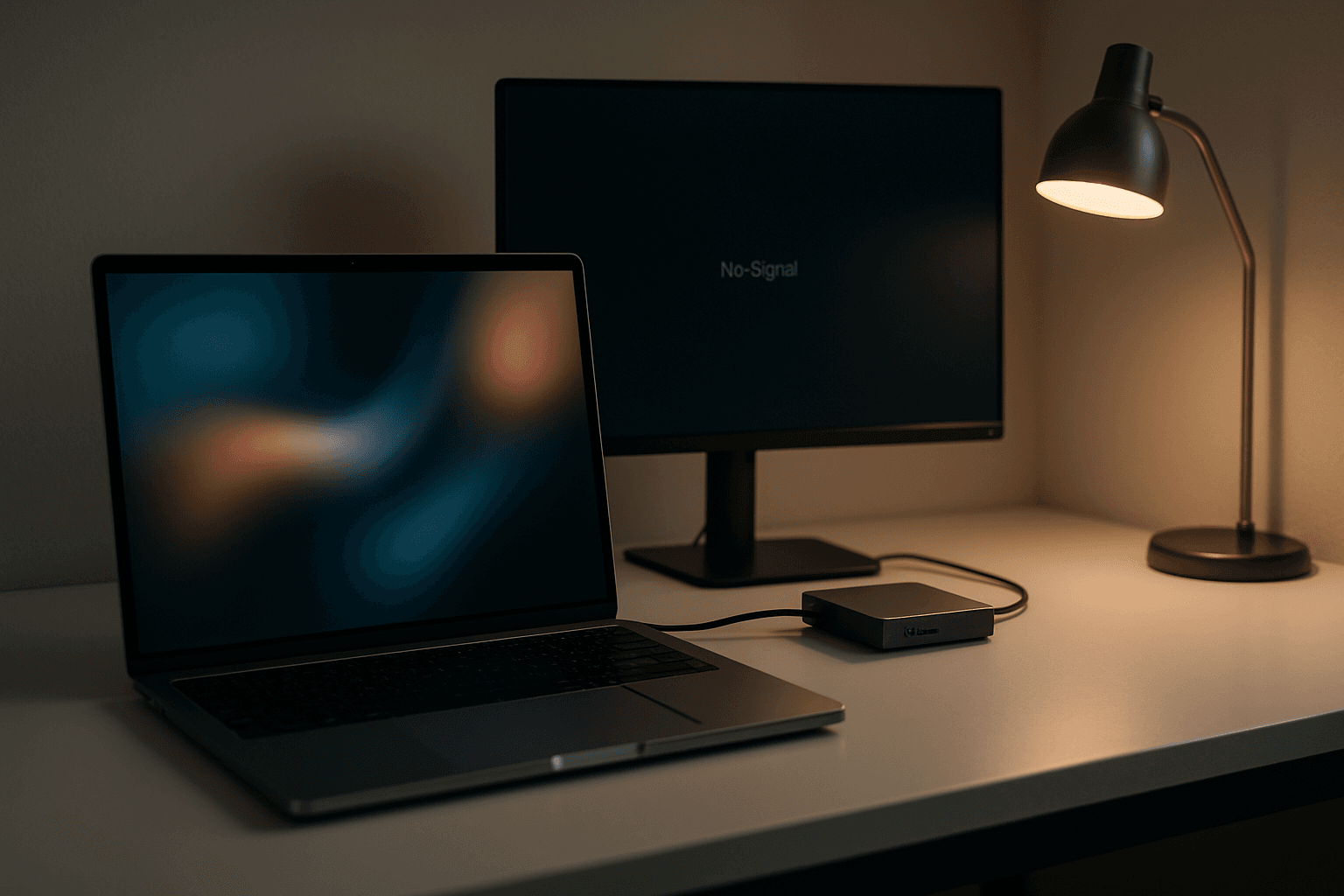
Your MacBook sits on your desk. The USB-C dock is plugged in. The monitor shows no signal. Everything looks connected properly, but your Mac refuses to acknowledge the external display exists. This is frustrating because the dock worked perfectly last week, and you've got no obvious errors to go on.
What causes Mac USB-C monitor not detected?
There are five main reasons your Mac won't recognise an external monitor connected via USB-C. Understanding which one applies to you saves time because the fixes are very different.
Cable degradation is the first and most common culprit. USB-C cables wear out faster than you'd think, especially if you're coiling them tightly, bending them repeatedly, or leaving them in tension. The video signal quality degrades to the point where your Mac can no longer negotiate a stable connection with the monitor, even though basic USB power still flows. Newer MacBook models like the M3 and M4 are particularly sensitive to signal noise, so a cable that worked fine on an older Mac might fail on a newer one.
DisplayLink drivers are the second major cause. If your dock uses DisplayLink technology (which many third-party docks do), the software must be installed and up to date. After a macOS update, older DisplayLink versions often stop working. Your dock appears in System Settings as a USB device, but the monitor stays black because the driver can't communicate with it. This is especially common after major updates like macOS 26.
Monitor automatic input detection is trickier to spot but surprisingly common. Modern monitors try to automatically detect which input port has a signal and switch to it. This sounds helpful, but it introduces timing delays. If your Mac is querying the display for detection at the exact moment the monitor is switching inputs, the negotiation times out and fails. The connection drops before it completes.
Display configuration cache corruption happens after macOS updates. Your Mac stores display settings like resolution, refresh rate, and arrangement in a cached configuration file. When an update modifies how the system detects displays, this cached data can become stale or corrupted, blocking the Mac from recognising newly connected monitors. You'll need to purge this cache and let macOS rebuild it from scratch.
Finally, port-specific hardware issues on your MacBook can prevent detection via one particular USB-C port whilst other ports work fine. This is less common but worth testing if other solutions don't work.
Quick fix: Cable swap and monitor configuration
Swap your USB-C cable and check monitor settings Easy
- Grab a different USB-C cable
Find a certified USB-C cable that's explicitly rated for video transmission and 60W+ power delivery. Using a charging-only cable is a common mistake here. Test with both ends of the cable reversed on your Mac, since one connector might be damaged. - Access your monitor's on-screen display menu
Press the menu button on your monitor (usually on the back or bottom). Navigate to input or source settings and look for an option like "Automatic input detection" or "Auto-sense". Turn it off completely. - Manually select the correct input source
With automatic detection disabled, manually select the input that matches your connection (USB-C, DisplayPort, or whatever your dock uses). Press the menu button again to confirm and exit. - Firmly reseat all connections
Disconnect the USB-C cable from both your MacBook and dock (if using one). Check both ports for debris using a torch. Reconnect with deliberate pressure until you feel the connector seat properly. - Restart your Mac completely
Don't just close the lid. Go to Apple menu, select Restart, and let it boot all the way up. This clears temporary state that blocks detection. - Check if the monitor appears
Open System Settings, go to Displays, and see if your external monitor shows up. If it does, you're done. If not, move to the next solution.
This approach solves roughly half of all Mac USB-C monitor detection problems. The cable swap is genuinely the most likely fix because USB-C connectors degrade under normal use, and even minor signal degradation breaks video transmission whilst leaving USB power intact. You'll see your dock charge the MacBook and appear in System Settings, but the monitor stays blank.
Intermediate fix: DisplayLink driver update and permissions
Reinstall DisplayLink software and reconfigure permissions Medium
- Disconnect the dock completely
Unplug the USB-C connection between your dock and MacBook. This prevents conflicts during software installation. - Uninstall any existing DisplayLink software
Open Applications folder, look for DisplayLink app, drag it to Trash, and empty the Trash. Don't skip this step; old versions conflict with new ones. - Download the latest DisplayLink software
Visit displaylink.com/downloads/macos, find the version matching your macOS version (check Apple menu, About This Mac), and download the installer. - Install the new DisplayLink software
Open the downloaded.dmg file and follow the installer prompts. You'll need to grant permissions in System Preferences during installation. Restart when prompted. - Configure DisplayLink permissions
After restart, open System Settings, go to Privacy & Security, and look for DisplayLink in the list. Enable screen recording and accessibility permissions if prompted. This lets DisplayLink communicate with your displays. - Enable automatic launch
Open the DisplayLink app from Applications, find preferences or settings, and check "Launch automatically after login". This ensures the software runs on startup. - Update dock firmware
Check your dock manufacturer's website for firmware updates specific to your model. Download and install if available (many docks have their own firmware update utilities). This improves compatibility with your MacBook. - Reconnect the dock and test
Plug the dock back in. Open System Settings, go to Displays, hold Option key, and click "Detect Displays". Your monitor should appear within seconds.
This fix specifically targets DisplayLink-based docks and adapters, which are incredibly common for multi-monitor setups. The software acts as a bridge between your Mac and displays that don't support native DisplayPort Alt Mode. After a macOS update, the old DisplayLink version often becomes incompatible, and your Mac stops recognising the display even though the dock itself appears in System Settings.
One important note: not all USB-C docks need DisplayLink. If your dock supports native USB-C video output (DisplayPort Alt Mode), no driver software is required. Check your dock manual to confirm which type you have. If you're not sure, just try this solution anyway because it won't hurt.
The firmware update step matters more than most people realise. Dock manufacturers release firmware updates to improve detection with newer MacBook models and macOS versions. A dock that worked fine before macOS 26 might need a firmware patch to work properly after the update. It takes ten minutes and often solves persistent detection issues that no amount of software tweaking fixes.
Advanced fix: Display cache purge and direct connection test
Clear display configuration cache and isolate the problem Advanced
- Disconnect all external displays and docks
Unplug every monitor, dock, and external display. Close your MacBook lid if you use clamshell mode. This prevents any interference during cache clearing. - Open Terminal
Go to Applications folder, open Utilities, double-click Terminal. Leave it open for the next steps. - Clear the display configuration cache
Paste this command and press Enter (you'll need to type your admin password when prompted):defaults delete com.apple.HIToolbox AppleCurrentKeyboardLayoutInputSourceID && defaults delete -g com.apple.universalaccess - Clear additional display settings cache
Paste and run:rm -rf ~/Library/Preferences/com.apple.displays.plist - Quit Terminal
Typeexitand press Enter to close Terminal. - Restart your Mac completely
Go to Apple menu, select Restart. Let it boot all the way. This allows macOS to rebuild display configuration from scratch. - Test with direct connection (if possible)
If you have an HDMI cable or spare USB-C cable, connect your monitor directly to your MacBook without using the dock. This isolates whether the problem is the dock, the cable, or your Mac. If direct connection works, the dock is at fault. If direct connection fails, your MacBook port might have issues. - If direct works, reconnect via dock
Unplug the dock from all USB ports on your MacBook. Disconnect all USB devices from the dock itself. Wait 10 seconds. Then reconnect the dock to a different USB-C port on your MacBook. This forces the USB hub to reset and renegotiate with the system. - Reconfigure display settings
Once detection works, open System Settings, go to Displays, and set your preferred resolution, refresh rate, and monitor arrangement. These settings were cleared along with the cache.
This is the heavy-handed approach, and it works when other fixes don't because it attacks the root cause: corrupted cached display data. After a macOS update, particularly macOS 26, the system's display detection logic sometimes changes in ways that make old cached configurations incompatible. Your Mac refuses to re-scan for displays because it "remembers" seeing certain configurations before.
The direct connection test is crucial for diagnosis. If your monitor shows up when connected directly but not through the dock, you've confirmed the problem is dock-specific. This points to outdated dock firmware or DisplayLink driver issues, which means you should go back and run the DisplayLink update solution more carefully. If the monitor doesn't show up even with a direct connection, you're likely dealing with a hardware port issue on your MacBook, and you'd need to contact Apple Support or book a hardware repair.
Fair warning: clearing display cache wipes all your saved display settings. Resolution, refresh rate, colour profile, and monitor arrangement all reset to defaults. You'll need to reconfigure them after restart. This is annoying but necessary because the corrupted cache is actively preventing detection. If you had a custom arrangement with specific resolution settings, jot those down before you start.
Stuck after following all three solutions? Mac USB-C monitor detection issues can involve hardware port faults, stubborn driver conflicts, or dock-specific problems that need hands-on diagnosis. Our remote support team can connect to your Mac, run detailed hardware tests, update drivers in real time, and reconfigure your display setup properly.
Book a remote support session and have your monitor working within the hour.
Preventing Mac USB-C monitor detection problems
Prevention is much easier than troubleshooting. Start with cable quality. Most USB-C monitor detection failures trace back to cheap or damaged cables. Buy certified cables explicitly rated for video transmission and 60W+ power delivery. Check the packaging or product page to confirm it supports video. Coil cables loosely, avoid sharp bends, and store them in a cool dry place. A good cable costs £15-25 and lasts years. A cheap one fails within months and creates problems like this.
Keep your software current. macOS updates and DisplayLink driver updates happen regularly. Enable automatic updates in System Settings, or manually check for updates monthly. Updates don't just add features; they fix detection problems and improve compatibility with hardware. This is especially important after major macOS releases.
Configure your monitor's input detection properly. Find your monitor's on-screen display menu and disable automatic input source detection. Manually set the input to the specific port you're using. It seems like automatic detection would be helpful, but it introduces timing problems that cause negotiation failures. Fixed input sources are always more reliable.
When switching between clamshell mode (monitor only) and laptop screen usage, fully restart your Mac instead of just unplugging the dock. The Mac caches display state, and improper shutdown-restart cycles can corrupt that cache. A clean restart forces the system to re-detect displays properly.
Rotate which USB-C ports you use for your dock. If you always use the same port, it wears faster. Using different ports distributes the wear and also helps you spot port-specific problems early. If your monitor works on port 3 but not port 1, you've isolated a hardware issue.
Verify dock compatibility before you buy. Check the manufacturer's compatibility list to confirm your specific MacBook model and macOS version are supported. A dock listed as "compatible with macOS 25" might not work properly on macOS 26, even if it still boots. Post-purchase, after you upgrade macOS, revisit the manufacturer's website to see if a firmware update is available.
Mac USB-C monitor not detected: what you need to know
Mac USB-C monitor not detected is frustrating because everything looks properly connected, but the system refuses to acknowledge the display. The three solutions here cover 90% of cases: cable degradation, DisplayLink driver issues, and display cache corruption. Start with the quick fix (cable swap and monitor configuration), move to the intermediate solution (driver update) if that doesn't work, and only move to the advanced fix (cache purge) if both previous attempts fail.
Test with a different cable first. It's the fastest and most likely to solve the problem. If that doesn't work, update DisplayLink and reconfigure permissions. If you're still stuck, purge the display cache and test a direct connection. This methodical approach isolates exactly which component is failing and points you toward the right fix without wasting time on trial-and-error.
Keep in mind that dock-specific problems are common. If your monitor works with direct connection but not through your dock, firmware updates and driver reinstalls are the answer. If direct connection also fails, you might have a hardware port issue, and that's when you need professional help. Most Mac USB-C monitor not detected problems are software-side and fixable in an hour, but hardware failures require service.