
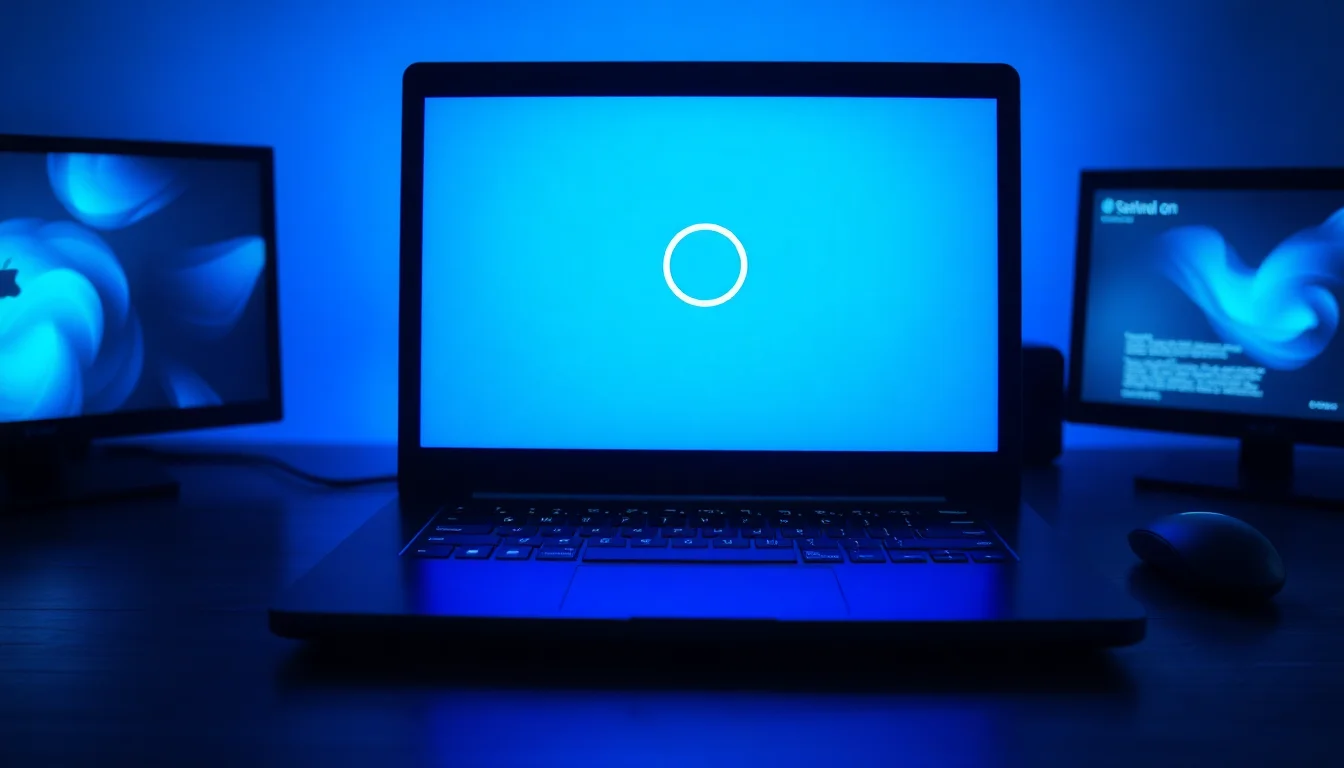
Before you wipe the drive or book it in for a full reinstall, consider this: a laptop stuck restarting is almost never a sign that Windows is beyond saving. In the vast majority of cases we see at Vivid Repairs, the culprit is something specific and fixable, whether that's a bad update, a dodgy USB device, or a corrupted system file. The spinning circle on that blue screen is frustrating, but it's not a death sentence. This guide walks through every fix in order, from the two-minute force shutdown all the way to advanced command-line repair.
What Actually Causes a Laptop Stuck Restarting?
The restarting screen itself isn't the problem. It's a symptom. Windows is trying to complete a restart cycle, and something is blocking it from finishing. Understanding what that something is will help you pick the right fix first, rather than working through a long list of steps that don't apply to your situation.
The most common cause we see is a failed or stalled Windows Update. When an update installs, Windows needs to restart to apply changes to system files that are locked during normal operation. If that update hits an error mid-install, the restart process can hang indefinitely waiting for a process that's already failed. This is especially common after cumulative updates or driver updates that touch core hardware components.
Second on the list is Fast Startup. Most people don't know this feature exists, let alone that it's enabled by default on most Windows 10 and 11 laptops. Fast Startup works by saving a partial system state to the hibernation file (hiberfil.sys) on shutdown, then loading that state on the next boot instead of doing a full cold start. The problem is that a proper Restart command bypasses this, but if Fast Startup is misconfigured or conflicting with a driver, it can corrupt the handoff between shutdown and restart. The laptop gets stuck because Windows doesn't know which state it's supposed to be in.
External peripherals are a less obvious but very real cause. USB hubs, docks, external drives, and even some wireless receivers can hold open device handles that Windows needs to release before it can finish restarting. If a device isn't responding to the unload request, Windows waits. And waits. And never finishes. This is why disconnecting everything before a restart is one of the first things we try.
Beyond those three, you're looking at corrupted system files, which can happen after a forced shutdown during an update, a power cut, or a storage fault. And in a smaller number of cases, the issue is hardware: a failing SSD or HDD, RAM with intermittent errors, or a BIOS/UEFI setting that's interfering with the boot process. Those cases need more work, but they're covered in the advanced section below.
Laptop Stuck Restarting: Quick Fix
This is where you start. Every time. Even if you're fairly sure it's something more complicated, do this first. Took three reboots before this one stuck on a client's Dell Inspiron last month, and it turned out a USB-C hub was the entire problem. Two minutes of work.
Force Shutdown and Clear Peripherals Easy
- Force the laptop off
Hold the power button for 5 to 10 seconds until the screen goes completely dark and the laptop powers down. Don't tap it, hold it. A short press on most modern laptops just sends a sleep or soft shutdown signal, which won't break the restart loop. - Unplug everything
Remove all USB devices, external hard drives, USB hubs, docking stations, printers, external monitors, SD cards, and any other connected accessories. Leave only the power cable if you need it for battery. - Wait 20 seconds
This gives the hardware time to fully discharge and reset. It sounds trivial but it matters, especially for USB controllers. - Power back on and observe
If Windows boots normally, great. Reconnect your peripherals one at a time after a successful boot to identify the culprit device. If it still hangs on the restarting screen, repeat the force shutdown two more times. - Let Windows enter Recovery
After two to three failed boots, Windows detects the pattern and automatically launches Automatic Repair or the Windows Recovery Environment on the next attempt. This is intentional behaviour, and it's your gateway to the fixes below.
More Laptop Stuck Restarting Solutions
If the quick fix didn't sort it, you're almost certainly dealing with Fast Startup, a bad update, or a driver conflict. These fixes take 15 to 30 minutes and resolve the problem in the majority of remaining cases. You'll need to be in Safe Mode or the Windows Recovery Environment for most of them.
Boot into Safe Mode Easy
- Enter Recovery mode
From the Windows Recovery Environment (which Windows should have entered automatically after repeated failed boots), select Troubleshoot, then Advanced options, then Startup Settings, then Restart. - Select Safe Mode
After the restart, you'll see a numbered list. Press 4 for Safe Mode, or 5 for Safe Mode with Networking if you think you'll need internet access. Safe Mode loads Windows with only essential drivers, which is often enough to bypass whatever is causing the restart hang. - Verify you're in Safe Mode
The words 'Safe Mode' will appear in the corners of the screen. If Windows loads successfully here but not normally, that confirms the issue is a driver or startup program rather than a hardware fault.
Disable Fast Startup Easy
- Open Power Options
In Safe Mode or normal Windows, open Control Panel (search for it in the Start menu). Go to Hardware and Sound, then Power Options. - Find the Fast Startup setting
Click 'Choose what the power buttons do' on the left side. You may need to click 'Change settings that are currently unavailable' to unlock the shutdown settings section below. - Turn off Fast Startup
Uncheck 'Turn on fast startup (recommended)'. Save changes. Restart the laptop normally and see if it completes the restart cycle.
Uninstall the Most Recent Windows Update Medium
- Check Update history
Go to Settings, then Windows Update, then Update history. Look at the dates. If the restart hang started the same day or the day after an update was installed, that update is the prime suspect. - Uninstall the update
Scroll down in Update history and click 'Uninstall updates'. Find the most recent update in the list (they're sorted by date), right-click it, and select Uninstall. Cumulative updates are usually labelled KB followed by a number. - Restart and verify
After uninstalling, restart the laptop. If it completes the restart normally, you've found the cause. Go back to Windows Update settings and pause updates for a week or two while Microsoft releases a fix for the problematic update.
Run System Restore Easy
- Access System Restore from Recovery
From the Windows Recovery Environment, go to Troubleshoot, then Advanced options, then System Restore. This option only appears if restore points exist on the machine. - Choose a restore point
Select a restore point dated before the restart problem started. Windows will show you which programs and drivers will be affected. Confirm and let it run. This takes 10 to 20 minutes. - Verify after restore
The laptop will restart as part of the restore process. If it completes normally, System Restore worked. Your personal files are untouched; only system settings and drivers are rolled back.
Advanced Laptop Stuck Restarting Fixes
Here's where we get into the command-line stuff. If you've made it this far, the quick fixes didn't work, which means you're likely dealing with corrupted system files, a damaged Windows image, or possibly a firmware issue. These fixes are more involved but they're still well within reach if you follow the steps carefully. And if you'd rather not do this yourself, scroll down to the remote support option below.
The two tools you need here are System File Checker and DISM. They're both built into Windows and they work together. Microsoft's own documentation on SFC is worth reading if you want to understand exactly what it checks, but the short version is: SFC scans protected Windows system files and replaces corrupted ones from a cached copy. DISM repairs the cache itself, which SFC relies on. If SFC fails to fix things, DISM is the reason why, and running DISM first (then SFC again) is the correct sequence.
Run SFC and DISM from Recovery Command Prompt Advanced
- Open Command Prompt from Recovery
Boot into the Windows Recovery Environment. Go to Troubleshoot, then Advanced options, then Command Prompt. You may need your Microsoft account or local account password to proceed. - Run System File Checker
Type the following and press Enter:sfc /scannow
This will take 5 to 15 minutes. Do not close the window. SFC will report whether it found and fixed corrupted files, found files it couldn't fix, or found no issues at all. - Run DISM if SFC found unfixable errors
If SFC reported errors it couldn't repair, run:DISM /Online /Cleanup-Image /RestoreHealth
This connects to Windows Update to download a clean copy of the Windows image and repair the component store. It needs an internet connection and takes 15 to 30 minutes. - Run SFC again after DISM
Once DISM completes, runsfc /scannowa second time. With the component store repaired, SFC should now be able to fix any files it couldn't repair in the first pass. - Restart and verify
Close Command Prompt and restart the laptop normally. If it completes the restart cycle, the corrupted files were the cause. If Windows Update itself is still causing issues after this, it may need a separate repair pass.
Reset BIOS/UEFI to Defaults Medium
- Enter BIOS/UEFI setup
Power the laptop off completely. Power it back on and immediately press the firmware key for your manufacturer. Common keys are F2 (Dell, Asus, Acer), F10 (HP), or Delete. The correct key is usually shown briefly on the boot screen. - Load factory defaults
Look for an option labelled 'Load Setup Defaults', 'Load Optimised Defaults', or similar. It's usually in the Exit menu or accessible via a key like F9. Confirm the reset. - Save and exit
Select Save and Exit (usually F10). The laptop will restart. A misconfigured BIOS setting, particularly around Secure Boot, fast boot options within the firmware, or storage controller mode, can block Windows from completing a restart. Resetting to defaults clears all of those at once.
Reset This PC (Keep My Files) Advanced
- Access Reset this PC from Recovery
From the Windows Recovery Environment, go to Troubleshoot, then Reset this PC. - Choose Keep my files
Select 'Keep my files'. This option reinstalls Windows while preserving your personal files in your user profile. Apps and settings will be removed, but your documents, photos, and downloads stay put. If you haven't backed up recently, try to do so before this step if at all possible. - Complete the reset
Follow the on-screen prompts. The process takes 30 to 60 minutes depending on the machine. The laptop will restart several times during this process, which is normal.
If you've worked through all of the above and the laptop still won't complete a restart, you may be looking at a hardware fault. A failing SSD is a surprisingly common cause of persistent restart hangs. Check our guide on diagnosing storage health if you want to rule that out before going further. Tools like CrystalDiskInfo can read S.M.A.R.T. data from the drive and flag early failure signs.
Preventing a Laptop Stuck Restarting in Future
Most of these fixes are things you only need to do once. But a few habits will stop the problem coming back.
Most important: never interrupt a Windows Update that's mid-install. If the laptop says 'Working on updates, please don't turn off your PC', leave it alone. That's the single most common way people end up with corrupted system files and restart hangs. It can take 30 to 45 minutes on older hardware. Let it finish.
Second, create restore points regularly. Windows can do this automatically (it's in System Properties under System Protection), but check that it's actually enabled on your drive. A restore point from three days ago is worth more than any amount of troubleshooting when a bad update hits.
Third, if you've had restart issues before, leave Fast Startup disabled. The boot time difference is marginal on modern SSDs and not worth the occasional headache. Keep your drivers coming from the manufacturer's support page or Windows Update only. Third-party driver updater tools are generally a bit rubbish and occasionally install incompatible versions that cause exactly this kind of problem.
Finally, keep an eye on storage health. A drive that's starting to fail will often cause intermittent restart hangs months before it fails completely. CrystalDiskInfo is free, takes two minutes to run, and will tell you if your drive's S.M.A.R.T. data is showing any warning signs. Worth doing once every few months.
Laptop Stuck Restarting: Summary
A laptop stuck restarting is almost always fixable without a full reinstall. Start with the forced shutdown and peripheral disconnect. If that doesn't work, get into Safe Mode, turn off Fast Startup, and check your recent update history. For anything more persistent, SFC and DISM from the Recovery Command Prompt will handle the majority of corrupted-file cases. Reset this PC with 'Keep my files' is there as a proper last resort if everything else fails. Work through the steps in order, don't skip ahead, and you'll have it sorted.