
Most people use about 20 percent of what their iPhone can actually do. That's not a criticism. Apple buries half its best features three menus deep and never mentions them again. So here are ten things your iPhone can do right now, no app purchases, no jailbreaking, nothing sketchy.
Tap the Back of Your iPhone to Trigger Any Action
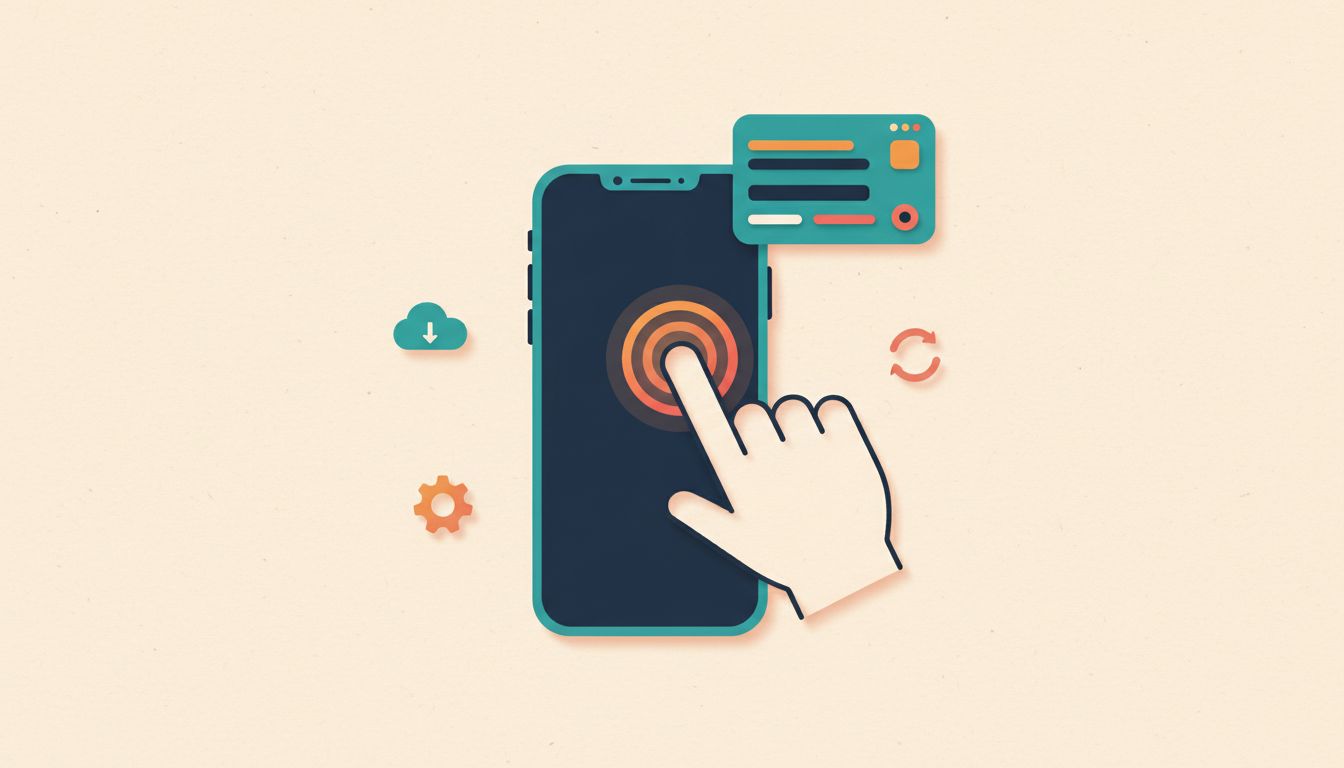
Double or triple tapping the back of your iPhone can take a screenshot, scroll the page, or fire off a custom Shortcut. It's one of the most useful hidden features Apple has ever shipped, and almost nobody knows it exists. Works on iPhone 8 and later, cases included (though thick ones reduce sensitivity).
- Open Settings, then go to Accessibility, then Touch, then Back Tap.
- Tap Double Tap or Triple Tap.
- Choose an action: Screenshot, Scroll Down, Mute, or any custom Shortcut you've built.
- Tap the back of your iPhone with two or three fingers to trigger it.
Watch out for
- Requires iPhone 8 or later.
- Very thick or rubbery cases can muffle the tap and stop it registering.
- Custom Shortcuts must be built in the Shortcuts app before they appear as options here.
Programme the Action Button to Launch a Shortcut Instantly
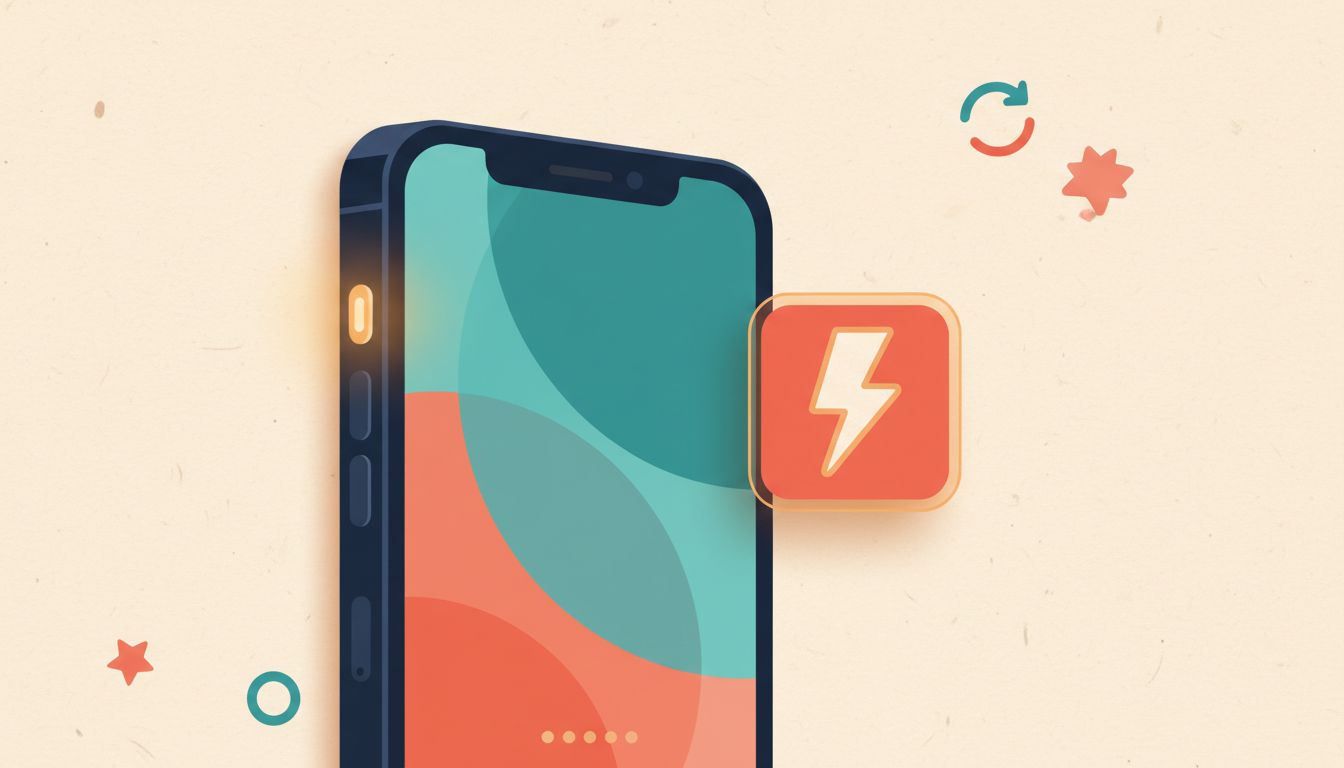
If you have an iPhone 15 Pro, 15 Pro Max, or any iPhone 16, there's a physical Action Button on the left side that most people leave set to Silent mode. Reassign it to a Shortcut and you've got a one-press launcher for anything: a specific playlist, a translation tool, a home automation scene. Instant.
- Go to Settings, then Action Button.
- Swipe through the options until you reach Shortcut.
- Tap Choose a Shortcut and pick one you've already made, or create a new one.
- Press the Action Button once to run it.
Watch out for
- Only available on iPhone 15 Pro, 15 Pro Max, and the full iPhone 16 range.
- You can only assign one Shortcut at a time, so pick the one you reach for most.
Use Spotlight Search as a Calculator, Converter, and App Launcher
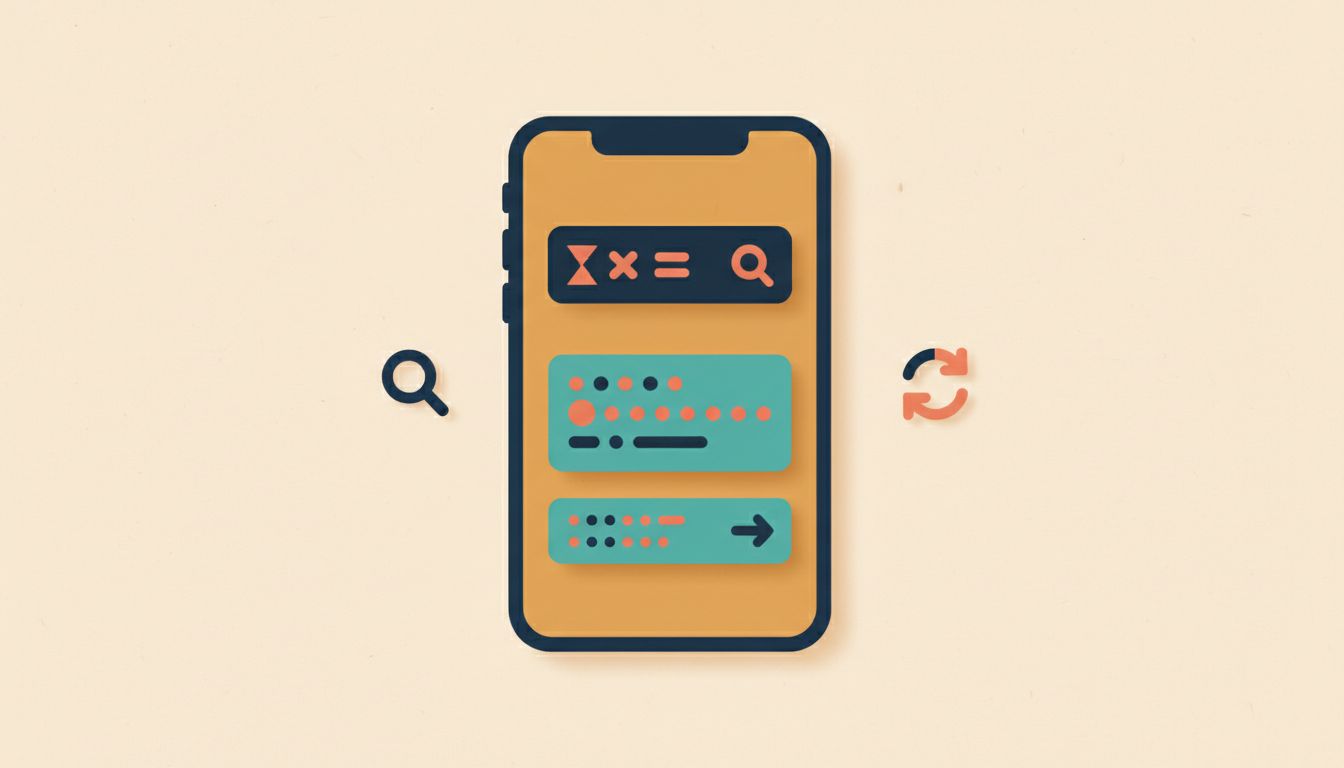
Swipe down from the middle of your Home Screen and Spotlight opens. Type a maths equation and it calculates on the spot. Type a currency and it converts. Type an app name and it launches. No need to open anything. It also shows live sports scores, flight statuses, and contact details pulled straight from your phone.
- Swipe down from the middle of any Home Screen page (not the top edge).
- Type a maths equation like "347 x 19" and read the result immediately.
- Type "USD to GBP" or similar for currency conversion.
- Type an app name and tap it to launch directly, skipping the Home Screen hunt.
Watch out for
- After a restart, Spotlight rebuilds its index so search can feel sluggish for a minute or two.
- Third-party app content only appears if the developer has enabled Spotlight indexing for their app.
Customise Control Centre So Everything You Need Is One Swipe Away
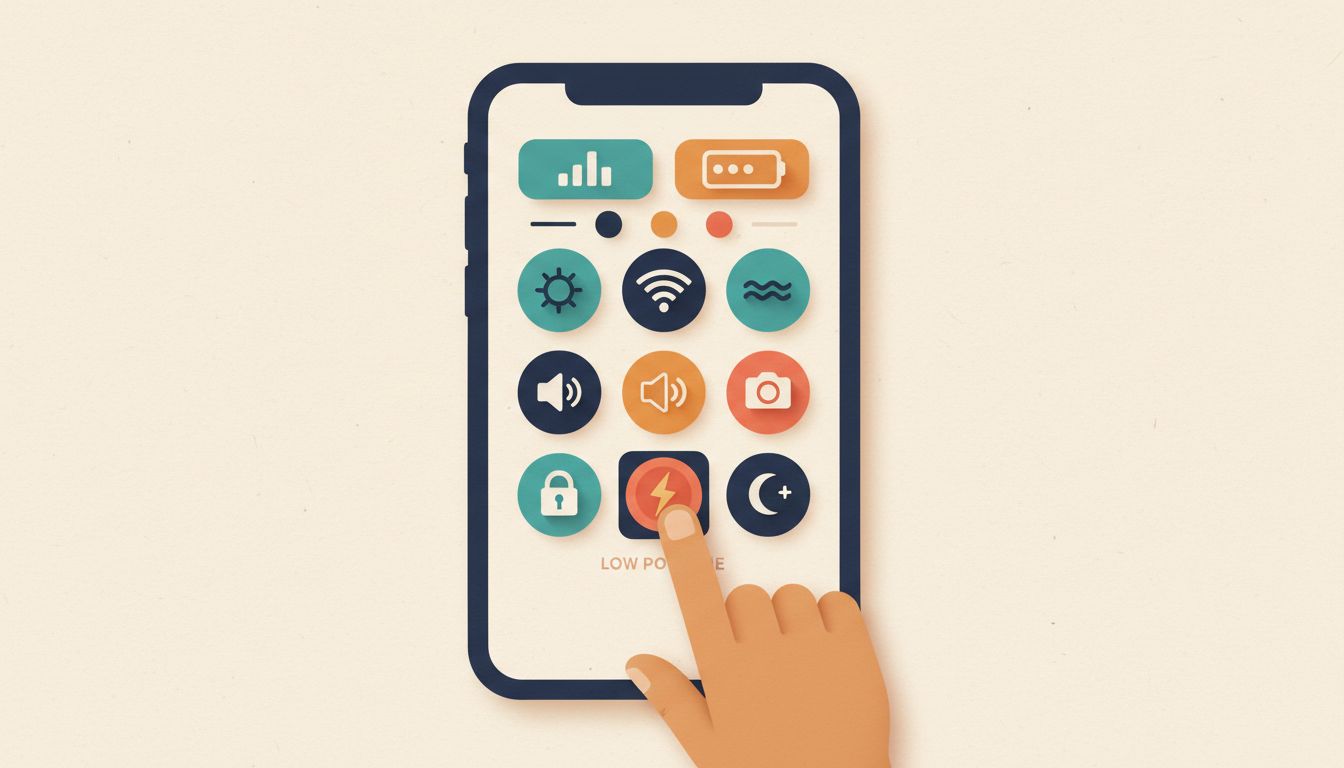
The default Control Centre is fine. A customised one is genuinely useful. Add Low Power Mode, Text Size, Magnifier, Screen Recording, or any toggle you reach for constantly, and you'll never crawl through Settings menus again. Takes about 90 seconds to set up and saves time every single day after that.
- Go to Settings, then Control Centre.
- Tap the green plus icon next to any control you want to add.
- Press and drag the handles to reorder controls however you like.
- Swipe down from the top-right corner (or up from the bottom on older models) to open Control Centre and tap any control.
Watch out for
- A handful of Apple controls can't be removed on all models, Screen Mirroring being the most common example.
- Third-party app controls are limited compared to Apple's own offerings.
Slide to Type for Faster One-Handed Texting
You don't have to tap individual letters. Slide your finger across the keyboard without lifting it and iOS predicts the word, then inserts it when you lift. Glide straight into the next word and it handles the spacing too. Genuinely faster for short messages, especially one-handed.
- Open any app with a text field and bring up the standard iOS keyboard.
- Without lifting your finger, slide across each letter of the word you want to type.
- Lift your finger when you've traced the word. iOS inserts its prediction.
- Immediately glide your finger to the next word. A space is added automatically.
Watch out for
- Only works on the default iOS keyboard. Some third-party keyboards have their own version, but support varies.
- Accuracy drops on unusual words, names, and technical terms. Tap those manually.
Triple-Click the Side Button to Toggle Accessibility Features Instantly
The Accessibility Shortcut lets you triple-click the side button (or Home button on older iPhones) to instantly turn on Magnifier, Colour Filters, AssistiveTouch, or other features without opening Settings. Brilliant for anyone who uses these features occasionally rather than all the time. Set it once and forget it's even there until you need it.
- Go to Settings, then Accessibility, then scroll to the very bottom and tap Accessibility Shortcut.
- Tick one or more features you want to toggle, such as Magnifier, Colour Filters, or AssistiveTouch.
- Triple-click the side button (or Home button on iPhone SE or iPhone 8 and earlier) to activate.
- If you've selected multiple features, a menu appears so you can choose which to activate.
Watch out for
- Selecting more than one feature replaces the instant toggle with a selection menu. Pick just one if you want speed.
- Requires iOS 12 or later, which covers every iPhone still receiving updates.
Long-Press App Icons for Instant Quick Actions
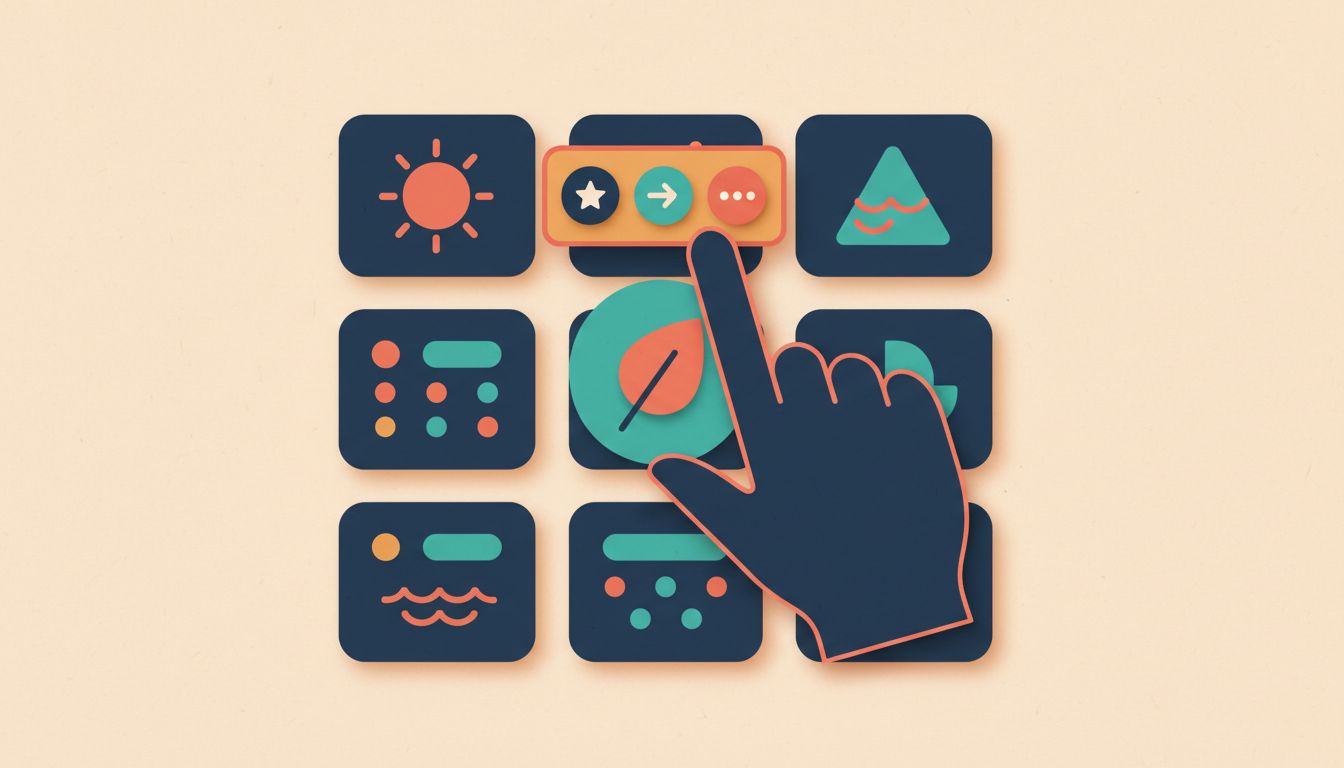
Press and hold almost any app icon and a small context menu pops up with shortcuts specific to that app. Compose a new email from the Mail icon. Start a new message without opening Messages. Scan a QR code straight from the Camera icon. It's faster than opening the app and then navigating inside it, every time.
- Find an app on your Home Screen or in the App Library.
- Press and hold it gently. Wait for the quick-action menu to appear.
- Tap the action you want without opening the full app.
Watch out for
- Not every app offers quick actions. Support depends entirely on whether the developer has built them in.
- Hold too long and you'll enter jiggle mode instead. A firm but brief press is the sweet spot.
Use the Built-In Magnifier as a Digital Magnifying Glass
The Magnifier uses your camera to zoom in on small print, labels, or anything you'd normally squint at. It's not the same as Camera zoom. It locks brightness independently, lets you freeze a frame, and you can add the torch for extra light. Perfect for restaurant menus, medicine packets, or anything printed in a font that feels deliberately cruel.
- Go to Settings, then Accessibility, then Magnifier, and toggle it on.
- Add it to Control Centre via Settings, then Control Centre, for the fastest access.
- Or assign it to the Accessibility Shortcut and triple-click the side button to launch it.
- Use the slider to zoom in and tap the torch icon to light up dark surfaces.
Watch out for
- Magnifier is separate from the Camera app's zoom and behaves differently, including independent brightness control.
- Adding it to Control Centre is the fastest daily access method if you use it regularly.
Master the Core Gestures That Save Time Every Day
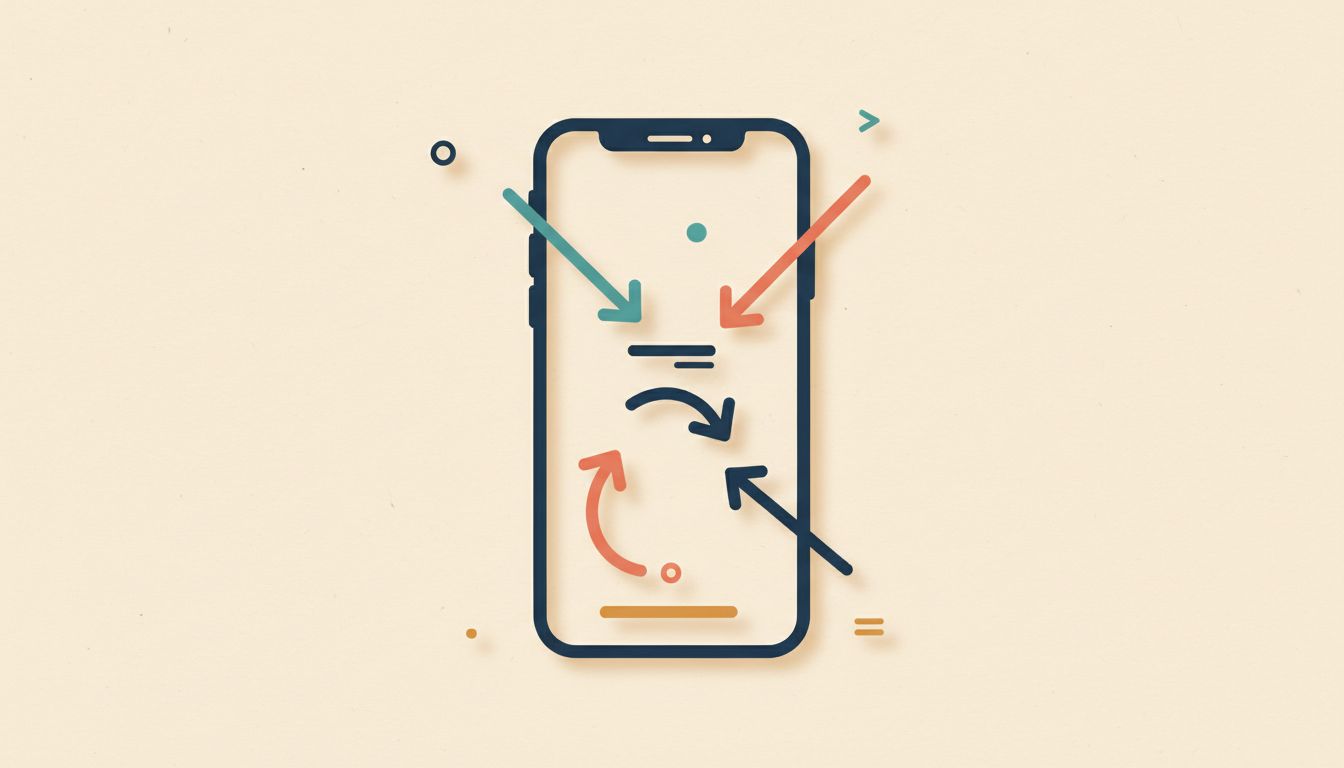
A lot of people still press the Home button out of habit or tap the wrong corner for Control Centre. On Face ID iPhones, swipe up from the bottom to go home, swipe up and pause to open the App Switcher, swipe from the top-right for Control Centre, and swipe left or right along the very bottom edge to jump between recent apps. Quick once you've got it.
- Swipe up from the bottom edge to return to the Home Screen.
- Swipe up from the bottom and pause briefly in the middle to open the App Switcher.
- Swipe down from the top-right corner to open Control Centre.
- Swipe down from the top-left or centre of the screen to see Notifications.
- Swipe left or right along the very bottom edge of the screen to flick between recent apps without opening the App Switcher.
Watch out for
- On iPhones with a Home button, Control Centre swipes up from the bottom edge instead.
- The bottom-edge app-switch swipe only cycles through your most recent apps, not all open ones.
Set Up Shortcuts Automations to Run Without Any Input From You
The Shortcuts app can trigger actions automatically based on time of day, location, which app you open, or even when you connect to a specific Wi-Fi network. Turn on Do Not Disturb when you arrive at work. Send a message when you leave home. It sounds complex but each automation takes about two minutes to build and then runs itself.
- Open the Shortcuts app and tap the Automation tab at the bottom.
- Tap the plus icon in the top-right corner.
- Choose a trigger: Time of Day, App (opens or closes), Arrive, Leave, or dozens more.
- Build the action sequence, then save. On iOS 17 and later, enable Run Immediately so it fires without a confirmation tap.
Watch out for
- Before iOS 17, all personal automations required a confirmation notification before running. Update to remove that friction.
- Location-based triggers use your GPS and can nudge battery life down if you have several active at once.