
Most people use maybe five percent of what Shortcuts can actually do. They know Siri can set a timer. They've vaguely heard you can put a custom icon on your Home Screen. And that's roughly where it ends.
It's a shame. Because once you start building automations, even simple ones, your iPhone starts feeling like it actually knows you. Things just happen. The playlist starts. The message sends. The focus mode kicks in. You don't tap anything.
Here are ten ideas worth building today, from beginner-friendly one-tappers to more involved multi-step automations that genuinely change how you use your phone.
Set up a Driving-Mode Bluetooth automation
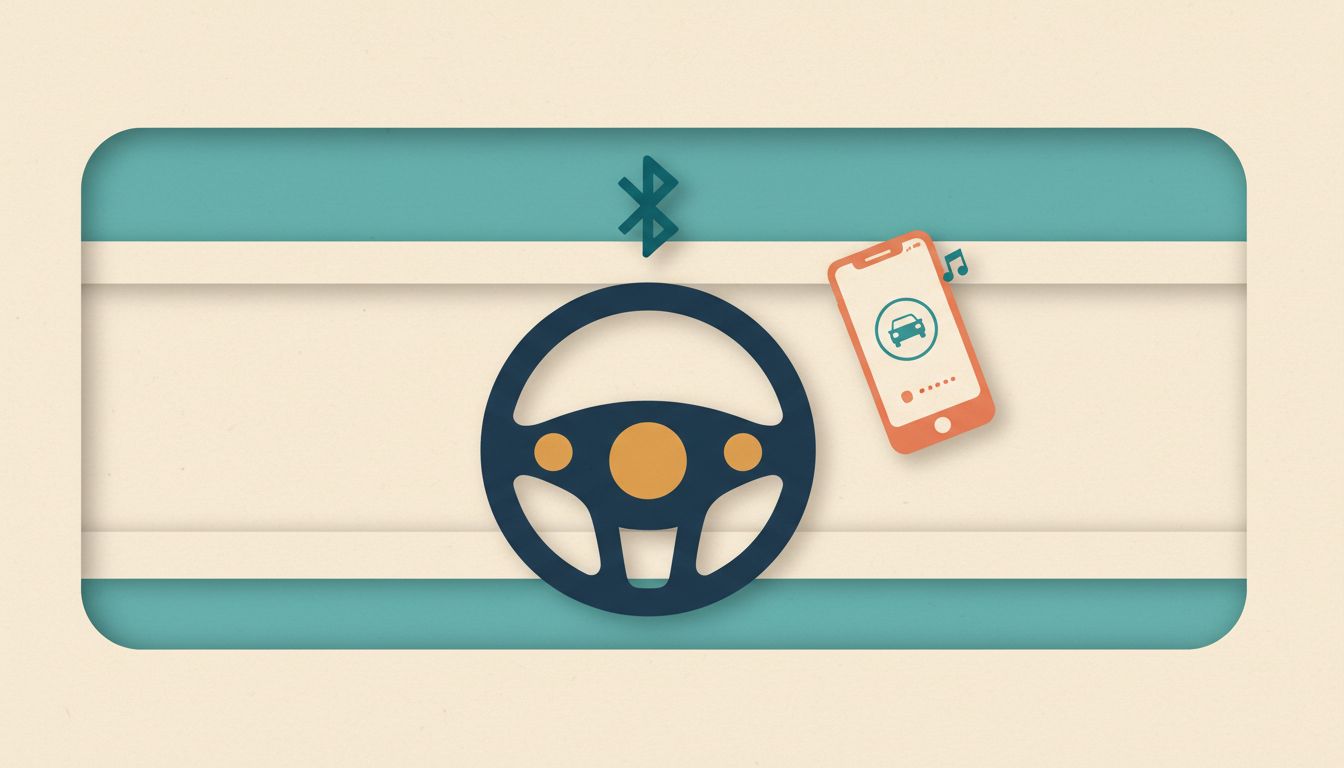
The moment your iPhone connects to your car's Bluetooth, this automation enables Driving Focus, fires up your commute playlist, and opens Maps. Zero tapping. It just works, every single time you get in the car.
- Open the Shortcuts app and tap the Automation tab at the bottom.
- Tap 'Create Personal Automation' and select the Bluetooth trigger.
- Tap 'Choose', select your specific car stereo from the list, then tap Next. Don't choose 'Any Device' or it'll fire for your headphones too.
- Tap 'Add Action' and add 'Set Focus' (Driving), then 'Play Playlist', then optionally 'Open App' pointing to Maps.
- Drag the actions into the order you want, tap Next, disable 'Ask Before Running', then tap Done.
Gotchas
- Selecting 'Any Device' instead of your car stereo triggers the automation every time you connect any Bluetooth device, including headphones at your desk.
- Driving Focus can suppress messages from important contacts. Review your Focus allowlist so the right people can still reach you.
Auto-enable Low Power Mode when your battery dips below 25%
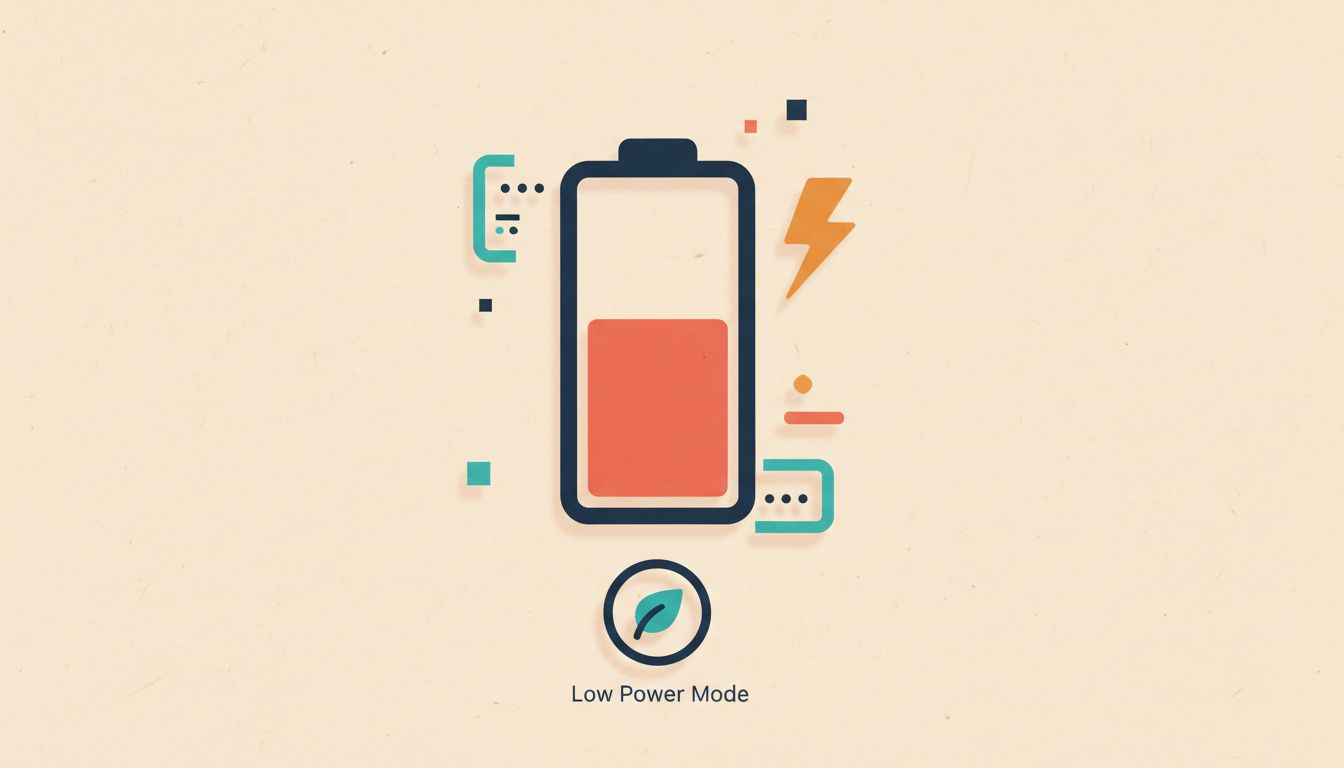
Instead of hunting through Settings when your battery goes amber, let a Shortcuts automation flip Low Power Mode on the instant you drop below your chosen threshold. Optional extras: dim the screen and push a notification to find a charger.
- Open Shortcuts, tap Automation, then 'Create Personal Automation'.
- Select the Battery Level trigger, drag the slider to your chosen percentage (25% is a solid default), and choose 'Falls Below'.
- Tap Next, then Add Action and insert 'Set Low Power Mode' set to On.
- Optionally add 'Set Brightness' to drop the screen down and 'Show Notification' to remind you to plug in.
- Tap Next, disable 'Ask Before Running', then tap Done.
Gotchas
- Brightness automations can clash with other display-related automations you've set up. Test combinations before leaving them running.
- Some actions, like sending a message, may still prompt for confirmation regardless of the 'Ask Before Running' setting.
Build a morning routine that runs before you're even out of bed
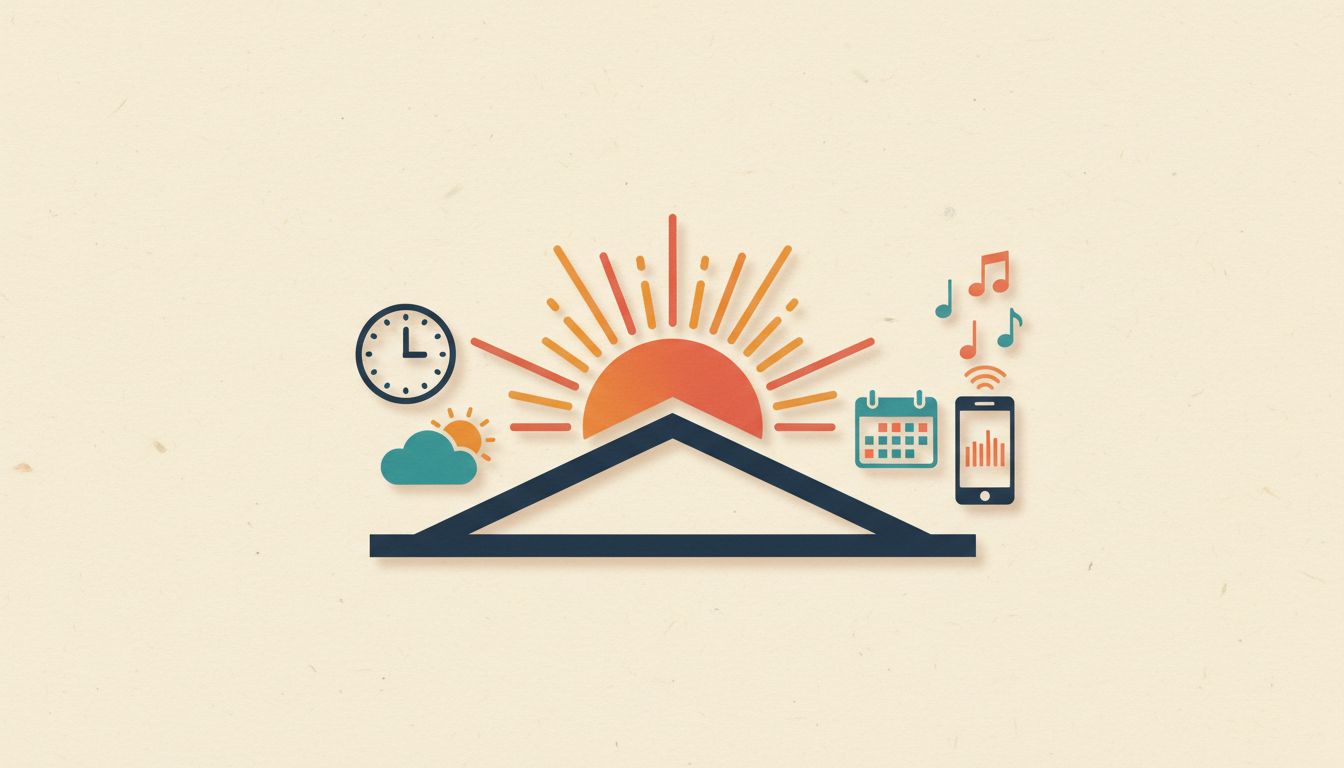
Set a time-of-day automation to speak the weather forecast, surface your calendar, and start a playlist at your exact wake-up time. It runs silently, every weekday, without you touching the phone.
- Open Shortcuts, tap Automation, then 'Create Personal Automation'.
- Choose the Time of Day trigger, set your wake-up time, and select Daily or specific weekdays as needed.
- Add 'Get Weather' followed by 'Speak Text' (or 'Show Notification') to report the day's forecast out loud.
- Add 'Open App' pointing to Calendar to surface today's events.
- Add 'Play Playlist' to kick off a morning playlist, then tap Next, disable 'Ask Before Running', and tap Done.
Gotchas
- If you leave 'Ask Before Running' enabled, the automation prompts you rather than running silently. Turn it off or the whole thing defeats itself.
- Chaining too many sequential actions slows the routine. Keep it to three or four of your most-used steps.
Send an automatic 'Heading home' text when you leave the office
A location trigger fires the moment your iPhone detects you've left a saved address, sending a preset message to whoever needs to know. No typing. No forgetting. It just goes.
- Open Shortcuts, tap Automation, then 'Create Personal Automation'.
- Select the Location trigger, tap 'Choose', search for your workplace address, and set it to trigger on 'Leaves'.
- Tap Next, add 'Send Message', type your message (something like 'Heading home now'), and choose your recipient.
- Tap Next, disable 'Ask Before Running' if available, then tap Done.
Gotchas
- iOS privacy restrictions mean a confirmation prompt may still appear before the message sends, depending on your iOS version.
- GPS accuracy near large buildings can make the trigger fire slightly early or late. Allow a minute or two of leeway.
Build a 'Getting pulled over' safety shortcut
One tap pauses music, lowers brightness, enables Do Not Disturb, texts your emergency contact your location, and starts recording video. It gives you a documented safety record during a police stop, triggered before you say a word.
- Open Shortcuts, tap the + button to create a new shortcut, and give it a memorable name.
- Add 'Set Do Not Disturb' (On), 'Set Brightness' to a low value, and 'Set Volume' to mute or low.
- Add 'Send Message' with a preset text and your emergency contact as the recipient.
- Add 'Get Current Location' followed by another 'Send Message' to share your coordinates.
- Add 'Take Video' on whichever camera you prefer, then save the shortcut and add it to your Home Screen for instant access.
Gotchas
- Sending messages and starting recording in one shortcut may still require manual confirmation steps on some iOS versions. Test it thoroughly before relying on it.
- Actions that fail silently, such as a message that doesn't send, won't alert you. Run through the whole shortcut at least once in a safe setting.
Trigger shortcuts with your voice using Siri
Any shortcut you create can be invoked hands-free by saying 'Hey Siri' followed by the shortcut's name. Ideal while driving, cooking, or any time your hands are occupied. Rename the shortcut to something natural and it becomes a proper voice command.
- Create or open a shortcut in the Shortcuts app.
- Note the shortcut's title. Siri uses this name by default, so rename it to something you'd actually say out loud.
- Say 'Hey Siri, [shortcut name]' at any time to run it instantly.
- Ensure Siri is enabled in Settings, then Siri and Search, for voice activation to work.
Gotchas
- Shortcut names that sound similar to built-in Siri commands cause conflicts. Pick something distinctive.
- Some actions need the screen unlocked or a specific app open, which limits fully hands-free use in certain scenarios.
Add any shortcut to your Home Screen for one-tap access
Placing a shortcut icon on your Home Screen removes the need to open the Shortcuts app entirely. It looks and behaves like any other app icon, and you can give it a custom image or emoji to make it instantly recognisable.
- Open the Shortcuts app and long-press the shortcut you want, or tap its three-dot menu.
- Tap 'Add to Home Screen'.
- Rename the shortcut if needed and tap the icon to choose a custom image or emoji.
- Tap 'Add' in the top-right corner. The icon appears on your Home Screen immediately.
- Tap it any time to run the shortcut without opening the Shortcuts app.
Gotchas
- On older iOS versions, a brief Shortcuts app splash screen appears before the shortcut runs. Recent updates have reduced this delay significantly.
- Custom icons can revert if you delete and re-add the shortcut. Keep a note of the image source you used.
Stick an NFC tag on your desk and trigger automations by touch
Tap your iPhone to an inexpensive NFC sticker on your desk, bedside table, or car dashboard and a multi-step shortcut fires instantly. It's oddly satisfying, and it genuinely removes friction from routines you repeat every single day.
- Buy a pack of NFC tags (widely available online for a few pounds).
- Open Shortcuts, tap Automation, then 'Create Personal Automation', and select the NFC trigger.
- Tap 'Scan' and hold your iPhone near the tag to register it. Give it a descriptive name.
- Tap Next and add the actions you want: for a work desk tag, try Set Focus, Set Brightness, and Play Playlist.
- Tap Next and Done. The automation fires every time you tap that specific tag.
Gotchas
- NFC automations typically require the screen to be on and the device unlocked, or Face/Touch ID confirmed first.
- Cheap tags can be inconsistent. Buy from a reputable supplier and test each one before sticking it down permanently.
Browse the Gallery for ready-made shortcuts you can add in one tap
The built-in Shortcuts Gallery contains Apple-vetted automations covering commute, fitness, productivity, and more. You don't have to build anything from scratch. Find one you like, tap 'Add Shortcut', customise the placeholders, and you're done.
- Open the Shortcuts app and tap the Gallery tab at the bottom.
- Browse categories or use the search bar to find something relevant to your routine.
- Tap a shortcut to preview exactly what it does, then tap 'Add Shortcut' to install it.
- Grant any required permissions (location, contacts, and so on) when prompted.
- Find the shortcut in your My Shortcuts tab and tap it to run, or add it to your Home Screen for faster access.
Gotchas
- Gallery shortcuts often contain placeholder contacts or playlists. Customise those before assuming the shortcut works correctly.
- Third-party app actions don't always appear in Gallery shortcuts. You may need to edit the shortcut to swap in your preferred app.
Use Apple Intelligence text actions to summarise and rewrite anything
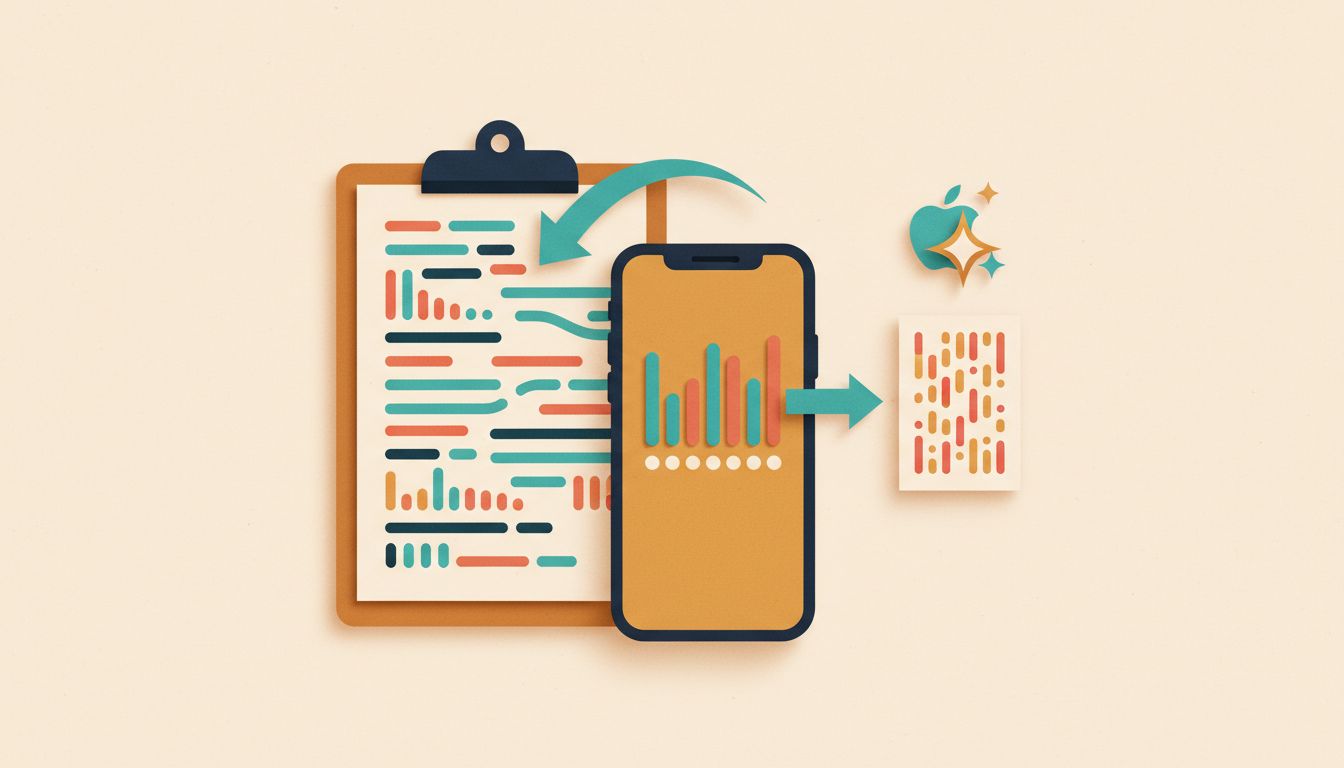
On compatible devices, Shortcuts can invoke Apple Intelligence to summarise long text, rewrite a draft, or extract key points from anything on your clipboard. Trigger it with a Home Screen tap or a Siri command and you get the result in seconds.
- Open Shortcuts and create a new shortcut.
- Add 'Get Clipboard' (or 'Receive Input' set to Text) to capture the text you want to process.
- Add an Apple Intelligence action such as 'Summarise Text', 'Rewrite', or 'Extract Key Points', and connect it to the previous step's output.
- Add 'Copy to Clipboard' or 'Show Result' so the processed text is easy to use immediately.
- Save the shortcut and run it via Siri or a Home Screen icon whenever you need quick AI-assisted writing.
Gotchas
- Apple Intelligence text actions require an iPhone 15 Pro or later, or any iPhone 16, and may not be available in all regions.
- Very long documents can be truncated. For best results, paste the specific section you need rather than an entire article.