
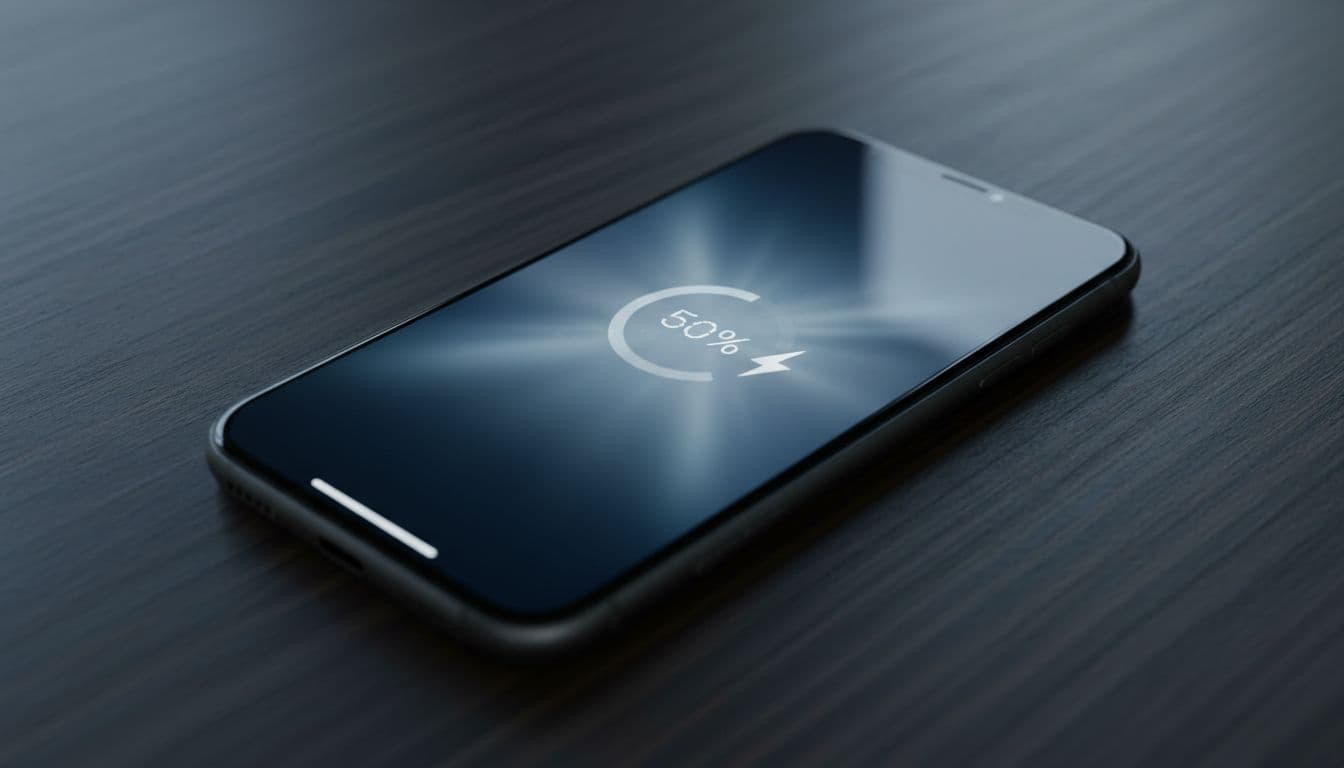
Your iPhone hits 50 percent battery and just dies. No warning, no low-battery alert, nothing. One second it's working, the next it's a black screen. If that's happening to you right now, here's the short version: your battery almost certainly can't deliver the power the phone needs under load, and there are steps you can take today to either fix it or confirm you need a replacement. This guide covers all of them, in order.
What Actually Causes an iPhone to Die at 50%?
This is one of the most common battery complaints we see, and it confuses people because the logic seems backwards. The phone says 50 percent, so why is it dead? The answer is that the percentage on screen doesn't tell you how much power the battery can actually deliver right now. It tells you how much charge is stored. Those two things stop matching up as a battery ages.
Lithium-ion batteries degrade chemically with every charge cycle. Over time, their internal resistance increases. That means when the phone demands a sudden burst of power (say, loading a game, processing camera data, or connecting to a weak signal), the battery can't supply it fast enough. The voltage drops below the safe threshold and iOS shuts the phone off to protect the hardware. The battery might still have 50 percent charge stored, but it physically cannot deliver it quickly enough. So: dead phone, confusing percentage.
A miscalibrated battery gauge makes this worse. If the software thinks there's 50 percent left but the real usable capacity is much lower, the shutdown happens at what looks like a perfectly reasonable charge level. This calibration drift is common on batteries that have been through a lot of partial charges without ever being fully cycled.
Cold weather is another factor. Lithium-ion cells lose capacity temporarily in the cold, which is why phones that behave fine indoors die at 40 to 50 percent the moment you step outside in winter. And if iOS has already detected previous unexpected shutdowns, it may have activated performance management throttling, which reduces peak CPU speed to prevent further shutdowns. You'll see a message about this in Battery Health if it's active.
Rarely, the problem is a hardware fault in the battery monitoring circuitry or logic board rather than the battery itself. But that's the exception. In the vast majority of cases we deal with, it's a worn battery, full stop.
iPhone Dies at 50%: Quick Fix
Before anything else, you need to know what you're actually dealing with. Two minutes in Settings will tell you whether this is a calibration issue or a battery that's physically past it.
Check Battery Health and Do a Soft Restart Easy
- Open Battery Health
Go to Settings, then Battery, then Battery Health and Charging. You'll see two things: Maximum Capacity (a percentage of original battery capacity) and a status message under Peak Performance Capability. - Read the numbers
If Maximum Capacity is 80% or below, Apple considers the battery end-of-life. If you see a message saying something like 'This iPhone has experienced an unexpected shutdown... Performance management has been applied', that confirms the battery can't reliably deliver peak power. That's your culprit. - Soft restart
On Face ID models: hold Side button plus either volume button, then slide to power off. On Home button models: hold the Side or Top button and slide to power off. Wait 30 seconds, then power back on. This clears any transient software glitch that might be making things worse than they need to be. - Verify
After restarting, use the phone normally for an hour or two and see if the percentage drops more gradually. If it still dies at 50%, move on to the calibration steps below.
More iPhone Dies at 50% Solutions
If the quick check confirmed a degraded battery (or if Battery Health looks okay but the shutdowns are still happening), these intermediate steps are your next move. They won't fix a physically worn-out cell, but they can meaningfully reduce how often the shutdowns happen while you arrange a replacement, and in some cases they sort the problem entirely if calibration drift was the main issue.
Run a Full Battery Calibration Cycle Easy
- Let it die naturally
Use your iPhone normally until it shuts itself off. Don't force a shutdown. You want the battery to drain to the point where iOS can't keep the phone running at all. - Leave it off
Once it's powered off, leave it alone for at least 5 minutes. This lets the residual voltage settle. - Charge to 100% without interruption
Plug it into a charger (ideally Apple's own or an MFi-certified cable and adapter) and charge continuously to 100%. Don't unplug it partway through. Once it hits 100%, keep it plugged in for an extra 1 to 2 hours. - Use normally and repeat if needed
Unplug and use as normal. For stubborn cases, repeat this full cycle 2 to 3 times over several days. This one often needs a second or third run before the gauge settles properly.
Calibration gets a lot of scepticism online, and fair enough, it's not magic. But when the issue is genuinely a miscalibrated gauge rather than a dead cell, it does work. HowToGeek's battery calibration explainer covers the chemistry behind why this helps, if you want the detail.
Update iOS and Enable Low Power Mode Easy
- Update iOS
Connect to Wi-Fi and plug in to power. Go to Settings, General, Software Update. Download and install anything available. Apple regularly improves battery and performance management logic between versions, and some shutdowns are tied to specific iOS bugs that get patched. - After updating, do one calibration cycle
A software update can shift how the gauge reads, so run through the calibration steps above once more after installing. - Enable Low Power Mode
Go to Settings, Battery, and turn on Low Power Mode. This reduces background activity, lowers screen brightness slightly, and cuts peak power demands, making it easier for an ageing battery to keep up. It's not a permanent fix but it's a proper short-term measure. - Reduce screen brightness manually
Go to Settings, Display and Brightness and pull the slider down. Also worth turning off Always-On Display if your model has it. Less screen load means less peak power demand, which is exactly what a struggling battery needs.
If you're also seeing the phone run hot during heavy use before it shuts down, that's consistent with an ageing battery working harder than it should. Avoid long camera sessions, graphics-heavy games, or GPS navigation when the battery is below 50% on a known degraded battery. It's not ideal, but it reduces the chance of a mid-task shutdown while you're waiting for a replacement. For context on how iOS manages performance under battery stress, Apple's performance management support page explains exactly what the system is doing and why.
And if you're also dealing with the phone running slowly alongside the shutdowns, that's the performance management throttling kicking in. It's iOS deliberately slowing the CPU to prevent the battery from being pushed to the point of another unexpected shutdown. It's annoying, but it's the phone protecting itself. A slow iPhone fix guide covers the throttling side of things separately if that's also bothering you.
Advanced iPhone Dies at 50% Fixes
These are the last-resort software steps and the point where you need to decide whether to go the hardware route. If Battery Health is clearly below 80%, skip straight to the battery replacement section. The DFU restore is only really useful when battery health looks okay but the shutdowns keep happening anyway.
DFU Restore (Software Corruption) Medium
- Back up first
Back up via iCloud (Settings, your name, iCloud, iCloud Backup, Back Up Now) or connect to a Mac running Finder or a Windows PC running iTunes and do a full encrypted backup. Don't skip this. - Enter DFU mode
The button sequence depends on your model. On iPhone 8 and later: quickly press and release Volume Up, quickly press and release Volume Down, then hold the Side button until the screen goes black, then hold Side and Volume Down together for 5 seconds, then release Side but keep holding Volume Down for another 10 seconds. The screen should stay black. If you see the Apple logo, you've gone into Recovery mode instead, not DFU. - Restore via Finder or iTunes
With the phone in DFU mode and connected to the computer, click Restore iPhone in Finder or iTunes. This wipes and reinstalls iOS from scratch. After it completes, restore from your backup. - Run a calibration cycle after setup
Once you're back up and running, do a full calibration cycle as described above. This re-aligns the gauge with the freshly restored software.
Battery Replacement (The Permanent Fix) Easy
- Confirm the diagnosis
Go back to Settings, Battery, Battery Health and Charging. If Maximum Capacity is 80% or below, or if you've run through all the steps above and the phone is still dying at 50%, battery replacement is the answer. There's no software workaround for a physically degraded cell. - Choose your repair route
Apple's own service (via apple.com/uk or an Apple Store) is the most reliable option. Authorised service providers are also fine and often faster. Third-party repair shops vary wildly in quality. If you go third-party, ask specifically whether they use genuine Apple batteries or OEM-spec cells, because a cheap off-brand battery can cause the exact same problem within months. - After replacement
Run one full calibration cycle after getting the phone back. New batteries sometimes read slightly off for the first day or two. After one proper cycle, the percentage should be accurate and shutdowns at 50% should be gone entirely.
For anyone who's had a charging problem alongside the shutdowns, it's worth getting both investigated at the same time. Sometimes a dodgy charging port or a worn cable has been stressing the battery further and accelerating the degradation. A technician can check both in one visit.
Preventing iPhone Dies at 50%
Battery degradation is inevitable. Every lithium-ion cell has a finite number of charge cycles before its capacity drops noticeably. But how fast it gets there depends a lot on how you use and charge the phone.
The single most effective habit is keeping the battery between 20 and 80 percent for everyday use. Charging to 100% every night and letting it drain to 0% regularly accelerates chemical ageing faster than anything else. iOS has an Optimised Battery Charging setting (under Battery Health and Charging) that tries to manage this automatically by learning your routine and pausing charging at 80% until you're likely to need it. Keep that turned on.
Use Apple or MFi-certified chargers. Cheap third-party chargers deliver unstable voltage and can stress the battery over time. It's one of those things that seems fine for months and then suddenly isn't.
Check Battery Health every few months, not just when something goes wrong. If you catch it at 82% you can plan a replacement before the shutdowns start. Waiting until it's at 70% and dying at 50% means you've already been dealing with a degraded experience for a while without realising it.
In cold weather, keep the phone in an inside pocket rather than a bag or jacket pocket. Lithium-ion cells lose temporary capacity below about 10 degrees Celsius, which is why winter is when a borderline battery starts causing shutdowns. It's not broken, it's just cold. But if it's already at 82% capacity, the cold tips it over the edge.
If you're storing the phone for any length of time, don't leave it at 0% or 100%. Store it at around 50% and power it on every month or so to top it up slightly. A battery left at 0% for months can develop a fault that makes it unable to charge at all.
iPhone Dies at 50%: Summary
When an iPhone dies at 50%, the battery is almost always the cause. Not the percentage gauge, not iOS, not the charger. The battery has aged to the point where it can't deliver the peak power the phone needs under load, and iOS shuts down to protect itself. The fix is to check Battery Health first, run a calibration cycle to rule out gauge drift, use Low Power Mode to reduce peak demand, and replace the battery if Maximum Capacity is at or below 80%. A DFU restore is worth trying if battery health looks fine but shutdowns persist, but it won't fix a physically degraded cell. If you've been through all of this and the phone is still dying at 50%, get it in front of a technician for hardware diagnostics. There's a small chance it's a board-level fault rather than the battery itself, and that needs professional assessment.