
Most iPhone owners use about 30% of what their phone can actually do. Not because the features are hard to find, just because Apple buries them. Here are ten genuinely useful things your iPhone can already do right now.
Tap the Back of Your iPhone to Trigger Any Shortcut
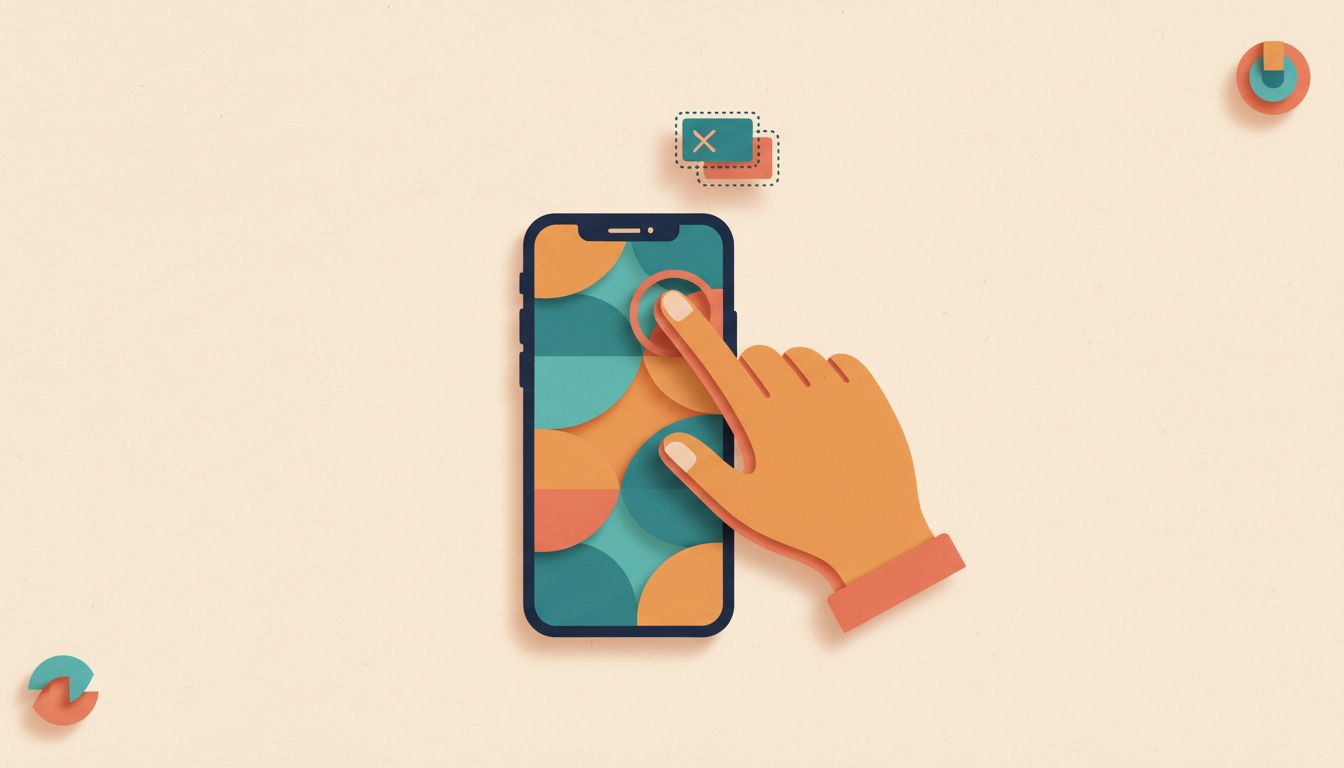
Back Tap lets you double or triple tap the back of your iPhone to fire off actions like taking a screenshot, toggling the torch, or running a custom Shortcut. No button pressing, no menu diving. Just tap. Available on iPhone 8 and later.
- Open Settings and tap Accessibility.
- Tap Touch, then scroll down to Back Tap.
- Tap Double Tap or Triple Tap and choose an action or a Shortcut from your library.
- Test it by tapping the back of your iPhone firmly twice or three times.
Watch out for
- A case can muffle the tap. Tap firmly if it misses.
- If your iPhone is lying flat on a table, accidental taps can trigger it unexpectedly.
- Back Tap works on iPhone 8 and later only.
Assign the Action Button to Whatever You Actually Use
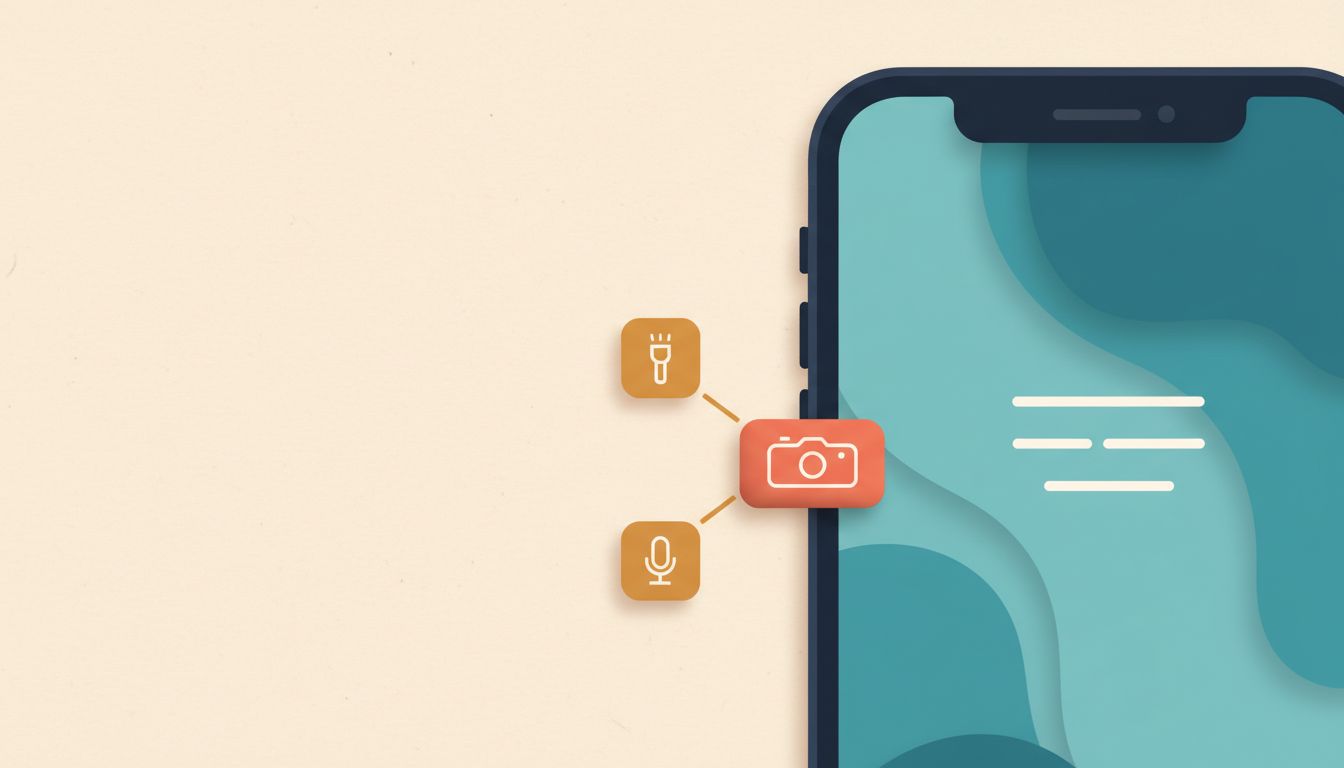
The Action button on iPhone 15 Pro and later (including all iPhone 17 models) can be mapped to almost anything: the flashlight, Voice Memos, Translate, a camera mode, or a fully custom Shortcut. One press, instant access, no unlocking required.
- Open Settings and tap Action Button.
- Swipe through the available options until you find what you want, or choose Shortcut to pick anything from your Shortcuts library.
- Press the Action button to confirm it works.
Watch out for
- Only one action can be assigned at a time.
- If you assign Silent Mode, it overrides the classic ring/silent toggle behaviour entirely.
- Not available on standard iPhone models before iPhone 15 Pro.
Create Text Shortcuts That Expand Full Phrases Instantly
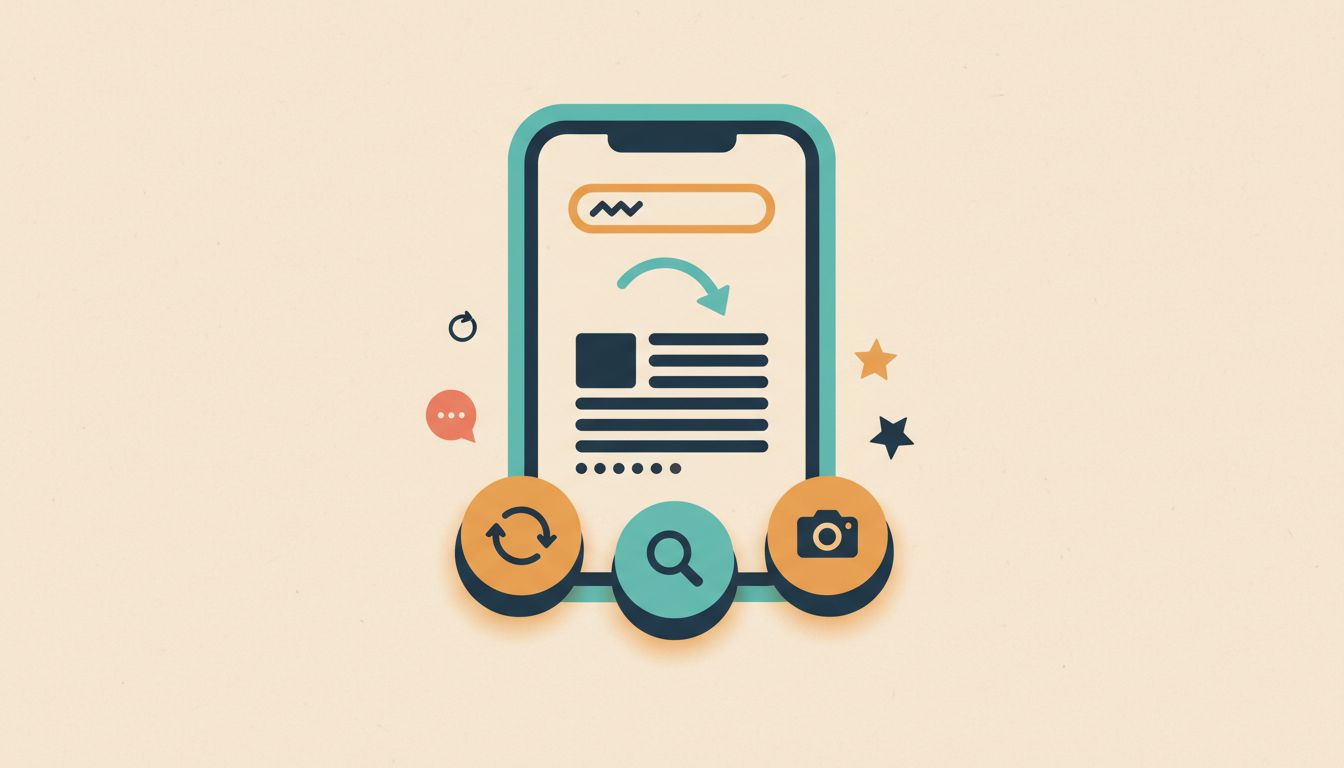
Text Replacement lets you type a short abbreviation (say, "omw") and have it instantly expand into a full sentence. Perfect for email addresses, boilerplate responses, or anything you type constantly. Works across every app, and syncs to all your Apple devices via iCloud.
- Open Settings, tap General, then Keyboard, then Text Replacement.
- Tap the + button in the top right.
- Enter the full Phrase you want to appear, and the Shortcut abbreviation that triggers it.
- Tap Save, then test it in any text field.
Watch out for
- Keep abbreviations lowercase and unique so autocorrect doesn't fight them.
- Third-party keyboards like Gboard may not respect these replacements.
- Abbreviations sync via iCloud, so a change on your iPhone appears on your iPad and Mac too.
Download Offline Maps So Apple Maps Works With No Signal
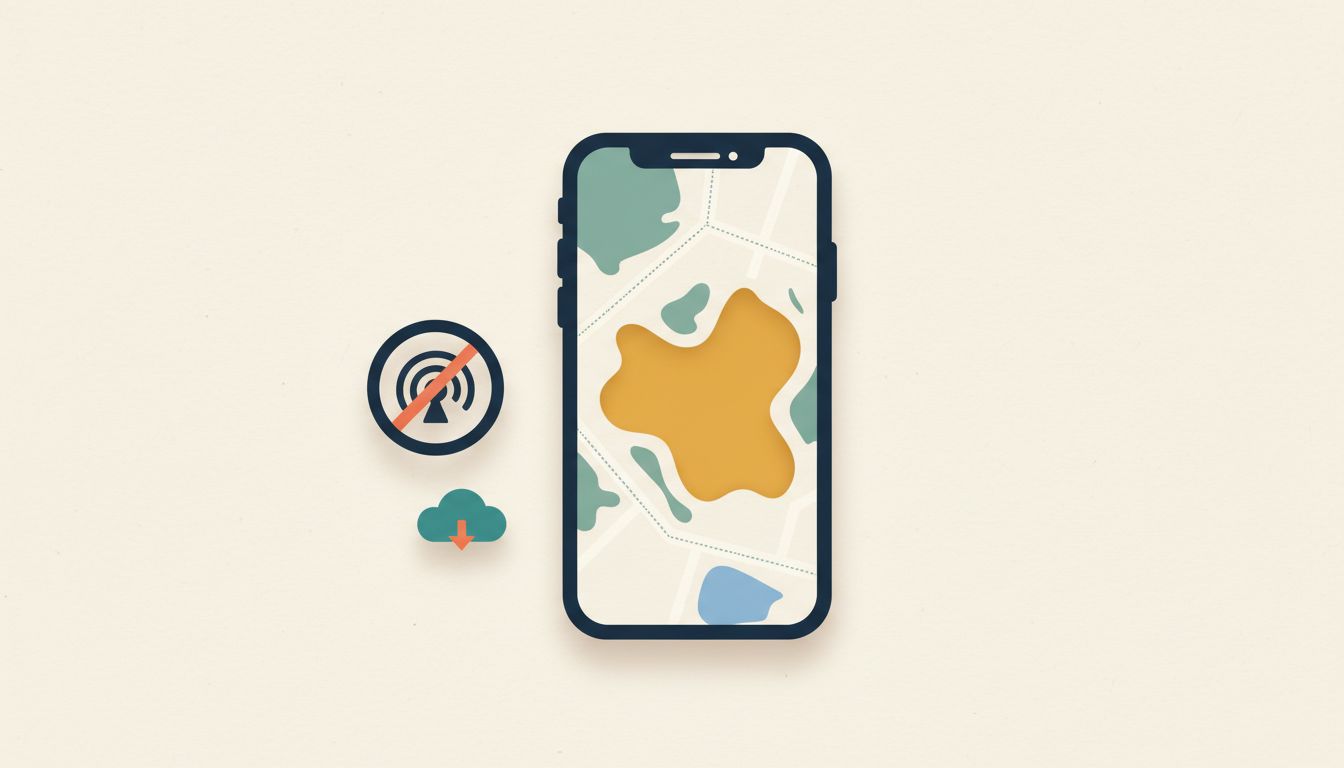
You can download a city or region to your iPhone so Apple Maps gives full turn-by-turn directions even with zero cellular or Wi-Fi signal. A genuine lifesaver in rural areas, underground, or abroad. Requires iOS 17 or later.
- Open Maps and tap your profile picture in the top right.
- Tap Offline Maps, then Download New Map.
- Search for the city or region, adjust the area with the slider, then tap Download.
- Maps refreshes the download automatically when your phone is on Wi-Fi.
Watch out for
- Large cities can be several hundred megabytes. Download on Wi-Fi, not mobile data.
- Offline maps expire after 30 days if not refreshed.
- Requires iOS 17 or later.
Turn Your iPhone into a Bedside Display with StandBy
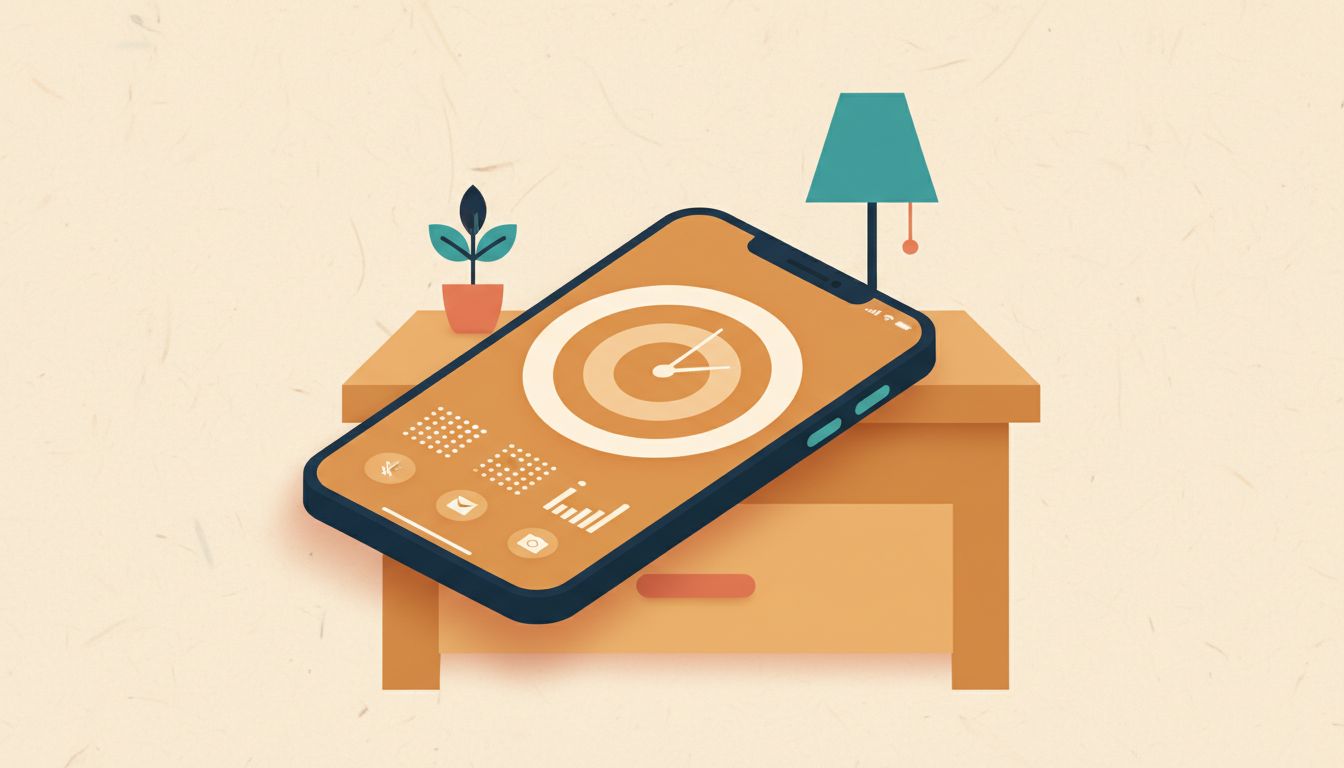
StandBy mode activates automatically when your iPhone is charging on its side, turning the screen into a customisable smart display showing the time, widgets, photos, or Live Activities. Think of it as a free smart clock you already own.
- Make sure StandBy is enabled in Settings, then tap StandBy and toggle it on.
- Plug your iPhone into a charger and lay it on its side in landscape orientation.
- Swipe left and right to move between the clock, photo, and widget views.
- Long-press any view to customise the widgets shown.
Watch out for
- Requires iOS 17 or later.
- On non-Pro models, the display dims and only wakes on tap or notification. iPhone 15 Pro and later keep it always on.
- If StandBy doesn't activate, check Settings to confirm it's toggled on.
Use the Camera Control Button for Faster, More Precise Shots
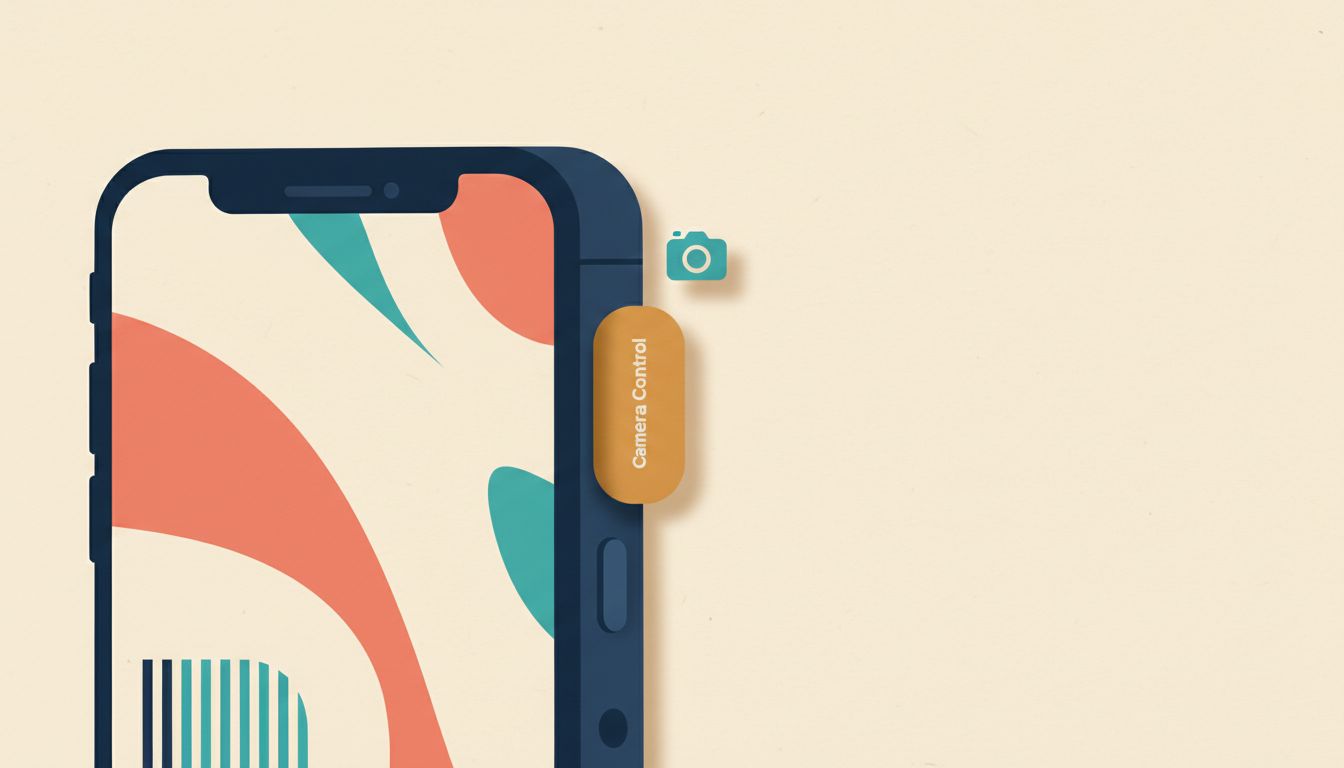
iPhone 16 and iPhone 17 models have a dedicated Camera Control button on the right edge. It opens the camera, locks focus with a half-press, adjusts zoom with a swipe, and activates Visual Intelligence to identify objects in the frame. Proper camera hardware on a phone.
- Press Camera Control once to open the Camera app from anywhere, even the lock screen.
- Half-press (press lightly) to lock focus and exposure before shooting.
- Swipe along the Camera Control to adjust zoom or switch settings shown on screen.
- Hold Camera Control to activate Visual Intelligence and analyse what the camera is pointing at.
Watch out for
- The swipe gesture has a learning curve. Practice in a relaxed setting first.
- Visual Intelligence needs an internet connection for most lookups.
- The button sits on the right edge, so left-handed shooting can feel awkward initially.
Schedule a Text Message to Send Later Without Any App
iOS 18 and later lets you write an iMessage or SMS now and schedule it to send at any future time you choose. Compose at midnight, deliver at 9am. No third-party app, no workarounds, just hold the send button.
- Open Messages and compose your message as normal.
- Tap and hold the Send button (the upward arrow).
- Choose Send Later and pick the date and time you want it delivered.
- The message queues on your phone and sends automatically at the scheduled time.
Watch out for
- Your iPhone must be switched on and connected to the internet at the scheduled send time.
- Edit or delete a scheduled message before it sends, not after.
- Available on iOS 18 and later, with further refinements in iOS 26.
Add a Floating AssistiveTouch Button to Reach Any Function

AssistiveTouch places a small floating button on your screen that can replicate the Home button, adjust volume, trigger gestures, or access any shortcut. If hardware buttons are awkward to reach or damaged, this is the fix. It's also customisable to hold exactly what you need.
- Open Settings, tap Accessibility, then Touch, then AssistiveTouch.
- Toggle AssistiveTouch on.
- Tap Customize Top Level Menu to add or remove actions from the button.
- Drag the floating button to any edge of the screen that suits you.
Watch out for
- The button appears in screenshots. Move it to a corner before capturing if that matters to you.
- Stick to 4 to 6 top-level items or the menu becomes cluttered.
- Add it to the Accessibility Shortcut (triple-click the side button) so you can toggle it quickly.
Contact Emergency Services via Satellite When You Have No Signal
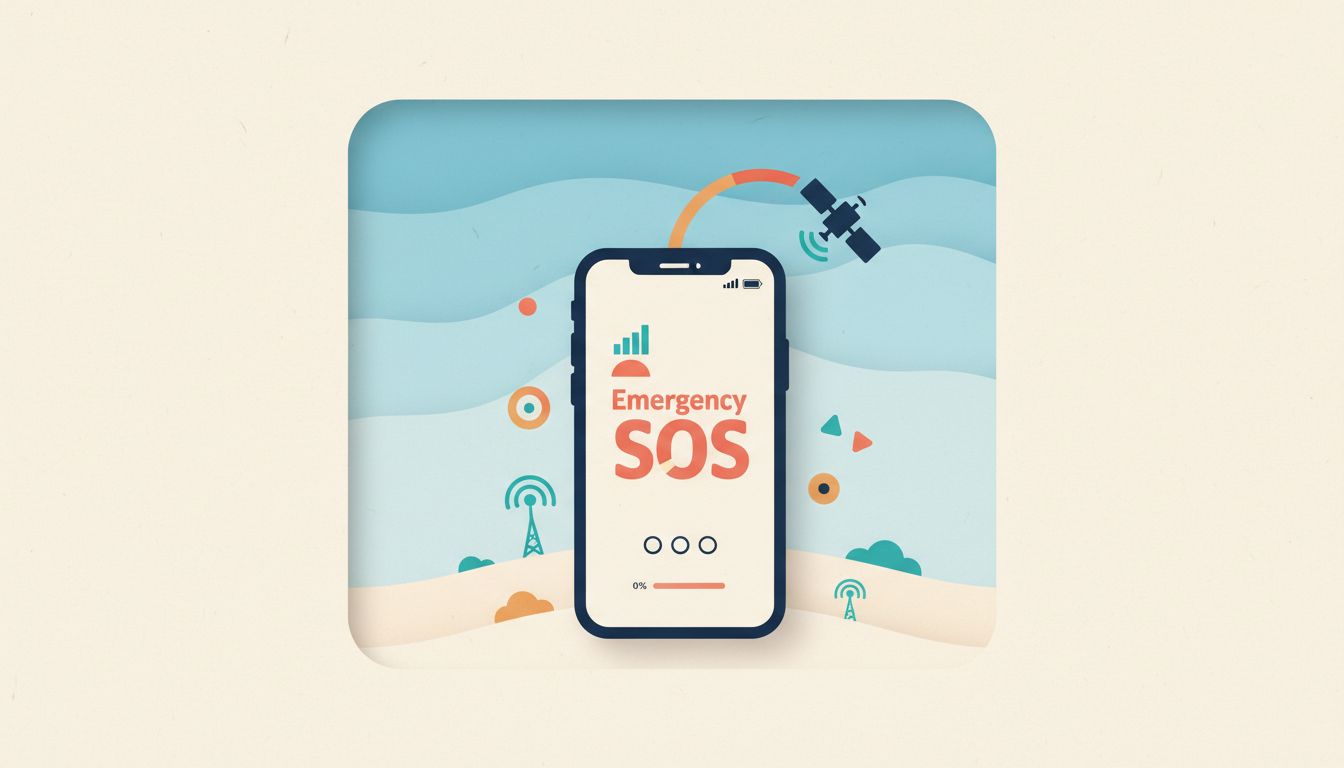
If you're somewhere with no cellular or Wi-Fi coverage at all, Emergency SOS via satellite lets your iPhone contact emergency services and share your location. Available on iPhone 14 and later in supported countries. Could genuinely save your life in a remote emergency.
- Move to an open area with a clear view of the sky.
- Attempt to dial 999 (or your local emergency number) or swipe to Emergency Call on the lock screen.
- Follow the satellite prompt that appears and use the on-screen arrows to aim at a satellite.
- Your iPhone sends a compressed emergency message plus your location automatically.
Watch out for
- Available in select countries only. Check Apple's supported regions before relying on this abroad.
- Requires a subscription after the free trial period that ships with new iPhones.
- The process can take a few minutes. Stay still and keep the sky visible throughout.
Use the Tips App to Find iPhone Features You Didn't Know Existed
Apple's built-in Tips app is updated regularly with official feature guides matched to your exact iPhone model and iOS version. It's the most overlooked app on most phones, and it's been there the whole time. Bookmark the ones that matter, get weekly suggestions via notifications.
- Find the Tips app (it's pre-installed; search Spotlight if you can't see it on your home screen).
- Browse Collections or tap any tip to read the full walkthrough.
- Tap the bookmark icon to save tips you want to revisit.
- Go to Settings, then Notifications, then Tips to enable weekly suggestions.
Watch out for
- Tips content is region-specific. Some features shown may not be available in your country.
- The app needs an internet connection to load new tip collections.