
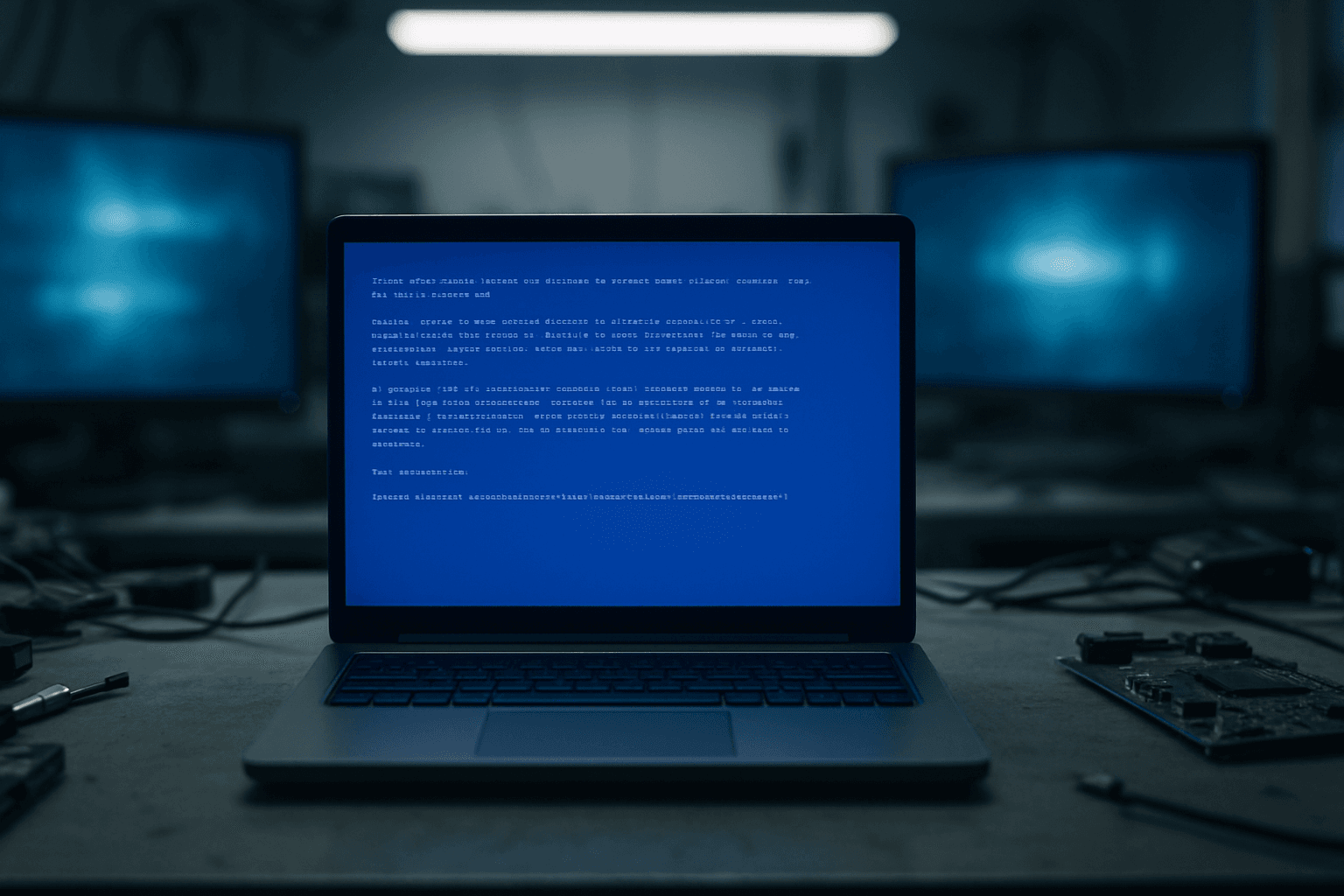
The DRIVER_IRQL_NOT_LESS_OR_EQUAL BSOD (error code 0xD1) means a Windows driver tried to touch memory it had no business touching at that moment, and Windows crashed on purpose to protect your data. In 80 to 90% of cases the fix is a driver update. The rest of the time it's faulty RAM, overheating, or a software conflict. You'll know which one within the hour.
What Causes DRIVER_IRQL_NOT_LESS_OR_EQUAL?
Here's the thing: this error isn't random. Windows is very specific about what triggers it. A kernel-mode driver attempted to access a pageable memory address while running at an interrupt request level (IRQL) that was too high for that kind of memory access. Windows detects this, panics, and crashes before the bad memory write can corrupt your data. That's actually Windows doing its job properly, as annoying as it is at 11pm when you're mid-project.
The most common culprit by a long way is a dodgy driver. Graphics drivers (NVIDIA, AMD), network adapters (Realtek is notorious for this), and storage or RAID controllers are the usual suspects. There are documented conflicts between Realtek network drivers and Symantec Endpoint Protection, and AMD RAID drivers on X570 chipsets have caused headaches for a lot of people. If you've recently updated Windows or installed new hardware and this started happening, a driver conflict is almost certainly what you're dealing with.
Faulty RAM is the second most common cause. When a memory module is defective, it can return incorrect data when a driver tries to read from it, which triggers exactly this kind of IRQL violation. The tricky part is that RAM can be intermittently faulty, so the BSOD doesn't happen every time. It might only crash when the system is under load, which is why people often blame whatever application they were running (gaming, Premiere Pro, etc.) when really the RAM was already on its way out.
Overclocking is worth mentioning too. If you've pushed your CPU, GPU, or RAM beyond stock speeds, that's a very plausible cause. Overclocking creates timing instability at the memory level, and that can manifest as IRQL violations under load. Hardware overheating has a similar effect: when a CPU or GPU thermally throttles aggressively, it can cause memory access timing to go wrong. Finally, corrupted Windows system files and certain third-party applications (Premiere Pro 2025 had a documented issue, and some antivirus products conflict with specific drivers) round out the list. For more on how hardware faults can trigger BSODs, see our article on Acer Aspire 7 BSOD motherboard issues which covers similar diagnostic logic.
According to Microsoft's official documentation on Bug Check 0xD1, the four parameters stored in the crash dump tell you exactly what memory address was accessed, what IRQL it happened at, whether it was a read or write, and which driver caused it. BlueScreenView surfaces all of this without needing to learn WinDbg commands.
DRIVER_IRQL_NOT_LESS_OR_EQUAL Quick Fix: Update Your Drivers
Start here. This fixes the problem in the majority of cases and takes 20 to 40 minutes. The key is going to manufacturer websites rather than just clicking 'Update driver' in Device Manager, because Windows often has older driver versions in its catalogue.
Update Device Drivers Easy
- Open Device Manager
Right-click the Start button and select Device Manager. You're looking for anything with a yellow warning triangle, but don't stop there, outdated drivers often show no warning at all. - Expand the priority categories
Focus on Display adapters, Network adapters, and Storage controllers. These are the three categories responsible for the vast majority of DRIVER_IRQL_NOT_LESS_OR_EQUAL crashes. - Download drivers from manufacturer websites
For NVIDIA cards go to nvidia.com/drivers. For AMD go to amd.com/support. For Realtek network adapters, go to realtek.com and grab the latest LAN driver. For Intel chipset and storage, use intel.com/download-center. Don't just right-click and hit 'Search automatically', Windows Update's driver catalogue is often months behind. - Install and restart
Run each installer, let it complete, then restart. Don't skip the restart, some drivers won't fully load until after a reboot, and you might think it hasn't worked when it actually has. - Test under load
Reproduce whatever was triggering the crash. If it was gaming, play for 30 minutes. If it was video editing, open a project. If you get through that without a BSOD, you're sorted.
One thing worth doing alongside manual driver updates: dedicated driver updater software can scan your entire system and flag outdated drivers you might miss in Device Manager, including less obvious ones like chipset, audio, and USB controller drivers. These tools automate what would otherwise take an hour of manual checking across multiple manufacturer websites.
More DRIVER_IRQL_NOT_LESS_OR_EQUAL Solutions: Test Your RAM and Hardware
Driver updates didn't stop the crashes? Or maybe the BSOD is happening at boot before you can even get into Windows properly? Time to look at the hardware. This section covers RAM testing, storage checks, and temperature monitoring. The RAM test alone has a 95% success rate at identifying faulty memory, so it's worth doing even if you're fairly confident it's a driver issue.
Diagnose RAM and Hardware Intermediate
- Run Windows Memory Diagnostic
Press Windows key + R, typemdsched.exe, press Enter. Select 'Restart now and check for problems'. The system reboots into a blue diagnostic screen and runs memory tests automatically. This takes 15 to 30 minutes. Don't interrupt it. - Check the results
After Windows restarts, press Windows key + R, typeeventvwr.msc, and navigate to Windows Logs > System. Filter for source 'MemoryDiagnostics-Results'. If it reports errors, your RAM is faulty. If it says no errors, that's not a clean bill of health, the Windows tool can miss intermittent faults. - Run MemTest86 for thorough testing
Download MemTest86 (free), create a bootable USB using their image writer tool, boot from it in your BIOS/UEFI, and run at least one full pass. One pass takes 2 to 3 hours. I'd recommend running it overnight if you have time. Any red errors at all mean the RAM needs replacing. - Check storage health
Open File Explorer, right-click your system drive (usually C:), go to Properties > Tools > Check. Click 'Scan and repair drive'. This catches file system errors and bad sectors that can cause driver communication failures. - Monitor temperatures
Download HWMonitor (free from CPUID). Open it and watch your CPU and GPU temperatures while doing something demanding. CPU should stay below 80C under load, GPU below 85C. If you're hitting those limits or going beyond, overheating is contributing to your DRIVER_IRQL_NOT_LESS_OR_EQUAL crashes. - Replace or reseat faulty components
If MemTest86 found errors, power off, unplug the machine, use an anti-static wrist strap, and swap out the faulty RAM module. Match the spec exactly (speed, voltage, timings). If overheating was the issue, clean the fans with compressed air and consider replacing the thermal paste on the CPU.
Storage problems can also cause this error in ways that aren't immediately obvious. If your system drive has bad sectors in areas where driver files are stored, those files can become corrupted mid-read, triggering an IRQL violation. If you've had a drive showing signs of trouble, our guide on HDD format error recovery covers how to assess drive health and recover data before a full failure.
Advanced DRIVER_IRQL_NOT_LESS_OR_EQUAL Fixes: Crash Dumps and Clean Boot
Still crashing after driver updates and hardware checks? This is where we get specific. Analysing the minidump files Windows creates during each BSOD tells you exactly which driver file caused the crash. Combined with a clean boot to isolate software conflicts, this approach identifies problems that the first two solutions miss entirely.
Analyse Crash Dumps and Isolate Software Conflicts Advanced
- Get BlueScreenView and load your dump files
Download BlueScreenView from NirSoft (free, no install needed). Run it and it automatically reads all files inC:\Windows\Minidump. Look at the 'Caused By Driver' column. Common filenames you'll see:rtu53cx22x64.sys(Realtek USB network),rcraid.sys(AMD RAID),nvlddmkm.sys(NVIDIA GPU),ndis.sys(network stack, often triggered by network driver conflicts). - Research the driver filename
Copy the filename and search it online. Most driver filenames have well-documented associations. If you seercraid.syson an X570 board, for example, there's a known AMD RAID driver conflict with certain Windows versions. Manufacturer support pages and forums will usually have a specific driver version that fixes the issue. - Update or uninstall the specific driver
Once you know which device the driver belongs to, either update it to the latest version from the manufacturer, or if updates don't help, uninstall it from Device Manager (tick 'Delete the driver software for this device') and let Windows install a generic driver temporarily. This at least confirms whether that driver is the cause. - Perform a clean boot
Press Windows key + R, typemsconfig, go to the Services tab. Check 'Hide all Microsoft services' then click 'Disable all'. Go to the Startup tab, click 'Open Task Manager', and disable every startup item. Click OK in msconfig and restart. You're now running with only core Windows services. - Test in clean boot mode
Use the PC normally for a few hours in this state. Try to reproduce the crash. If DRIVER_IRQL_NOT_LESS_OR_EQUAL doesn't appear in clean boot, a third-party service or startup programme is causing it. If it still crashes in clean boot, the problem is in Windows itself or the hardware. - Re-enable services in batches to find the culprit
Go back into msconfig and re-enable about half the disabled services. Restart and test. If the crash returns, the problem is in that batch. Keep halving the group until you've narrowed it to one service or application. Then uninstall or update that software. - Run System File Checker as a last software step
Open Command Prompt as Administrator (right-click Start > Terminal (Admin)). Typesfc /scannowand press Enter. Let it run. If it finds and repairs corrupted files, restart and test again. For more stubborn corruption, follow up withDISM /Online /Cleanup-Image /RestoreHealthbefore running sfc again.
If you're seeing this BSOD alongside other unusual boot behaviour, it's worth checking whether a hypervisor or virtualisation conflict is involved. We've seen similar kernel-level crashes on machines with virtualisation software installed, which shares some diagnostic steps with the Lenovo LOQ boot freeze HYPERVISOR_ERROR issue we've documented separately.
For software conflicts specifically, Microsoft's driver update guidance also covers how to roll back a driver to a previous version if a recent update introduced the problem, which is a quicker fix than a full clean boot process when you know the timing of when crashes started.
Preventing DRIVER_IRQL_NOT_LESS_OR_EQUAL in Future
Once you've fixed it, keeping it fixed comes down to a few habits. Most importantly: update your drivers regularly, but from manufacturer websites, not just Windows Update. Windows Update's driver catalogue is often months behind, and it's the gap between the current driver and what Windows installs automatically that causes a lot of these crashes.
Clean your PC physically every 3 to 6 months. Dust buildup in heatsinks is a genuine cause of thermal instability, and thermal instability causes exactly this kind of memory access error. A can of compressed air and 10 minutes is all it takes. While you're at it, download HWMonitor and check your temperatures periodically. If your CPU is regularly hitting 85C or above at idle or light load, something's wrong with the cooling before it becomes a BSOD problem.
If you're overclocking: either test your overclock properly with a tool like Prime95 or OCCT for several hours, or drop back to stock speeds. Mild instability from an overclock that 'mostly works' is a very common source of intermittent DRIVER_IRQL_NOT_LESS_OR_EQUAL crashes that are hard to diagnose because they don't happen every time.
For RAM, always buy matched kits rather than mixing and matching sticks. And when you install new hardware, test it before you rely on it. Run MemTest86 overnight after fitting new RAM. Run your GPU under load for an hour after installing a new graphics card. Catching problems early, before they start corrupting data, is a lot less stressful than diagnosing a BSOD after the fact.
Finally, keep a system restore point before any major driver update or hardware change. Takes 60 seconds and has saved me hours of work more times than I can count.
DRIVER_IRQL_NOT_LESS_OR_EQUAL: Summary
DRIVER_IRQL_NOT_LESS_OR_EQUAL (0xD1) looks scary but it's almost always fixable without replacing hardware. Start with driver updates, focusing on graphics, network, and storage drivers from manufacturer websites. If that doesn't stop it, test your RAM with MemTest86 and check your temperatures with HWMonitor. If you're still stuck, BlueScreenView will read your crash dump files and name the exact driver causing the problem, and a clean boot will tell you whether third-party software is the culprit. Work through those three steps and you'll find the cause. And if you'd rather not spend an afternoon on it, our remote support team at Vivid Repairs fixes DRIVER_IRQL_NOT_LESS_OR_EQUAL crashes daily.