
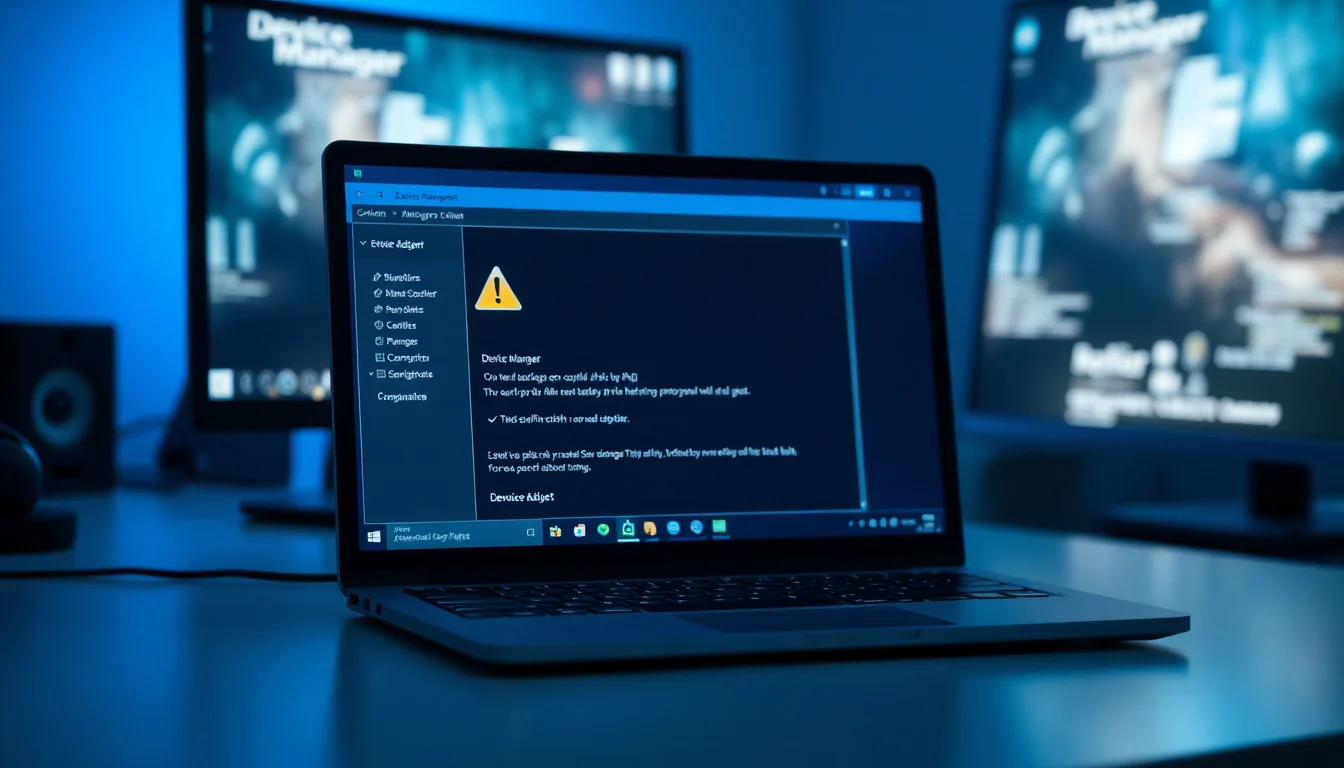
Bluetooth not working Windows is one of those problems that looks simple on the surface and then turns out to have about six different possible causes. The adapter might be missing entirely from Device Manager. Devices might pair and then drop instantly. Or everything looks fine in Settings but nothing actually connects. I've seen all of these, usually at the worst possible time, and the fix depends entirely on which layer of the stack has broken. This guide works through every layer, from the obvious toggles to driver reinstalls and BIOS checks.
What Causes Bluetooth Not Working Windows?
The frustrating thing about Bluetooth not working Windows is that the symptom looks the same whether the cause is trivial or serious. No devices found. Can't pair. Connects then drops. You get the same vague error regardless of what's actually broken underneath. So before touching anything, it's worth understanding the five main failure points, because that determines which fix you need.
The most common cause, and the one people overlook most often, is simply that Bluetooth has been switched off. Windows 11 and Windows 10 both have a Bluetooth toggle in Settings, and Airplane mode disables it globally. A Windows update can reset these settings without warning. Check this first. It takes ten seconds and saves you from reinstalling drivers you don't need to touch.
Driver problems are the second most frequent culprit. Outdated drivers, drivers that got corrupted during a Windows update, or a situation where Windows installed a generic inbox driver instead of the proper OEM one. The Microsoft Bluetooth driver documentation is clear that manufacturer-specific drivers handle hardware features that generic drivers simply don't support. If your Bluetooth worked fine before a recent Windows update and now it doesn't, a driver regression is the most likely explanation.
Power management is sneaky. Windows has a setting that allows it to turn off the Bluetooth adapter to save power, and on laptops especially, this fires constantly. The adapter appears fine in Device Manager but drops connections after sleep or even during normal use. This one causes a lot of confusion because the adapter shows as healthy but behaves as if it isn't there.
The Bluetooth Support Service is a Windows background process that handles device discovery and pairing. If it's stopped or stuck, nothing pairs, even if the adapter itself is working perfectly. And finally, on laptops, there's the hardware layer: a physical wireless switch, a function key combination, or a BIOS setting that disables the radio entirely. These get toggled accidentally more than you'd think, especially after a BIOS update or factory reset.
One more thing worth mentioning: the accessory itself. A Bluetooth speaker or headset that's out of range, uncharged, or stuck in a bad pairing state will look identical to a Windows-side problem. Always test with a second device if you have one, just to rule this out early.
Bluetooth Not Working Windows: Quick Fix
Start here. These steps take five to ten minutes and fix the majority of cases. No driver downloads, no command prompts. Just the basics done properly.
Toggle, Re-pair, and Run the Troubleshooter Easy
- Toggle Bluetooth off and back on
Open Settings (Windows+I), go to Bluetooth and devices, and switch Bluetooth off. Wait five seconds, then switch it back on. While you're here, go to Network and Internet and confirm Airplane mode is off. These two settings conflict and it's easy to miss. - Restart both devices
Fully restart your PC (not sleep, not hibernate, an actual restart). Power off the Bluetooth accessory completely and turn it back on. If it's a headset or speaker, check the battery level too. Low battery causes connection instability that looks like a Windows problem. - Remove the device and re-pair from scratch
In Settings under Bluetooth and devices, find the problematic device, click the three-dot menu beside it, and select Remove device. Put the accessory into pairing mode (usually a long press on its Bluetooth button until a light flashes). Then click Add device in Windows and pair it fresh. Stale pairing data causes more problems than most people realise. - Run the built-in Bluetooth troubleshooter
Go to Settings, then System, then Troubleshoot, then Other troubleshooters. Find Bluetooth and click Run. Windows will check the adapter state, the Support Service, and common driver issues. It won't catch everything but it fixes about half of cases automatically. Apply any suggested fixes and restart.
More Bluetooth Not Working Windows Solutions
The quick fixes didn't sort it. That usually means the problem is in the driver or the Bluetooth Support Service. These steps take fifteen to thirty minutes and cover the vast majority of remaining cases.
Update the Bluetooth Driver in Device Manager Easy
- Open Device Manager
Press Windows+X and click Device Manager from the menu. Expand the Bluetooth section by clicking the arrow beside it. You should see your Bluetooth adapter listed here, something like Intel Wireless Bluetooth or Realtek Bluetooth Adapter. If you see a yellow warning triangle on it, that confirms a driver problem. - Update the driver automatically
Right-click the Bluetooth adapter and select Update driver. Choose Search automatically for updated driver software. Windows will check its local cache and Windows Update for a newer driver. If it finds one, let it install, then restart your PC. - Download the OEM driver if Windows finds nothing
If Windows says the best driver is already installed but Bluetooth still isn't working, that's often because the generic inbox driver is installed instead of the proper one. Go to your PC manufacturer's support website (Dell, HP, Lenovo, ASUS, etc.), search for your model, and download the Bluetooth driver from the drivers section. Install it using the provided .exe installer and restart. Microsoft's official Bluetooth troubleshooting page specifically recommends this when the inbox driver isn't resolving the issue. - Verify the fix
After restarting, open Device Manager again and confirm the Bluetooth adapter shows with no warning icon. Then try pairing your device. If it connects cleanly, you're done.
Restart the Bluetooth Support Service Easy
- Open Services
Press Windows+R, typeservices.msc, and press Enter. The Services window lists every background process Windows runs. - Find and restart the Bluetooth Support Service
Scroll down to Bluetooth Support Service. Right-click it and select Restart. If the option is greyed out (meaning the service is already stopped), click Start instead. Once it's running, right-click it again, select Properties, and set the Startup type to Automatic if it isn't already. Click Apply then OK. - Test pairing
Go back to Settings and try adding your Bluetooth device again. The Support Service handles device discovery and handshaking, so a stopped service means nothing pairs even when the adapter is physically fine. This fix takes under two minutes and works more often than it should.
Disable Power Management on the Bluetooth Adapter Easy
- Open adapter properties in Device Manager
In Device Manager, right-click your Bluetooth adapter and select Properties. Click the Power Management tab. - Uncheck the power saving option
Untick the box that says Allow the computer to turn off this device to save power. Click OK. This setting is the single most common cause of Bluetooth disconnects after sleep on laptops. Windows decides to cut power to the adapter mid-session and the connection drops. Disabling it has no meaningful impact on battery life in practice. - Restart and test after sleep
Restart your PC, let it sit for a few minutes, then put it to sleep and wake it again. Connect your Bluetooth device and check whether it stays connected. If it does, this was the culprit.
If you're also having trouble with your wireless network dropping at the same time as Bluetooth, that points to a shared wireless chipset issue. See our WiFi not working Windows fix for steps specific to the network side of the same adapter.
Advanced Bluetooth Not Working Windows Fixes
These are for the cases where the adapter has disappeared entirely, or where everything above has been tried and nothing has stuck. Expect thirty minutes or more. The steps are more involved but still well within what you can do without sending the machine anywhere.
Fully Uninstall and Reinstall the Bluetooth Driver Medium
- Uninstall the adapter from Device Manager
Right-click your Bluetooth adapter in Device Manager and select Uninstall device. Tick the box that says Delete the driver software for this device if it appears. Confirm the uninstall. The adapter will disappear from the list. - Restart your PC
A full restart is required here, not just a sign-out. Windows will attempt to automatically reinstall the Bluetooth driver during boot. On most systems this takes one to three minutes. When Windows loads, open Device Manager and check whether the Bluetooth adapter has reappeared without a warning icon. - Install the OEM driver if automatic reinstall fails or installs a generic driver
If the adapter reappears but still has issues, or if Windows installs a generic driver, download the manufacturer's driver package from your PC maker's support site. Run the .exe installer if provided. If only .inf and .sys files are included, right-click the adapter in Device Manager, choose Update driver, then Browse my computer for driver software, and point it at the extracted folder. This method forces the specific OEM driver rather than letting Windows choose. - Run Windows Update including optional updates
After the driver is installed, go to Settings, Windows Update, and click Check for updates. Also click Advanced options and then Optional updates to see whether any driver updates are listed there. Install everything and restart. Microsoft's guidance on Bluetooth failures specifically calls out optional driver updates as a fix path that users frequently miss.
Check BIOS Settings and Test with a USB Bluetooth Adapter Medium
- Check for a physical wireless switch or function key
On laptops, look for a physical switch on the side or front of the machine that toggles wireless radios. Also check whether a function key combination (often Fn+F2, Fn+F3, or similar, varies by manufacturer) controls the wireless radio. These get toggled accidentally and the result looks identical to a driver failure. - Enter BIOS and check wireless settings
Restart your PC and press the BIOS key during boot (F2, F10, Delete, or Escape depending on your manufacturer). Navigate to the wireless or connectivity section and confirm that the Bluetooth or wireless radio is set to Enabled. BIOS updates and factory resets can change this setting without warning. Save and exit if you change anything. - Test with a USB Bluetooth adapter
This is the definitive hardware test. Plug a USB Bluetooth adapter (any cheap one from Amazon works for testing purposes) into a USB port. Windows will install a driver for it automatically. If the USB adapter pairs and connects devices correctly, your internal Bluetooth adapter has physically failed and will need replacement or you can continue using the USB adapter as a permanent fix. If the USB adapter also fails, the problem is software-side and driver reinstallation is the answer. HowToGeek's Bluetooth guide covers this isolation method in detail if you want a second opinion on the process.
If your machine is a laptop and the internal adapter has failed, it's worth checking whether the wireless card is replaceable. On many laptops it's an M.2 or mini PCIe card that can be swapped in under twenty minutes. Our laptop hardware upgrade guide covers what's accessible on common models without specialist tools.
And if you're dealing with a desktop PC that has never had Bluetooth built in, a USB Bluetooth adapter is simply the right answer. They're inexpensive and Windows handles them well. No need to open the case.
Preventing Bluetooth Not Working Windows
Most Bluetooth problems are preventable. Here's what actually matters, in order of importance.
Keep Windows Update running and don't skip optional updates. This is the single biggest thing. Microsoft pushes Bluetooth driver fixes through optional updates and a lot of users never see them because they only install the recommended updates. Go to Settings, Windows Update, Advanced options, Optional updates, and check this section every month or after any major Windows update.
Install manufacturer drivers rather than relying on Windows to pick the right one. Generic inbox drivers work, but OEM drivers handle power states, audio profiles, and device-specific features properly. If you bought a Dell, HP, or Lenovo, their support sites have model-specific Bluetooth drivers that are worth installing once and keeping updated.
Disable the power management setting that lets Windows turn off the Bluetooth adapter. Do this proactively, not after the first dropout. It takes thirty seconds in Device Manager and prevents the most common cause of post-sleep disconnections.
Keep accessories charged. A Bluetooth headset at five percent battery will connect, drop, reconnect, and drop again in a pattern that looks exactly like a Windows driver problem. It's a bit rubbish that Windows doesn't surface battery warnings more clearly, but that's where we are. Most accessories show battery level in Settings under Bluetooth and devices once paired.
On laptops specifically, check after any BIOS update or factory reset that the wireless radio is still enabled in firmware. It's not common for this to change, but when it does it causes complete Bluetooth disappearance and a lot of unnecessary driver reinstalls before someone thinks to check BIOS.
Bluetooth Not Working Windows: Summary
Bluetooth not working Windows covers a wide range of faults, but they follow a clear diagnostic path. Start with the toggle and re-pair steps, run the troubleshooter, then work through the driver update and Bluetooth Support Service restart. If disconnections after sleep are the specific problem, the power management setting in Device Manager is almost always the cause. For a missing adapter, BIOS and physical switches are worth checking before assuming hardware failure. And if all else fails, a USB Bluetooth adapter costs very little and tells you definitively whether the internal hardware has given up. Most cases of Bluetooth not working Windows are software-side and fully fixable without any specialist tools or hardware.