
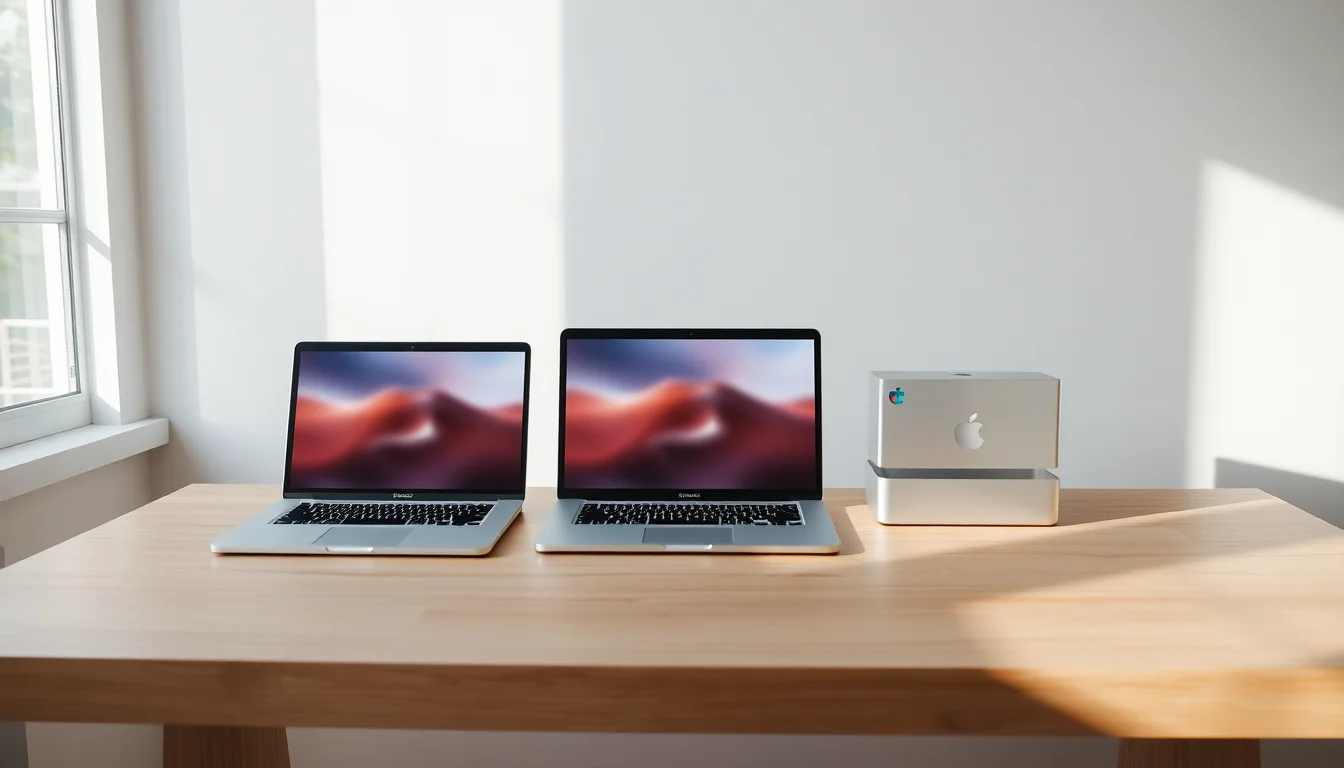
Honestly, this question lands in our support queue almost every single week. Someone's switching from Windows, or buying their first laptop, or just completely overwhelmed by Apple's lineup and not sure where to start. And the frustrating part? Most of the time the confusion isn't really about the Mac at all. It's about whether a Mac is even the right call in the first place. So let's sort this out properly.
Why Choosing the Best Mac for Me Is Harder Than It Looks
Apple's Mac lineup looks simple on the surface. A few laptops, a couple of desktops, done. But the reason people get stuck is that the models overlap in confusing ways, the specs aren't always obvious, and the marketing doesn't exactly help you figure out whether you need a Pro chip or whether the base Air is absolutely fine for what you do.
Here's the thing: the biggest mistake people make isn't picking the wrong Mac model. It's not thinking about their software first. I've seen people buy a MacBook Air and then realise their company's VPN client doesn't support macOS. Or someone picks up a Mac mini and discovers their specialist audio interface needs a Windows driver that doesn't exist on macOS. That's a painful and expensive lesson. So before we even talk about which Mac to buy, we need to make sure a Mac is actually the right platform for you.
The second most common mistake is under-speccing. Apple's entry-level configs are often genuinely fine for light use, but if you're keeping the machine for four or five years (and most people do), skimping on RAM or storage today means a sluggish machine in year three. We'll come back to this in detail.
And then there's the portability versus performance thing. A lot of people buy a MacBook Air when what they actually need is a desktop, or they buy a Mac mini and then realise they wanted to work from a coffee shop occasionally. Getting this wrong isn't catastrophic, but it does mean you end up with a machine that's a slightly awkward fit for your life.
The good news is that once you work through a short checklist, the right answer usually becomes pretty obvious. Apple's lineup is actually well segmented when you understand what each model is designed for. So let's go through it properly.
Best Mac for Me: Start With Your Software, Not the Hardware
This is the step most people skip, and it's the most important one. Before you look at a single spec sheet, write down every application you use on a regular basis. Email, browser, office suite, any creative tools, any specialist software for work or study, anything you use for gaming, and any peripherals like printers, audio interfaces, drawing tablets or external drives.
Now go through that list and ask: does this have a Mac version? For most mainstream software, the answer is yes. Microsoft 365 runs natively on macOS. Adobe Creative Cloud is fully supported. Spotify, Slack, Zoom, VS Code, all fine. But there are categories where macOS support is patchy or non-existent. Certain enterprise security tools, some industry-specific CAD or engineering packages, older line-of-business software that was built for Windows only, and a lot of PC gaming titles. If anything on your list falls into that category, you need to decide how to handle it before you buy anything.
You've got three options. One: find a Mac-native alternative that does the same job. Two: run the Windows app inside a virtualisation layer like Parallels on Apple silicon. Three: stay on Windows. Option two sounds appealing but it's genuinely worth testing before you commit. Parallels works well for a lot of apps, but not everything runs cleanly, and some enterprise tools actively block virtualised environments for security reasons. Apple's own support pages have guidance on compatibility, and it's worth checking before you hand over your money.
If the majority of your software is cross-platform and your peripherals work on macOS, you're good to move on to choosing the actual model. If you've got a handful of Windows-only requirements, you'll need to factor in the complexity and cost of virtualisation. And if your whole workflow is built around Windows-specific tools, honestly, the best Mac for me might turn out to be no Mac at all. A premium Windows laptop like a Surface Laptop 7 or Dell XPS might be the more sensible answer, and there's no shame in that.
Best Mac for Me: Quick Decision Framework
The Five-Minute Mac Picker Easy
- Check your platform requirement first
If you need Windows-only software with no viable Mac alternative and virtualisation isn't acceptable, stop here. Look at a premium Windows laptop instead. This saves a lot of hassle. - Decide: laptop or desktop?
If you work from one place and already own a monitor, keyboard and mouse, a Mac mini will give you more performance per pound than a laptop. If you move around at all, or want the option to, go laptop. - Pick your workload tier
Everyday tasks (web, email, office, streaming, video calls, light creative work): MacBook Air. Sustained demanding work (video editing, 3D, software compilation, large dataset work): MacBook Pro. Desktop all-in-one: iMac. - Choose your config, not just the base model
For everyday use: 16 GB RAM minimum, 256 GB storage minimum. For demanding work: 32 GB RAM, 512 GB storage. Don't buy the absolute cheapest config if you're keeping this machine for more than three years. - Still unsure? Default to MacBook Air
The MacBook Air is the right answer for the majority of users. It handles everything most people throw at it, has outstanding battery life, and is the best value Mac in the lineup for general use.
More Best Mac for Me Guidance: Understanding Each Model
Matching the Mac to Your Actual Life Easy
- MacBook Air: the everyday workhorse
This is the Mac most people should buy. It's light, the battery genuinely lasts all day (we're talking 15 to 18 hours in real use, not just Apple's marketing numbers), and the performance on Apple silicon is proper fast for everything that isn't sustained heavy work. School, university, office work, web browsing, Netflix, light photo editing, coding projects that aren't compiling massive codebases constantly. All sorted. The Air also runs completely fanless, which means it's silent. That matters more than you'd think. The one limitation is that it will throttle under sustained heavy load because there's no fan to cool it. For short bursts of demanding work it's fine. For hours of video rendering, it's not the right tool. - MacBook Pro: when you actually need the extra power
The Pro models exist for people whose work genuinely hammers the CPU and GPU for extended periods. Video editors working with 4K or 8K footage, motion graphics artists, software engineers compiling large projects, audio producers with big session files, machine learning work. The Pro has active cooling so it sustains performance instead of throttling. It's also heavier and more expensive. Don't buy a MacBook Pro because it sounds impressive. Buy it because your workload actually needs it. A lot of people buy the Pro and use it for email and YouTube. That's a waste of money. - Mac mini: the value desktop pick
If you work from a desk, already own a decent monitor, keyboard and mouse, and don't need portability, the Mac mini is genuinely excellent value. You get the same Apple silicon performance as the MacBook Air in a small box that sits on your desk. The M4 Mac mini in particular is a proper little powerhouse. The catch is that you need to already own peripherals, or budget for them. A good monitor alone can add £200 to £500 to the total cost, so do the maths before assuming it's cheaper than a laptop. - iMac: the all-in-one option
The iMac is for people who want a complete desktop setup without the cable management headache. The display is built in, it looks great on a desk, and the performance is solid for everyday to moderately demanding work. It's not the choice for pro-level sustained workloads (that's Mac Studio or Mac Pro territory), but for a home office, family computer, or creative professional who doesn't need the absolute top end, it's a lovely machine. Just know that you can't upgrade it later, so spec it right from the start.
Advanced Best Mac for Me Decisions: Windows Compatibility and Pro Workloads
Handling Windows Apps and Pro Workflows Medium
- Set up and test Windows virtualisation before you commit
If you need Windows apps but still want a Mac, the main option on Apple silicon is Parallels Desktop. It runs Windows 11 ARM inside a virtual machine on your Mac. Performance is genuinely good for most productivity and business apps. But before you buy the Mac, download the Parallels trial, install Windows 11, and test your specific apps. Some run perfectly. Some have quirks. A small number won't run at all, particularly apps that rely on kernel-level drivers or have anti-cheat or security software that blocks virtualised environments. Find out before you spend the money, not after. - Validate Pro workload requirements with real benchmarks
If you're considering a MacBook Pro, don't just go on benchmark scores in isolation. Look at sustained performance tests, not just peak numbers. Sites like Tom's Guide run proper sustained workload tests that show what happens after the machine has been running hard for 20 minutes. The MacBook Air throttles. The Pro doesn't. If your work involves long renders, large compiles or extended export tasks, that difference is real and significant. - Run a full peripheral compatibility check
This is where Mac versus Windows decisions often fall apart in practice. Printers are usually fine (most modern printers have AirPrint support). But specialist audio interfaces, older drawing tablets, industrial peripherals, certain docks, and some enterprise security tokens can be dodgy on macOS. Check the manufacturer's website for macOS support and look for recent user reports. 'Supported' on the box sometimes means 'supported on macOS 12 but not tested on anything newer'. Be specific. - Consider total cost of ownership, not just the sticker price
A Mac mini sounds cheap. Add a decent monitor (£250 to £400), a keyboard and mouse (£80 to £150), and maybe a USB-C hub or dock (£50 to £100) and you're at £1,100 to £1,350 before you've bought any software. A MacBook Air includes the display, keyboard, trackpad and a battery. Neither is wrong, but compare the full picture. Same goes for adapters: if you're coming from a Windows laptop with USB-A ports everywhere, budget for a good USB-C hub because the Mac lineup is all USB-C and Thunderbolt. - If Windows is genuinely the right answer, own that decision
There's no rule that says you have to buy a Mac. If your workflow is built around Windows tools, your company uses Windows-only enterprise software, or you're a PC gamer, the best laptop for you might be a Surface Laptop 7 or a Dell XPS 15. Both are excellent machines. Forcing macOS into a workflow that needs Windows creates ongoing friction that isn't worth it. The best Mac for me might genuinely be no Mac at all, and that's a completely valid conclusion.
Preventing the Wrong Best Mac for Me Decision
Most bad Mac purchases come down to the same few mistakes, and they're all avoidable.
The biggest one: buying on spec rather than on need. A higher chip number feels like a better purchase, but if your actual workload is web browsing, email and the occasional spreadsheet, the base MacBook Air will handle that without breaking a sweat for years. You're not leaving performance on the table. You're just not paying for performance you'll never use.
Second biggest: under-speccing to save money upfront. The base RAM and storage configs on Apple's entry-level machines are the most common source of regret. macOS itself uses RAM efficiently, but 8 GB is genuinely tight if you run a browser with lots of tabs, a few apps open and any kind of creative tool. 16 GB is the sensible minimum for most people in 2026. And storage fills up faster than you think. 256 GB is workable but you'll feel it. If your budget allows, go to 512 GB.
Third: not checking software compatibility first. We've said this already but it bears repeating because it's the most painful mistake to fix after the fact. List your apps. Check them. Test the ones you're unsure about. This takes an hour and can save you a very expensive return.
Fourth: confusing portability with performance. The MacBook Air is a portable machine that happens to be fast. The MacBook Pro is a performance machine that happens to be portable. They're solving different problems. If you need sustained heavy performance and you're mostly desk-based, a Mac mini or MacBook Pro will serve you better than an Air. If you need to work from anywhere and your tasks are everyday stuff, the Air is perfect and the Pro is overkill.
Finally: don't forget to think about longevity. Macs tend to last a long time. Apple supports them with software updates for many years, and the hardware is generally well built. If you're buying a machine you plan to use for five years, the spec decisions you make today matter a lot more than if you were buying a machine you'd replace in two. Spend a bit more on RAM and storage now and you'll thank yourself later.
Best Mac for Me: Summary
So, which is the best Mac for me? Here's the honest answer after going through all of this.
If you do everyday tasks, the MacBook Air is your Mac. Full stop. It's fast, it's light, the battery is genuinely brilliant, and it handles everything most people need without any drama. Start there and only move up if you have a specific reason to.
If your work is genuinely demanding and sustained, look at the MacBook Pro. Not because it's more impressive, but because the active cooling means it won't throttle when you're three hours into a render or a big compile job. That's the real difference and it's worth paying for if it applies to you.
If you're desk-based and already own a monitor, the Mac mini is excellent value and gives you proper Apple silicon performance in a small box. And if you want an all-in-one desktop without the cable mess, the iMac is a lovely machine for home and office use.
Whatever you choose, spec it properly. 16 GB RAM as a minimum, 256 GB storage as a minimum, and more of both if you're keeping it for years. Check your software compatibility before you buy. And if your workflow is genuinely Windows-dependent, don't force the switch. A great Windows laptop might be the better answer, and there's no shame in that conclusion.
Still not sure which is the best Mac for me in your specific situation? Drop us a message or book a remote session and we'll work through it with you properly.