
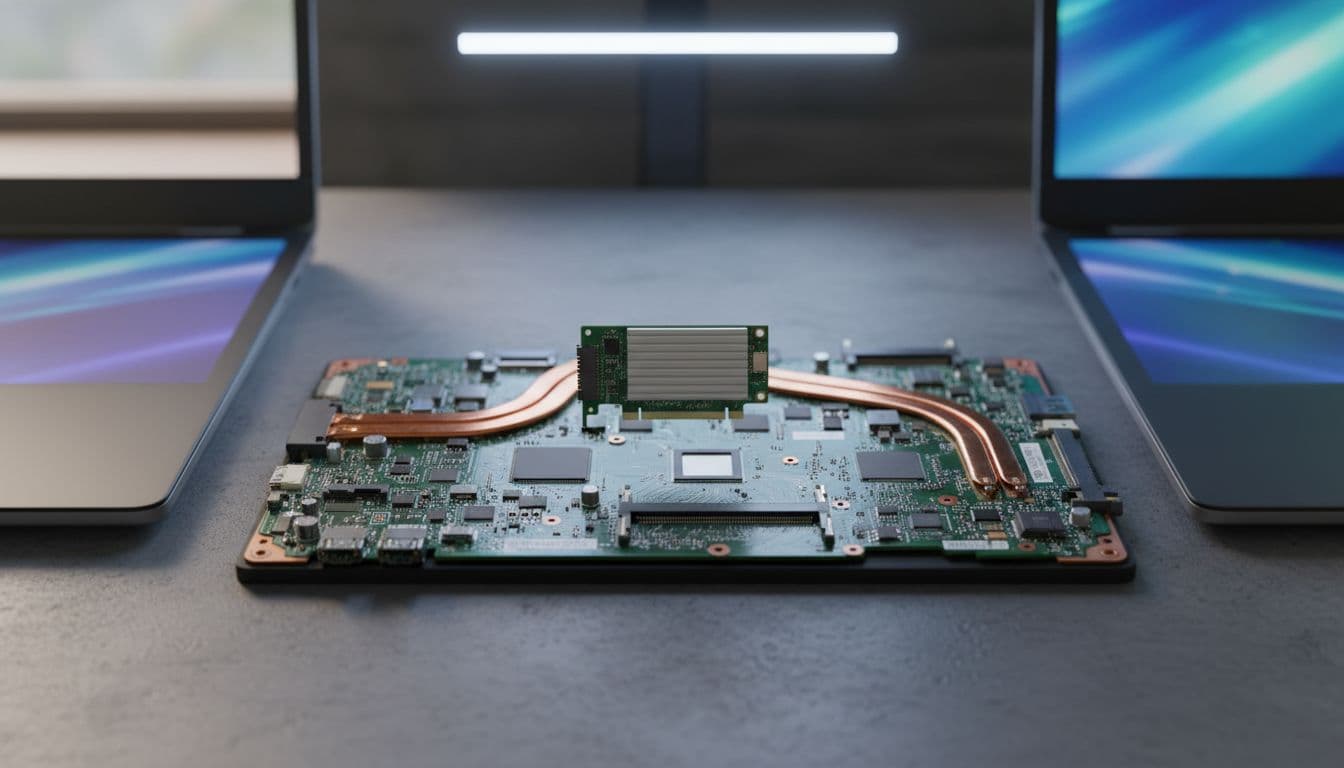
The AX211 to BE200 upgrade looks simple on paper. Same M.2 form factor, same key, swap it over, install a driver. Except a huge number of people do exactly that and end up with no Wi-Fi, no Bluetooth, or a BIOS error before Windows even loads. The problem isn't the card. It's the interface underneath it, and most of the advice floating around Reddit skips that part entirely.
What Causes the AX211 to BE200 Upgrade to Fail?
Here's the thing most guides gloss over: the AX211 and BE200 are not interchangeable by default. They look identical. Same M.2 2230 size, same E-key connector. But the AX211 is a CNVio2 card, which means it relies on Intel's proprietary interface baked into the chipset. That interface carries RF signals, power, and control in a way that is completely different from a standard PCIe/USB M.2 slot. The BE200 is a conventional card. It needs a proper PCIe lane and a USB connection for Bluetooth. If your motherboard only exposes a CNVio2 slot for the WLAN module, the BE200 will sit there doing absolutely nothing.
This is the single most common reason the AX211 to BE200 upgrade fails, and it's also the one that no driver update, BIOS tweak, or registry edit can fix. You can confirm this by checking your laptop's service manual (not the marketing page, the actual hardware maintenance guide) and looking at which interface the WLAN slot uses. Some laptops do have a standard PCIe/USB M.2 slot despite shipping with an AX211. Those machines can run the BE200 fine. Others are CNVio2-only and simply can't.
Beyond the interface issue, there are a few other culprits. BIOS whitelists are common on business-class laptops and some consumer models. The firmware checks the card's hardware ID against an approved list, and if the BE200 isn't on it, you get an error screen before Windows even starts. That's a firmware restriction, not a Windows problem. Then there are the softer issues: outdated BIOS builds that don't initialise the BE200 correctly, missing or wrong driver packages (Wi-Fi and Bluetooth are separate installs), a loose M.2 screw, or antenna leads that aren't fully clicked in. Bluetooth specifically depends on an internal USB connection inside the module. If that's not active or the driver isn't installed, Bluetooth simply won't appear.
According to Intel's official BE200 specifications, the card supports Windows 10 and Windows 11, but OEM support varies significantly. And as Microsoft's Wi-Fi 7 driver documentation makes clear, full Wi-Fi 7 feature support in Windows is more complete on Windows 11 than on Windows 10. So if you're on Windows 10 and wondering why some features aren't showing up, that's part of the picture too.
AX211 to BE200 Upgrade Quick Fix
Start here. This takes about ten minutes and sorts it for a decent chunk of people where the card is electrically compatible but just needs a proper power cycle and driver install.
Power Cycle and Driver Install Easy
- Shut down completely
Not restart. Shut down. Then disconnect the AC adapter and wait 30 seconds. This clears residual power and forces a clean hardware enumeration on next boot. - Boot and open Device Manager
Press Windows + X and choose Device Manager. Expand Network adapters. Also click View at the top and select Show hidden devices. Look for the BE200 or any entry under Other devices labelled as an unknown network controller. - Enable and update if it appears
If the BE200 shows up but is greyed out or has a yellow warning triangle, right-click it, choose Enable device, then right-click again and choose Update driver. Point it at the Intel driver package you downloaded in advance. - Install the Bluetooth package separately
Wi-Fi and Bluetooth are two separate driver installs. If Wi-Fi is working but Bluetooth isn't in Device Manager at all, download the Intel Bluetooth package for the BE200 and install it independently. Then restart.
More AX211 to BE200 Upgrade Solutions
The card is detected but behaving oddly, or the quick fix didn't stick. These steps cover driver cleanup, BIOS updates, and network stack resets. Plan for 20 to 30 minutes.
Clean Driver Install and BIOS Update Intermediate
- Remove the old AX211 driver first
In Device Manager, find any remaining AX211 entry (it may still be listed as a hidden device). Right-click, choose Uninstall device, and tick the box that says Attempt to remove the driver software for this device. Shut down after this, not restart. - Install OEM drivers, not generic Intel ones
Go to your laptop manufacturer's support page and download the Wi-Fi and Bluetooth drivers listed for your exact model. OEM packages are tuned for the hardware and should be your first choice. Only fall back to Intel's generic packages from Intel's product page if the OEM hasn't released an updated package. - Update BIOS to the latest release
This is non-negotiable if the card is partially detected or throwing errors. Download the latest BIOS for your exact laptop model from the manufacturer's support site. Keep the machine on AC power throughout. A failed BIOS flash is a bad day. Don't rush it. - Reset Windows networking
Go to Settings, then Network and internet, then Advanced network settings, then Network reset. Click Reset now. Windows will restart. This clears stale adapter registrations that can confuse the system after a card swap. - Check the adapter's error code
After restart, open Device Manager, right-click the BE200, and choose Properties. Under the General tab, look at the Device status box. Note any error code. Code 10 means initialisation failed, usually a driver or firmware issue. Code 43 is similar. An absent device is a hardware or whitelist problem.
Advanced AX211 to BE200 Upgrade Fixes
The card still isn't working. Time to get into the command line, check hardware IDs, clean up driver packages, and verify the physical install. This section also covers how to confirm whether you're dealing with a fundamental incompatibility rather than a fixable software problem. Be honest with yourself here: if the slot is CNVio2-only, no amount of command-line work will change that.
Command-Line Diagnostics and Driver Cleanup Advanced
- Check hardware detection from an elevated Command Prompt
Right-click Start, choose Windows Terminal (Admin) or Command Prompt (Admin). Run:pnputil /enum-devices /class Net
Then run:netsh wlan show drivers
If the BE200 doesn't appear in either output, that's a hardware-level problem. Not a driver problem. The OS can't see the card at all. - Check for error codes in PowerShell
Open PowerShell as administrator and run:Get-PnpDevice -Class Net, Bluetooth | Format-Table -Auto
Look at the Status and Problem columns. A Code 10 or 43 against the BE200 entry means the device is present but failing to initialise. That's usually fixable with drivers or a BIOS update. An absent entry means hardware or whitelist. - Remove stale Intel driver packages
Runpnputil /enum-driversin the elevated Command Prompt. Look for old Intel wireless driver packages (they'll reference iNet or similar in the driver description). Remove obsolete ones with:pnputil /delete-driver oem##.inf /uninstall
Replace oem##.inf with the actual filename shown. Do not delete anything you don't recognise as an Intel wireless package. Getting this wrong can break other devices. - Reset the network stack completely
Run these four commands in sequence in the elevated Command Prompt:netsh winsock resetnetsh int ip resetipconfig /flushdnsshutdown /r /t 0
The last command forces an immediate restart. - Verify the hardware ID
In Device Manager, right-click the BE200 (or the unknown device), choose Properties, then the Details tab. Set the Property dropdown to Hardware Ids. You should see an ID containing something like PCI\VEN_8086 and a device ID associated with the BE200 family. If you see a completely different vendor ID, you may have a different card than expected, or the slot is presenting the CNVio2 interface instead. - Check BIOS settings for wireless
Restart and enter BIOS/UEFI setup (usually F2, F10, or Delete on boot). Look for settings labelled Wireless LAN, Internal Bluetooth, M.2 WLAN device, or similar. Make sure they're enabled. Some BIOS builds disable the M.2 slot entirely when they don't recognise the installed card. Also check whether Secure Boot is causing any restriction, though this is less common for WLAN cards.
Physical checks matter too. Power off completely, remove the battery if possible, and reseat the BE200. Make sure the M.2 screw is in and tight (a loose card will enumerate intermittently, which is maddening to diagnose). Both antenna leads need to be fully clicked onto the card's connectors. The main antenna usually goes to the connector marked with a circle or the number 1, and the auxiliary to the other. Check your service manual for the correct mapping. A wrongly connected or loose antenna lead won't stop the card from being detected, but it will wreck signal quality and can cause instability.
On the Bluetooth front: if Wi-Fi is working but Bluetooth is completely absent from Device Manager even after installing the Bluetooth driver package, the internal USB connection for the module may be disabled in BIOS or not physically connected. Some laptops route the USB signal for the WLAN module through a dedicated header on the board. If that's disconnected or disabled, Bluetooth simply won't exist. Check the service manual for the USB routing and confirm the BIOS has internal Bluetooth enabled.
Tom's Hardware's BE200 coverage is useful background on what the card can actually do when installed in a compatible system, which helps set realistic expectations about what you're aiming for once it's working.
For anyone dealing with driver conflicts after a card swap, our guide on fixing Windows driver conflicts covers the full process for identifying and removing conflicting packages without breaking other devices.
Preventing AX211 to BE200 Upgrade Problems
Most of the pain here is avoidable. The number one thing: read the service manual before you buy the BE200. Not the laptop's spec sheet, the actual hardware maintenance guide. It will tell you the WLAN slot interface type, the approved module list, and the antenna configuration. If it says CNVio2 only, save yourself the hassle. The BE200 won't work.
Update BIOS before the swap. Not after. A pre-swap BIOS update means the firmware already knows about newer hardware IDs when the BE200 arrives. Doing it after a failed install adds unnecessary complexity because you may not have working Wi-Fi to download the update.
Download both driver packages in advance and store them on a USB stick. The Wi-Fi driver and the Bluetooth driver are separate installs. A lot of people install the Wi-Fi package, see Wi-Fi working, and assume they're done. Then they wonder why Bluetooth is missing. Install both, in that order, and restart between them if the installer asks.
Keep the original AX211 and its screw. If the BE200 turns out to be incompatible, you'll want to put the AX211 back. Losing the screw is more annoying than it sounds because M.2 screws are not universal and the wrong size can damage the standoff.
Use Windows 11 if you can. Wi-Fi 7 support is more complete there. And if you're expecting Wi-Fi 7 speeds, remember the router has to support it too, 6 GHz has to be available in your region, and signal conditions have to be decent. The BE200 is a capable card but it's not magic. For anyone also looking at upgrading other hardware around the same time, our laptop RAM upgrade guide covers similar compatibility checks that apply before you open the machine.
Finally, create a restore point before you start any driver cleanup. It takes two minutes and gives you a clean exit if something goes sideways with the network stack reset or driver removal.
AX211 to BE200 Upgrade Summary
The AX211 to BE200 upgrade is absolutely doable on the right hardware, but it's not a guaranteed drop-in swap. The CNVio2 interface issue is real and it's the first thing to check. If your slot supports standard PCIe/USB M.2 modules, the fix path is: update BIOS first, do a clean driver install for both Wi-Fi and Bluetooth, power cycle properly, and verify in Device Manager. Command-line tools like pnputil and Get-PnpDevice will tell you quickly whether you're dealing with a software problem or a hardware one. If the card is simply absent from all enumeration, no software fix will help. Reseat the card, check the antenna leads, confirm BIOS settings, and if it's still absent, accept that the slot may not be compatible. Our Windows network adapter troubleshooting guide has more detail on diagnosing persistent adapter errors if you need to go deeper.