
Most people use about 10% of what their Android phone can actually do. The rest sits behind secret dialer codes, buried settings menus, and features that Samsung and Google never bothered to put in the quick-settings panel. Here are 10 of the best, ranked by how immediately useful they are.
Dial *#9900# to delete hidden system logs and reclaim gigabytes on Samsung
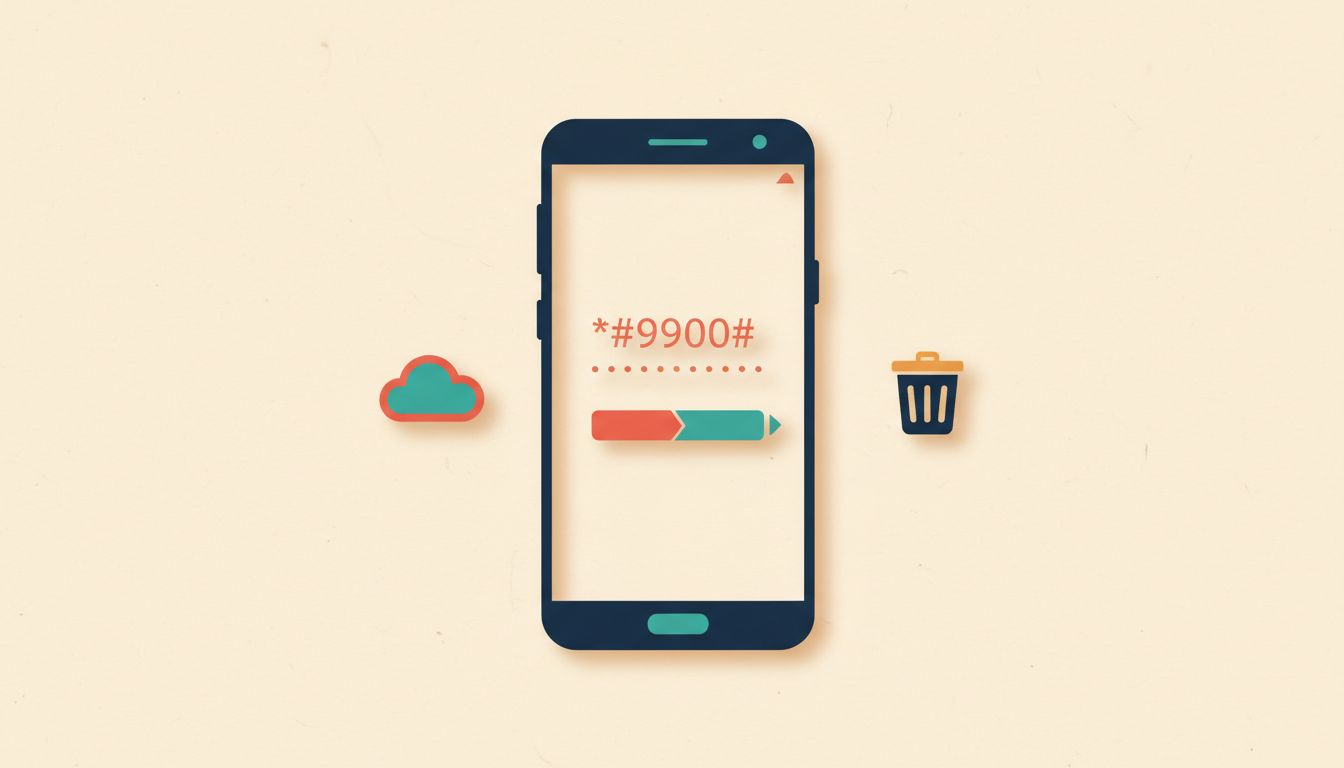
Samsung Galaxy phones quietly accumulate system log files in the background. Over time these dumpstate and logcat files can eat 1 to 2 GB of storage you didn't know you were losing. The secret SysDump menu lets you wipe them in seconds, no third-party app needed.
- Open the Phone app and dial *#9900#. The SysDump menu opens automatically.
- Tap Delete dumpstate/logcat.
- Confirm the deletion and wait for the process to complete.
- Restart the phone if prompted.
How to check it worked
Go to Settings > Battery and Device Care > Storage before and after. You should see free space increase, sometimes noticeably, within a minute or two of the deletion completing.
Watch out for these
- Samsung Galaxy only. This code does nothing useful on other Android brands, and on some may open an unfamiliar menu that's easy to mis-tap.
- Stick to the Delete dumpstate/logcat option. Other entries in the SysDump menu can destabilise the device if you don't know what they do.
- The logs will build up again. Repeat this every few months if storage is tight.
Run a full hardware diagnostic on Samsung with *#0*#

Before buying a used Galaxy phone, or after dropping yours, dial *#0*# to open a hidden hardware test menu. It checks the display colours, touchscreen, speakers, vibration motor, camera, and sensors, all without downloading a single app.
- Open the Phone app and dial *#0*#.
- Tap any test category: Red, Green, or Blue screen; Touch; Vibration; Speaker; Camera; Sensor.
- Follow the on-screen prompts for each test. The touch test asks you to swipe across the screen.
- Press the home button to exit when done.
How to check it worked
Each test gives an immediate pass or visual confirmation. If a screen colour test shows uneven patches, or the speaker test produces distortion, you've found a hardware fault.
Watch out for these
- Samsung Galaxy devices only. Stock Android and other brands won't recognise this code.
- Don't leave the colour display tests running for extended periods. Sustained solid colours can contribute to screen burn-in on AMOLED panels.
- Some tests require physical interaction to complete. Tap or swipe when prompted or the test won't advance.
Check phone info, battery stats, and network details with *#*#4636#*#*
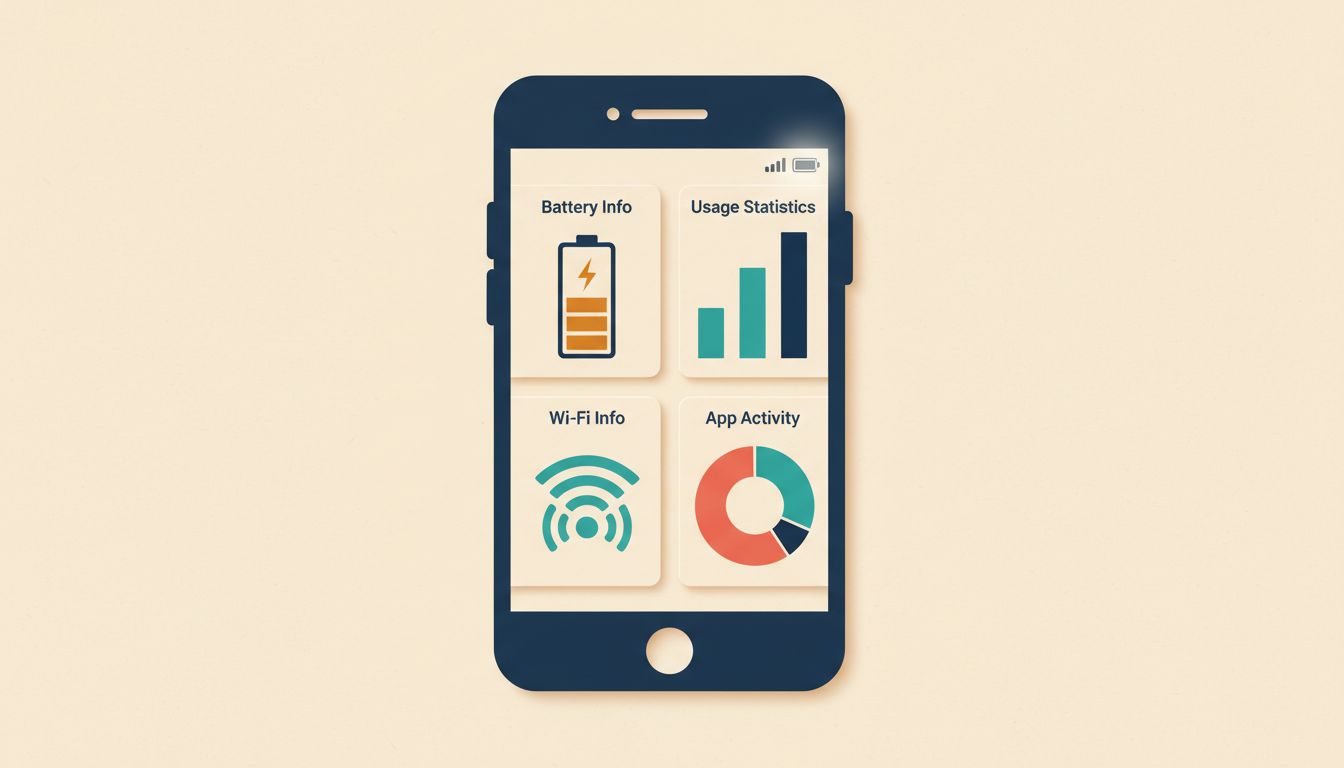
This universal Android code opens a hidden testing panel with four tabs: Phone Info, Battery Info, Usage Statistics, and Wi-Fi Info. It's genuinely useful for diagnosing mystery battery drain or a flaky mobile signal, and it works without installing anything.
- Open the Phone dialer and type *#*#4636#*#*. The menu opens immediately without pressing Call.
- Browse the tabs. Phone Info shows signal strength and lets you manually set a preferred network type (for example, LTE only).
- Battery Info shows the charge level, temperature, and health status.
- Wi-Fi Info lists current connection details and signal strength.
How to check it worked
The menu should open the moment you finish typing the code. If it doesn't, your carrier or Android version may have blocked it. Try the Settings route instead: Settings > About Phone > Battery Information.
Watch out for these
- Changing the network mode in Phone Info can cause you to lose signal entirely if you pick a mode your carrier doesn't support. Set it back to Automatic if that happens.
- Some options are greyed out depending on your carrier.
- On certain devices the menu closes itself if you press the back button. Use the tabs at the top instead.
Unlock Developer Options to control animation speed and background processes

Android hides a powerful settings menu called Developer Options behind a seven-tap Easter egg. Once unlocked, you can cut animation speeds to make the phone feel noticeably snappier, cap background processes to save battery, and enable debugging tools that the standard UI never exposes.
- Go to Settings > About Phone > Software Information.
- Tap Build Number seven times in quick succession. A message confirms you're now a developer.
- Go back to Settings. A new Developer Options entry appears, usually near the bottom.
- Inside, set Window Animation Scale, Transition Animation Scale, and Animator Duration Scale all to 0.5x for a faster feel.
- Optionally, set Background Process Limit to 3 or 4 processes to reduce background battery drain.
- Toggle Developer Options off entirely when you've finished to avoid accidental changes.
How to check it worked
Open and close a few apps. The animations should feel significantly snappier at 0.5x. If everything feels too abrupt, try 0.75x instead.
Watch out for these
- USB Debugging is a security risk if you connect to a computer you don't own. Keep it off unless you specifically need it.
- Limiting background processes too aggressively causes apps to restart from scratch every time you switch back to them, and can delay notifications.
- Some Developer Options settings increase battery drain. Check battery usage after enabling anything new.
Test for dead touchscreen zones with *#*#2664#*#*
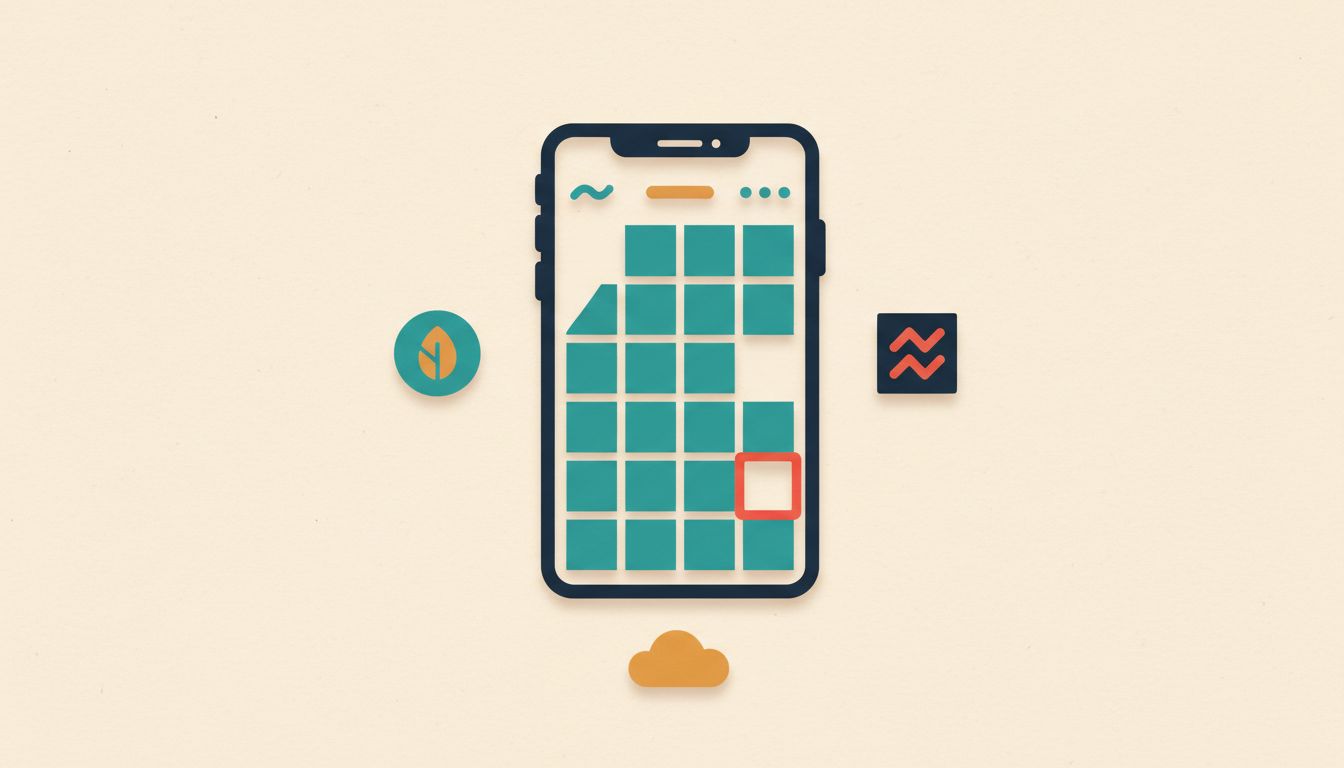
If part of your screen has stopped responding after a drop or repair, this dialer code opens an interactive grid where you paint every cell by swiping. Any unpainted square is a dead zone. Fast, free, and far more precise than just poking around in apps.
- Open the Phone dialer and enter *#*#2664#*#*.
- A touchscreen test grid appears. Swipe and tap across the entire screen to colour every cell.
- Any area that stays blank is unresponsive.
- Press Home or Back to exit. If dead zones are confirmed, seek a screen repair.
How to check it worked
A fully healthy screen should let you fill every grid cell. Run the test two or three times, as intermittent faults sometimes don't appear in a single pass.
Watch out for these
- Not universal. Works on most Samsung Galaxy devices and some other Android phones, but not all.
- Air bubbles under a screen protector can mimic dead zones. Remove the protector before testing to get an accurate result.
- Repeat the test a few times if you suspect an intermittent fault rather than a permanent one.
Get your IMEI instantly with *#06# before buying a second-hand phone

Dialling *#06# flashes your device's IMEI number on screen in under a second. Cross-check it against the number printed on the box or under the battery. A mismatch on a used phone is a serious red flag: the device may be stolen or have a cloned identity.
- Open the Phone dialer and dial *#06#.
- Note the IMEI number(s) shown on screen. Dual-SIM phones show two.
- Compare against the number on the original box or in Settings > About Phone.
- If buying used, check the IMEI against a free blacklist checker to confirm it hasn't been reported stolen.
How to check it worked
The code works on virtually every Android phone. If nothing appears, go to Settings > About Phone and look for IMEI manually.
Watch out for these
- Don't share your IMEI publicly online. It can be used to clone a device's identity.
- On a dual-SIM phone, make sure both displayed IMEIs match both slots' documentation.
- A tampered or mismatched IMEI may indicate a stolen device. Walk away from the sale.
Use Samsung Secure Folder to hide sensitive apps and files behind a second lock
Samsung's built-in Secure Folder creates an encrypted, sandboxed space on your Galaxy device where apps, photos, and documents are completely invisible from the main home screen. It has its own PIN, pattern, or biometric lock, separate from your phone's main one.
- Go to Settings > Biometrics and Security > Secure Folder.
- Sign in with your Samsung account and set up a separate lock method.
- Inside Secure Folder, tap Add Apps to install private copies of apps.
- Move photos or files in via the Gallery or My Files app and selecting "Move to Secure Folder".
- To make the Secure Folder icon itself invisible, open Secure Folder's Settings and toggle off the option to show it in the app drawer.
How to check it worked
After hiding the icon, swipe through your home screen and app drawer. Secure Folder should be gone. You can still access it via Settings > Biometrics and Security > Secure Folder.
Watch out for these
- Everything inside Secure Folder is wiped if you factory reset without backing up to Samsung Cloud first.
- Apps inside are entirely separate instances. Your Instagram login inside Secure Folder is independent from the one on your home screen.
- You need a Samsung account. Losing account access makes recovery very difficult.
Boost touchscreen sensitivity on Samsung to fix sluggish response through a screen protector
Samsung hides a touch sensitivity toggle in the Display settings. It's off by default, and without it a screen protector, especially a thick tempered glass one, can make the display feel unresponsive. Flipping one switch fixes it immediately.
- Go to Settings > Display.
- Scroll down and find Touch Sensitivity. Toggle it on.
- Test the screen immediately. Taps and swipes should feel more responsive through the protector.
- If you don't see it in Display, enable Developer Options first (tap Build Number seven times in About Phone), then look for touch input options there.
How to check it worked
Try fast swipes and taps at the screen edges. These are usually the first areas to feel sluggish with a protector on. They should now register cleanly.
Watch out for these
- Using high sensitivity without a screen protector can cause accidental touches when you're just holding the phone.
- The exact location of this toggle varies slightly across One UI versions. Look in Display settings first, then Developer Options if it's not there.
Find hidden or spy apps on Android by auditing Settings directly
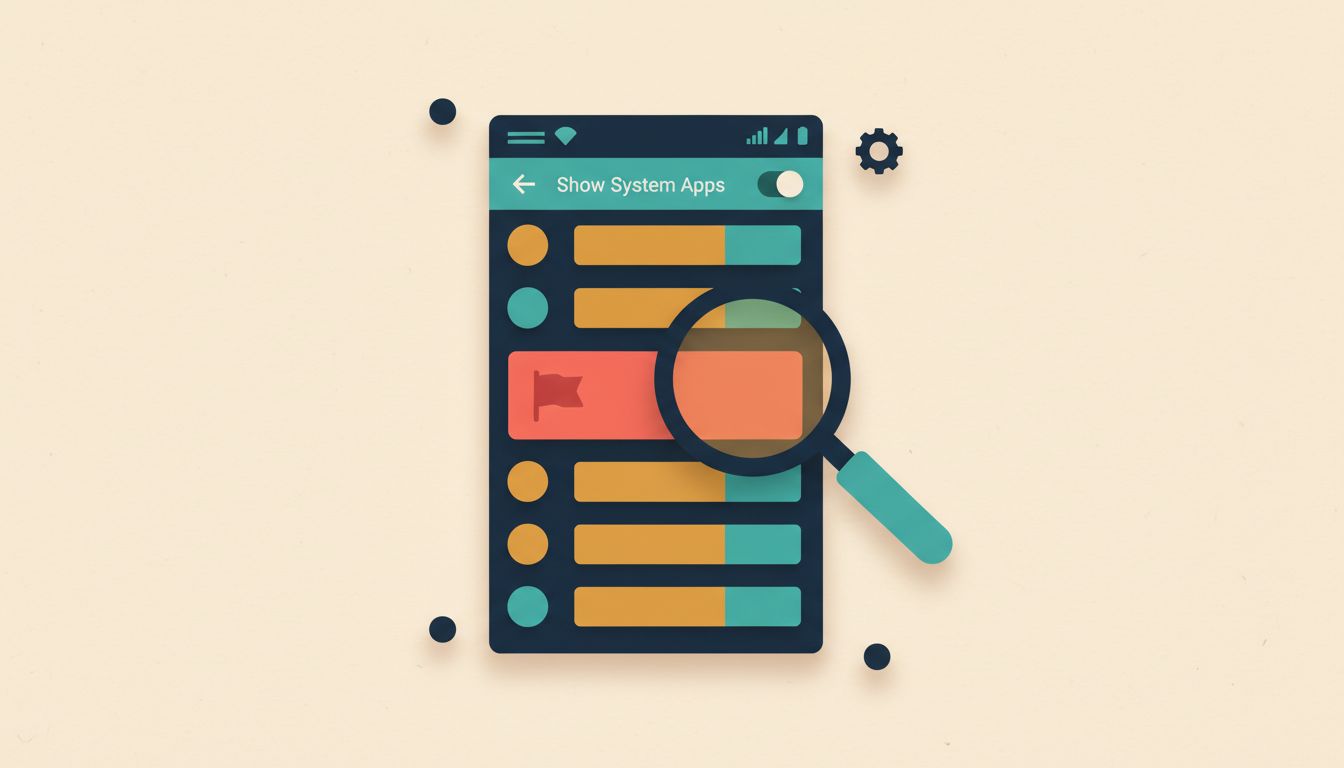
Stalkerware and monitoring apps rarely show up on your home screen, but they do appear in the full installed apps list inside Settings. Checking there, including system apps, is the most reliable way to spot anything that shouldn't be on your phone.
- Go to Settings > Apps (or Application Manager).
- Tap the three-dot menu and select Show system apps to reveal everything installed.
- Sort by install date. Look for apps with generic names like "System Service", "Phone Monitor", or "Sync Manager" that you don't recognise.
- Go to Settings > Privacy > Permission Manager and check which apps have access to your camera, microphone, or location.
- Uninstall anything suspicious. If an app has Device Administrator rights, revoke them first at Settings > Security > Device Admin Apps, then uninstall.
How to check it worked
After removing suspicious apps, go back to Permission Manager and confirm no unrecognised apps still hold camera, mic, or location access.
Watch out for these
- Spy apps often use names designed to blend in with genuine system processes. Search any unfamiliar app name online before deleting it.
- Disabling a system app is safer than deleting it if you're unsure. You can re-enable it later.
- If stalkerware is deeply embedded, a factory reset is the most thorough solution.
Use an app list manager to audit every installed app, including hidden ones
Apps like Show My Apps and Installed Apps generate a complete, sortable list of everything on your device, including apps that have been deliberately hidden from the launcher. It takes about two minutes and often turns up things the standard Settings view buries.
- Search the Play Store for Show My Apps - App List or Installed Apps - Know Your Apps and install one.
- Open it and grant the required permissions (usage access or storage).
- Browse or search the complete list. It includes system apps, hidden apps, and everything in between.
- Export the list if you want a snapshot to compare against later.
- Uninstall anything unrecognised directly from the app's interface.
How to check it worked
Cross-reference three or four apps you know are installed. If they all appear, the list is comprehensive. Any app missing from Settings but present here is a candidate for review.
Watch out for these
- Grant only the permissions the app explicitly needs to function. Usage access is fine; giving a list app access to contacts or messages is not necessary.
- The list includes genuine system components. Don't remove anything labelled as a system app without researching it first.
- Repeat this audit periodically, especially after installing anything from outside the Play Store.