
Most battery advice online is either outdated, flat-out wrong, or buried in a spec sheet nobody reads. This cuts straight to what actually works on modern Android devices, backed by how lithium-ion chemistry behaves rather than folklore from the NiCd era.
Keep your charge between 20% and 80% every day
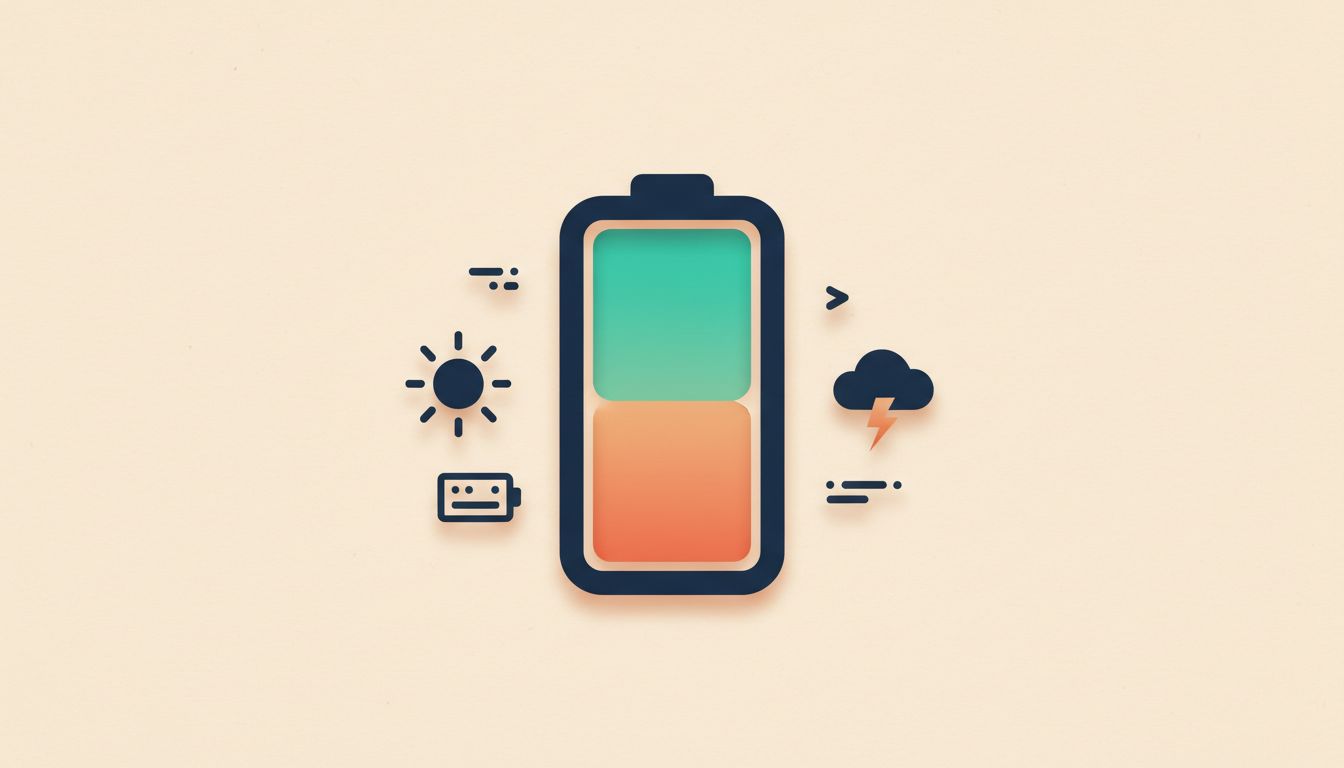
Lithium-ion batteries degrade fastest at voltage extremes. Staying in the 20% to 80% window reduces electrochemical stress on the cells and slows permanent capacity loss far more than any app or setting ever could. Simple habit. Big long-term difference.
- Plug in when you hit roughly 20% to 25%, not when the phone dies.
- Unplug at or before 80% for routine daily use.
- Use your phone's built-in charge-limit feature to automate the upper cap (more on that in the next tip).
- The occasional full charge for a long trip is fine. Daily full charges are not.
Watch out for
- Some phones only recalibrate their battery percentage meter if you occasionally charge to 100%. Once every few months is enough.
- The 20 to 80 rule is a long-game habit. You will not notice a difference next week. You will notice it in year two or three.
Turn on your phone's built-in charge limit or adaptive charging
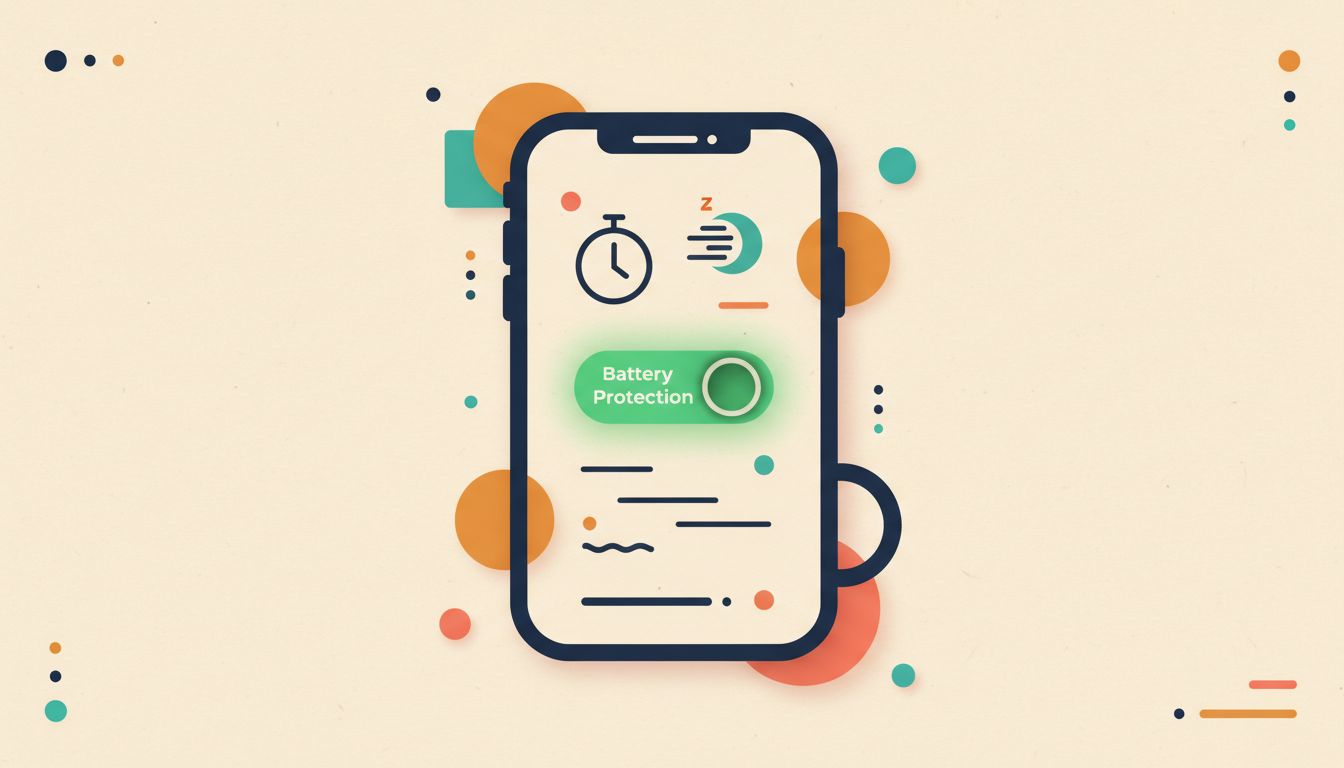
Android and Samsung both offer smart charging modes that either cap the charge at 80% to 85% or learn your sleep schedule and slow charging to reduce time spent at full voltage. Enabling one of these automates the 20-to-80 habit without you thinking about it.
- Samsung: go to Settings, then Battery, then Battery Protection. Choose Basic (caps at 85%) or Adaptive (learns your routine).
- Stock Android (Pixel): go to Settings, then Battery, then Adaptive preferences, and enable Adaptive Charging.
- Check your OEM's battery settings if you are on another brand. OnePlus, Xiaomi, and others have added similar options in recent software updates.
- Disable the cap before a long day out when you genuinely need a full charge, then re-enable it when you are back to your normal routine.
Watch out for
- Adaptive Charging only activates if the phone predicts you will be on charge for several hours. Irregular sleep patterns reduce its effectiveness.
- Samsung's Maximum protection setting caps at 85%, not 80%. Still very good, just not quite the textbook optimum.
Stop letting your battery drain to zero
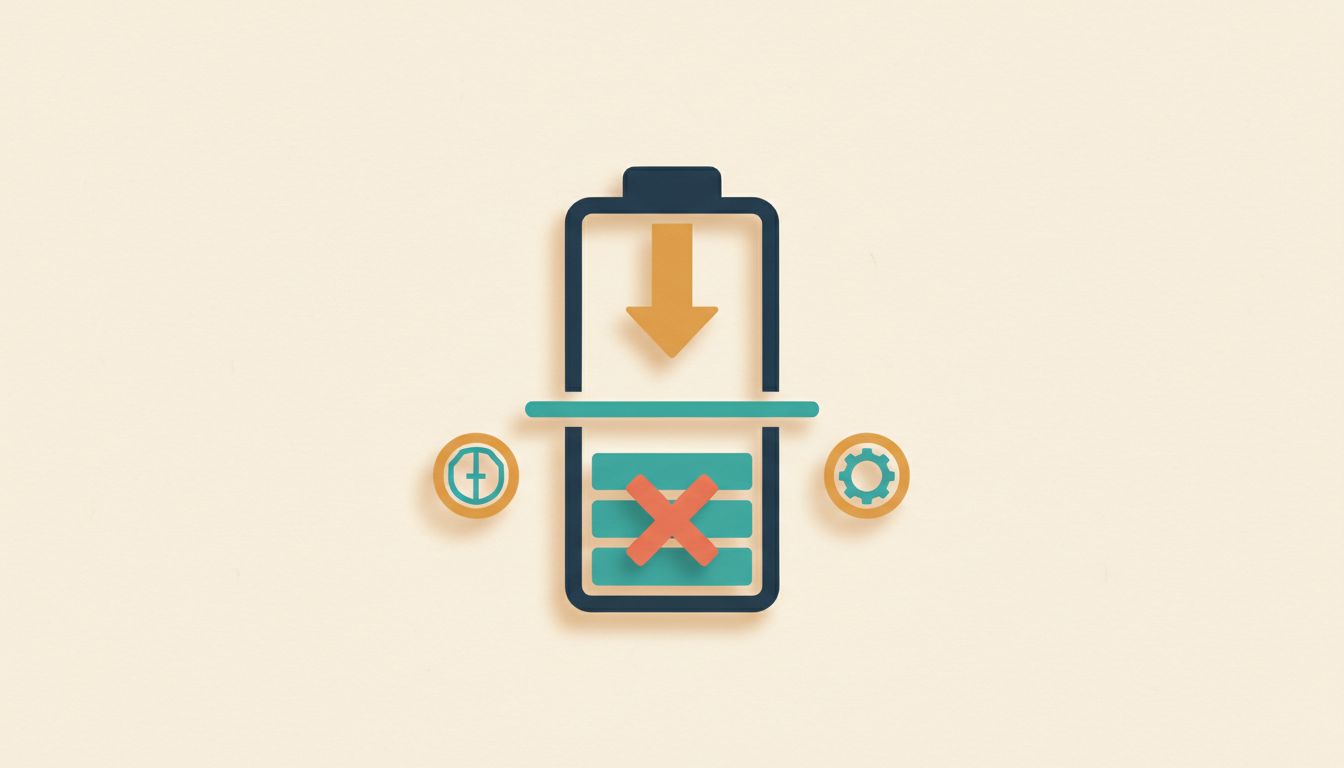
Deep discharges below 20%, especially all the way to 0%, put lithium-ion cells under severe low-voltage stress. Do it repeatedly and you permanently shorten the battery's usable life. The old advice to fully drain before recharging was for a completely different battery chemistry.
- Plug in at 20% to 25%. Do not wait for the shutdown warning.
- If you need to store a phone you are not using, leave it at around 50% charge rather than full or empty.
- Avoid intentional full discharges unless you are specifically trying to recalibrate a wildly inaccurate battery percentage reading (and even then, do it rarely).
Watch out for
- The "fully discharge before charging" advice comes from NiMH and NiCd batteries. It is actively harmful to lithium-ion cells.
- Repeated 0% discharges can cause permanent cell damage, not just gradual capacity loss.
Keep heat away from your phone while it charges
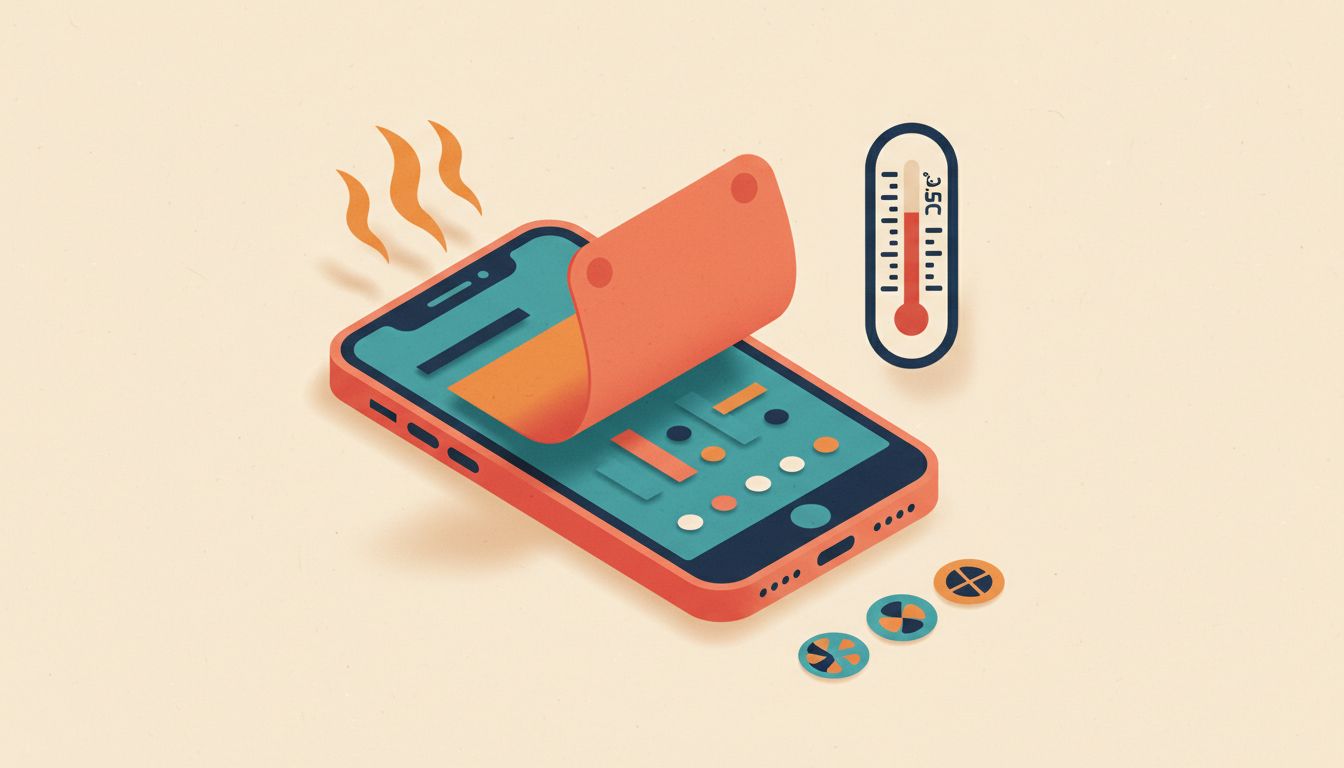
Heat is the single biggest enemy of lithium-ion batteries, full stop. Sustained temperatures above 35°C cause permanent electrolyte and electrode damage faster than any charging habit. A phone that runs warm while charging degrades measurably quicker than one that stays cool.
- Remove thick or rubber cases while fast-charging if the phone gets noticeably warm.
- Never charge in direct sunlight, on a car dashboard, or in a hot room.
- Avoid running graphics-heavy games or streaming video while simultaneously fast-charging.
- Wireless charging generates more heat than wired. If your phone runs warm on a pad, switch to a cable for overnight charging.
Watch out for
- Even sustained exposure at 35°C can cause measurable permanent capacity loss. You do not need to leave it in a hot car to cause damage.
- Cheap wireless pads from unknown brands tend to generate excess heat on top of whatever the phone already produces.
Use a slow charger overnight instead of fast charging

Fast charging pushes higher current and voltage through the cells, generating more heat and stress. Overnight, speed is irrelevant. A standard 5W to 10W charger does the same job with far less strain on the battery, and your phone will thank you by holding capacity longer.
- Keep a basic 5W charger by your bed and reserve your fast charger for when you genuinely need a quick top-up.
- Some Android phones let you select a "standard charging" mode in battery settings. Use it for overnight sessions.
- If you use Adaptive Charging and it is working correctly, the phone will already throttle charge speed overnight automatically.
Watch out for
- Fast charging is not catastrophically damaging. The convenience trade-off is often worth it during the day. The point is that overnight you get nothing from the speed.
- Phones with Adaptive Charging active may already be doing this for you. Check whether the feature is actually running before adding an extra step.
Enable Battery Saver mode to extend daily runtime
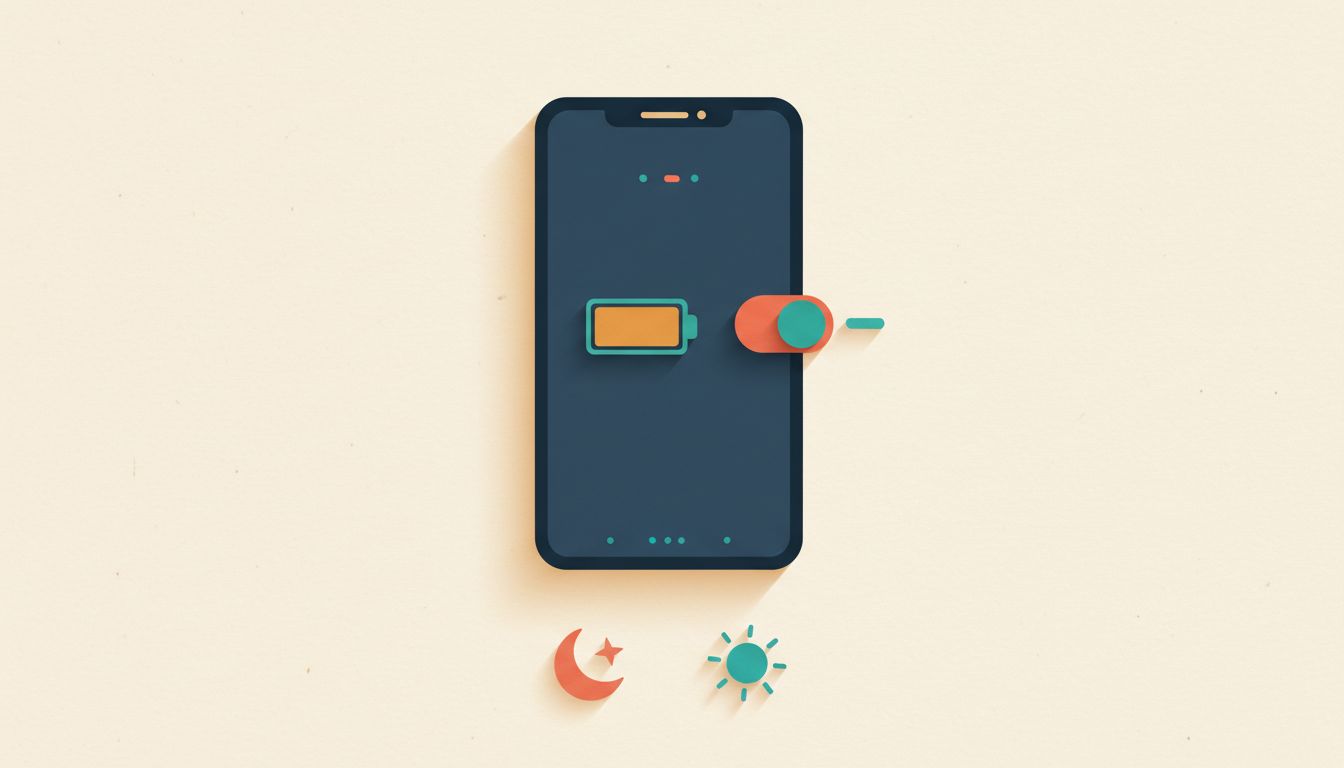
Android's Battery Saver cuts background activity, reduces screen brightness, throttles performance slightly, and limits radio polling. Fewer charge cycles per week means slower long-term capacity loss. It also buys you hours of extra screen time on a difficult day.
- Go to Settings, then Battery, then Battery Saver.
- Enable it automatically at 20% threshold, or set a higher custom trigger if you want more headroom.
- On Samsung, the equivalent is called Power Saving and lives in Settings, then Battery and Device Care, then Battery.
- Disable it when plugged in or when you need full performance. It is not meant to run permanently.
Watch out for
- Background app refresh and automatic downloads pause in Battery Saver. If you rely on apps syncing in the background, you will notice the delay.
- Always-on display features add meaningful overnight drain. Disabling them in Battery Saver is part of why the mode works so well.
Dim the screen, kill background refresh, and trim location access
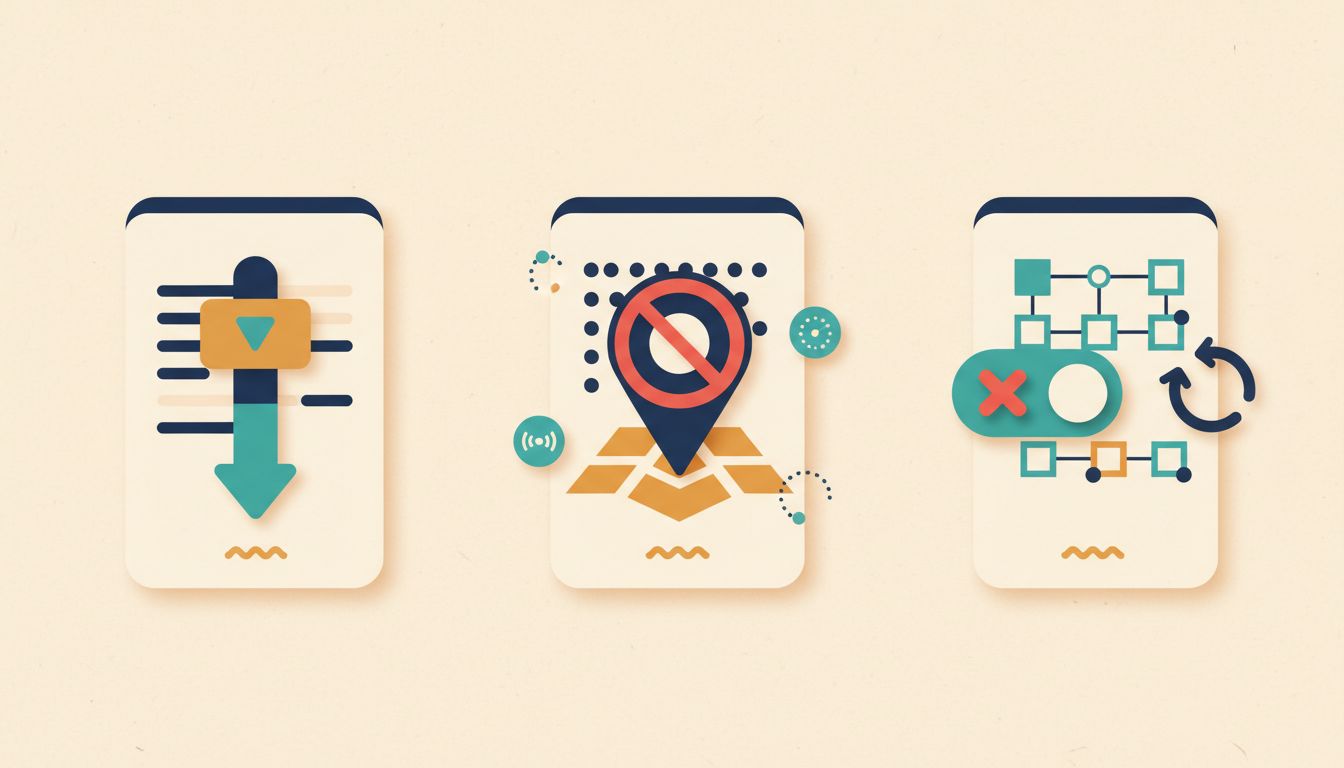
The display, background app activity, and location services are three of the biggest battery drains on any Android phone. Cutting them does not just extend today's charge. Fewer cycles per week translates directly to slower capacity loss over the lifetime of the battery.
- Enable auto-brightness or manually lower your screen brightness by 20% to 30% as a starting point.
- Go to Settings, then Apps, pick any app you do not need updating in the background, and restrict background activity.
- Go to Settings, then Location, then App permissions. Switch apps that do not need constant tracking from "Always" to "Only while using the app".
- Switch low-priority email accounts from push to manual fetch in your mail app's settings.
Watch out for
- These steps slow drain but will not reverse existing battery degradation. They buy you time, not miracles.
- Always-on display features look great but add non-trivial overnight drain if left enabled all night.
Only use certified chargers and cables
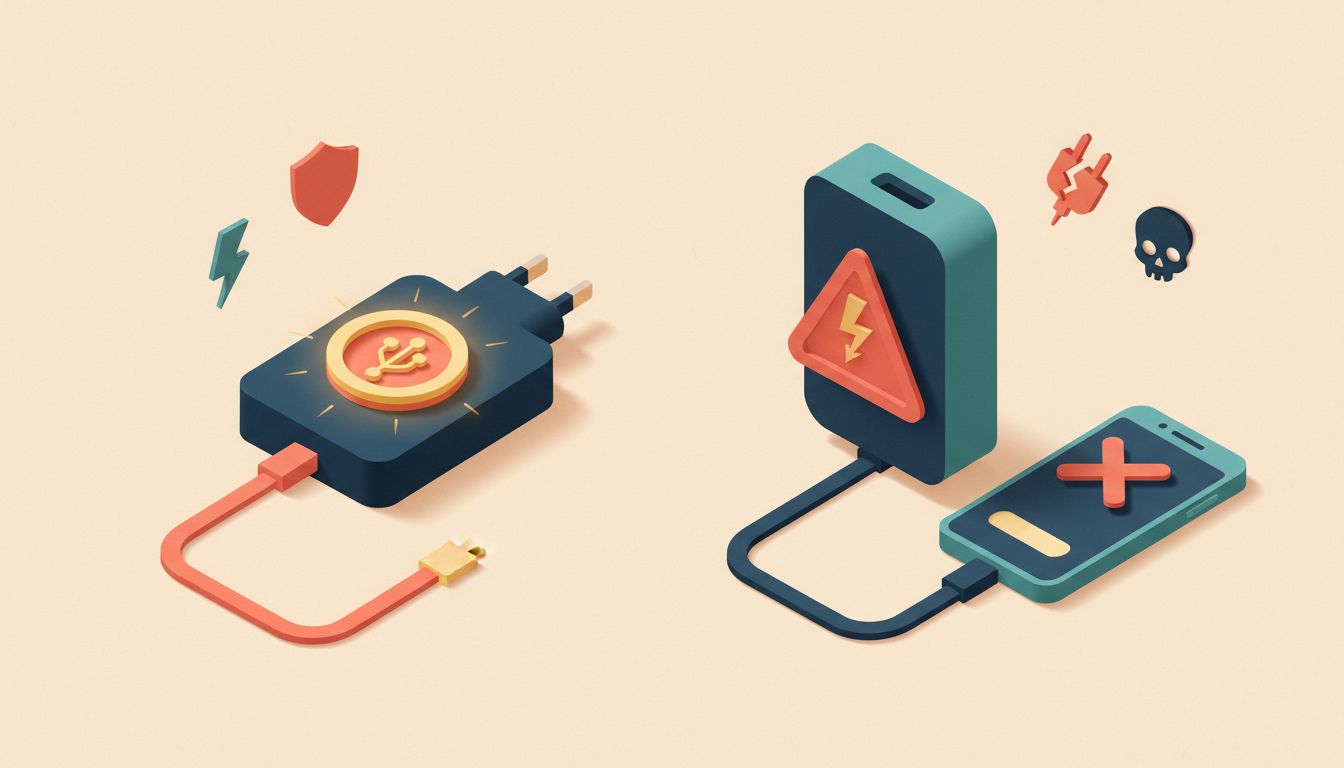
Uncertified chargers often fail to regulate voltage and current properly, causing overcharging, overheating, and power spikes that damage both the battery and the phone's charging circuitry. A cheap fast-charge adapter that delivers unstable power is worse than a reliable slow charger every time.
- Use the charger that shipped with your phone, or a certified replacement from a reputable brand.
- Look for USB-IF certification marks on third-party Android chargers and cables.
- Inspect cables regularly for fraying, kinking near the connector, or heat discolouration. Replace them immediately if you spot any.
- Approach no-name wireless charging pads with the same scepticism. They tend to run hot.
Watch out for
- A charger claiming 65W from an unknown brand on a marketplace is not the same product as a 65W charger from a manufacturer with a reputation to protect.
- The cable matters as much as the charger. A poor cable limits current, creates resistance, and generates heat at the connector.
Check your battery health percentage and plan a replacement
All lithium-ion batteries have a finite cycle life. Tracking your battery health percentage lets you plan a replacement before the battery degrades to the point of causing unexpected shutdowns or genuinely embarrassing runtimes. Most people replace phones when the battery is the only actual problem.
- Samsung: go to Settings, then Battery and Device Care, then Battery, then Battery Information. Alternatively, open the Samsung Members app and run a diagnostic.
- Pixel and stock Android: dial *#*#4636#*#* to open the testing menu and check battery stats. Third-party apps like AccuBattery give more readable data.
- Plan a battery replacement when capacity drops below roughly 80% of original. Most manufacturers and repair shops treat that as the service threshold.
Watch out for
- Third-party battery-health apps on Android vary in accuracy depending on what data the manufacturer exposes. Cross-reference a couple of readings before acting on a single number.
- A battery replacement almost always costs far less than a new phone and instantly restores full-day performance.
Ignore the memory-effect myth entirely
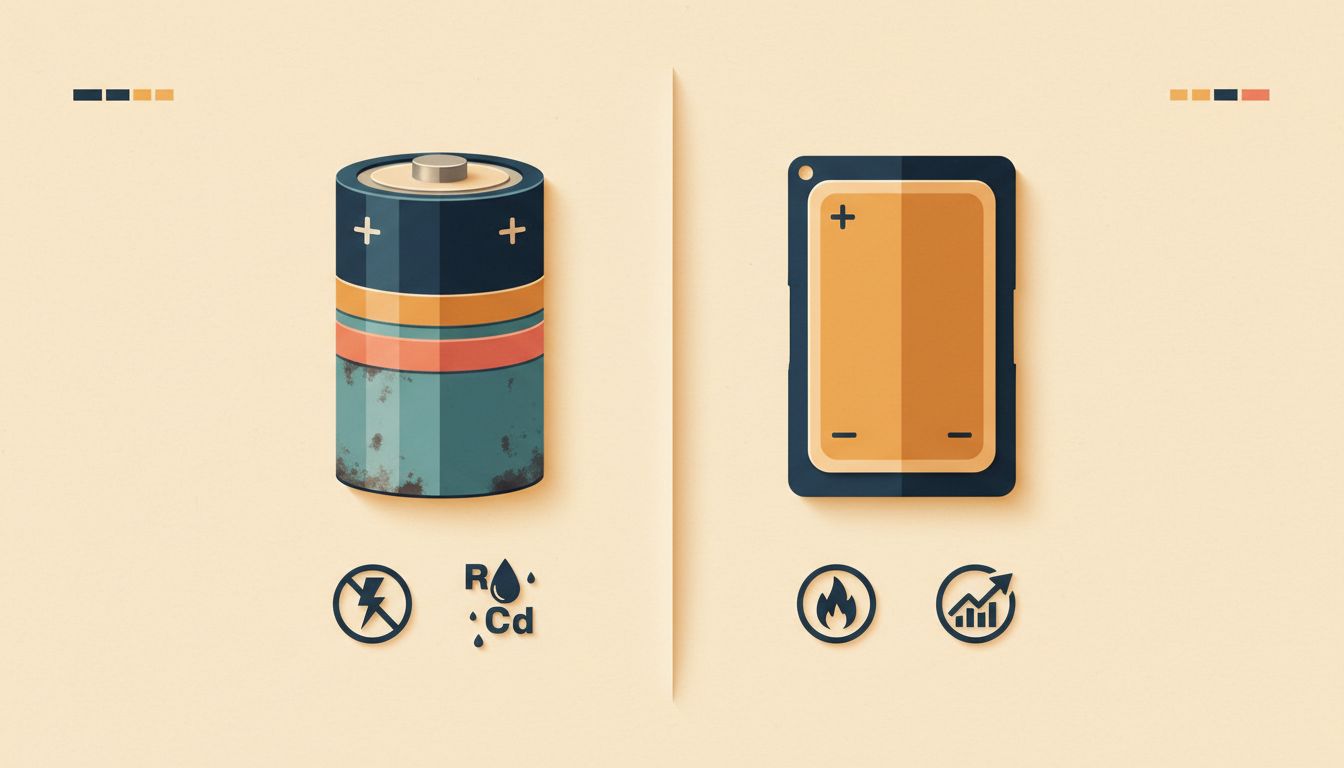
Memory effect, the idea that a battery loses capacity if you do not fully discharge it before recharging, is real only for NiCd batteries from the 1980s and 1990s. Every modern smartphone uses lithium-ion chemistry, where partial charges are not just acceptable but actively better than full discharge cycles.
- Charge whenever it is convenient. You do not need to wait for a full drain.
- Top up during short breaks throughout the day without any concern.
- Focus your energy on the 20 to 80 range instead, because that is what lithium-ion chemistry actually responds to.
Watch out for
- This myth is still widely circulated online and passed around as confident advice. People who follow the old NiCd logic and always fully discharge are actively harming their lithium-ion battery.
- Occasional full discharges for recalibration are a separate, valid use case. "Always discharge to zero before charging" as a daily rule is not.