
Keyboard shortcuts are one of those things that feel small until you actually start using them. Then you wonder how you ever managed without them. This guide covers the ten most useful Windows 11 shortcuts, from the basics everyone should know to a couple that most people have never heard of.
Copy, cut, and paste with Ctrl+C, Ctrl+X, and Ctrl+V
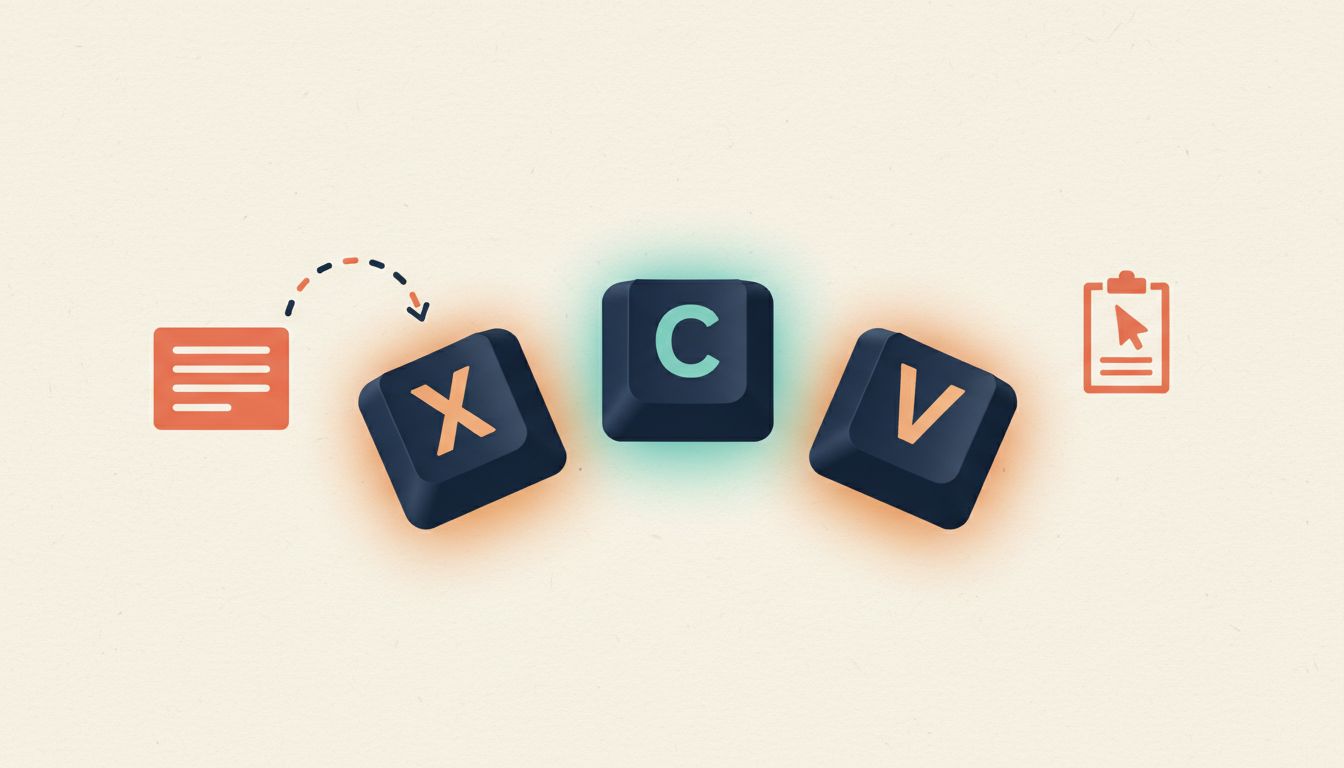
These three shortcuts are the backbone of almost every editing task you'll ever do on Windows. Select whatever you want, press Ctrl+C to copy it (or Ctrl+X to cut it), move to where you want it, and press Ctrl+V. Fast, reliable, and works in virtually every app.
- Select the text, file, or item you want using your mouse or keyboard.
- Press Ctrl+C to copy (the original stays put) or Ctrl+X to cut (the original moves when you paste).
- Click or navigate to the destination.
- Press Ctrl+V to paste.
Watch out for
- Cutting a file with Ctrl+X does not delete it until you paste it. If you never paste, the file stays exactly where it was.
- Some apps override Ctrl+V with their own paste behaviour, such as stripping formatting and pasting plain text only.
Undo and redo mistakes with Ctrl+Z and Ctrl+Y
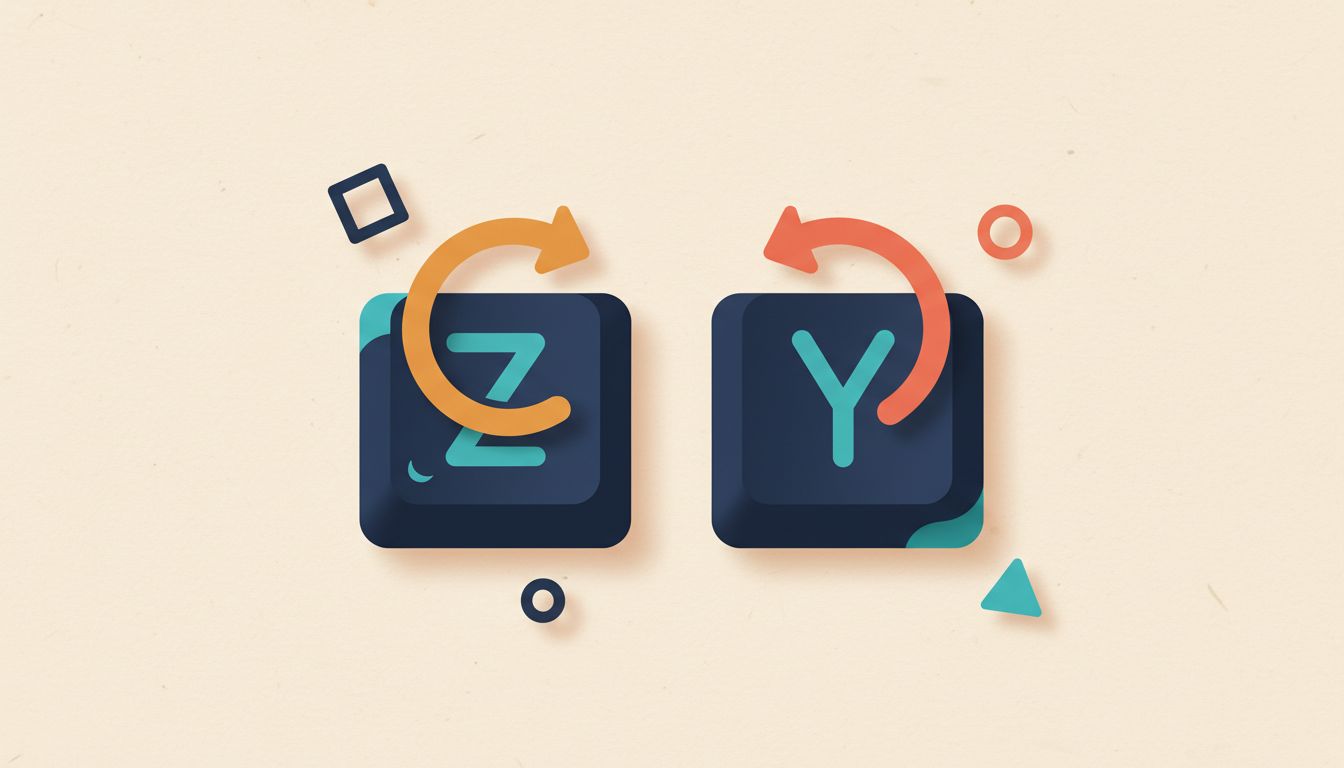
Made a mess? Press Ctrl+Z and it's gone. Works in Word, Photoshop, File Explorer, your browser, and most other apps. Press it repeatedly to step back through your recent actions. Gone too far? Ctrl+Y brings it back.
- After making an unintended change, press Ctrl+Z to undo it.
- Press Ctrl+Z again (and again) to keep stepping back through your action history.
- If you undo too much, press Ctrl+Y to redo and restore what you reversed.
Watch out for
- Not every app supports unlimited undo. Some have a fixed history cap, so very old actions can't be reversed.
- Ctrl+Z does not work for permanent actions like emptying the Recycle Bin.
Save your work instantly with Ctrl+S

Ctrl+S saves the current document without breaking your flow. One keystroke, no menu, no clicking. Make it a reflex. Crashes and power cuts don't announce themselves, so save constantly and you'll rarely lose work.
- While working in any document or file, press Ctrl+S at any time.
- For a new file that hasn't been saved before, a Save As dialogue will appear. Choose a location and filename, then press Enter.
Watch out for
- Web-based tools may ignore Ctrl+S or trigger a browser save-page dialogue instead of saving your document.
- Microsoft 365 apps with AutoSave enabled will save automatically, but pressing Ctrl+S manually still doesn't hurt.
Open File Explorer without touching the taskbar (Windows key + E)
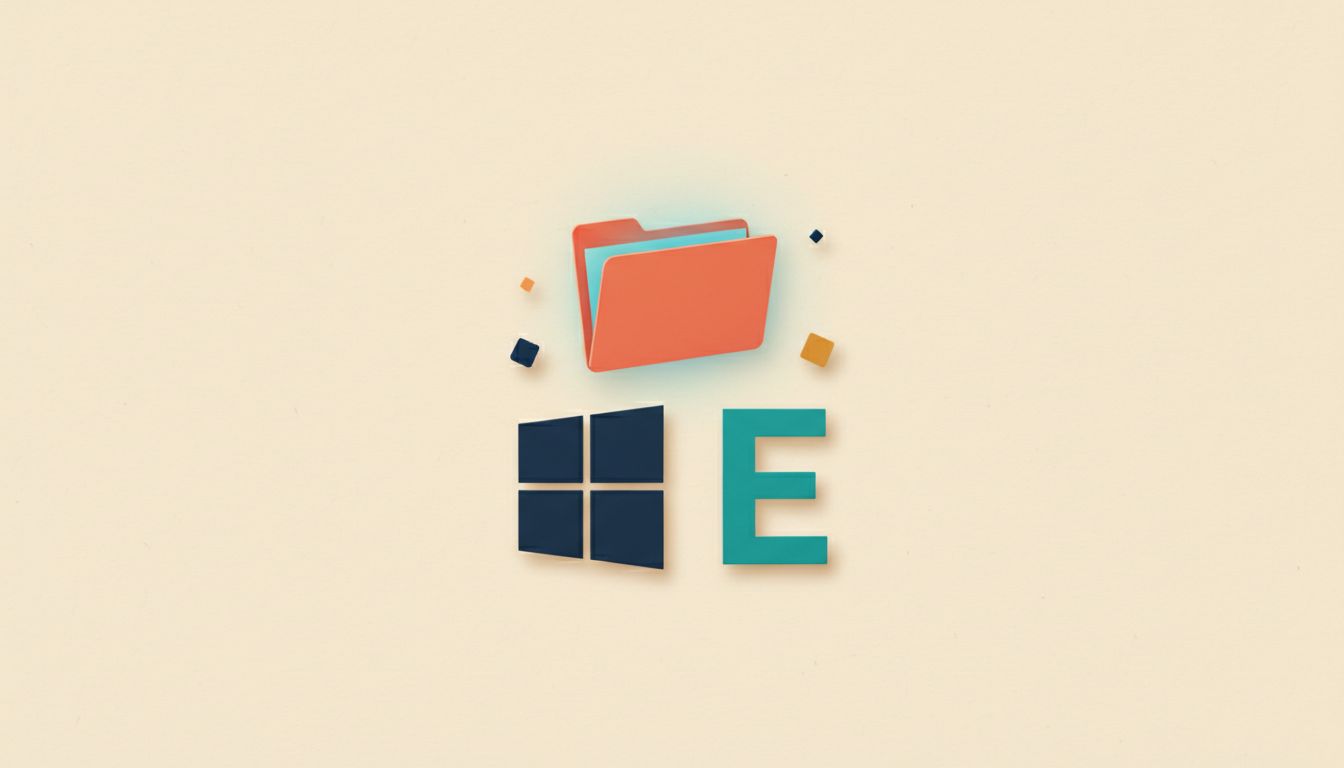
Windows key + E jumps straight to File Explorer. No taskbar hunting, no Start menu, no delay. It's the fastest way to get to your files, and it works from anywhere in Windows regardless of what app you're in.
- Press the Windows key and E simultaneously from anywhere.
- File Explorer opens, defaulting to Home or Quick Access depending on your settings.
- Navigate to the folder you need from there.
Watch out for
- If File Explorer is already open, pressing Windows key + E opens a second instance rather than switching to the one you have.
- The default landing view (Home vs. This PC) can be changed in File Explorer Options if you prefer something different.
Show the desktop instantly with Windows key + D
Press Windows key + D and every open window vanishes, revealing your desktop. Press it again and they all come back exactly where they were. Useful when you need to grab a file from the desktop or just need a moment to think without the clutter.
- Press Windows key + D to minimise all open windows and show the desktop.
- Press Windows key + D again to restore all windows to their previous positions.
Watch out for
- Any windows you open after the first press won't be affected when you press again to restore the original set.
- Full-screen applications like games may ignore this shortcut entirely.
Lock your PC the moment you step away (Windows key + L)
Windows key + L locks your screen immediately and returns to the sign-in page. Your apps keep running in the background, so you're not losing any work. Essential in any shared space, whether that's an office, a café, or a busy household.
- Press Windows key + L at any time.
- The screen locks instantly. All open apps continue running behind the lock screen.
- Sign back in with your PIN, password, or Windows Hello to pick up where you left off.
Watch out for
- If your account has no password or PIN set, anyone can unlock your PC the moment you walk away.
- Remote Desktop sessions may disconnect rather than simply lock when this shortcut is used.
Jump into Windows Settings with Windows key + I
Windows key + I opens the Settings app directly, from anywhere, in one press. No Start menu, no hunting through menus. The search bar at the top of Settings will then find almost any option in seconds.
- Press Windows key + I from anywhere in Windows.
- The Settings app opens on its home page.
- Use the search bar at the top or the left-hand menu to find the setting you need.
Watch out for
- This opens the modern Windows 11 Settings app, not the older Control Panel. Some legacy settings still require Control Panel, which you can reach via Start search.
Snap windows side by side with Windows key + Arrow keys
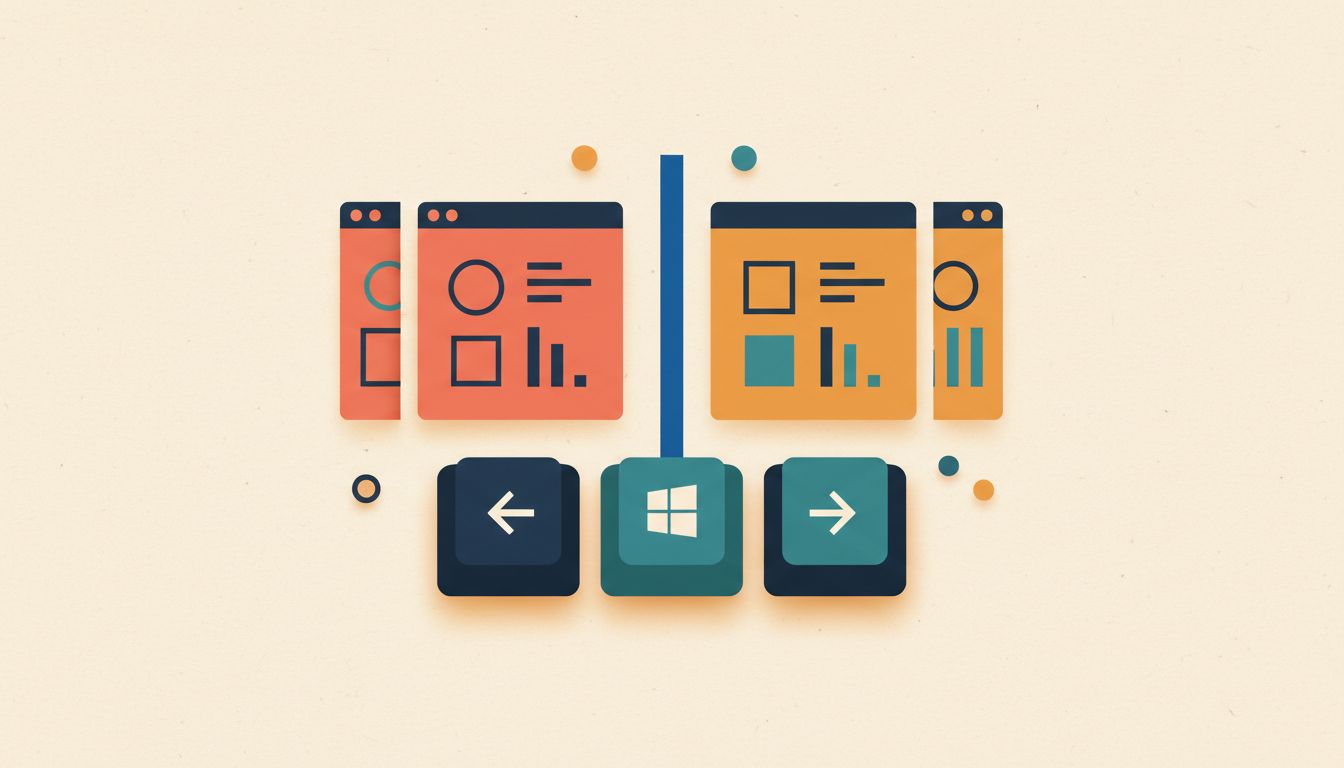
Stop manually dragging and resizing windows. Press Windows key + Left Arrow and the active window snaps to the left half of the screen. Windows key + Right Arrow snaps it to the right. Windows 11 then offers to fill the remaining space with another open window automatically.
- Click the window you want to position so it's active.
- Press Windows key + Left Arrow to snap it to the left half, or Windows key + Right Arrow for the right half.
- Press Windows key + Up Arrow to maximise the window, or Windows key + Down Arrow to restore or minimise it.
- After snapping one window, click any suggested window to fill the remaining screen space automatically.
Watch out for
- Snap Layouts (hovering over the maximise button) offer more tiling positions, but the arrow-key shortcuts are faster for basic side-by-side work.
- Some apps resist snapping if they have a fixed minimum width.
Switch apps and manage virtual desktops with Windows key + Tab
Windows key + Tab opens Task View, a full overview of every open window and all your virtual desktops. It's the best way to switch context when you have a lot on the go. For a quicker app-only switcher, Alt+Tab does the job without the full interface.
- Press Windows key + Tab to open Task View.
- Use your mouse or arrow keys to select a window, then press Enter to switch to it.
- To create, rename, or switch virtual desktops, use the desktop thumbnails along the top of Task View.
- For a faster switcher that skips Task View entirely, press Alt+Tab and hold Alt to cycle through open windows.
Watch out for
- Alt+Tab and Windows key + Tab look similar but serve different purposes. Alt+Tab is quicker for switching apps; Windows key + Tab is better for managing virtual desktops.
- Virtual desktops are not saved after a restart.
Fix a black or frozen screen with Ctrl + Windows key + Shift + B
Screen gone black for no obvious reason? Press Ctrl + Windows key + Shift + B. This tells Windows to restart the graphics driver, which fixes a surprising number of blank or unresponsive display situations without needing a full reboot. Most people have never heard of it.
- If your screen goes black or stops responding, press Ctrl + Windows key + Shift + B simultaneously.
- The screen will briefly flash or go dark, then return. That flash means the display driver has been reset.
- Wait a few seconds for the display to stabilise before continuing.
Watch out for
- This resets the graphics driver only. It won't fix hardware faults, loose cables, or deeper software crashes.
- The shortcut may not respond if the system is completely frozen and not registering any keyboard input at all.
- A short beep when you press the keys is normal and confirms the command was registered.