
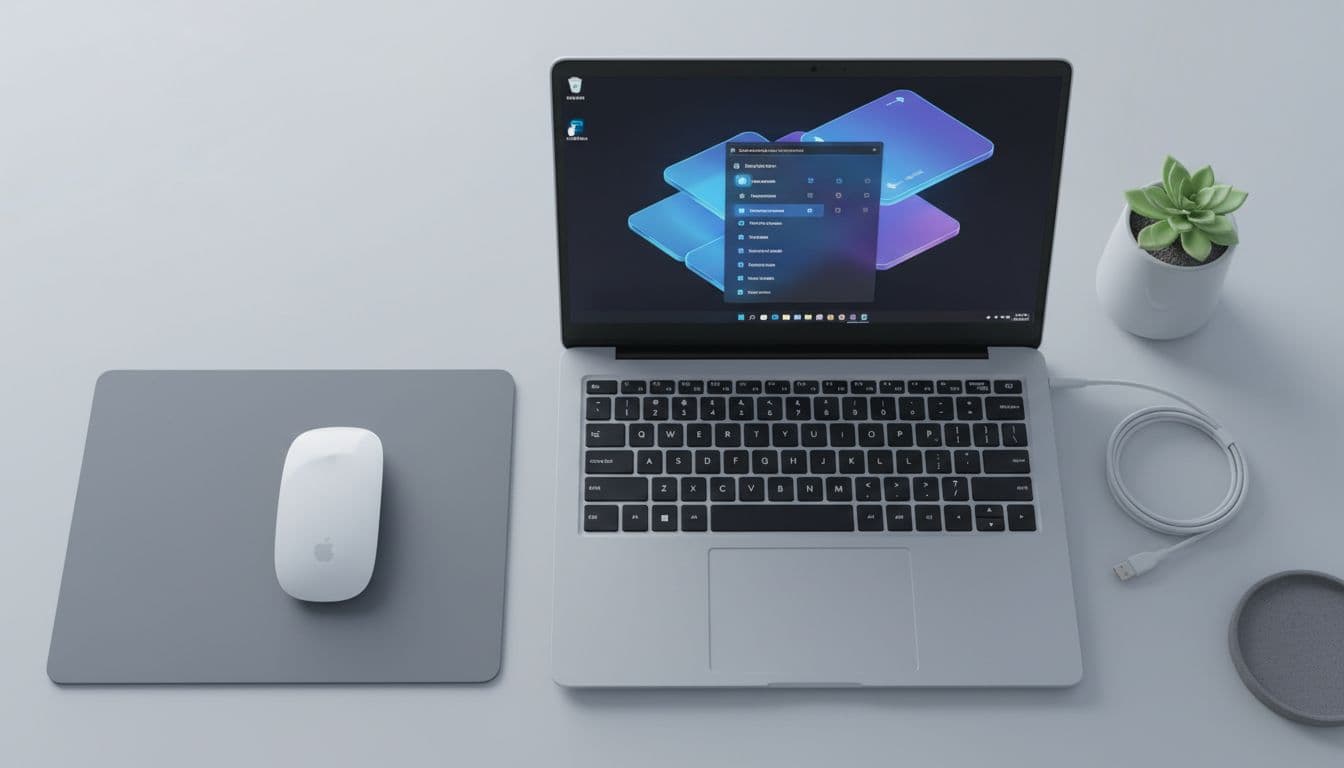
The volume of support tickets about Magic Mouse Windows performance has climbed steadily over the past year, and the pattern is consistent: people switch to a Windows machine, pair the mouse, and immediately notice lag, cursor jumping, or a complete absence of scrolling. None of that is a coincidence. There are specific, fixable reasons it happens, and this guide works through all of them in order of how often they actually cause the problem.
What Causes Magic Mouse Windows Problems?
Here's the thing: the Magic Mouse is genuinely well-designed hardware. On a Mac it works without any setup because macOS ships with full Apple HID driver support baked in. Windows does not. When you pair a Magic Mouse with a Windows PC, Windows loads a generic Bluetooth HID driver that handles basic cursor movement and nothing else. No smooth scrolling. No swipe gestures. And depending on your Bluetooth adapter, you may also get lag and random disconnects on top of that.
The root cause list is short but each item causes a different flavour of problem. Missing or wrong drivers produce no scrolling and sluggish movement. Bluetooth adapter issues produce lag spikes and disconnects. A dirty sensor or glossy surface produces cursor jumping that looks exactly like a driver fault but is not. Low battery produces all of the above simultaneously, which is why it trips people up so often.
Apple's official Boot Camp driver for the Magic Mouse targets Windows 7, 8, and 8.1. Running it on Windows 10 or 11 is unofficial, but it works for most people most of the time. The driver adds scroll support and improves tracking feel, but it does not unlock the full gesture set you get on macOS. That is a platform limitation, not something a driver update will fix. If gestures are a hard requirement for your workflow, a different mouse is honestly the more sensible answer on Windows.
Bluetooth interference is a bigger factor than most people expect. USB 3.0 ports emit RF noise in the 2.4 GHz band, which overlaps with Bluetooth. If your PC has a USB 3.0 hub sitting next to the Bluetooth antenna, or if your Wi-Fi is on 2.4 GHz and the access point is close to the machine, that interference shows up as lag and dropped connections. The fix is physical, not software. And power saving on the Bluetooth adapter is a separate issue entirely: Windows will aggressively cut power to the adapter to save energy, which causes the connection to drop and then re-establish, producing that characteristic half-second freeze you see when you move the mouse after leaving it idle.
Magic Mouse Windows Quick Fix
Start here. These steps take five to ten minutes and fix the problem completely for a fair number of people, especially if the issue is surface-related or battery-related rather than driver-related.
Clean the Sensor and Check the Surface Easy
- Turn the mouse off
Flip the Magic Mouse over and slide the power switch to off. This prevents the sensor from trying to track while you are cleaning it. - Clean the sensor window
Use a soft lint-free cloth or a short burst of compressed air held upright (never inverted) to clear dust and debris from the small sensor window on the underside. Do not use liquid cleaners near the sensor. - Wipe the top surface
Skin oils on the touch surface can affect gesture detection. A dry microfibre cloth is enough. - Move to a matte mouse pad
Glossy desks, glass, and heavily patterned surfaces confuse the optical sensor and cause the cursor to jump. A plain matte mouse pad eliminates this immediately. Test on it before doing anything else. - Verify
Turn the mouse back on and move it slowly. If the jumping stops, the surface was the culprit. If it continues, move to the next solution.
Check Battery and Re-Pair Bluetooth Easy
- Check battery level
Plug the Magic Mouse in via Lightning to USB-C or Lightning to USB-A to recharge. Low battery causes erratic tracking and connection drops that look identical to driver problems. Recharge fully before continuing. - Re-pair the mouse
In Windows, open Settings, go to Devices (Windows 10) or Bluetooth and devices (Windows 11), and toggle Bluetooth off. Wait ten seconds and toggle it back on. Turn the Magic Mouse off, wait five seconds, turn it back on, then remove the existing pairing and add the mouse again as a new device. - Verify
Move the mouse immediately after pairing and then leave it idle for thirty seconds before moving it again. If the lag-after-idle problem is gone, the re-pair sorted a stale connection state.
More Magic Mouse Windows Solutions
If the quick fixes above did not sort it, the driver and adapter settings are almost certainly the cause. This is where most Magic Mouse Windows problems actually live, and it takes a bit more time to fix properly.
Install the Apple Boot Camp Mouse Driver Medium
- Download Boot Camp Support Software 5.x
Go to Apple's Boot Camp support page and download the Boot Camp Support Software package for your Mac model, or find the standalone 5.1.5769 package. Extract the archive using 7-Zip or Windows Explorer. - Run the mouse driver installer
Navigate into the extracted folder toDrivers\Apple\and locateAppleWirelessMouse64.exe. Right-click it and choose Run as administrator. Follow the installer prompts. - Reboot Windows
Reboot after the installer finishes. This one often needs a second reboot before scrolling activates properly, so if scrolling is still absent after the first restart, reboot once more. - Tune pointer and scroll speed
Open Settings, go to Devices then Mouse, and adjust the pointer speed slider. The Apple driver tends to make the cursor feel slightly slow by default on Windows. In Control Panel, open Mouse, go to Pointer Options, and experiment with Enhance pointer precision. Some people find it helps, others find it makes the movement feel worse with the Apple driver loaded. - Verify scrolling works
Open a long webpage and run your finger up the touch surface on the back of the mouse. You should get smooth vertical scrolling. If you get nothing, confirm the driver installed correctly by checking Device Manager under Mice and other pointing devices for an Apple entry.
Fix Bluetooth Adapter: Driver Update and Power Saving Medium
- Open Device Manager
PressWin + Xand choose Device Manager. Expand the Bluetooth section. - Update the adapter driver
Right-click your Bluetooth adapter (often labelled Intel Wireless Bluetooth, Realtek Bluetooth, or similar) and choose Update driver, then Search automatically for drivers. If Windows finds nothing new, visit the adapter manufacturer's website directly. Intel's Bluetooth drivers, for example, are available from Microsoft's Bluetooth troubleshooting page which links to the relevant vendor downloads. - Disable power saving on the adapter
Right-click the Bluetooth adapter again and choose Properties. Go to the Power Management tab. Uncheck the box that says Allow the computer to turn off this device to save power. Click OK. - Reboot and test
Reboot, pair the mouse again if needed, and test the lag-after-idle behaviour specifically. Leave the mouse still for a minute, then move it. If the half-second freeze is gone, power saving was the culprit.
Advanced Magic Mouse Windows Fixes
These are for persistent problems that survive the driver and power saving fixes. They involve hardware changes and deeper stack work, so they take longer. But they do work when the intermediate fixes do not.
Use a Dedicated Bluetooth Dongle on an Extension Cable Hard
- Get a Bluetooth 5.x USB dongle
A modern Bluetooth 5.x adapter costs very little and makes a real difference. Options like the TP-Link UB500 or ASUS USB-BT500 are widely used and have solid Windows driver support. Avoid no-brand dongles with no driver page. - Disable the built-in Bluetooth adapter
In Device Manager, right-click your built-in Bluetooth adapter and choose Disable device. This forces Windows to use only the dongle and avoids conflicts between two Bluetooth stacks. - Plug the dongle into a USB extension cable
A 30 cm USB extension cable lets you position the dongle close to where you use the mouse, away from USB 3.0 ports and Wi-Fi antennas. USB 3.0 interference in the 2.4 GHz band is a genuine and well-documented issue, described in detail by HowToGeek's Magic Mouse Windows guide. Keep the dongle at least 15 cm from any USB 3.0 port. - Install the dongle's driver and reboot
Let Windows install the driver automatically or use the vendor's package. Reboot, then pair the Magic Mouse fresh to the new adapter. - Verify
Test at normal working distance. The connection should be stable with no lag spikes during sustained use.
Clean Reinstall the Bluetooth Stack and Fine-Tune Pointer Precision Hard
- Uninstall the Bluetooth adapter completely
In Device Manager, right-click the Bluetooth adapter and choose Uninstall device. Tick the box to delete the driver software if it appears. Reboot. Windows will reinstall a clean driver on startup. - Install the vendor's latest Bluetooth package
After the clean reinstall, go to your PC or motherboard manufacturer's support page and download the latest Bluetooth driver package for your specific adapter. Generic Windows-installed drivers are often older than what the vendor ships. - Fine-tune pointer precision
Open Control Panel, go to Mouse, then Pointer Options. The Enhance pointer precision setting applies Windows acceleration on top of whatever the Apple driver is doing. With the Boot Camp driver loaded, try it both ways and pick whichever feels closer to the macOS movement curve. There is no single right answer here as it depends on your DPI preference and desk space. - Reduce 2.4 GHz interference at environment level
If your Wi-Fi router or access point is within a metre of the PC, move it or switch the PC's Wi-Fi connection to 5 GHz. This reduces the noise floor in the Bluetooth band and can noticeably improve connection stability without any software change.
If you are also dealing with general Bluetooth device problems beyond the Magic Mouse, our Bluetooth not working on Windows guide covers adapter conflicts and stack resets in more depth. And if your Windows machine is running slowly alongside these peripheral issues, the Windows running slow fix is worth a look since background processes can make input lag feel worse than it actually is.
Preventing Magic Mouse Windows Problems
Most Magic Mouse Windows issues are recurring rather than one-off. The same conditions that caused the problem will cause it again unless you change a few habits.
The most important one is the Bluetooth power saving setting. Windows can re-enable it after a major update, so check Device Manager after any significant Windows update and confirm the power saving checkbox is still unticked on the Bluetooth adapter. Takes thirty seconds and saves a lot of frustration.
Keep the mouse charged. Running it down to near-empty regularly shortens battery life over time and causes the erratic tracking behaviour described above. Plug it in overnight once a week and you will rarely see battery-related issues.
Surface matters more than people think. A dedicated matte mouse pad is the single cheapest and most effective hardware upgrade for Magic Mouse tracking on Windows. Glossy desks look good but the sensor does not like them.
Check for Bluetooth adapter driver updates every few months. Not obsessively, but Intel and Realtek both push driver updates that improve stability, and Windows Update does not always catch them. A quick check on the manufacturer's support page twice a year is enough. If you are on a laptop and Bluetooth reliability matters, our laptop Bluetooth problems guide has adapter-specific advice for common chipsets.
Magic Mouse Windows Summary
Magic Mouse Windows performance is genuinely poor out of the box, and that is not a hardware fault or a sign that the mouse is broken. It is a driver and platform gap. Apple designed the Magic Mouse for macOS, ships no Windows driver with it, and only officially supports the Boot Camp driver on Windows versions that most people stopped using years ago. The fixes work, but they require a bit of effort that Apple has not made easier.
For most people the fix is: install AppleWirelessMouse64.exe from Boot Camp Support Software 5.x, disable Bluetooth power saving in Device Manager, and use a matte mouse pad. That combination resolves the majority of Magic Mouse Windows lag and tracking complaints. If those three things do not fix it, a dedicated Bluetooth 5.x dongle on a short USB extension cable is the next step and it works reliably.
Gestures are the one thing no driver will bring to Windows. If you need swipe gestures for productivity, the Magic Mouse is the wrong tool for a Windows machine and a different mouse will serve you better. But for smooth scrolling and solid tracking, the fixes above get Magic Mouse Windows to a genuinely usable state.