
You hit record, capture what's on your screen, and then you play it back only to find silence. No background audio from your app, no sound from your voice, nothing. If you're watching iOS 17 screen recordings without any sound, you're likely dealing with a single missing toggle in Control Center. The good news: this fix takes about 5 minutes, and you'll rarely see the problem again once you understand what's happening.
What Causes iPhone Screen Recording No Audio?
The reason screen recordings end up silent comes down to how Apple designed the screen recording feature on iOS. Unlike some recording tools on desktop that simply capture everything the speaker outputs, iPhone screen recording relies on an explicit microphone toggle in Control Center. This toggle must be enabled before you start your recording session, otherwise no audio gets captured at all.
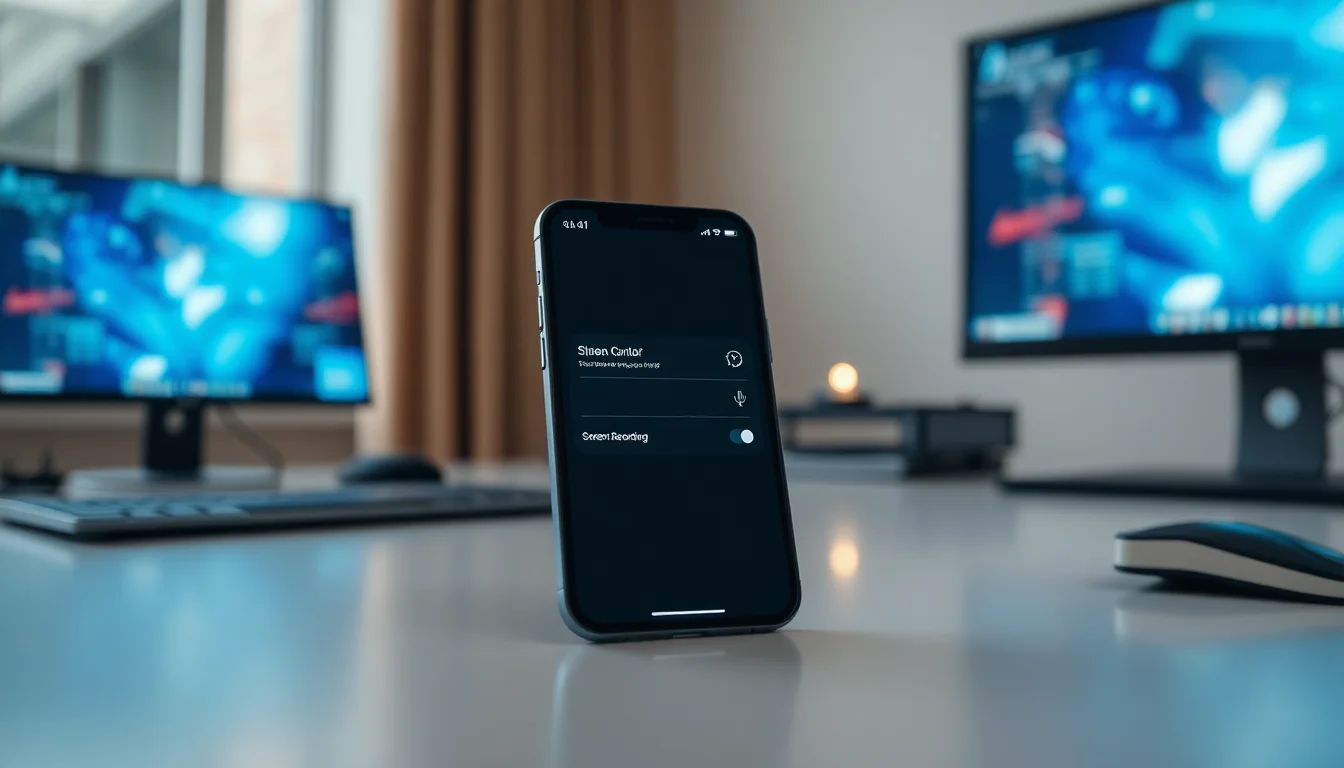
When you open Control Center and look at the Screen Recording icon, the basic action is to tap it once to start recording. But here's what most people miss: if you want audio, you need to long-press (or press and hold) that icon instead. This reveals a small menu with a Microphone option. That microphone must show as enabled (usually indicated by an icon turning blue or showing as active). If you just tap and start recording without doing this, your video will be completely silent.
Beyond the toggle itself, there are a few other culprits. Your microphone might be blocked in Privacy and Security settings. The Screen Recording feature might have been accidentally removed from Control Center. System audio might be muted or very low. Or in rare cases, an iOS glitch or recent update can mess with the audio capture temporarily. Understanding which of these is affecting your phone will help you pick the right fix and get back to recording with sound.
iPhone Screen Recording No Audio Quick Fix
Enable Microphone in Screen Recording Easy
- Open Control Center
Swipe down from the top-right corner of your iPhone screen (or swipe up from the bottom if you have an older model with a home button). - Long-press Screen Recording
Find the Screen Recording icon (it looks like a circle) and press and hold it firmly for about 1-2 seconds. Do not just tap; you must long-press to see the menu. - Tap the Microphone icon
A small menu will appear showing a microphone option. Tap it to enable audio capture. The icon should turn blue or change appearance to show it is now active. - Tap Start Recording
Once the microphone is on, tap the red Start Recording button to begin your capture. - Record for 10-15 seconds and stop
Speak into your phone or play audio from an app. Let it run for at least 10-15 seconds, then tap the red timer at the top of the screen to stop recording. - Test in Photos
Open the Photos app, find your newly recorded video, and play it back. You should now hear audio clearly.
More iPhone Screen Recording No Audio Solutions
If the quick fix worked, great. But if your microphone toggle was already on or the audio is still missing, here are the next steps to try.
Check Microphone Permissions in Privacy Settings Easy
- Go to Settings > Privacy and Security
Open the Settings app, scroll down, and tap Privacy and Security. - Tap Microphone
In the Privacy and Security menu, you will see Microphone listed. Tap it to view which apps have microphone access. - Check the status for any relevant apps
Look through the list. If you see any app you use for recording (or Screen Recording itself if it appears) showing Denied, that is your problem. - Change Denied to Allow
Tap on any app showing Denied and select Allow to restore microphone access. - Restart your iPhone
Power off your iPhone completely, wait 10 seconds, then power it back on. This refreshes the permission system. - Try Screen Recording again
Return to Control Center, long-press Screen Recording, enable the microphone, and test a short recording.
Sometimes after an iOS update or device migration, privacy settings get tangled. The microphone access for Screen Recording itself might show as Denied, which is unusual but does happen. Resetting this permission often clears up silent recordings without needing any further troubleshooting.
Re-add Screen Recording to Control Center Easy
- Open Settings and go to Control Center
From the Settings app, scroll down and tap Control Center. - Look for Screen Recording in the list
Scroll through the Included Controls section. If Screen Recording is there, it is properly added. - If missing, scroll to More Controls
If Screen Recording is not in the Included list, check the More Controls section below. - Tap the + button next to Screen Recording
This adds it back to your Control Center and makes it available immediately. - Open Control Center and verify it is there
Swipe down from the top-right corner and confirm you can now see the Screen Recording icon. - Long-press Screen Recording and enable the microphone
Test the recording again following the quick fix steps above.
If Screen Recording somehow got removed from your Control Center, you would not see it when you swipe down, making it impossible to record at all. Re-adding it from Settings fixes this in about 30 seconds.
Restart Your iPhone to Clear Temporary Glitches Easy
- Press and hold the Side button and either Volume button
Hold these together for a few seconds until the power-off slider appears on screen. - Drag the slider to turn off your iPhone
Wait until the screen goes black and your phone is fully shut down. - Wait 10-15 seconds
Let your phone sit without power for this time. - Press and hold the Side button to turn it back on
Hold until the Apple logo appears, then release. - Wait for your iPhone to fully boot
This may take 30-60 seconds. Do not use the phone during startup. - Test screen recording again
Once booted, open Control Center, long-press Screen Recording, enable the microphone, and test a short recording.
Restarting might sound basic, but it actually works more often than you would expect. Temporary system states can corrupt the audio pipeline without affecting anything else. A clean boot fixes it.
Advanced iPhone Screen Recording No Audio Fixes
If none of the intermediate solutions worked, the issue is likely deeper. These fixes take a bit longer but address more complex scenarios like iOS bugs or system-level corruption.
Reset All Settings to Clear System Corruption Medium
- Go to Settings > General
Open Settings, tap General, and scroll to the bottom of the screen. - Tap Transfer or Reset
You will see this option near the bottom. Tap it to expand the reset options. - Choose Reset All Settings
Select Reset All Settings (not Erase All Content and Settings, which is more drastic). This resets system preferences but keeps your data and apps. - Enter your passcode and confirm
You will be asked to confirm. Your iPhone will restart and apply default settings. - Wait for the restart to complete
This may take 2-3 minutes. Your phone will reboot and be ready to use. - Re-enable the microphone in Screen Recording
Open Control Center, long-press Screen Recording, and enable the microphone. Test a short recording.
Reset All Settings is a nuclear option that should only be used after other fixes fail. It will reset your WiFi passwords, notification settings, and a few other system preferences, but your data and apps remain intact. If your iPhone screen recording no audio issue persists after this, the problem is likely iOS-specific and may need a more thorough approach.
Update iOS to the Latest Version Medium
- Go to Settings > General
Open Settings and tap General at the top of the list. - Tap Software Update
You will see a Software Update option. Tap it to check for available updates. - If an update is available, tap Download and Install
Your iPhone will download the latest iOS version. This may take several minutes on WiFi. - Wait for the installation to complete
Do not interrupt this process. Your phone may restart multiple times. - After the update finishes, test screen recording
Open Control Center, long-press Screen Recording, enable the microphone, and verify audio is captured. - If problems persist, consider a full restore
If audio still fails after updating, your next step is to back up your iPhone and perform a full restore through Finder or Apple Configurator on a computer.
Apple releases iOS updates specifically to fix bugs that affect features like screen recording. If your issue started after an update or persists despite the other fixes, staying current with the latest iOS version is essential. You can check Apple's official screen recording documentation to see if your iOS version is affected by a known bug.
Test Your Microphone If Screen Recording Audio Fails Completely
Before you assume the screen recording feature itself is broken, test your microphone independently. This tells you whether the problem is specific to screen recording or a broader microphone issue.
Open the Voice Memos app and record a short test. Speak clearly for about 10 seconds and stop. Play it back. If Voice Memos captures your voice without issue, then your microphone hardware is fine and the problem is definitely with screen recording settings. If Voice Memos also records silently, your microphone might have a hardware problem or system-level audio issue beyond screen recording.
You can also test your microphone during a phone call. Make a call to a friend or family member and ask if they can hear you. If they can, your microphone is working. If they cannot hear you, the hardware or system audio path is compromised, and screen recording silence is just one symptom. In that case, you may need to contact Apple Support for microphone-specific help.
Remote Support for Persistent iPhone Screen Recording No Audio Issues
Screen recording audio problems that do not respond to the fixes above often need a deeper dig into system state and iOS configuration. At Vivid Repairs, we can connect to your iPhone remotely and walk through advanced diagnostics, identify which setting is causing the silence, and apply targeted fixes without wiping your device.
If you have tried the steps here and your iPhone screen recording still captures no audio, our remote technicians can help. We can check your privacy logs, review Control Center configuration, test recording in different apps, and if needed, guide you through a full iOS restore while keeping your data safe. Book a remote session with us and we will get your audio back.
Preventing iPhone Screen Recording No Audio in the Future
Once you have fixed the issue, a few habits will keep it from happening again.
- Always long-press first: Make it a reflex. Never just tap Screen Recording. Long-press, check the microphone is on, then tap Start Recording. This takes 2 extra seconds and eliminates the silent recording mistake.
- Do a 5-second test before important recordings: Before you record something you actually need, do a quick 10-second test recording and play it back immediately. If audio is missing, you catch it before wasting time on a big capture session.
- Keep Screen Recording in Control Center: Do not remove it to declutter. It is more useful as a one-swipe-away tool than buried in Settings.
- Check microphone permissions after iOS updates: New iOS versions sometimes reset privacy settings. After a major update, quickly go to Settings > Privacy and Security > Microphone and confirm your apps still have access.
- Keep iOS updated: Apple patches audio bugs regularly in minor iOS releases. Staying current reduces the odds of weird screen recording glitches.
- Avoid recording when the phone is muted: If you have the side switch set to silent, your system volume might be low. Unmute and turn up the volume before recording app audio or your voice.
iPhone Screen Recording No Audio Summary
Silent screen recordings on iPhone almost always come down to a disabled microphone toggle in Control Center. The fix is straightforward: long-press Screen Recording, tap Microphone to enable it, then start recording. Test the recording in Photos to confirm audio was captured.
If that does not work, check that Screen Recording is in your Control Center, verify microphone permissions in Privacy and Security, and try restarting your iPhone. For persistent issues, Reset All Settings or update to the latest iOS version. Test your microphone in Voice Memos to isolate whether the problem is screen recording specific or broader.
The good news: nine times out of ten, enabling the microphone toggle solves the problem immediately. Once you understand that the toggle must be on for every recording session, iPhone screen recording no audio becomes a non-issue. If you run into a stubborn case that does not respond to these steps, Vivid Repairs remote support can diagnose and fix it without a visit.