
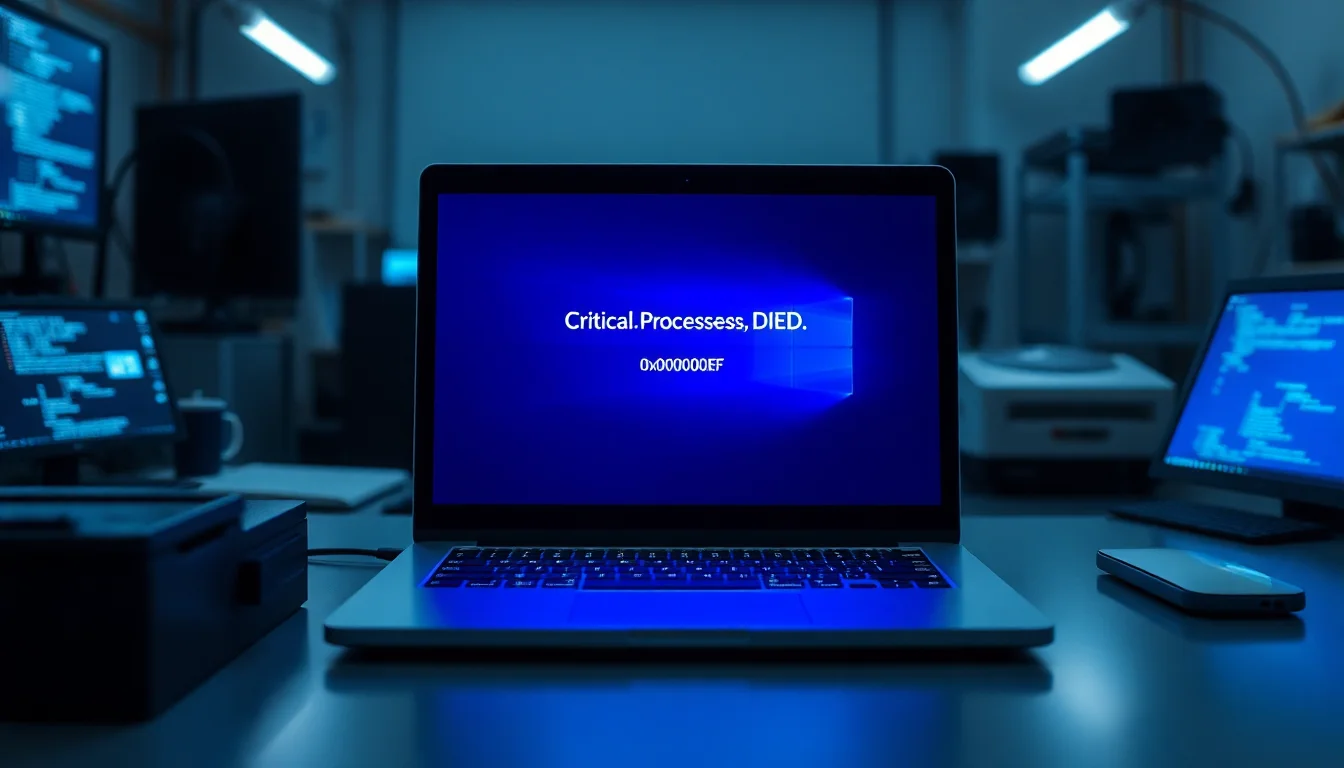
This error kills your system. Stop code 0x000000EF appears on a blue screen, your PC freezes, and nothing works until you reboot, only to watch it happen again. Look, I've seen this one hundreds of times. It's almost always fixable without a full Windows reinstall, but you need to know the exact sequence to try. Here's what actually works.
What Causes CRITICAL_PROCESS_DIED Windows 11?
Before you start digging, understand what's actually breaking. CRITICAL_PROCESS_DIED means one of Windows' core processes, something essential to keeping the OS running, has crashed. The system can't recover from it, so you get the blue screen and a forced reboot. That's a safeguard, not a failure.
The trigger is usually one of six things. Outdated graphics drivers are the biggest culprit, especially after a Windows update. Storage drivers (SATA, NVMe controllers) and chipset drivers come second. Third is corrupted system files from an improper shutdown or a bad disk sector. Fourth is malware or conflicting software that hijacks critical processes. Fifth is hardware dying, a failing SSD, bad RAM, or a dying hard drive. Sixth is something dumb you might have done: overclocking, BIOS tweaks, or running out of disk space on C:.
The reason this error is fixable 90% of the time is that software causes outweigh hardware failures by a wide margin. Drivers go bad. Files get corrupted. Applications conflict. Those are all addressable with the right steps. Hardware failure is rare, it'll show up in diagnostics, and then you know you need a technician.
CRITICAL_PROCESS_DIED Windows 11 Quick Fix
Boot into Safe Mode and Check for Updates Easy
- Restart in Safe Mode
Hold Shift and click Restart. When the blue menu appears, go to Troubleshoot > Advanced options > Startup Settings. Click Restart. When the next menu appears, press 4 to enter Safe Mode. Your system will load only essential drivers. If you're not seeing these menus, you may need to force a restart by holding the power button for 10 seconds, then repeating. - Check Windows Update
Open Settings > Windows Update. If updates are waiting, install them and restart. This fixes driver issues in one shot if Windows has already packaged the fix. - Open Device Manager and look for warnings
Right-click Start and select Device Manager. Expand Display adapters, Storage controllers, and System devices. Any device with a yellow triangle is suspicious. Right-click it and choose Update driver > Search automatically for updated driver software. - Restart normally
Reboot without Safe Mode. If CRITICAL_PROCESS_DIED stops appearing, you're done. If it comes back, move to the Intermediate fixes below.
This tier catches around 60% of CRITICAL_PROCESS_DIED Windows 11 cases. The reason it works: Safe Mode strips away third-party drivers and software, so if your system is stable there, you know the issue isn't a core Windows file. It's an add-on.
CRITICAL_PROCESS_DIED Windows 11: Intermediate Solutions
If the quick fix didn't stick, you're dealing with corrupted system files or a deeper driver problem. These solutions take 15-30 minutes and work for roughly 75% of remaining cases.
Run System File Checker Scan Medium
- Open Command Prompt as Administrator
Right-click Start, select Windows Terminal (Admin) or Command Prompt (Admin). If you get a UAC prompt, click Yes. - Type the SFC command
Enter exactly:sfc /scannowand press Enter. Do not interrupt this. It will scan every protected Windows system file and repair corrupted ones. This takes 15-60 minutes depending on your drive speed. - After completion, run DISM
In the same Command Prompt window, type:DISM /Online /Cleanup-Image /RestoreHealthand press Enter. This repairs the Windows system image if SFC found issues but couldn't fix everything. - Restart your PC
Close Command Prompt and reboot normally. Windows will apply repairs during startup.
Check Your Disk for Errors Medium
- Open Command Prompt as Administrator again
Right-click Start, Windows Terminal (Admin), or Command Prompt (Admin). - Schedule a disk check
Type:chkdsk C: /f /rand press Enter. Windows will ask if you want to schedule this for the next restart. Type Y and press Enter. - Restart your PC
Reboot when prompted. The check runs before Windows starts. On a large or slow drive, this can take 30-60 minutes. Do not force a restart or power off. - Review the results
After the check completes and Windows boots, open Event Viewer (search for it in Start). Go to Windows Logs > System and look for entries from Chkdsk. If it found and fixed bad sectors, that was likely your CRITICAL_PROCESS_DIED Windows 11 cause.
Here's the thing: if you're seeing CRITICAL_PROCESS_DIED Windows 11 right after a hard crash or improper shutdown, a bad disk sector is often the real cause. The system tries to read corrupted data, the critical process fails, and boom, blue screen. The chkdsk repair catches this.
Uninstall Conflicting Software Easy
- Boot into Safe Mode again if needed
Use the same Shift+Restart method as before if your PC keeps restarting. - Open Control Panel
Right-click Start, search for Control Panel, and open it. - Go to Programs > Uninstall a program
Sort by Install Date (newest first). Identify any applications installed just before CRITICAL_PROCESS_DIED Windows 11 started appearing. Antivirus tools, driver utilities, overclocking software, or obscure system tweakers are common culprits. - Uninstall the suspect applications
Right-click each one and select Uninstall. Follow the prompts. Reboot after each removal if prompted. - Restart normally
Test stability. If the error stops, one of those apps was the conflict.
A lot of people forget this step. You update Windows, some utility application crashes trying to adapt to the new OS version, and suddenly you're seeing CRITICAL_PROCESS_DIED Windows 11 errors constantly. Removing the offending software takes seconds.
CRITICAL_PROCESS_DIED Windows 11: Advanced Fixes
You're here because the Quick and Intermediate steps didn't fully resolve it. These are heavier tools, 90% success rate across all cases when applied correctly. Expect 30+ minutes and a bit more patience.
Run Windows Memory Diagnostic Medium
- Open the search bar and type 'mdsched'
Search for Windows Memory Diagnostic in the Start menu. Click it to open. - Choose to restart and check for problems
Select Restart now and check for problems. Windows will reboot and run the diagnostic tool before the OS loads. This takes 5-15 minutes depending on how much RAM you have. - Review the results
After the test finishes and Windows boots, check for a notification. If Memory Diagnostic found errors, your RAM is faulty and needs replacement. If it found nothing, RAM is not your issue.
System Restore to a Known Good Point Medium
- Boot to Troubleshooting menu
Hold Shift while restarting. Go to Troubleshoot > Advanced options > System Restore. - Choose a restore point
Select a date from before CRITICAL_PROCESS_DIED Windows 11 started occurring. If you're not sure, pick one a week or two back. System Restore reverts Windows files and drivers to that snapshot without touching your personal files. - Complete the restore
Follow the prompts. Windows will restart and apply the restore point. This can take 10-30 minutes depending on how many files need to roll back. - Test stability
After the restore completes, use your PC normally for an hour. If CRITICAL_PROCESS_DIED Windows 11 stops appearing, the problematic update or driver from between then and now was the cause.
System Restore isn't a magic bullet, but it's invaluable when you know CRITICAL_PROCESS_DIED Windows 11 showed up after a specific update. It rolls back that update plus any driver changes, which is often exactly what you need. If you don't have a restore point, you'll see that option grayed out, in that case, skip to the Reset option below.
Reset Your PC Hard
- Open Settings
Go to Settings > System > Recovery (or search for Reset). - Click Reset PC
You'll see two options: Keep my files or Remove everything. Choose Keep my files if you want to preserve documents, photos, and media. Choose Remove everything if you suspect malware or want a completely fresh Windows install. - Follow the prompts
Windows will ask you to confirm. It will create a backup of your files if you chose Keep my files, then reinstall Windows from scratch. This takes 30-60 minutes. - Reinstall your applications
After the reset, Windows is clean. Reinstall applications from trusted sources only. Do not reinstall the software that was causing the CRITICAL_PROCESS_DIED Windows 11 crash if you identified it.
Here's the reality: if you've done sfc /scannow, chkdsk, driver updates, and System Restore, and CRITICAL_PROCESS_DIED Windows 11 is still happening, either your hardware is failing or Windows is so corrupted that a reset is faster than further troubleshooting. Reset gives you a clean OS with the latest drivers, which removes most software-related causes in one stroke.
Check Your Disk Space Easy
- Open File Explorer
Right-click This PC and select Properties. Look at the C: drive usage. Windows needs at least 10-15% free space to function properly. If you're below 10%, CRITICAL_PROCESS_DIED Windows 11 can occur because the OS can't write temporary files or updates. - Delete unnecessary files
Open Disk Cleanup (search for it in Start). Select your C: drive, let it calculate, then check boxes for Temporary files, Recycle Bin, and Downloads. Click Delete Files. This usually frees up 5-20 GB. - Move or delete large files
If you still don't have 20% free, identify large media files (videos, games) and move them to an external drive or delete them. Once you hit 20% free space, restart.
This one sounds obvious, but I've seen it happen countless times. User's C: drive is 95% full, Windows can't allocate space for critical processes, a process dies, and you get the blue screen. Twenty minutes of cleanup solves it. Check your disk space before you assume it's a hardware problem.
Now, if you've hit a wall and nothing's worked, Windows Security real-time protection scanning can rule out malware as a cause. If that's clean, then it's time to think about hardware replacement. But most cases resolve by this point.
Preventing CRITICAL_PROCESS_DIED Windows 11
Once you've fixed it, don't let it come back. Prevention is boring but fast. Spend five minutes a month and you'll probably never see this error again.
Update everything monthly. Windows Update patches driver issues constantly. Set updates to install automatically. Same goes for Device Manager, right-click drivers monthly and check for updates even if Windows didn't notify you. GPU manufacturers (NVIDIA, AMD, Intel) release driver updates frequently, and outdated graphics drivers are the number-one cause of CRITICAL_PROCESS_DIED Windows 11.
Run a full malware scan monthly. Windows Security real-time protection runs in the background, but a full scan once a month catches persistent infections. Open Windows Security > Virus and threat protection > Scan options > Full scan. Takes 30-60 minutes but gives you peace of mind. If you're worried, check against a reputable source like VirusTotal (free, scans with 70+ antivirus engines).
Monitor your drive health quarterly. Use the free tool CrystalDiskInfo to watch your SSD or HDD for early warning signs of failure. If you see 'Caution' or 'Bad' status, back up your data immediately and replace the drive. A failing drive is often the hidden cause of CRITICAL_PROCESS_DIED Windows 11 because Windows can't read critical files reliably.
Keep 20% of your C: drive free. Set a recurring calendar reminder to check. Windows needs breathing room. If you're creeping toward 90% capacity, clean up now before the errors start.
Disable overclocking and reset BIOS to defaults. If you've been tinkering with clock speeds or voltages, stop. BIOS tweaks are the fastest way to trigger CRITICAL_PROCESS_DIED Windows 11 because you're running the CPU at unstable settings. Return to factory defaults and you'll eliminate an entire class of bugs.
Check your startup applications. Open Task Manager (Ctrl+Shift+Esc), go to the Startup tab, and disable anything you don't recognize or don't need. Every extra application at startup is a chance for a conflict that might crash a critical process. Keep it lean.
CRITICAL_PROCESS_DIED Windows 11: Summary
Stop code 0x000000EF is annoying but solvable. Start with Safe Mode and driver updates. If that doesn't work, run sfc /scannow and chkdsk. If you're still stuck, diagnose your RAM with Memory Diagnostic or try System Restore. If everything fails, a Windows reset gives you a fresh start. Only about 5% of cases are actually hardware failure, the rest are driver conflicts, corrupted files, or software bugs that these steps catch.
The reason CRITICAL_PROCESS_DIED Windows 11 is fixable is that it's not a virus, not a permanent corruption, and not usually a dead component. It's a process that crashed, and the crash has a cause. Find the cause, driver, file, software, or hardware, and the error stops. You've got this.