
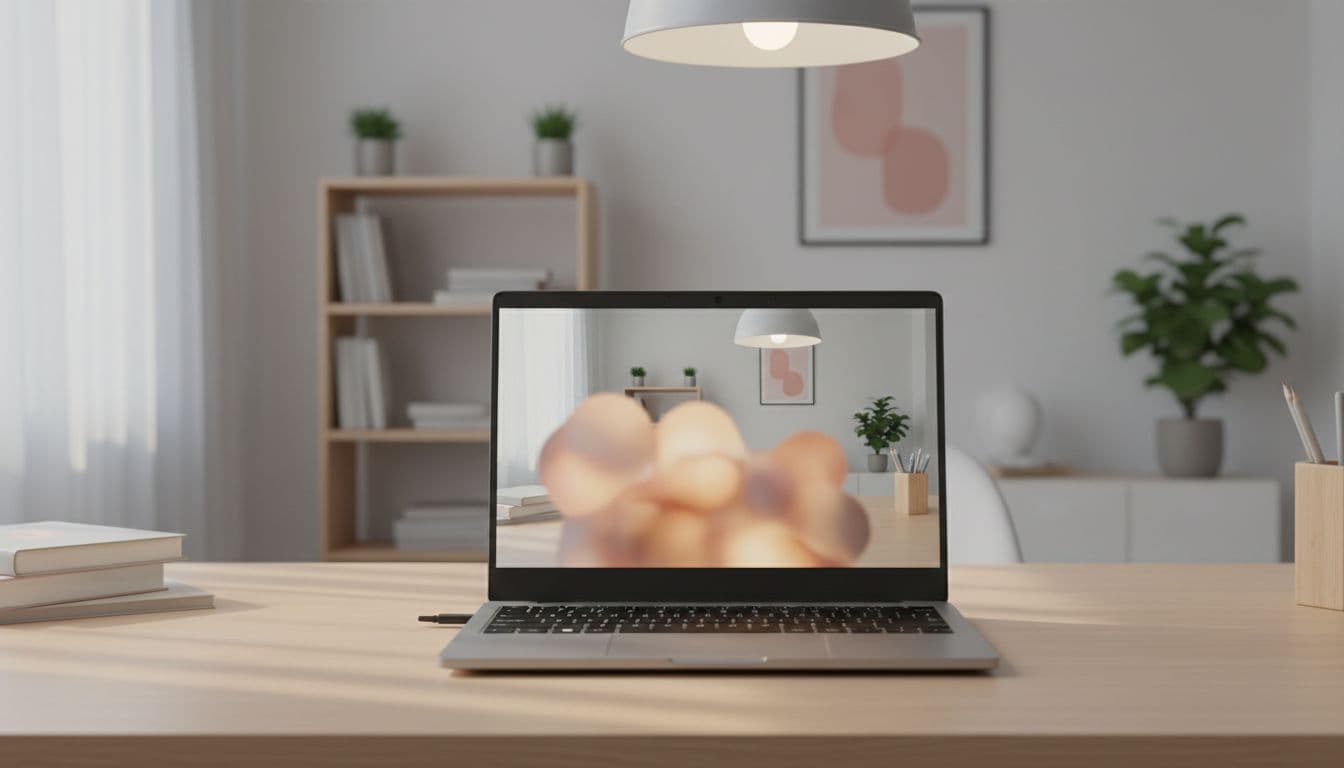
Your camera focuses on background objects and your face comes out a blurry mess. It's one of those problems that sounds minor until you're mid-call or trying to record something and you look like a ghost in front of a perfectly crisp bookshelf. This issue has been popping up constantly in support queues lately, mostly tied to Windows Studio Effects and autofocus going rogue. Here's what actually fixes it.
What Causes a Camera to Focus on Background Instead of Your Face?
There are a few distinct things that cause this, and they're not all the same fix. Getting the diagnosis right saves you a lot of time going in circles.
The most common culprit right now is Windows Studio Effects. Microsoft introduced AI-powered background blur and portrait effects, and on some systems the depth-of-field logic gets it backwards. The camera ends up treating the background as the subject and softening your face instead. It sounds absurd, but it happens. A lot. You can read more about how Studio Effects work in Microsoft's own documentation on Studio Effects, but the short version is: it's a software layer sitting between your physical camera and the app, and it can go wrong.
Second most common: autofocus locking onto the wrong thing. Webcam autofocus systems look for edges and contrast. If you've got a bright window, a patterned wallpaper, or a shelf full of books behind you, that's a lot more contrast than a plain face. The camera locks on, and you lose. Poor front lighting makes this worse because your face becomes the low-contrast blob and the background becomes the interesting target. Backlight is the classic offender here.
Then there's the dirty or obstructed lens angle. A smudge, a sticker residue, or a privacy shutter sitting slightly in the way can scatter light and make the autofocus behave strangely. It's a boring fix but it's quick to rule out.
Driver problems are the fourth cause, and they tend to appear suddenly after a Windows update. Microsoft pushes driver updates automatically, and occasionally a new camera driver ships with different default autofocus or depth-of-field behaviour. If your camera focuses on background and this started on a specific date you can roughly remember, a driver rollback is probably the answer.
Finally, OEM webcam software can stack its own effects on top of Windows Studio Effects. Logitech Capture, Dell Peripheral Manager, Lenovo Vantage camera settings, and similar tools all have their own portrait and blur modes. If both are running at once, the results are unpredictable. This is the scenario where users spend an hour in Windows settings, fix it there, and then it breaks again because the OEM app overrides it on the next launch.
Camera Focuses on Background: Quick Fix
Start here. These take five minutes and fix the problem for most people without touching drivers or advanced settings.
Clean the Lens and Fix Your Lighting Easy
- Wipe the lens
Use a clean microfibre cloth. No liquids. Check for sticker residue, a privacy shutter that's half-closed, or a laptop case edge creeping into the camera's field of view. Any of these can throw autofocus completely off. - Sort your lighting
Put a light source in front of your face, not behind you. A window behind you is the single biggest cause of autofocus preferring the background. Even a desk lamp moved to face you makes a significant difference. - Sit at the right distance
For laptop cameras, 50 to 80 cm is the sweet spot. USB webcams typically prefer 70 to 100 cm. Too close and some cameras can't resolve focus properly; too far and your face becomes a small, low-contrast target. - Verify
Reopen Photo Booth and check. If the camera focuses on background still, move to the next solution.
Test in Windows Camera to Isolate the Problem Easy
- Close Photo Booth and any other camera apps
Teams, Zoom, browsers with camera access, OBS, screen recorders. All of them. Only one app can properly control the camera at a time, and a background app holding the camera can cause weird focus behaviour in whatever you open next. - Open Windows Camera
Press the Windows key, type Camera, and open it. Look at your face. Is it sharp? If yes, the problem is Photo Booth-specific and you can skip straight to the app settings solutions below. If Windows Camera also shows the camera focuses on background, the issue is at the driver or Windows settings level.
More Camera Focuses on Background Solutions
These cover the most common software-level causes. Work through them in order.
Disable Windows Studio Effects Background Blur Easy
- Open Settings
Press Windows plus I to open Settings directly. - Go to Bluetooth and devices, then Cameras
Select your active camera from the list. On some Windows 11 builds this path is under System then Camera instead. Either works. - Turn off Background effects
You'll see options for Standard Blur, Portrait Blur, and possibly Automatic framing. Turn all of them off. Also disable any AI-powered options if they appear. These are the features most likely to cause the camera focuses on background problem by applying a depth-of-field layer that prioritises the wrong plane. - Retest
Open Photo Booth again. The change takes effect immediately without a restart.
Switch to Manual Focus Medium
- Find the focus controls
In Photo Booth or whichever camera app you're using, look for a Pro mode, advanced settings, or a gear icon. Many apps hide focus controls behind these. In the Windows Camera app specifically, look for the Pro mode toggle in the top-right area of the viewfinder. - Adjust the focus slider
Drag it slowly toward your face until the image sharpens on you. Don't rush this. Small adjustments make a bigger difference than you'd expect. - Disable autofocus
Once you've got your face sharp, turn autofocus off entirely. This stops the camera drifting back to the background the moment something moves behind you. It's the most reliable long-term fix for persistent autofocus drift. - Verify across sessions
Close and reopen the app. Check whether the manual focus setting persists. Some apps reset to autofocus on launch, in which case you'll need to set it each time or look for a way to save the profile.
Check App-Specific Camera Settings and Effects Easy
- Open Photo Booth settings
Look inside the app for any portrait mode, background blur, or AI enhancement options. These are separate from Windows Studio Effects and can cause the same camera focuses on background problem independently. - Verify the correct camera is selected
If you have more than one camera (a built-in webcam plus a USB one, for example), confirm Photo Booth is using the right one. Switching cameras inside the app sometimes resets effects settings. - Set resolution to HD or 1080p
Low resolution modes can make autofocus less accurate because there's less image data for the focus algorithm to work with. Bumping up to HD or 1080p often improves focus reliability as a side effect.
If you're also having issues with your camera showing up incorrectly in other apps, it may be related to a broader driver conflict. Our webcam not working on Windows guide covers the full driver diagnosis process in detail.
Advanced Camera Focuses on Background Fixes
Still not sorted? These go deeper. They take longer but they fix the cases that the quick stuff misses.
Update or Roll Back the Camera Driver Medium
- Open Device Manager
Right-click the Start button and choose Device Manager. Expand the Cameras section. - Update the driver
Right-click your camera and choose Update driver, then Search automatically for drivers. Let Windows check. If it finds something, install it and restart. - Roll back if the problem started after an update
Right-click the camera, choose Properties, go to the Driver tab, and click Roll Back Driver if the button is available. This reverts to the previous driver version. Restart after. This is the fix when the camera focuses on background problem appeared on a specific date and you can trace it to a Windows update. Microsoft's camera management documentation explains driver rollback in more detail if you want the background. - Restart and test
This one often needs a second reboot before it sticks. If focus is still wrong after the first restart, reboot once more before assuming the rollback didn't work.
Fully Reinstall the Camera Driver Hard
- Uninstall the camera in Device Manager
Right-click the camera under Cameras, choose Uninstall device. Tick the box that says Delete the driver software for this device if it appears. Click Uninstall. - Restart Windows
Windows will detect the camera on boot and reinstall a clean driver automatically. This clears any corrupted driver state that can cause the camera focuses on background issue. - Disable OEM camera utilities
Go to Settings, then Apps, then Installed apps. Search for anything from your laptop or webcam manufacturer: Logitech Capture, Dell Peripheral Manager, Lenovo Vantage camera features, HP Camera Enhancement, and similar. Uninstall or disable them. These tools often re-apply their own blur and portrait effects on top of whatever Windows is doing, which creates a conflict that's hard to diagnose otherwise. - Reboot and test
Open Photo Booth with no OEM software running and no Studio Effects active. Check whether the camera focuses on background problem is gone.
Clean Boot to Find Conflicting Software Hard
- Open System Configuration
Press Windows plus R, type msconfig, and press Enter. - Disable non-Microsoft services
Go to the Services tab, tick Hide all Microsoft services at the bottom, then click Disable all. This leaves Windows running but strips out third-party background services. - Disable startup apps
Go to the Startup tab and click Open Task Manager. Disable every startup item listed there. - Restart and test
Open Photo Booth in this clean environment. If the camera focuses on background problem is gone, a third-party app was causing it. Re-enable services and startup items in small batches, restarting each time, until the problem returns. The last batch you enabled contains the culprit. - Restore normal startup
Once you've identified the problematic app, re-enable everything else in msconfig and remove or configure just that one app.
If you've worked through all of the above and the problem still appears on a second PC too, the webcam hardware itself is likely faulty. A fixed-focus lens that's been damaged, or an autofocus mechanism that's physically stuck, can't be fixed in software. At that point the webcam needs replacing. For help choosing a replacement that won't have these issues, see our recommended webcams for Windows guide.
For a broader look at how manual focus works on webcams, HowToGeek has a solid breakdown of which cameras support it and how to access the controls across different apps.
Preventing Camera Focuses on Background
Most of this comes down to three things: lighting, effects discipline, and driver hygiene.
Lighting first. Put a light source in front of your face. Always. A ring light, a desk lamp, a window you're facing rather than sitting in front of. When your face is well-lit and the background is relatively dim, autofocus has no competition. It locks on you because you're the brightest, highest-contrast thing in frame. This single change prevents the camera focuses on background problem more reliably than any software setting.
Effects discipline. Don't stack layers. If you're using Windows Studio Effects background blur, don't also turn on blur inside your video call app. If your OEM webcam software has portrait mode, don't also enable it in Windows. Pick one layer and stick to it. Every additional effect layer is another thing that can go wrong and another thing you have to diagnose when it does. The Microsoft Studio Effects documentation is clear that these features are designed to work independently, not in combination with third-party equivalents.
Driver hygiene. After any Windows update, open the Camera app and do a quick check. Takes ten seconds. If focus has shifted, you catch it immediately and can roll back the driver before you're in the middle of an important call. Keep your drivers updated but pay attention when they change. And if you're doing critical recording or streaming, manual focus with autofocus disabled is the proper way to work. Autofocus is convenient, but it will always drift eventually if there's anything interesting behind you.
Sit within your webcam's normal range too. 50 to 80 cm for laptop cameras, 70 to 100 cm for USB webcams. Outside that range, autofocus gets unreliable regardless of what software you're running.
Camera Focuses on Background: Summary
When your camera focuses on background instead of your face, start with the obvious: clean the lens, fix the lighting, and test in Windows Camera to see if it's Photo Booth-specific. Nine times out of ten, disabling Windows Studio Effects background blur in Settings, then Bluetooth and devices, then Cameras fixes it immediately. If autofocus keeps drifting, switch to manual focus and lock it on your face. If the problem appeared after a Windows update, roll back the camera driver in Device Manager. For persistent or complicated cases, a full driver reinstall combined with removing OEM webcam software clears the remaining conflicts. The camera focuses on background problem is almost always software, not hardware, and it's fixable without replacing anything.