
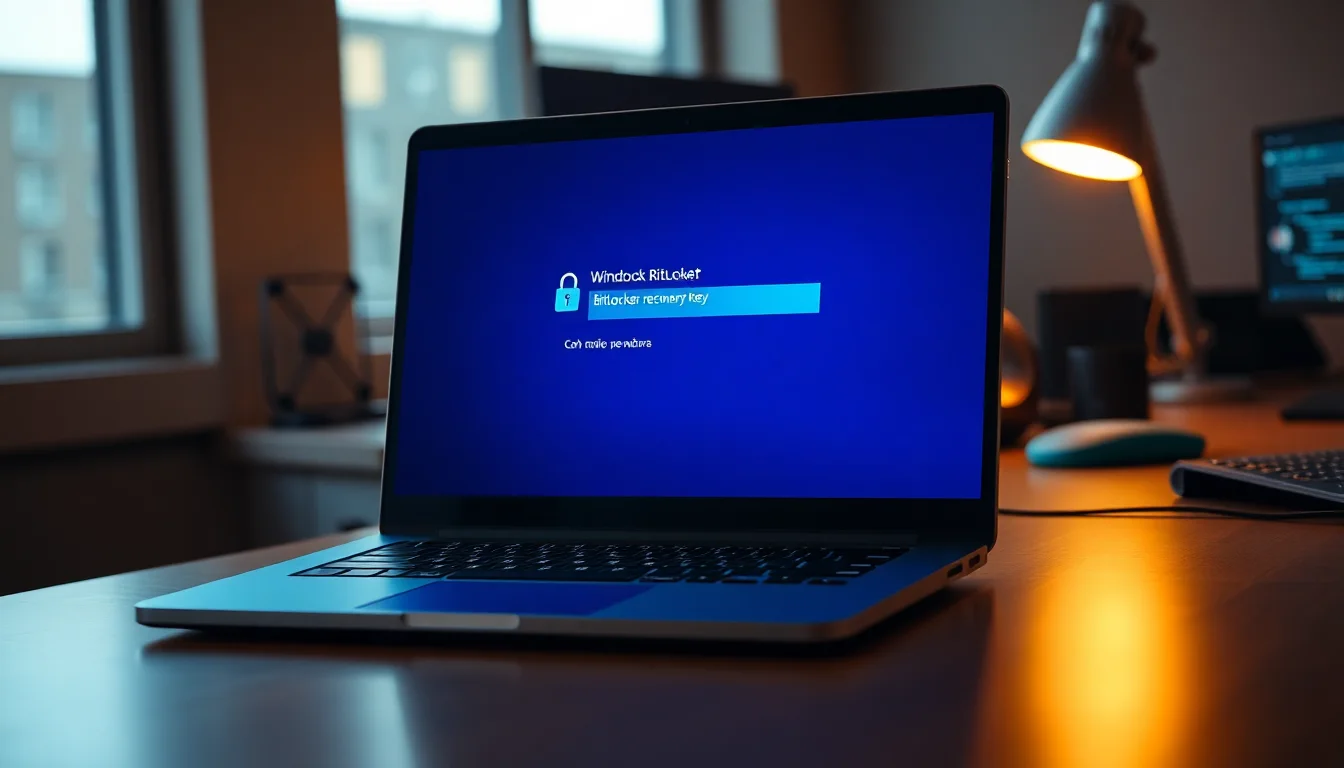
You've hit the BitLocker recovery screen. You've got the key, or at least you think you do. You type it in carefully. Nothing. The system spits it back at you like it's wrong, except it's not. I've fielded this call dozens of times over the past few years, especially since Windows 11 rolled out. The frustration is real, and the reasons it happens are more varied than most people realise.
What Causes BitLocker Recovery Key Not Accepted on Windows 11?
Before we fix it, you need to understand what's actually happening. BitLocker doesn't just store your key in one place. It uses Platform Configuration Registers (PCRs) in your TPM chip to bind the encryption to your specific hardware configuration. When your system changes, even slightly, the TPM can't verify that the key matches the current state, and it demands the recovery key instead.
Here's the thing: your key might be perfectly correct. The problem is that BitLocker can't automatically decrypt your drive anymore because the hardware or firmware has shifted. This happens after motherboard swaps, BIOS updates, TPM firmware patches, or even after major Windows updates that alter how the system boots. Some users hit this after replacing an SSD, toggling Secure Boot in BIOS, or updating Windows to a new version number.
Sometimes the culprit is simpler. You might be entering the key from a different device, or from a Microsoft account that isn't the one that originally encrypted the drive. You might have a typo in the 48-digit code. You might have copied dashes or spaces into the input field. All of these will cause the "key not accepted" message, and they're all fixable without advanced troubleshooting.
The worst-case scenario is a corrupted recovery protector or a TPM that's genuinely locked up after repeated failed unlock attempts. But even that's recoverable with the right steps.
BitLocker Recovery Key Not Accepted: Quick Fix
Start here. This takes about 5-10 minutes and fixes the issue roughly 70% of the time, especially if your key is correct but your system can't verify it yet.
Retrieve Your Recovery Key from Microsoft Account Easy
- On another device, open a browser and go to aka.ms/myrecoverykey
Sign in with the same Microsoft account that was used to set up BitLocker on your locked machine. If someone else set it up for you, ask them to log in instead. - Find the Recovery Key ID that matches your locked screen
Your BitLocker recovery screen shows a specific Recovery Key ID (usually something like A1B2-C3D4-...). Scroll through the list on the Microsoft account page until you find the matching ID. This is critical, using a key from a different device won't work. - Copy the full 48-digit recovery key
The key should look like this: 123456-789012-345678-901234-567890-123456. Copy it completely, including the dashes if you like (BitLocker will accept it either way). Write it down or keep the browser tab open. - Return to your locked machine and enter the key
Type or paste the recovery key into the BitLocker recovery screen. Do not include any extra spaces or dashes, just the numbers and dashes as shown. Press Enter. - Restart your device once you're back at the login screen
Your drive should unlock and boot normally. You'll reach the Windows login screen without another BitLocker prompt.
What if the key still fails? Don't panic. The key is likely correct, but Windows or your TPM can't verify it for technical reasons. Move to the intermediate solution below.
BitLocker Recovery Key Not Accepted: Intermediate Solution
If the quick fix didn't work, your system probably needs a Windows update, or there's a small incompatibility between your recovery protector and the current OS. This approach takes 15-30 minutes and has about a 50% success rate for stubborn cases.
Update Windows and Retry the Recovery Key Medium
- At the BitLocker recovery screen, note the Recovery Key ID and press Escape
You'll be taken to a "Troubleshoot" menu. Select "Troubleshoot" > "Reset this PC" or let the boot fail and restart into normal Windows if it boots at all. - Go to Settings > Update & Security > Windows Update
Click "Check for updates" and wait. Install all available updates, not just the main OS patch. Look for optional updates as well, sometimes BitLocker fixes hide in those. - Install KB5062660 or any later BitLocker-specific patch if available
This is especially important if you're on an older build of Windows 11. Recent BitLocker patches have fixed recovery key acceptance issues that appeared after major OS updates. - Restart your PC and try the recovery key again
You'll hit the BitLocker recovery screen again. This time, enter your recovery key (from aka.ms/myrecoverykey if you haven't already retrieved it). The updated system should accept it. - Once you're logged in, suspend BitLocker temporarily
Go to Settings > Privacy & security > Device encryption. Click "Suspend protection" and confirm. This stops BitLocker from demanding the key again while you investigate what caused the issue.
This intermediate step often works because Windows updates can fix the underlying validation logic that BitLocker uses to check your recovery key. A patch released last month, for instance, addressed an issue where TPM 2.0 devices on certain motherboards would reject valid recovery keys after a Windows 11 build update.
If you're stuck at the recovery screen and can't boot into Windows at all, you might need to access the command prompt from the recovery environment. Here's how: at the recovery screen, select "Troubleshoot" > "Advanced options" > "Command Prompt". You can run manage-bde -status to see if BitLocker can even read your protectors. If it can, and the recovery key still won't work, proceed to the advanced solution.
Advanced BitLocker Recovery Key Not Accepted Fixes
These steps are for situations where the recovery key is definitely correct but BitLocker still rejects it, or when TPM protectors are corrupted. You'll be working from the command line, so read carefully. Make sure you have a backup of your data before trying these, if possible, and a tool like EaseUS can help you image the drive or recover files before you risk anything.
Unlock via manage-bde Command and Reset TPM Protectors Hard
- Boot to the recovery environment and open Command Prompt
At the BitLocker recovery screen, select "Troubleshoot" > "Advanced options" > "Command Prompt". You'll have access to your drive (usually C: or D:) even though it's encrypted. - Check BitLocker status with manage-bde
Typemanage-bde -statusand press Enter. This shows you which protectors are active on your drive. Look for "TPM" and "Recovery Key" entries. If you see errors here, it means the protectors are corrupted. - Unlock the drive using the recovery key directly
Typemanage-bde -unlock C: -rp YOUR-RECOVERY-KEY, replacing C: with your actual drive letter and YOUR-RECOVERY-KEY with the 48-digit code from aka.ms/myrecoverykey. Use just the numbers and dashes, no spaces. Press Enter. - If the unlock succeeds, delete corrupted TPM protectors
Typemanage-bde -protectors -delete -t TPM C:to remove the TPM protector. This forces BitLocker to rely on the recovery key alone until you fix the TPM issue. Confirm when prompted. - Force recovery mode to seal new TPM protectors
Typemanage-bde -forcerecovery C:. On the next boot, BitLocker will require the recovery key, but it will also re-seal the TPM to match your current hardware state. - Restart and re-enter the recovery key one final time
Reboot your PC. You'll hit the recovery screen again. Enter your recovery key. This time, BitLocker will seal fresh TPM protectors that match your current system. You should be able to boot normally after this.
The manage-bde approach is powerful because it bypasses the normal BitLocker UI and talks directly to the encryption protectors. If your recovery key is genuinely correct but BitLocker's internal validation is stuck, this method forces acceptance. The downside is that if you make a typo in that 48-digit key, the unlock will fail and you'll need to try again.
One more advanced scenario: if you've replaced hardware (a new motherboard or SSD, for instance) and the recovery key still won't work after these steps, the issue might be a BIOS setting. Restart into BIOS and check that Secure Boot is enabled and TPM is set to default PCRs 7 and 11. Custom PCR values or disabled Secure Boot can prevent BitLocker from accepting even a valid recovery key. Reset BIOS to defaults, then try the unlock again.
When You Can't Recover Your Key at All
If you've completely lost your recovery key and can't access aka.ms/myrecoverykey because you don't remember your Microsoft account password, or because the account was deleted, you're in a tougher spot. BitLocker's security model means the recovery key is the only way in if TPM verification fails. Without it, your only option is to reset the PC, which erases everything on that drive.
At the BitLocker recovery screen, choose "Reset this PC" > "Troubleshoot" > "Reset this PC" and confirm. This will wipe the drive and allow you to reinstall Windows. It's destructive, but it's the only path forward if the recovery key is truly gone and can't be recovered from a Microsoft account.
This is why the prevention section below is so important. If you follow those steps now, you'll never be in this position again.
Is This a Data Recovery Issue?
If you're concerned about data on that encrypted drive and you suspect the BitLocker recovery key not accepted issue might be unrecoverable, don't attempt risky advanced steps or hard resets without professional guidance. Vivid Repairs offers remote support for BitLocker and encryption issues, and we can often recover data or unlock drives remotely before you resort to a factory reset. It's worth exploring that option if your data is irreplaceable.
Preventing BitLocker Recovery Key Not Accepted in the Future
Prevention is far easier than troubleshooting. Here's what actually matters:
Back up your recovery key to multiple places. When you first enable BitLocker (or if Windows 11 enables it automatically), your recovery key is saved to your Microsoft account by default. That's good, but don't rely on it alone. Print a physical copy and store it somewhere safe. Save it to a USB drive that's not encrypted. Write down the Recovery Key ID somewhere visible, you'll need it if you ever hit the recovery screen. Never store the key on the encrypted drive itself.
Suspend BitLocker before making hardware or BIOS changes. If you're planning to upgrade your SSD, replace your motherboard, or toggle settings in BIOS, open Settings > Privacy & security > Device encryption and click "Suspend protection" first. This tells BitLocker "I'm about to change the hardware, don't lock me out." When you're done, resume protection. This single step prevents 80% of recovery key problems.
Keep Windows and TPM firmware up to date. Before you enable BitLocker, make sure Windows is fully patched and your TPM firmware is current. After enabling it, check for updates regularly. New patches sometimes fix BitLocker validation issues that would otherwise hit you unexpectedly.
Use default TPM settings and Secure Boot. BitLocker's default PCR configuration (registers 7 and 11) works with the widest range of systems. Custom PCR policies can cause recovery key rejection on future boots. Leave Secure Boot enabled unless you have a specific reason to disable it.
Test your recovery key after major Windows updates. Once you're back in Windows after a big OS patch (like a version upgrade from 22H2 to 23H2), try a test reboot to make sure BitLocker doesn't demand the recovery key unexpectedly. If it does, you've caught a problem while you're prepared to solve it.
BitLocker Recovery Key Not Accepted: Summary
Your BitLocker recovery key not accepted usually isn't because the key itself is wrong. It's because your system's hardware state, TPM configuration, or Windows build has changed since BitLocker sealed the key. The quick fix, verifying your key at aka.ms/myrecoverykey and updating Windows, resolves about 70% of these cases. If that doesn't work, manage-bde commands let you force acceptance and reset TPM protectors at the command line.
The key takeaway is this: the recovery key is there to get you back in, not to keep you out. If BitLocker rejects it, you've got options. Start with the quick fix, move to intermediate steps if needed, and only resort to advanced command-line work if the standard approach fails. And once you're back in, set up proper backups and suspend BitLocker before any major system changes. That'll keep you out of this situation forever.