
Most people set up their iPhone once and never look back. That's a problem. The default settings Apple ships with are fine for convenience, but they're not built with your privacy as the top priority. Some of these gaps are tiny. Others are genuinely alarming once you understand what's happening in the background. Here are ten changes worth making today, whether you're mildly curious or properly paranoid.
Enable Two-Factor Authentication on Your Apple Account
Your password alone isn't enough. If it leaks (and eventually most do), 2FA is the last line of defence between a stranger and everything in your Apple account.
Two-factor authentication means that even if someone has your password, they still can't get in without a trusted device or phone number to approve the login. It's one of those settings where the effort to enable it is minimal and the protection is enormous. Worth noting that once it's active on newer accounts, you can't turn it off, so make sure your trusted phone number is current before you start.
- Open Settings, tap your name at the top, then tap Sign-In & Security.
- Tap Turn On Two-Factor Authentication and follow the on-screen prompts.
- Add a current, reliable phone number as your trusted number.
- Store any backup codes somewhere safe offline, not just in your Notes app.
How to verify it's working
Sign out of your Apple account on a second device or browser and attempt to sign back in. You should be prompted for a six-digit verification code sent to your trusted device. If that prompt appears, 2FA is active and working.
Watch out for
- Once enabled on newer accounts, 2FA cannot be disabled. Make sure you're committed before you start.
- If your trusted phone number is out of date and you lose access to your device, account recovery becomes very difficult. Update that number first.
Use a Strong Alphanumeric Passcode (and Actually Set Up Face ID)
A six-digit PIN can be cracked by automated tools faster than you'd think. An alphanumeric passcode of eight or more characters is exponentially harder to break.
Most people pick a passcode once and forget about it. But a four-digit PIN offers genuinely weak protection, and even a six-digit number isn't that much better if someone's patient. Switching to a custom alphanumeric code, something with letters, numbers, and at least one symbol, changes the maths completely. Face ID sits on top of that as a convenience layer, not a replacement.
- Go to Settings > Face ID & Passcode (or Touch ID & Passcode on older models).
- Tap Change Passcode, then tap Passcode Options.
- Choose Custom Alphanumeric Code.
- Set a passcode of at least eight characters mixing uppercase letters, numbers, and symbols.
- While you're here, make sure Face ID (or Touch ID) is enabled for unlocking and Apple Pay.
How to verify it's working
Lock your phone and try unlocking it. If Face ID is unavailable (try looking away deliberately), you should be prompted for the full alphanumeric passcode rather than a number pad.
Watch out for
- Avoid anything obvious: birthdays, repeating patterns, your pet's name spelled backwards. You know who you are.
- In some legal jurisdictions you can be compelled to provide biometric access but not a passcode. Something to consider depending on your situation.
Turn On Stolen Device Protection
Phone theft has evolved. Thieves now watch you type your PIN before grabbing your phone, then use it to lock you out of everything. Stolen Device Protection stops that cold.
This feature, introduced in iOS 17.3, requires Face ID or Touch ID (with no passcode fallback) for sensitive actions like changing your Apple account password when you're away from a familiar location like home or work. It also adds a one-hour security delay for the most critical changes. It's the kind of protection that feels unnecessary until the one moment it isn't.
- Go to Settings > Face ID & Passcode and enter your passcode.
- Scroll down and tap Turn On Protection under the Stolen Device Protection section.
- Consider enabling the optional one-hour security delay for maximum protection in unfamiliar locations.
How to verify it's working
Travel away from home and attempt to go to Settings and change your Apple ID password. You should see a Face ID prompt with no passcode fallback option, confirming the feature is active.
Watch out for
- Face ID or Touch ID must be configured for this to work. If you've been avoiding biometrics, now's the time to set it up.
- The one-hour delay applies even to you in unfamiliar locations. Plan accordingly if you're travelling and might need to make account changes.
Review and Restrict App Permissions
That torch app doesn't need your location. That recipe app has no business accessing your microphone. Apps ask for everything and most people just tap Allow.
This is probably the single most eye-opening exercise on this list. When you actually sit down and go through your app permissions, you'll almost certainly find something that shouldn't be there. A game with always-on location access. A shopping app with microphone permission you approved two years ago and forgot about entirely. Location set to 'Always' means the app is silently tracking you even when you're not using it.
- Go to Settings > Privacy & Security.
- Work through each category: Location Services, Camera, Microphone, Contacts, Bluetooth.
- For Location Services, change anything set to 'Always' to 'While Using' unless there's a genuinely compelling reason (like a navigation app you use constantly).
- For Camera and Microphone, revoke access for any app that has no clear, obvious reason to need it.
- Check Bluetooth access under Privacy & Security > Bluetooth and remove anything unfamiliar.
How to verify it's working
After making changes, open one of the apps you restricted and try to use the feature that required the permission. If it asks again or shows reduced functionality, the restriction is working.
Watch out for
- Some apps will partially break when permissions are revoked. Test each one after changing and decide whether the trade-off is worth it.
- 'Always' location access is silent by design. You won't see any indicator while it's happening.
Turn On Advanced Data Protection for iCloud
By default, Apple can technically read your iCloud backups. Advanced Data Protection changes that so even Apple can't access your data.
Standard iCloud encryption is solid, but Apple holds keys for most data categories, which means they can hand data over if compelled legally. Advanced Data Protection extends end-to-end encryption to backups, photos, notes, and more. The trade-off is real: if you lose access to your account and haven't set up a recovery method, nobody can help you get it back. Set up a recovery contact or recovery key first. Non-negotiable.
- Before anything else, set up a recovery contact or generate a recovery key (you'll be prompted during setup).
- Make sure all devices on your Apple account are running a recent iOS version.
- Go to Settings > [Your Name] > iCloud > Advanced Data Protection.
- Tap Turn On Advanced Data Protection and follow the prompts.
How to verify it's working
Go back to Settings > [Your Name] > iCloud > Advanced Data Protection. If it's active, you'll see a status showing it's turned on and listing the data categories now protected with end-to-end encryption.
Watch out for
- If you lose your Apple account access without a recovery method configured, your data is gone permanently. Apple cannot help. Set up the recovery contact first.
- Any older device on your account that can't update to a recent iOS version will need to be removed from the account before you can enable this.
Disable Ad Tracking and Check App Privacy Labels
Every app you use is potentially building a profile of you across your entire phone. Turning off tracking permission requests is a thirty-second fix.
The Identifier for Advertisers (IDFA) lets apps link your behaviour across different applications to build a surprisingly detailed picture of who you are. When you disable the option for apps to request tracking, they can't ask. They also won't disappear entirely, and some ads will still show, but they'll be far less targeted. Combine this with checking the Privacy Nutrition Labels in the App Store before you install anything and you've got a meaningful filter on what gets onto your phone in the first place.
- Go to Settings > Privacy & Security > Tracking.
- Toggle off Allow Apps to Request to Track.
- Go to Settings > Privacy & Security > Apple Advertising and toggle off Personalised Ads.
- Enable App Privacy Report under Settings > Privacy & Security > App Privacy Report to see which apps are accessing data and when.
- Before installing a new app, scroll to the Privacy Nutrition Label in its App Store listing and actually read it.
How to verify it's working
Open App Privacy Report after a day or two of normal use. You'll see a breakdown of which apps have accessed permissions and which domains they've contacted. It's revealing.
Watch out for
- Some apps use alternative tracking identifiers that don't require your explicit permission. This reduces tracking significantly but doesn't eliminate it entirely.
- Free apps may feel slightly less useful without personalised recommendations. That's the trade-off.
Use iCloud Private Relay to Mask Your Browsing
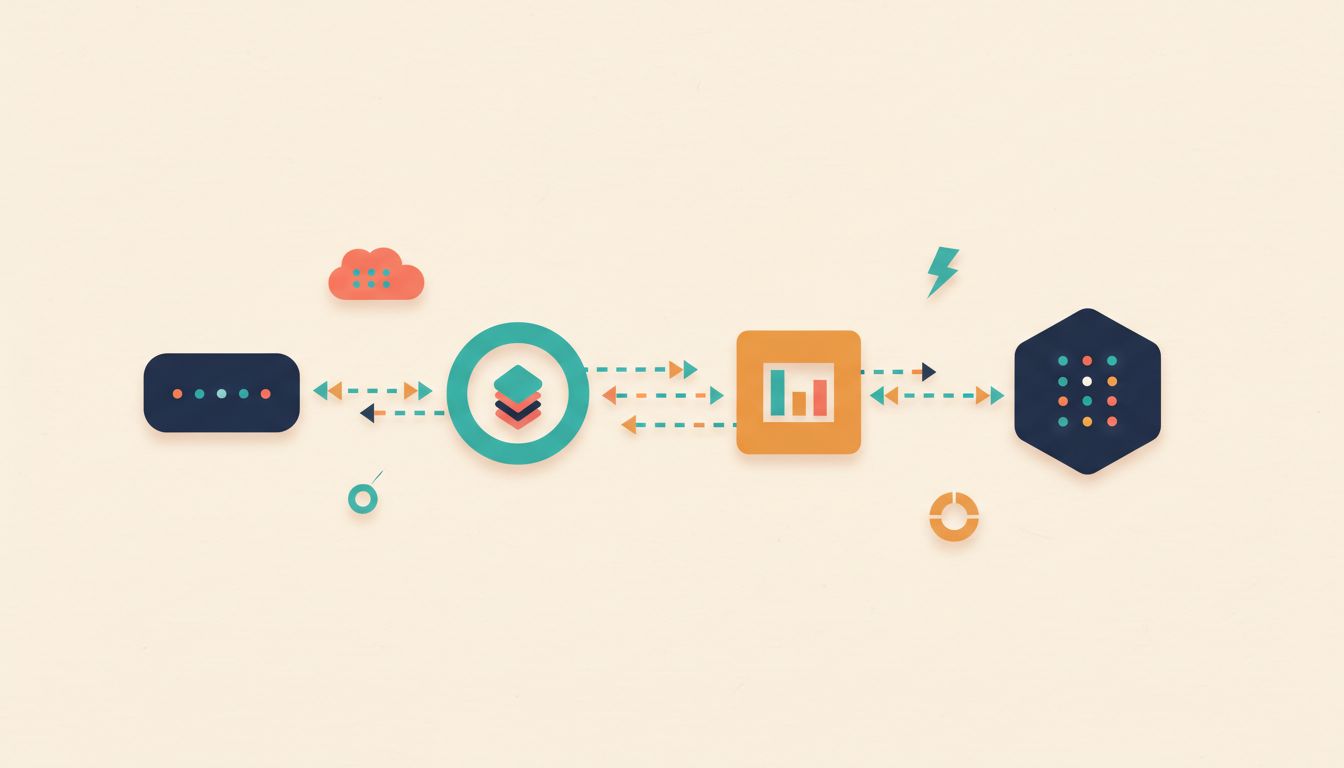
Your ISP can see every site you visit in Safari. Private Relay splits that information between two relays so no single party gets the full picture.
Private Relay is included with any iCloud+ subscription and it's one of the more elegant privacy features Apple has built. Traffic from Safari and DNS queries gets routed through two separate internet relays: one operated by Apple (which knows your IP but not what you're visiting) and one by a third party (which knows what you're visiting but not your IP). Neither one gets both pieces. It won't replace a full VPN for all traffic, but for everyday Safari browsing it's a genuinely useful layer of protection.
- Go to Settings > [Your Name] > iCloud > Private Relay.
- Toggle Private Relay on.
- Choose either Maintain General Location or Use Country and Time Zone depending on how much location anonymity you want.
How to verify it's working
Visit a site that shows your IP address in Safari (search for "what is my IP"). The IP shown should not match your actual home or mobile IP address.
Watch out for
- Private Relay requires an active iCloud+ subscription. It's not available on the free tier.
- It's not available in every country, so if you're in a region where it's blocked, the toggle simply won't appear.
- It only covers Safari and DNS. Other apps' traffic isn't routed through Private Relay.
Use Hide My Email and Sign In with Apple to Protect Your Real Address
Your email address is a unique identifier that companies use to track you across services. Stop giving it out.
Hide My Email generates random forwarding addresses that route to your real inbox without revealing it. Sign in with Apple does the same thing at the account level, letting you create accounts on apps and websites without handing over your actual email. You can deactivate any individual Hide My Email address the moment a company starts sending you spam. It's the kind of control that feels almost too convenient once you start using it.
- When creating new accounts on supported apps and websites, choose Sign in with Apple and select Hide My Email when prompted.
- For manual creation, go to Settings > [Your Name] > iCloud > Hide My Email and tap the plus button to generate a new address.
- To deactivate an address that's getting spam, go back to the same menu, select the address, and tap Deactivate Email Address.
How to verify it's working
After creating an account using a hidden address, send a test email to that address from another account. It should arrive in your real inbox. Then check Settings > [Your Name] > iCloud > Hide My Email to confirm the address is listed and active.
Watch out for
- On-demand creation of Hide My Email addresses (outside of Sign in with Apple flows) requires an iCloud+ subscription.
- Sign in with Apple is only available on apps and websites that have implemented Apple's sign-in framework. Many do, but not all.
Manage Notification Previews and Lock Screen Exposure
Sensitive messages, bank alerts, and personal details sit on your lock screen for anyone nearby to read. One setting change fixes this.
Push notifications are genuinely useful, but the default behaviour, showing message content on your lock screen before you've unlocked the device, is a real privacy leak. Anyone glancing at your phone at a coffee shop or on the tube can see who you're messaging and roughly what about. There's also a less obvious issue: notification metadata can be retained by Apple's push notification servers even when content is hidden. Limiting what's visible publicly is an easy win.
- Go to Settings > Notifications > Show Previews and set it to When Unlocked (or Never if you want maximum privacy).
- Go through Settings > Notifications app by app and turn off notifications entirely for any app that doesn't genuinely need them.
- Go to Settings > Siri & Search and for sensitive apps, disable Show in Spotlight and Show on Lock Screen.
How to verify it's working
Lock your phone and ask someone to send you a message. The notification banner should appear without showing the message content, displaying only the app name and sender name (or nothing at all, if you chose Never).
Watch out for
- Setting previews to 'When Unlocked' means you'll need to unlock to see what a notification actually says. Minor inconvenience, real privacy gain.
- Even with content hidden, Apple's push infrastructure retains metadata like sender identity and timestamp. Content protection reduces exposure but doesn't eliminate everything.
Use iCloud Keychain (and Actually Let It Generate Passwords)
Password reuse is how most accounts get hacked. Not through sophisticated attacks. Through someone trying the password from a leaked database on your other accounts.
iCloud Keychain is already on your phone and you might already be ignoring its suggestions. Stop doing that. Every time it offers to create a strong, unique password, say yes. The password is end-to-end encrypted and syncs across your Apple devices, so you genuinely never need to know what it is. Combine that with Sign in with Apple where possible and you're dramatically reducing the number of credentials floating around that could be compromised.
- Go to Settings > General > AutoFill & Passwords and make sure Autofill Passwords and Passkeys is enabled with iCloud Passwords selected.
- Go to Settings > Passwords to see all stored credentials. Look for the Security Recommendations section and address any flagged reused or compromised passwords.
- For any new account you create, accept iCloud Keychain's generated password suggestion instead of typing your own.
- Where a service supports it, use Sign in with Apple to reduce the number of password-based accounts you have entirely.
How to verify it's working
Open Settings > Passwords and check the Security Recommendations section. If it shows zero high-priority issues, your stored passwords are reasonably strong and not known to have been compromised in a data breach.
Watch out for
- iCloud Keychain is end-to-end encrypted but tied entirely to your Apple account. This is why 2FA on that account (tip one on this list) is so important.
- If you switch away from the Apple ecosystem, exporting your passwords in advance requires a few extra steps. Plan for that before you need it in a hurry.