
Most people know Ctrl+C and Ctrl+V. Fine. But Windows 11 is hiding a whole layer of shortcuts that can genuinely change how you work, and most users never stumble across them. These aren't obscure developer tricks either. They're practical, everyday hidden Windows 11 keyboard shortcuts that save real time. Let's get into them.
Win + Arrow Keys: Snap and Arrange Windows Instantly

Dragging windows around with a mouse is slow. Embarrassingly slow, honestly. Win + Arrow Keys lets you snap, tile, and arrange everything without touching the trackpad.
Press Win + Left or Win + Right and the active window snaps to that half of the screen. Press Win + Up to maximise, or Win + Down to restore or minimise. Want quarter-corner snapping? Snap to a side first, then press Up or Down to push the window into a corner. Two presses, done.
Windows 11 also added Snap Layouts. Hover over a window's maximise button and you'll see a little grid of layout options. You can trigger the same thing from the keyboard once you've done your first snap.
- Press Win + Left or Win + Right to snap the active window to half the screen.
- Press Win + Up to maximise or Win + Down to restore or snap downward.
- For a quarter-corner position, snap to a side first, then press Win + Up or Win + Down to push it into the corner.
- Hover over the maximise button on any window to access Snap Layouts for more complex arrangements.
How to verify it's working
Open any window and press Win + Left. It should immediately resize and anchor to the left half of your display. If nothing happens, check Settings > System > Multitasking and confirm Snap Windows is toggled on.
Watch out for these
- Snap must be enabled in Settings > System > Multitasking. It's on by default, but some people accidentally disable it.
- A handful of older or third-party apps resist snapping entirely and will bounce back to their original size.
- Quarter-corner snapping needs two sequential key presses after the initial snap, not one.
Win + V: Clipboard History (Your 25-Item Memory)

Copied something five minutes ago and then copied something else over it? With Win + V, that's no longer a disaster.
Windows keeps a rolling history of up to 25 copied items, including text, images, and HTML. Press Win + V and a panel appears showing everything you've copied in this session. Click any item to paste it. You can even pin snippets you use constantly (your address, a standard email sign-off, whatever) and they'll survive a reboot.
There's a catch, though. Clipboard history is off by default. First time you press Win + V on a fresh install, Windows will offer to enable it right there in the panel. Or go to Settings > System > Clipboard and flip the switch yourself.
- Press Win + V to open the clipboard history panel.
- Click any previous item in the list to paste it into your current application.
- Click the pin icon on any entry to keep it across reboots.
- Hit the X on any entry to delete it individually, or clear the whole history at once from the panel.
How to verify it's working
Copy two different pieces of text one after the other, then press Win + V. You should see both items listed. If the panel is empty with an activation prompt, enable clipboard history in Settings > System > Clipboard.
Watch out for these
- Clipboard history is off by default on fresh installs. You need to enable it once.
- Passwords copied from some secure input fields can still appear in the history. Be careful on shared machines.
- Unpinned history clears completely on reboot. Pin anything important.
Win + Shift + S: Precise Screenshots Without Third-Party Apps
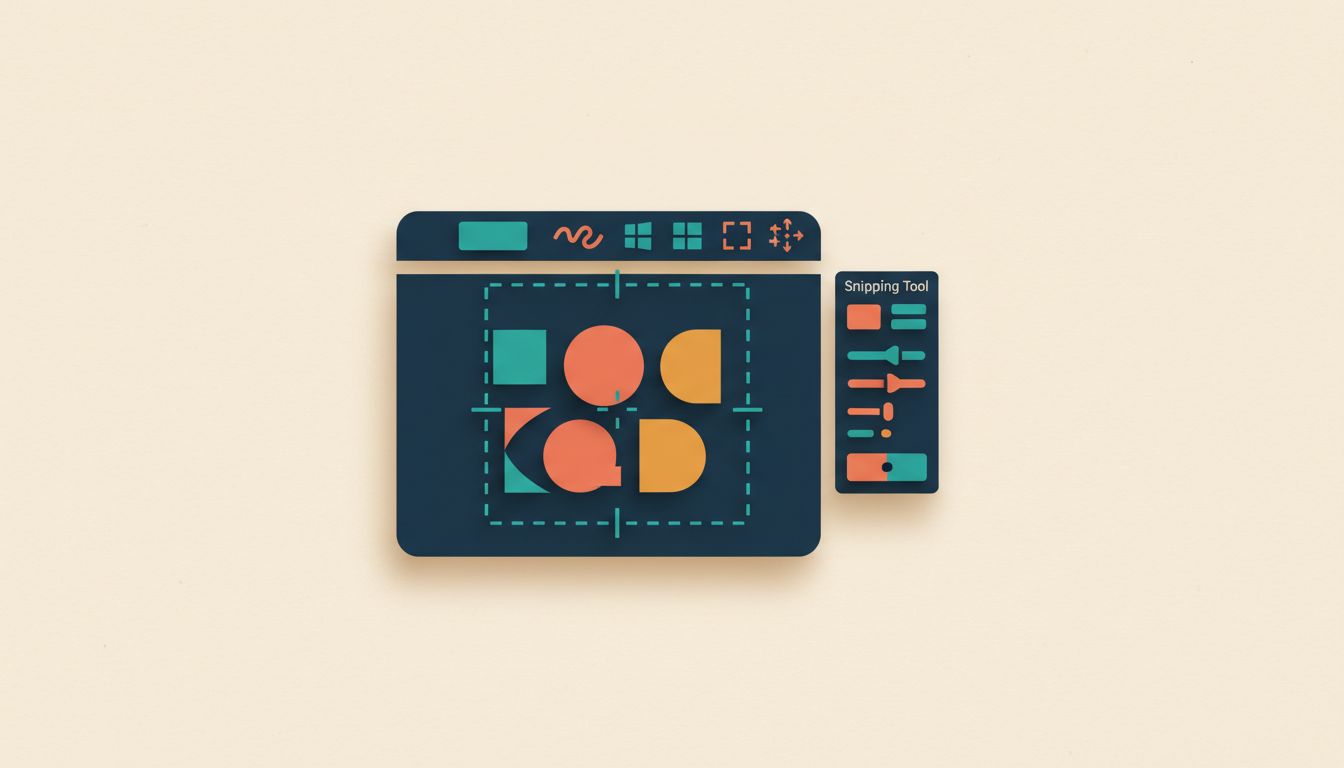
The old PrtScn key just dumps your entire screen to the clipboard with no control. Win + Shift + S is what you actually want.
Press it and a small toolbar appears at the top of your screen. Choose rectangular snip, freeform, window, or full-screen. The captured area goes straight to your clipboard, and a notification pops in the corner. Click that notification and Snipping Tool opens, ready for annotation, cropping, or saving in whatever format you need.
Quick note on DRM content: if you try to screenshot a streaming video in full-screen, the snip will almost certainly come out black. That's intentional, not a bug on your end.
- Press Win + Shift + S to open the snip toolbar.
- Select your capture mode: Rectangular, Freeform, Window, or Full-screen.
- Draw or click to capture. The snip copies to your clipboard immediately.
- Click the pop-up notification to open Snipping Tool for annotation or saving.
How to verify it's working
Press Win + Shift + S. A dim overlay should appear with a small toolbar at the top. If nothing happens, check that Snipping Tool is installed (search for it in Start) and that it has background app permissions enabled.
Watch out for these
- A Windows update may reconfigure PrtScn to open Snipping Tool instead of copying silently. Check Settings > Accessibility > Keyboard if your PrtScn behaviour changes unexpectedly.
- If Snipping Tool has been uninstalled or its background permissions revoked, Win + Shift + S stops working entirely.
- Screenshots of DRM-protected content (streaming video, for instance) will render as a black rectangle.
Win + Ctrl + D / Left / Right / F4: Virtual Desktops

One desktop for email and meetings, another for the actual work you're trying to do. Virtual desktops keep your brain organised when your screen can't.
Win + Ctrl + D creates a new virtual desktop. Win + Ctrl + Right and Win + Ctrl + Left switch between them. Done with a desktop? Win + Ctrl + F4 closes the current one, and any open windows on it migrate to the adjacent desktop rather than closing. Nothing gets lost.
The big thing to know: apps pinned to your taskbar appear across all desktops. Only unpinned windows are desktop-specific. So pinning everything is the enemy of a clean virtual desktop setup.
- Press Win + Ctrl + D to create a new virtual desktop.
- Press Win + Ctrl + Right Arrow or Win + Ctrl + Left Arrow to switch between desktops.
- Press Win + Ctrl + F4 to close the current desktop. Its windows move to the previous desktop automatically.
- Use Win + Tab to open Task View and visually manage all your desktops and windows at once.
How to verify it's working
Press Win + Ctrl + D. Your screen should briefly transition to a fresh, empty desktop. Check the taskbar for a desktop number indicator, or press Win + Tab to see all active desktops listed at the top.
Watch out for these
- In managed corporate environments, Group Policy or MDM settings can block Win + Ctrl + D entirely.
- Taskbar-pinned apps appear on every desktop. Only unpinned windows are isolated to a single desktop.
- Closing a desktop doesn't close its windows, they migrate to the adjacent desktop.
Alt + Tab and Win + Tab: Window Switching Done Properly

Reaching for the mouse to click a taskbar icon mid-flow is a flow-killer. Keep your hands on the keyboard.
Hold Alt and tap Tab to cycle forward through open windows. Add Shift to go backward. Release and you're in. But here's the trick most people miss: pressing Alt + Tab twice quickly flips you straight back to the last window you were in. Brilliant for toggling between two apps repeatedly.
Win + Tab is different. It opens Task View as a persistent overlay showing all windows and your virtual desktops. It stays open until you press Escape or click somewhere, so it's better for surveying everything rather than quick switching.
- Hold Alt and tap Tab to cycle through open windows. Release to select the highlighted one.
- Add Shift (Alt + Shift + Tab) to cycle backwards.
- Tap Alt + Tab twice quickly to toggle between your two most recent windows.
- Press Win + Tab for a full persistent Task View with all windows and virtual desktops.
How to verify it's working
Open three windows. Hold Alt and press Tab twice slowly. A thumbnail switcher should appear and cycle through each window. Release on your target. If browser tabs appear as separate items, adjust that in Settings > System > Multitasking under Alt + Tab.
Watch out for these
- By default, Alt + Tab may show individual browser tabs as separate windows. Change this in Settings > System > Multitasking if the list gets cluttered.
- Win + Tab stays open until you dismiss it. Alt + Tab dismisses the moment you release Alt.
- The double-tap toggle trick (Alt + Tab twice quickly) is genuinely useful but easy to overshoot if you tap a third time.
Win + D and Win + M: Clear Your Screen Fast

Someone walks behind you mid-screen. Or you just need to grab a file from the desktop. Either way, you want everything gone. Now.
Win + D is the toggle: press it and all windows minimise to the taskbar. Press it again and they all come back exactly as they were. Fast, reversible, perfect.
Win + M is one-way. It minimises everything but won't restore on a second press. To get your windows back after Win + M, you need Win + Shift + M. Useful to know, but Win + D is the one you'll reach for ninety percent of the time.
One caveat: always-on-top windows (certain widgets, overlays, some video players) ignore both shortcuts entirely and just sit there. That's not a bug you can fix easily.
- Press Win + D to minimise all open windows instantly.
- Press Win + D again to restore them all to their previous positions.
- Press Win + M to minimise all windows without a toggle-back option.
- Press Win + Shift + M to restore all windows minimised via Win + M.
How to verify it's working
Open a couple of windows and press Win + D. Everything should drop to the taskbar and your desktop should be visible. Press Win + D again to confirm they all restore.
Watch out for these
- Win + D restores all windows on the second press. Win + M does not. Don't confuse the two.
- Always-on-top windows (certain system overlays, widgets) won't be minimised by either shortcut.
- On some configurations, Win + D can interact oddly with desktop widgets in Windows 11.
Ctrl + Z and Ctrl + Y: Undo and Redo Everywhere
You deleted the wrong thing. Or moved a file somewhere you didn't mean to. Ctrl + Z works in more places than most people realise.
Press Ctrl + Z to undo. Press it again to step back further. Keep going. Most apps support multiple undo levels, though the depth varies (some older apps are stingy about it). Ctrl + Y redoes what you've undone, though some apps use Ctrl + Shift + Z instead.
File Explorer is the one that surprises people. Accidentally moved a folder somewhere wrong? Ctrl + Z in File Explorer undoes the move. Renamed something badly? Ctrl + Z reverses it. It doesn't cover everything (emptying the Recycle Bin is permanent) but it saves you more often than you'd expect.
- Press Ctrl + Z to undo the most recent action in almost any application.
- Press Ctrl + Z repeatedly to step through multiple undo levels.
- Press Ctrl + Y to redo an undone action. Some apps use Ctrl + Shift + Z instead.
- In File Explorer, use Ctrl + Z to reverse moves, renames, and deletes immediately after they happen.
How to verify it's working
Type something in Notepad, then press Ctrl + Z. The text should disappear one action at a time. Press Ctrl + Y to bring it back. Then try it in File Explorer by renaming a file and immediately pressing Ctrl + Z.
Watch out for these
- Undo history depth varies by app. Paint has very limited levels. Professional creative tools tend to be much more generous.
- File Explorer supports undo for moves, renames, and deletes but not every action.
- Emptying the Recycle Bin cannot be undone with Ctrl + Z. That one's permanent.
Win + . (Period): Emoji, GIFs, and Symbol Picker

Stop Googling "thumbs up emoji copy paste". It's a waste of three minutes and your browser history doesn't need that.
Press Win + . (or Win + ;) while your cursor is in any text field and the emoji picker opens right there. It's tabbed: emoji, GIFs (needs internet), kaomoji (the weird text face ones), and a special symbols section that includes currency signs, maths symbols, and more.
You can type to search. Start typing "rocket" and it'll filter immediately. Way faster than scrolling.
- Click inside any text input field to place your cursor.
- Press Win + . or Win + ; to open the picker.
- Use the tabs to navigate between Emoji, GIF, Kaomoji, and Symbols.
- Type a keyword to search. Hit Enter or click to insert.
How to verify it's working
Open Notepad or any browser text field. Press Win + . and the floating picker panel should appear. If it doesn't, go to Settings > Time & Language > Language & Region and confirm your language settings are correctly configured.
Watch out for these
- The shortcut occasionally breaks after Windows updates. Revisiting Settings > Time & Language > Language & Region usually fixes it.
- GIF search requires an active internet connection.
- The picker won't appear in some legacy or certain third-party applications.
Win + H: Voice Typing Built Right Into Windows
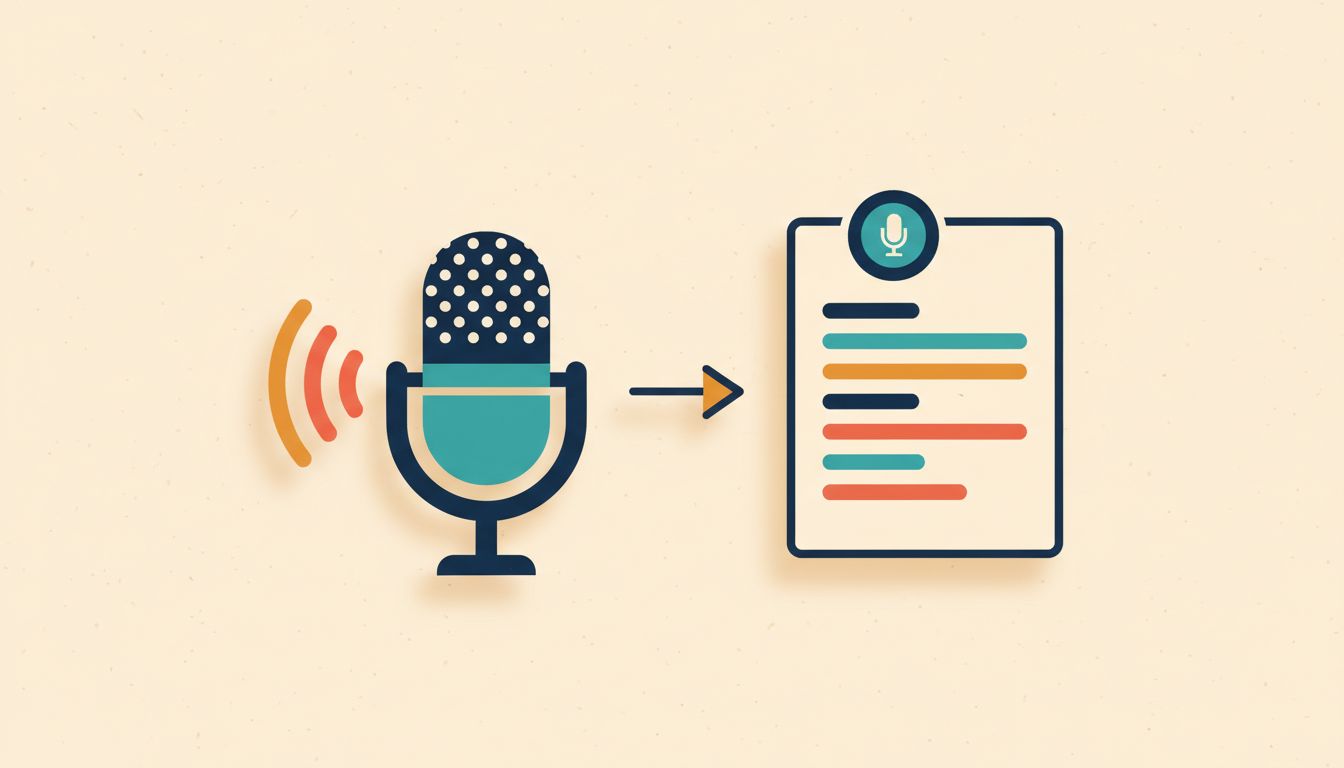
Windows has had built-in dictation for years. Most people have absolutely no idea it's there.
Click into any text field, press Win + H, and a small voice typing toolbar appears. Start talking. It transcribes in real time, and it's genuinely good if your microphone is decent and you're not in a noisy room. Enable auto-punctuation in the voice typing settings and it'll handle full stops, commas, and question marks without you saying them out loud.
For longer documents, emails, or any situation where you can think faster than you can type, this is legitimately useful. Not perfect in noisy environments, and heavy accents can trip it up, but in a quiet office it works well.
- Click inside a text field to position your cursor.
- Press Win + H to open the voice typing toolbar.
- Speak clearly. Text appears in the field as you talk.
- Say "Stop listening" or click the microphone button to pause. Open voice typing settings to enable auto-punctuation.
How to verify it's working
Open Notepad, click inside it, and press Win + H. A small toolbar with a microphone icon should appear. If you see a microphone error,go to Settings > Privacy & Security > Microphone and confirm that microphone access is enabled for your apps.
Watch out for these
- Microphone access must be enabled in Settings > Privacy & Security > Microphone or voice typing won't activate.
- Some language models use cloud-based recognition, which requires an internet connection.
- Accuracy drops noticeably in noisy environments or with strong regional accents.
Win + L: Lock Your PC Instantly
Stepping away from your desk? Two keys. Done. No menu, no fumbling.
Press Win + L and Windows locks immediately, requiring your PIN, password, fingerprint, or Windows Hello face scan to get back in. Your downloads keep running, your apps stay open, nothing closes. It just locks the screen.
Make it a habit. Genuinely. An unlocked machine left unattended, even for two minutes, is a real security risk in an office. Pair it with a short screen timeout in Settings and you've got solid passive coverage even when you forget.
- Press Win + L at any time to lock the screen immediately.
- Return and authenticate with your PIN, password, fingerprint, or Windows Hello.
- For stronger security, set a short automatic screen lock timeout in Settings > System > Power & Sleep.
How to verify it's working
Press Win + L. Your screen should go to the lock screen instantly with a sign-in prompt. If it returns without asking for credentials, your account likely has no password or PIN set. Add one in Settings > Accounts > Sign-in options.
Watch out for these
- Processes, downloads, and background apps all continue running while the screen is locked. Nothing pauses.
- On accounts with no password set, Win + L just shows the lock screen with no real security barrier.
- In some remote desktop configurations, Win + L may disconnect the session rather than locking it, depending on how the session is configured.