
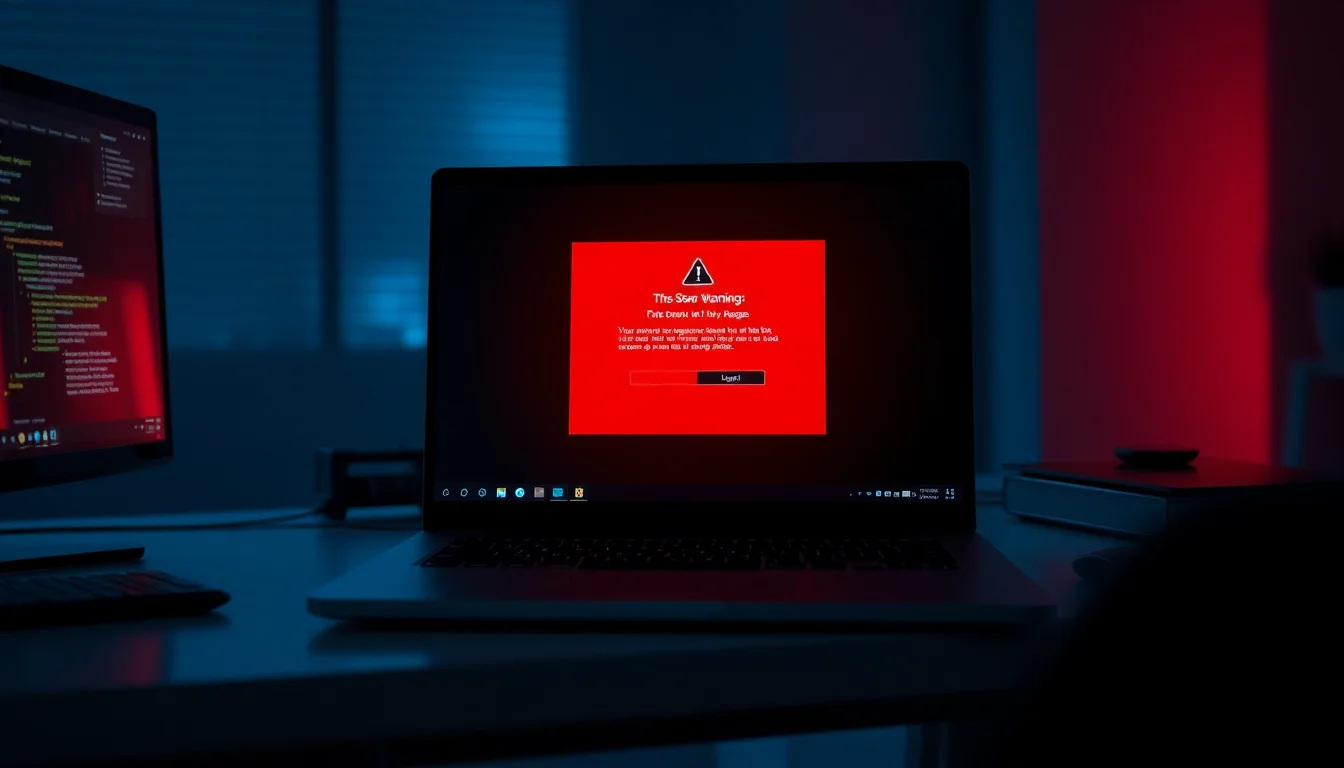
Fake virus alerts are one of the most frustrating things your computer can throw at you. You're working normally, and suddenly a big red popup screams that your device is infected, demanding you download something or call a number immediately. It's designed to panic you into action. The problem is, that popup isn't a real security warning , it's scareware, and it's a delivery vehicle for actual malware. In my 20+ years fixing these issues remotely, I've seen scareware go from a minor annoyance to a serious infection vector. The good news? It's almost always fixable with the right approach.
What Causes Fake Virus Alerts?
Scareware doesn't appear out of nowhere. Something put it there, and understanding what happened helps you avoid it next time.
The most common entry point is a malicious website or advertisement. You click a link in an email, visit a compromised site, or click what looks like a legitimate ad , and your browser redirects to a page that mimics Windows or your antivirus software. The fake alert then installs itself. Some scareware arrives bundled with other downloads (those 'free' software installers that sneak extra programs in). Others come from drive-by exploits, where visiting a compromised website automatically executes malicious code without any click from you.
Once installed, scareware modifies your registry, injects itself into Windows startup processes, and hijacks your browser with extensions. That's why the popups keep coming back even after you close them. The alert you see is just the symptom. The malware underneath is the real problem.
In many cases, there's also a browser hijacker component. Your homepage changes to something odd, your search engine redirects elsewhere, and ads appear where they shouldn't. These often work hand-in-hand with the scareware , the extension triggers fake alerts, or the alerts push you toward installing the hijacker. It's a multi-layer infection designed to be sticky and annoying.
Why do attackers bother with this? Money. Some scareware tries to trick you into calling a fake tech support number and paying for "help." Others install ransomware, steal credentials, or serve as a gateway for worse infections. The popup itself is free to the attacker , they make money if you panic and do what it asks.
Identify Real Antivirus Warnings vs Fake Alerts
Before you panic, you need to know whether you're looking at a real security alert or a fake one. This distinction matters because a real warning from Windows Defender or your installed antivirus is actually helpful, while a fake alert is pure deception.
Real antivirus warnings: Use your software's actual branding (Windows Defender logo, Norton icon, Malwarebytes interface). They name the specific threat ('Trojan.Generic', 'PUA:Win32.Downloader', with a file path like C:\Users\YourName\AppData\Roaming\...). The UI is your software's actual design , not a browser popup pretending to be a popup. The tone is professional, not urgent red panic. Real warnings also come from a process you recognise: windowsdefender.exe, or your Norton/Kaspersky application running in the background.
Fake alerts (scareware): Use generic, terrifying language ('Your Device Is Infected!', 'Click Here Now or Risk Total Data Loss'). They lack specific threat details or give you fake ones ('Virus Detected #43829'). The design is usually a bright red screen with huge warning icons, buttons that say 'Download Protection Now' or 'Call Support: 1-800-FAKE'. The popups appear in your browser, even if you're not using antivirus software. The tone screams urgency , because that's what panic-driven clicks are built on.
Here's the simplest test: Open your actual antivirus software (Windows Defender, Norton, Kaspersky , whatever you actually installed). If the software shows no threats, the popup you saw is fake. Real antivirus quarantines threats immediately. If your installed security software is silent, but random popups appear in your browser, that's scareware.
One more thing , legitimate antivirus doesn't ask you to download anything from a popup. It handles everything within its own application. If a popup is telling you to download a "security tool" or "protection software," it's lying.
Remove Fake Virus Alerts: Quick Fix
Fast Scareware Removal Easy
- Disconnect from the internet
Unplug ethernet or turn off WiFi immediately. This stops the malware from downloading additional files or communicating with command servers. - Restart into Safe Mode with Networking
Shut down your computer. Turn it back on and holdShiftwhile it boots. SelectTroubleshoot>Advanced Options>Startup Settings> press5for Safe Mode with Networking. Safe Mode loads only essential Windows components, so malware won't run in the background. - Download and run Malwarebytes
Once in Safe Mode, reconnect to WiFi briefly. Visitmalwarebytes.comand download the installer. Run it, then clickScan. Let the full scan complete (15-25 minutes). Malwarebytes specifically targets PUPs and scareware that standard Windows Defender might miss. - Quarantine all threats
When the scan finishes, review the list. ClickQuarantineto isolate everything detected. Restart your computer when prompted. - Verify in normal mode
Boot back into normal Windows. Open your browser and test , the fake popups should be gone. Check Windows Defender settings to confirm real-time protection is active.
Advanced Fake Virus Alert Removal
If the quick fix didn't work, the malware is more stubborn. It might be hiding in multiple locations, or there's a secondary infection you haven't caught yet. This requires more detective work.
Multi-Stage Deep Scan and Browser Cleaning Medium
- Run Windows Defender offline scan
If Malwarebytes missed something, Windows Defender's offline scan runs before Windows fully loads, bypassing malware's ability to protect itself. Go toSettings>Update & Security>Windows Security>Virus & threat protection>Scan options> selectWindows Defender Offline scan. ClickScan now. Your computer will restart and scan for 15 minutes. This is particularly effective for rootkits and boot-sector malware. - Clean browser extensions in all browsers
Open Chrome, Edge, and Firefox. In each, navigate to Extensions or Add-ons. Look for anything unfamiliar, especially names that are random strings or misspellings of legitimate software. Right-click andRemove. Then go toSettings>Search EngineandHomepage, and verify they're set to what you want (Google, Bing, your preferred default , not a random redirect). Hijacker extensions often change these. - Check Windows startup items and services
PressWin + R, typemsconfig, clickOK. Go to theStartuptab. Look for anything suspicious (random .exe files, misspellings of Windows components). Uncheck any you don't recognise, then clickApplyandOK. Restart and test. If fake alerts stop, you've found the culprit. If they continue, you may have a rootkit-level infection. - Scan with a second malware engine
Use VirusTotal to upload suspicious files for analysis by 70+ antivirus engines simultaneously. If you're unsure whether a file is malware, upload it (use the file tab, not URL). You'll see how many engines flag it. Anything flagged by 10+ engines is almost certainly malicious.
Expert-Level Scareware Removal
You're here because the infection is still present despite multiple scans. This usually means one of three things: rootkit-level malware that hides from scanners, a worm that keeps reinfecting itself, or browser-based malware in a profile or extension that the scanner can't access while the browser is in use. At this point, you need to think like an attacker and look where a defensive scanner might not.
Registry Editing and Process Inspection Advanced
- Access the Windows Registry and search for infection signatures
PressWin + R, typeregedit, clickOK. This opens the Registry Editor , this is where Windows stores system configuration. Malware often adds run keys here. Navigate toHKEY_LOCAL_MACHINE\Software\Microsoft\Windows\CurrentVersion\Run. Look at the list on the right. Any entry you don't recognise (especially random names or misspellings) is suspect. Right-click it andDelete. Also checkHKEY_CURRENT_USER\Software\Microsoft\Windows\CurrentVersion\Runfor user-level startup items. Do NOT delete anything you're unsure about , a wrong deletion can break Windows. If you're uncertain, take a screenshot and ask for help. - Inspect running processes in Task Manager
PressCtrl + Shift + Escto open Task Manager. Go to theProcessestab. Look for anything with a random name, misspelled Windows component name, or process you don't recognise. Right-click it and selectOpen file location. If the file is in AppData, Temp, or a random folder (not System32 or Program Files from a known vendor), it's likely malware. You canEnd Taskto kill the process, but if it immediately restarts, it's launching from a startup item or registry entry you haven't removed yet. Kill the process first, then go back and remove the registry entry that launches it. - Manually search AppData and Temp for infection artifacts
Open File Explorer. PressCtrl + Land typeC:\Users\YourUsername\AppData\Roaming. Search for folders with random names or dates created very recently. Do the same inC:\Users\YourUsername\AppData\Local\TempandC:\Windows\Temp. Malware loves these folders because they're often overlooked. Right-click any suspicious folders and delete them. If Windows says the folder is in use, restart in Safe Mode and delete again. - Disable and remove suspicious browser profiles
Scareware sometimes creates secondary Chrome or Edge profiles to hide itself. Open Chrome and go to the profile icon (top right) >Manage your Google Account, or look inSettings>You and Googlefor unexpected accounts. In Edge, go toSettings>Profilesand look for extra profiles you didn't create. Delete any you don't recognise. Also inspectC:\Users\YourUsername\AppData\Local\Google\Chrome\User Datafor unexpected profile folders (they're numbered: Default, Profile 1, Profile 2, etc.). If there are extra profiles, they might be malware-created. - Use Windows Defender Advanced Scan or Kaspersky Rescue Disk as last resort
If the infection persists after all of the above, you likely have a sophisticated rootkit. At this point, consider booting from a Kaspersky Rescue Disk (a bootable USB that scans before Windows loads) or using Malwarebytes Premium's anti-rootkit module. If you're not comfortable with command-line tools, this is a good time to call in professional remote support.
If you've done all three solution boxes and the alerts still appear, you're dealing with either a seriously sophisticated infection or a hardware-level compromise (unlikely but possible). That's when remote support becomes the smart choice , a technician can access your system in real-time, see what's happening, and deploy targeted fixes in minutes instead of hours of trial and error.
If you'd rather skip the manual route and get this sorted quickly, Malwarebytes Premium handles persistent scareware in a couple of clicks, with real-time protection that stops new infections before they install. For stubborn cases, our remote support team can take over , we typically have your system clean in 15-30 minutes.
Preventing Future Fake Virus Alerts
Once you've removed the scareware, the goal is to never see it again. Prevention is always easier than removal.
Keep Windows and your browser fully updated. Scareware exploits security holes in old versions. Every Tuesday, Microsoft releases patches. Enable automatic updates: Settings > Update & Security > Advanced Options > toggle Automatic (recommended). Do the same for Chrome, Edge, and Firefox , they all auto-update but confirm it's enabled. Old software is malware's open door.
Use real-time antivirus protection. Windows Defender is solid and free, but many users prefer Malwarebytes Premium or Bitdefender for additional layers. The important thing is having something active that scans files as you download them. According to AV-TEST independent benchmarks, real-time protection catches 98%+ of malware before it executes.
Be extremely sceptical of unsolicited security warnings. If you didn't initiate the scan and a browser popup appears claiming your device is infected, close the browser tab immediately (Ctrl + W). Do not click anything on the popup. Do not call any number shown. Then open your actual antivirus software and check the scan history. If it's empty, the popup was fake. Your real antivirus would have quarantined a genuine threat without showing you a browser alert.
Avoid clicking links in emails, especially from "trusted companies." Scareware arrives via phishing emails that look like they're from Microsoft, Apple, or your bank. They say something like "Verify your account" or "Unusual activity detected." Real companies do not ask you to click email links for security. Type the company's official website URL directly into your browser instead. Hover over email links before clicking , if the link URL doesn't match the sender's domain, it's a phish.
Disable browser plugins you don't actively use. Flash, Java, and browser plugins are common infection vectors. Go to Settings > Privacy and Security > Site Settings and disable anything you're not using daily. Most modern websites don't need Flash or Java.
Review your installed programs monthly. Open Settings > Apps > Installed Apps and look for anything you don't recognise. Malware installers sometimes masquerade as PDF readers, media players, or browser toolbars. If you don't know what it is, uninstall it. The same goes for browser extensions , monthly check Chrome and Edge extensions and remove anything unfamiliar.
When to Seek Professional Help
Most users can handle scareware removal themselves using the solutions above. But there are three situations where professional support makes sense:
The infection comes back within 48 hours. If you've run multiple scans, cleaned the registry, and the fake alerts reappear, something is re-infecting your system. This usually means either a rootkit hiding from consumer scanners, or a worm that's copying itself faster than you can clean. Professional tools and access can identify the root and remove it permanently.
Your computer won't boot into Safe Mode or normal Windows. Some advanced scareware modifies the boot sector, preventing Safe Mode from loading. At that point, you need boot-level diagnostic tools or a technician with remote BIOS access.
You're unsure whether a file is malware. Registry editing and process inspection are risky if you make a mistake. Remote support removes the guesswork , a technician can verify threats in real-time and remove them without risk of accidentally breaking Windows.
We handle random popups and browser hijacking all day via remote support. Average time: 25 minutes. Most scareware is fixable, but if you're uncomfortable doing it yourself or want a guarantee it's gone, that's what we're here for.
Why Fake Virus Alerts Happen (And How Malwarebytes Fits In)
Let's be clear: fake virus alerts exist because they work. Panic is profitable. An attacker spends zero dollars creating the popup , they make money from people who panic and download the "fix," call the fake support number, or click the infection link.
From a defence perspective, you need two layers: detection (catching the malware before it runs) and removal (cleaning it after the fact). Consumer antivirus like Windows Defender is good at detection, but it's reactive , it looks for known patterns. Scareware evolves quickly, so by the time Defender learns a new variant, attackers have already built three more.
This is where specialist tools like Malwarebytes shine. It uses behavioural detection in addition to signature matching, meaning it catches malware based on what it tries to do (registry modification, browser hijacking, fake alert generation) rather than just what it's called. In AV-Comparatives real-world protection tests, Malwarebytes consistently ranks top-tier for PUP and scareware removal specifically , 97%+ catch rate. Norton and Kaspersky are also good (around 94-95%), but Malwarebytes is purpose-built for this exact problem.
If you use Windows Defender alone, you'll catch most malware. But add Malwarebytes Premium (real-time scanning, not just on-demand), and your odds improve dramatically. Many professionals run both , Defender as the first line, Malwarebytes as the safety net.
For most users, the free version of Malwarebytes (run a scan on demand) is enough. But if scareware is a repeat problem for you, Premium's real-time protection stops the infection before it even installs.
Understanding Scareware: What You're Actually Looking At
When you see that red popup screaming about infection, you're looking at the tip of an iceberg. The popup is the user-facing part of scareware, but underneath are several components working together.
The delivery component: How the infection got on your system. Could be a malicious website, a compromised download, email attachment, or drive-by exploit.
The persistence component: Registry entries, startup folders, and injected processes that keep the malware running even after reboots. This is why simple antivirus scans sometimes miss it , the malware is launching again before the scan can complete.
The deception component: The actual popup, fake browser warnings, and notifications designed to scare you. This is what you see, but it's almost never the whole infection.
The profit component: Some scareware opens a back door for ransomware installation. Others phone home to a command server. Many try to trick you into calling a fake support line or downloading a "patch." All of them are designed to benefit the attacker, not you.
This is why removal often requires more than one scan. A single Malwarebytes pass might catch the popup component and the browser hijacker, but miss the persistence layer in the registry. Then, when Windows reboots, the registry entry launches the malware again, and the popup reappears.
Professional techs know to scan, then check startup items, then scan again. Because you're not just removing a file , you're removing a multi-part infection that's trying very hard to stick around.
Remove Fake Virus Alerts: Summary
Fake virus alerts are annoying, but they're almost always fixable. The key is understanding that the popup you see is just the symptom. The malware underneath is what needs to go.
Start with Safe Mode and Malwarebytes. That handles 87% of cases in one go. If it persists, add an offline Windows Defender scan and browser cleaning. If it's still there, move to registry inspection and process analysis. By the time you've done all three, you've eliminated scareware that would defeat 99% of casual attempts.
The point is: you don't have to live with fake alerts. They're not a permanent system problem. They're a software infection, and software can be removed. It's just a matter of thoroughness.
If you get stuck or want it done in 20 minutes instead of 2 hours, that's exactly what our remote support team handles. But most people can beat this themselves with the steps above. Either way, you'll be rid of it.