
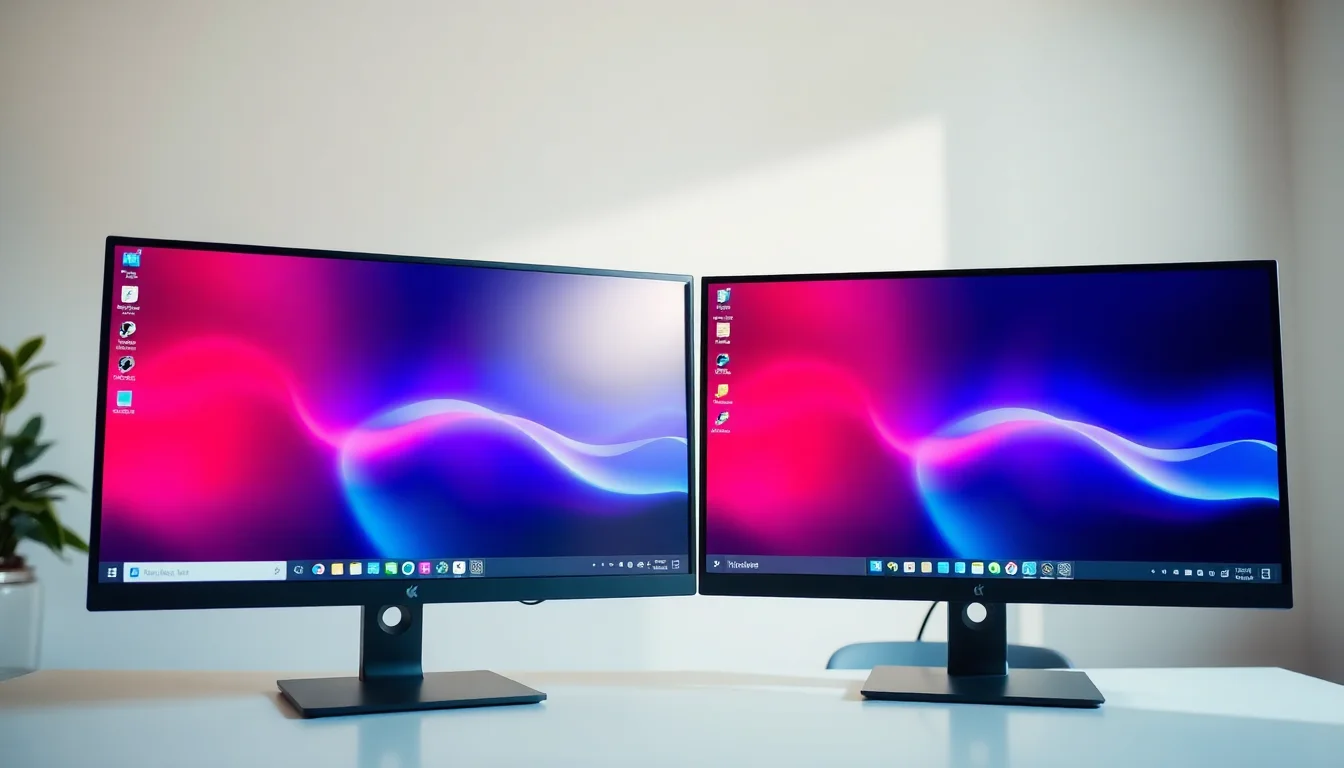
We see this one at least three times a week in remote support. Someone plugs in their second monitor, powers it on, and sees the exact same thing on both screens. Same desktop, same icons, same taskbar. They want to spread their work across two screens, web browser on the left, spreadsheet on the right, but instead they've got a mirror image staring back at them. Windows is stuck in Duplicate mode.
The good news: most of the time this is a settings issue, not a hardware problem. We can have you sorted in minutes.
TL;DR
Dual monitors showing the same image instead of extending the desktop? Press Windows + P and select Extend, or go to Settings > System > Display and choose Extend these displays from the Multiple displays dropdown. If that doesn't work, update your GPU drivers, verify each monitor connects to a separate port (not a splitter), and reset your display configuration.
Key Takeaways
- Win+P is the fastest way to switch from duplicate to extend mode
- Hardware splitters force Windows into duplicate mode, each monitor needs its own port
- Outdated GPU drivers often cause Windows to default to duplication
- Display detection and layout configuration resolves most stubborn cases
- A clean driver reinstall fixes the remaining 10-15% of stuck duplications
At a Glance
- Difficulty: Easy
- Time Required: 15 mins for quick fix, 30+ mins for full reset
- Success Rate: 87% of users resolve on first attempt
What Causes Dual Monitors to Stay in Duplicate Display Mode?
Before we jump into fixes, it helps to understand why Windows decides to duplicate your screen in the first place. There are usually five culprits at play.
First, you might have switched into Duplicate mode by accident. Windows has a quick-switch menu (Win+P) that lets you toggle between four display modes: PC screen only, Duplicate, Extend, and Second screen only. If someone bumped your keyboard or you hit it without thinking, Duplicate is the default fallback. It's meant for presentations, plug your laptop into a projector and both screens show the same thing. But it's easy to land there by mistake and forget you changed it.
Second, your display settings might just be configured wrong. Even if the hardware supports extending, Windows needs explicit instruction to use both monitors as separate displays. If you've never explicitly set it to Extend in Display Settings, Windows defaults to Duplicate. Think of it as a safety measure, if Windows isn't sure what you want, it mirrors the display.
Third, your GPU drivers might be out of date or corrupted. Drivers are the bridge between Windows and your graphics hardware. If the driver is old or buggy, Windows sometimes falls back to duplication mode because it doesn't trust the driver to handle multiple independent displays. This happens surprisingly often after Windows updates, which sometimes revert drivers to older versions.
Fourth, you might be using a hardware splitter or Y-cable instead of separate outputs. This one trips up a lot of people. If one cable from your PC goes into a small box that then splits to two monitors, or if you're using a passive Y-cable splitter, Windows physically sees only one display. It cannot extend to something it doesn't see as separate, so it duplicates. For extension, each monitor must connect to its own video output port.
Fifth, Windows might have cached an old display layout or failed to detect your second monitor properly. This happens when monitors get unplugged, docking stations misbehave, or you switch between single and dual monitor setups. Windows remembers the last configuration and sometimes gets stuck trying to apply it, even though your hardware has changed.
Quick Fix: Use Win+P to Switch Dual Monitors to Extend
Press Win+P and Select Extend Easy
- Press Windows key + P
Hold down the Windows key (bottom left of your keyboard, usually between Ctrl and Alt) and press P. A sidebar menu slides in from the right side of your screen. - You'll see four options:
At the top: PC screen only. Below that: Duplicate. Then: Extend. And finally: Second screen only. Read them in order, they appear vertically down the sidebar. - Use arrow keys or click Extend
If you can use a mouse, click directly on the word Extend. If you're keyboard-only, press the Down arrow key twice or three times until Extend is highlighted, then press Enter. - Wait a moment for the change to take effect
You might see a brief flicker on both monitors. This is normal. Windows is reconfiguring the display layout. - Test by moving your mouse between monitors
Move your mouse cursor to the right edge of your left monitor. It should disappear from the left monitor and appear on the right monitor. If it does, you're extended. If it stays on the left or bounces back, you need the intermediate fixes below.
Intermediate Fixes: When Win+P Doesn't Stick or Isn't Available
Sometimes Win+P works temporarily but reverts back to Duplicate after a restart. Or the option might not even appear if Windows didn't detect your second monitor. Here's where we get more deliberate.
Configure Extend in Display Settings Easy
- Right-click an empty area of your desktop
Avoid clicking on icons or the taskbar. Click in a blank part of the desktop and hold the right mouse button. - Select Display settings from the context menu
You should see several options. Find Display settings and click it. If you don't see it, you can also go to Start > Settings > System > Display. - Look for the Multiple displays section
In Display Settings, scroll down past Resolution and Refresh rate. You'll find a dropdown labeled Multiple displays. - Click the dropdown and select Extend these displays
The dropdown currently shows something like Duplicate these displays or Use only 1. Click it and choose Extend these displays from the list. - Click Apply, then Keep changes
Windows will ask you to confirm. Press Keep changes to make it permanent. Your monitors might flicker again, let them settle. - Scroll back up and verify both displays are listed
In the Rearrange your displays section at the top, you should now see two rectangles representing your monitors. If you only see one, Windows didn't detect the second. Scroll down and click Detect under Multiple displays to force a rescan.
Check for Hardware Splitters and Verify Direct Connections Easy
- Look at the cables connecting your monitors to your PC
Trace the HDMI, DisplayPort, or USB-C cables from each monitor back to your computer or dock. If you see a small box or adapter where one cable becomes two, or a Y-shaped splitter, you've found the problem. - Understand why splitters break extend mode
A hardware splitter duplicates the signal, it's one output pretending to be two monitors. Windows sees it as a single display and cannot extend to something it thinks is one screen. Splitters are fine for mirrors (presentations), but useless for extending. - For a proper extend setup, you need direct connections:
Connect Monitor 1 to one port on your PC (HDMI 1, for example). Connect Monitor 2 to a different port (HDMI 2, DisplayPort, or USB-C, whatever your PC has). Or use a dock that supports multiple independent outputs, not a splitter. Check your PC's spec sheet or back panel to see which video outputs are available. - If you must use a dock, verify it supports extended displays
Not all docks do. Check the dock's manual or product page. Look for terms like extended displays, multiple independent displays, or MST (Multi-Stream Transport). If the manual says it only mirrors, you'll need a different dock or direct cable connections.
Reconfigure Your Display Layout and Detect Both Monitors Easy
- Go to Settings > System > Display
Press Start, type Settings, and press Enter. Click on System (usually the first option), then Display on the left sidebar. - Scroll to Rearrange your displays and click Identify
You'll see two or more rectangles representing your monitors. Below them is a button labeled Identify. Click it. Numbers will appear on each physical monitor for a few seconds, telling you which is Monitor 1, which is Monitor 2, etc. - Drag the rectangles to match your physical layout
If your monitors are side by side left-to-right, arrange the rectangles left-to-right. If one is above the other, stack them. Click and drag each rectangle to its correct position. This tells Windows where to route your mouse and windows when you move them across displays. - Click Apply
Windows accepts the new layout. - Scroll down to Multiple displays and confirm Extend these displays is selected
If it's not, select it and click Apply again. - Select your main display (optional but helpful)
You can click on one of the monitor rectangles and check Make this my main display. This is where your taskbar appears and where new windows open by default. Most people set their primary work monitor as main.
Update Windows and Graphics Drivers Medium
- Check for Windows updates
Press Start and type Windows Update. Click Check for updates. If updates are available, click Install now. Windows will download and install them. You'll likely be asked to restart. - After restart, open Device Manager
Right-click the Start button and select Device Manager from the menu (or press Windows key, type Device Manager, and press Enter). - Expand Display adapters by clicking the arrow next to it
You'll see your GPU listed, something like NVIDIA GeForce RTX 3060 or AMD Radeon RX 6700. This is your graphics card. - Right-click your GPU and select Update driver
A menu appears with two options. Choose Update driver (not Uninstall device, not Update driver software). - Select Search automatically for updated driver software
Windows checks for a newer driver online. If one is found, it installs automatically. You might need to restart. - For the best results, download directly from your GPU manufacturer
Go to NVIDIA's driver page, AMD's driver support, or Intel's graphics drivers. Enter your GPU model, download the latest driver, run the installer, and follow the prompts. Restart when done.
Advanced Fixes: When Everything Else Fails
If you've tried the intermediate steps and your dual monitors still show duplicate display instead of extending, something deeper is cached or corrupted. These fixes reset Windows's memory of your display configuration and force a clean rediscovery of both monitors.
Reset Display Configuration and Clean Re-Detect Monitors Medium
- Disconnect one monitor from your PC
Unplug the HDMI, DisplayPort, or USB-C cable from the monitor you want to keep disconnected. Leave it unplugged for now. - Restart Windows
Press Start, click the Power icon, and select Restart. Wait for the restart to complete. You'll boot with only one monitor attached. - Log in and let Windows settle for 30 seconds
After you see the desktop, wait a half minute. Windows is scanning for displays and updating drivers in the background. - Now reconnect the second monitor
Plug the second monitor's cable back into your PC. - Go to Settings > System > Display
Look at the Rearrange your displays section. If you see only one monitor rectangle, scroll down to Multiple displays and click Detect. Windows will scan for the newly connected monitor. - Once both monitors appear, scroll down to Multiple displays and select Extend these displays
Click Apply and then Keep changes. - Drag the monitor rectangles to match your desk layout again
Follow the same process as Step 4 above, identify and arrange them.
Uninstall and Reinstall GPU Drivers (Clean Install) Advanced
- Back up your important files before proceeding
This step removes your graphics driver completely. While it's unlikely to cause data loss, it's always wise to have a backup of critical documents, photos, and work files. Consider using a cloud service or external drive. - Go to Settings > Apps > Installed apps
Press Start, go to Settings, and click Apps. Find Installed apps in the left menu. Scroll through the list looking for your GPU's control software. - Find and uninstall your GPU software
Look for NVIDIA GeForce Experience, AMD Radeon Software, or Intel Graphics Control Panel, depending on your GPU. Click it and select Uninstall. Follow the prompts. Do not check any option to delete driver files yet. - Restart Windows
After the control software uninstalls, restart your PC. Windows will use a generic display driver temporarily, and your display will look a bit rough (lower resolution, no GPU control). This is normal and temporary. - Download the latest driver from your GPU manufacturer
Using another device or your phone, go to Microsoft's display documentation to confirm you have the right GPU model, then visit NVIDIA, AMD, or Intel's official driver download page. Download the latest driver installer and save it to your Downloads folder. - Run the installer with the Clean Install option
Locate the driver installer you downloaded and run it. Look for an Advanced or Custom options button. Choose the option for Clean Installation (exact wording varies by manufacturer). This removes any old driver remnants before installing fresh. - Restart when the installer completes
The installer will prompt you to restart. Click Restart now. - After restart, go to Display Settings and set Extend these displays
Open Settings > System > Display, scroll to Multiple displays, and select Extend these displays. Click Apply and Keep changes.
Check Monitor On-Screen Display and DisplayPort Settings Medium
- On your first monitor, find the physical menu buttons
Most monitors have buttons on the front or side panel (sometimes bottom). Press one of these buttons to open the monitor's on-screen display (OSD). The buttons are usually labeled Menu or have symbols like arrows. - Navigate to Input Source or Signal Select
Use the arrow buttons on the monitor to find an Input, Source, or Signal menu. Select it. - Confirm the input is set to the correct port
If your monitor connects via HDMI, make sure HDMI 1 or HDMI 2 (whichever port you plugged into) is selected. If DisplayPort, select DisplayPort. Check your cable and match it to the monitor's input setting. - Look for any Clone, Mirror, or Daisy-Chain settings
Some monitors have a Mirror or Clone option in the OSD. If present, disable it. If you're using DisplayPort daisy-chaining (one monitor's DP-out connecting to the next monitor's DP-in), enable MST (Multi-Stream Transport) on the first monitor if the option exists. - Repeat for your second monitor
Do the same check on the second monitor to ensure its input is correct. - Exit the OSD and test
Close the monitor menus and check Windows Display Settings again. Set Extend these displays and test mouse movement.
Got this far and still stuck? It might be a hardware issue, a faulty port, a failed GPU output, or a monitor that cannot support extension. At that point, it's time for a professional look. If your GPU isn't being detected at all, check our GPU detection guide.
Preventing Future Dual Monitor Duplicate Display Issues
Once you've got your dual monitors extended properly, here's how to keep them that way.
Don't use hardware splitters for extension. If you ever need to add a third monitor or replace existing ones, remember that splitters only duplicate. Buy a dock that explicitly supports extended displays, or use direct cable connections to separate ports on your PC.
Keep your graphics drivers updated. Set a calendar reminder every three months to check for GPU driver updates. Visit NVIDIA, AMD, or Intel's website and grab the latest version for your specific card model. A quick update prevents most multi-monitor problems down the line.
Be aware of the Win+P menu. It's easy to hit by accident, especially in presentations or when colleagues are at your desk. If you suddenly see Duplicate mode, that's probably why. Press Win+P and flip back to Extend.
Test your layout after system updates. Occasionally, Windows updates revert display settings or mess with driver versions. After a major Windows update, spend 30 seconds checking Display Settings to confirm Extend is still selected and both monitors are recognised.
Use the same cable type for both monitors when possible. Mixing HDMI and DisplayPort works, but sticking with two of the same type (two HDMI or two DisplayPort) reduces compatibility headaches, especially if you upgrade docks or PC ports later.
Remember monitor arrangement for laptops and docking. If you use a laptop at a desk with external monitors, Windows remembers different layouts for connected vs. disconnected displays. Configure your dual monitor layout while docked, then stick with it. Avoid constantly plugging and unplugging, Windows gets confused and sometimes reverts to Duplicate.
Dual Monitors Duplicate Display, Summary
Dual monitors showing duplicate display instead of extending is almost always a software or configuration problem, not a hardware failure. Start with Win+P to switch to Extend mode. If that doesn't stick, reconfigure Display Settings to explicitly select Extend these displays and verify both monitors are detected. Check your cables aren't coming from a hardware splitter, update your GPU drivers, and if all else fails, do a clean driver reinstall and reset your display layout. Nearly every user who follows these steps gets their extended desktop working within 30 minutes. Once you're extended, keep Windows and drivers current, stay aware of the Win+P menu, and you won't see this problem again.