
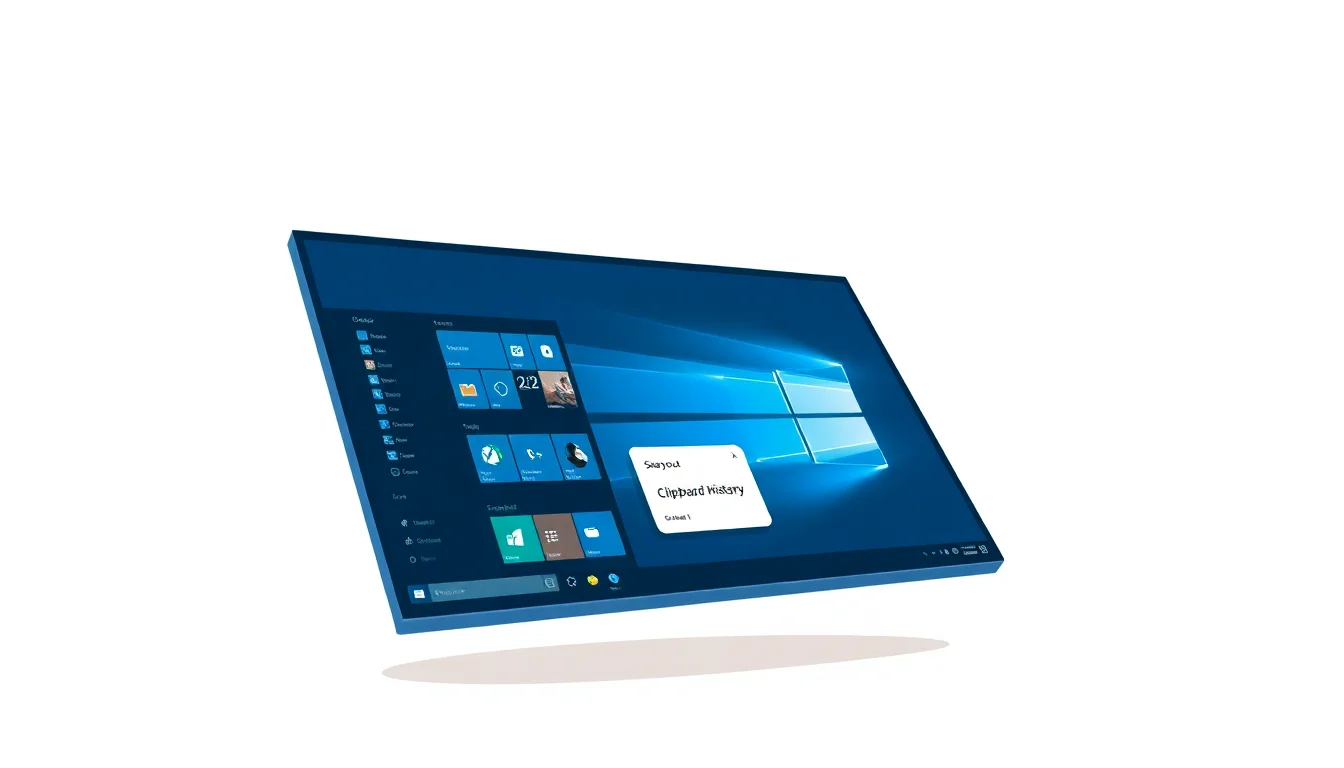
Windows 11 is packed with tools most people never touch. Not because they're hard to find, but because nobody told them to look. These ten tricks are the ones that actually shift how fast you work, not just ones that sound clever in a listicle. Some take thirty seconds to set up. A couple need five minutes. All of them are worth it.
Master Snap Layouts and Snap Groups
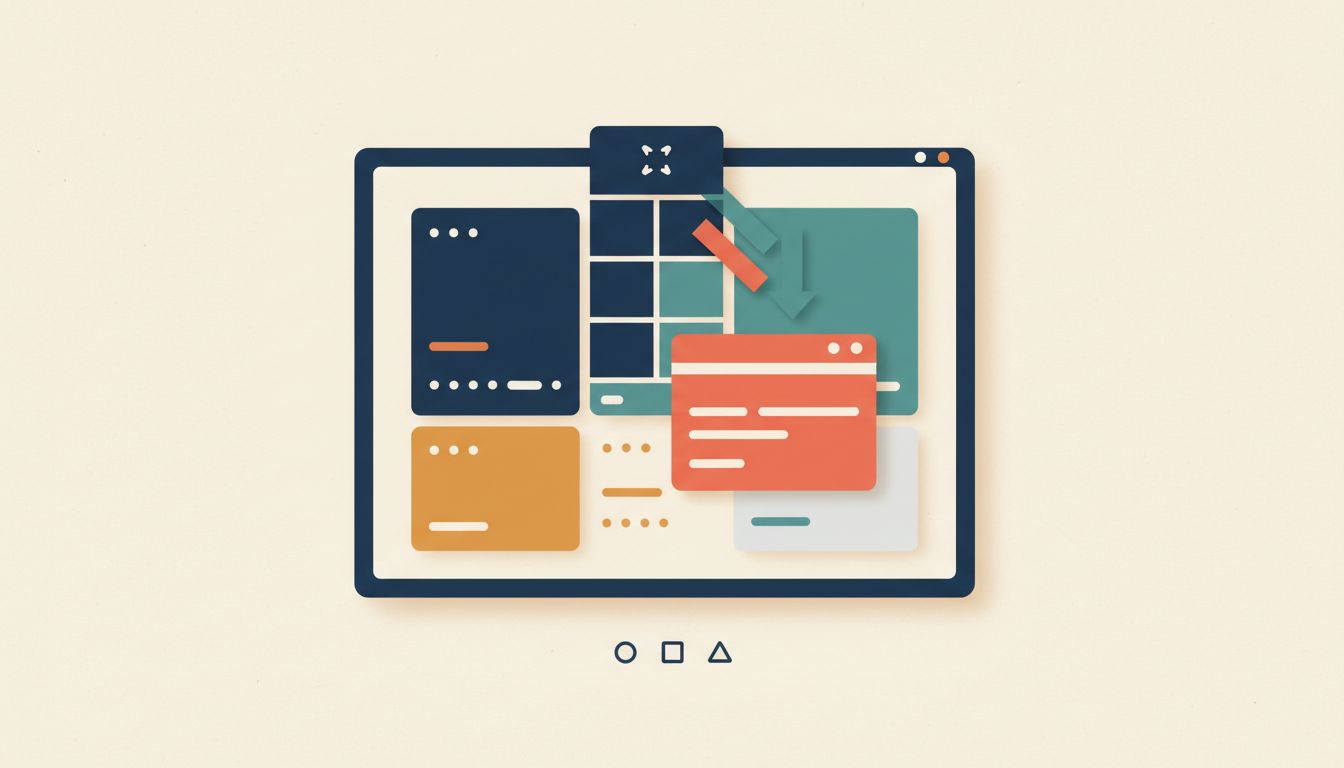
Stop resizing windows by hand. Seriously. Every minute you spend dragging window edges around is a minute you're not actually working, and Snap Layouts eliminate that entirely by letting you drop windows into predefined grid zones in about two seconds flat.
Hover your mouse over any window's maximise button and a grid overlay appears instantly, showing you every available layout option for your screen size. Click a zone, and Windows snaps the window there, then prompts you to fill the remaining zones from your other open apps. That's your Snap Layout done. Tidy, organised, zero resizing.
Snap Groups go one step further. Once you've arranged a set of windows together, Windows remembers that grouping. Hover over the taskbar thumbnail for any app in the group and you'll see the whole group previewed. Click it and every window in that arrangement snaps back into place. Context switching between a writing task and a research task becomes a single hover and click rather than five minutes of manual shuffling.
If you'd rather use the keyboard, Win+Left or Win+Right arrow snaps the active window to either half of the screen. Not as flexible as the full layout grid, but fast when you only need a split view.
- Hover your mouse over any window's maximise button until the Snap Layout overlay appears.
- Click your preferred zone to snap the window there; Windows will prompt you to fill remaining zones from open apps.
- To restore a Snap Group later, hover over the app's taskbar thumbnail and click the grouped preview that appears.
- Adjust Snap behaviour via Settings > System > Multitasking > Snap windows.
- Use Win+Left/Right arrow as a fallback for apps that resist the hover trigger.
Gotchas
- Snap Groups dissolve the moment you close any one of the constituent apps. They're not persistent arrangements, just live groupings.
- Some older or heavily customised third-party apps refuse to snap via the overlay. The Win+arrow keyboard shortcut usually works as a workaround.
- On screens below 1080p vertical resolution, fewer layout grid options appear. A higher-resolution external monitor unlocks more templates.
Use Virtual Desktops to Separate Every Context

One desktop for everything is cognitive chaos. Virtual desktops let you keep your email and calendar on one, a client project on another, and personal browsing somewhere that doesn't bleed into your working view at all.
Press Win+Tab to open Task View. At the top you'll see a "+ New desktop" button. Click it, give the desktop a name (double-click the label), and you've got a fresh environment with no open windows cluttering it. Switch between desktops with Ctrl+Win+Left or Right arrow without breaking your flow on either side.
Right-click any open window in Task View to move or copy it to a different desktop. And if you use a tool like Teams or a clock widget that you want everywhere, right-click it and choose "Show this window on all desktops". Use that option sparingly though, because pinning too many apps to all desktops defeats the whole point of separating your contexts.
- Press Win+Tab to open Task View, then click "+ New desktop" at the top of the screen.
- Double-click any desktop's label in Task View to rename it (e.g. "Work", "Research", "Personal").
- Switch between desktops using Ctrl+Win+Left or Right arrow.
- Right-click any window in Task View to move or copy it to another desktop.
- For tools you need everywhere, right-click in Task View and select "Show this window on all desktops".
Gotchas
- Virtual desktops don't survive a reboot unless those apps are configured to relaunch at startup. You'll need to recreate them after a restart.
- Taskbar notification badges don't tell you which desktop triggered them, so you'll still need to check apps manually.
- Pinning too many apps to all desktops quickly creates the same visual noise you were trying to escape.
Turn On Clipboard History and Stop Re-Copying Everything
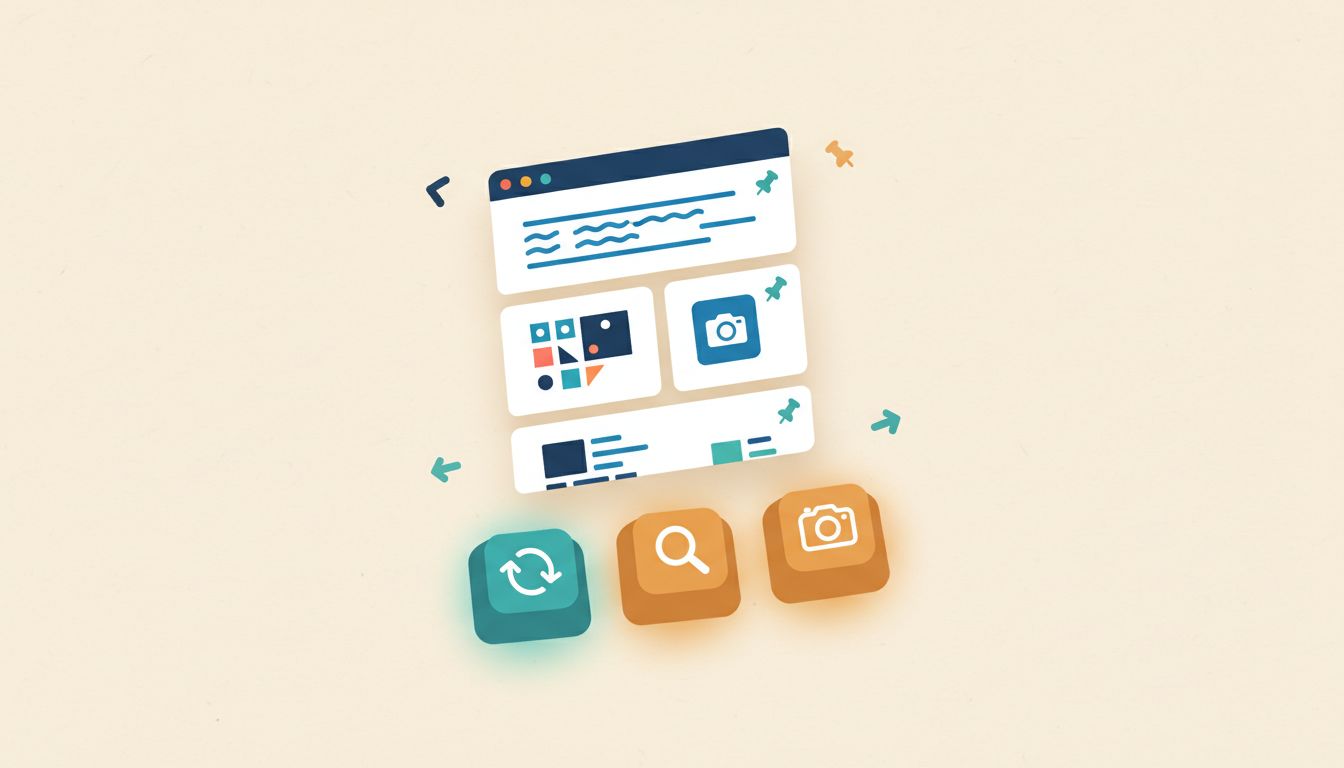
You've copied something, pasted it, then needed it again two minutes later and had to go back to find the original. That's a small frustration that happens dozens of times a day. Clipboard History kills it entirely.
By default it's off, which is a genuine shame because it's one of the most immediately useful features Windows offers. Head to Settings > System > Clipboard, toggle Clipboard history on, and from that moment Win+V opens a picker showing your last 25 copied items, text, HTML, and images included. Click any entry to paste it.
The pin feature is where it gets really powerful. Pin items you use constantly, things like a signature block, a recurring code snippet, a standard email disclaimer, and they persist across reboots. Permanently available, always one Win+V press away. You can also sync your clipboard across multiple Windows devices if you're signed into a Microsoft account, though that's optional.
- Go to Settings > System > Clipboard and toggle "Clipboard history" on.
- Press Win+V anywhere to open the Clipboard History picker and click any entry to paste it.
- Click the pin icon on any clipboard entry to make it persist across reboots.
- Delete individual entries with the X button, or clear all unpinned history from the picker's menu.
- To sync across devices, enable "Sync across devices" in the same Settings panel (requires Microsoft account sign-in).
Gotchas
- It's off by default and won't do anything until you manually enable it.
- Passwords and tokens can sit in your clipboard history unnoticed. Review and clear it regularly if you work with sensitive credentials.
- Images larger than 4 MB won't be stored in history at all.
- Clipboard sync needs both a Microsoft account and an active internet connection.
Use Focus Sessions to Protect Your Deep Work Time

Notifications are relentless. A Focus session doesn't just give you a timer, it actively suppresses interruptions, integrates with your task list, and gives you a structured reason to stay on one thing. Built right into Windows, no extra app needed.
Open the Clock app from the Start menu and look for "Focus" in the left sidebar. Set your session length (25 minutes is the default, matching the classic Pomodoro structure), optionally link a specific task from Microsoft To Do, and click "Start focus session". Windows automatically enables Do Not Disturb for the duration, muting badge notifications so they stop pulling your eye to the taskbar.
You can configure which apps are allowed to break through Do Not Disturb via Settings > System > Notifications > Do not disturb, which matters if you're expecting an urgent call. The Clock app also tracks completed sessions and streaks, which provides a surprisingly effective motivational nudge if that sort of thing works on you.
- Open the Clock app from the Start menu and select "Focus" in the left sidebar.
- Set your desired session duration and optionally link a Microsoft To Do task.
- Click "Start focus session"; Windows will enable Do Not Disturb automatically for the duration.
- Configure priority apps that can still break through DND via Settings > System > Notifications > Do not disturb.
- Review your session history and streaks in the Clock app's Focus history panel.
Gotchas
- Spotify integration requires both a Spotify account and the Spotify desktop app installed.
- Do Not Disturb won't suppress incoming Teams calls unless you also manually set your Teams presence status to Do Not Disturb.
- Focus sessions don't block browser access. You'll need a separate site-blocker extension if that's a distraction for you.
Learn the Keyboard Shortcuts That Actually Save Time
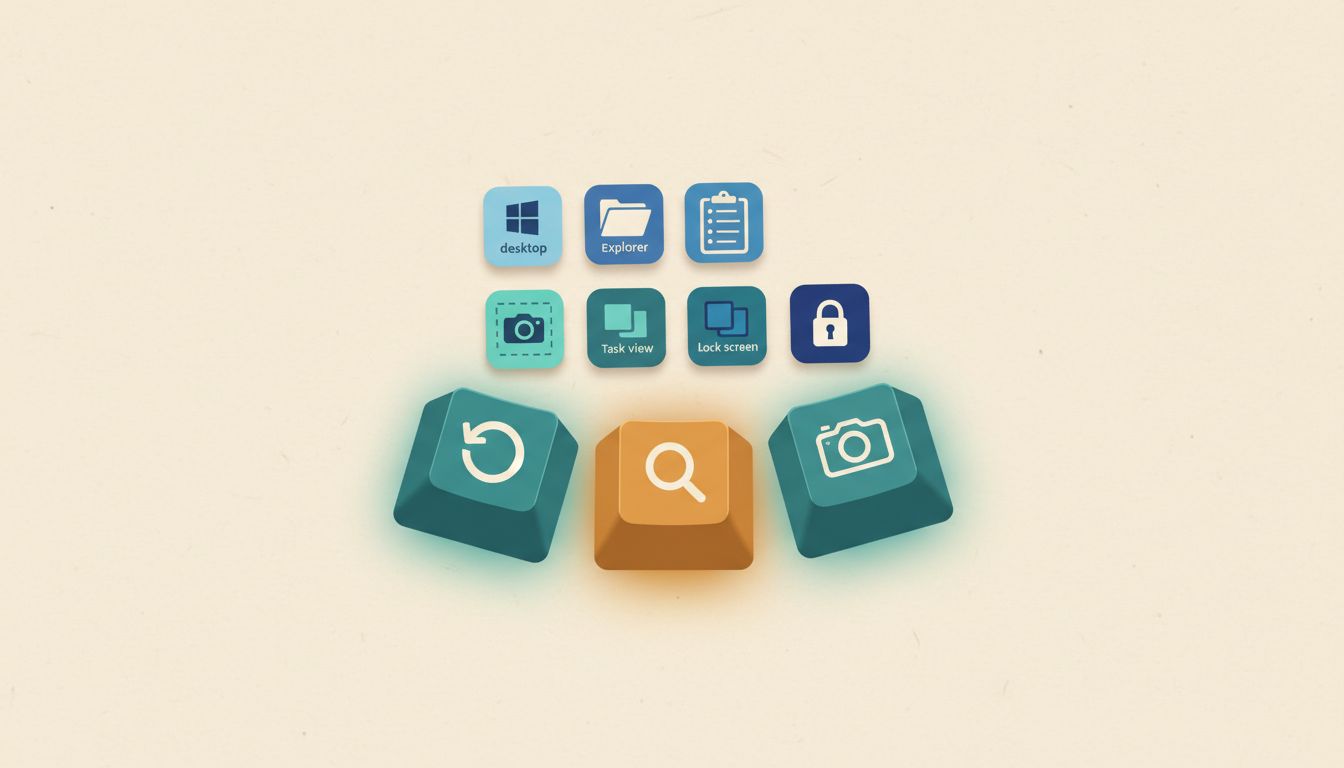
Most people know Ctrl+C and Ctrl+V. That's the floor, not the ceiling. The Win key shortcuts in Windows 11 are where the real time savings live, and internalising even a handful of them consistently makes common actions two to five times faster than reaching for the mouse.
Start with the ones you'll use every single day. Win+D shows and hides the desktop instantly. Win+E opens File Explorer. Win+L locks your PC immediately (useful the moment you step away from your desk). Win+V opens Clipboard History. Win+. (the full stop key) opens the emoji, symbol, and GIF picker in any text field. Win+Shift+S triggers the Snipping Tool for a quick screen capture. Beyond these essentials, there are hidden Windows 11 keyboard shortcuts that power users leverage for even faster workflows.
Add Win+Tab for Task View and Ctrl+Win+Left/Right to switch virtual desktops, and you've got a core set that covers most of what you do all day. Win+Number (1 through 9) launches or switches to whichever app sits in that position on your taskbar, which is worth memorising once you've settled on a taskbar layout you like.
- Win+D: show/hide the desktop.
- Win+E: open File Explorer directly.
- Win+L: lock the PC immediately.
- Win+V: open Clipboard History picker.
- Win+. (period/full stop): open emoji, symbol, and GIF picker.
- Win+Shift+S: open Snipping Tool for a screen capture.
- Win+Tab: open Task View for virtual desktops.
- Win+Number (1-9): launch or switch to a taskbar-pinned app by position.
- Ctrl+Win+Left/Right: switch between virtual desktops.
- Alt+Tab: classic app switcher; hold Alt and tap Tab to cycle through open windows.
Gotchas
- Some shortcuts conflict with in-app bindings, particularly in games. Win+. may not fire inside certain full-screen applications.
- Win+Number only maps reliably if your taskbar apps are pinned in a fixed, consistent order.
- Printing a shortcuts reference card and keeping it near your monitor genuinely accelerates how quickly these become muscle memory.
Dictate and Control Windows Entirely by Voice
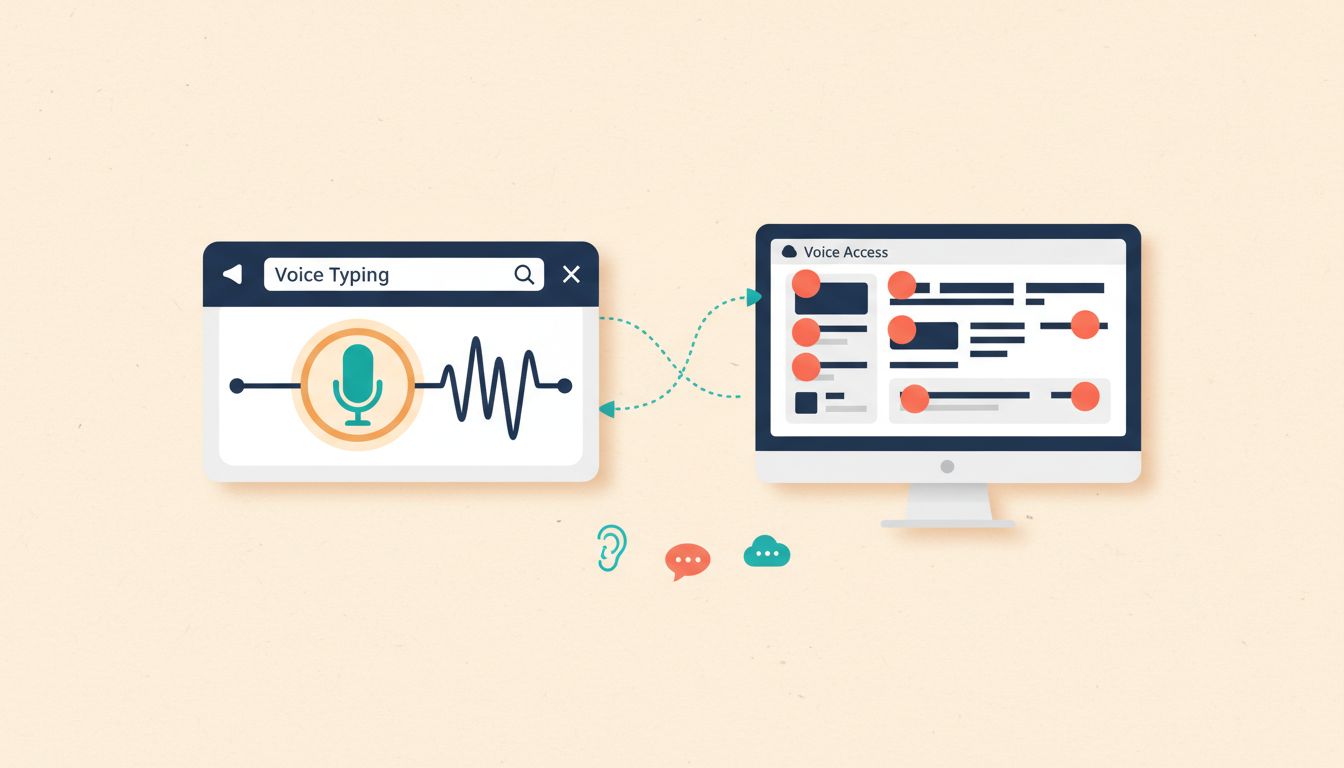
Voice Typing and Voice Access are two completely different tools that most people conflate or ignore entirely. Both are built into Windows 11. Both are genuinely useful. And neither requires a subscription or a third-party download.
Voice Typing is for dictation. Press Win+H in any text field and a small toolbar appears. Click the microphone, start talking. Enable auto-punctuation via the gear icon in the toolbar so you're not manually adding full stops and commas. It's fast, accurate on a decent microphone, and dramatically quicker than typing for longer-form content like emails or meeting notes.
Voice Access is something else entirely. It's full hands-free PC control. Go to Settings > Accessibility > Voice access and toggle it on. Once active, say "Show numbers" and every clickable element on screen gets a number overlay. Say the number to click it. Say "Open [app name]" to launch apps, "Scroll down" to scroll, "Select [word]" to highlight text. It's transformative for anyone managing a repetitive strain injury, or just anyone who wants to keep their hands off the keyboard for a stretch.
- Voice Typing: press Win+H in any text field to open the voice typing toolbar, then click the microphone and start dictating.
- Enable auto-punctuation by clicking the gear icon in the Voice Typing toolbar.
- Voice Access: go to Settings > Accessibility > Voice access and toggle it on. Optionally set it to start at sign-in.
- Say "Show numbers" to overlay number labels on every UI element, then say the number to activate it.
- Build your command vocabulary using the full Voice Access command list available in Settings or via a "What can I say" voice command.
Gotchas
- Voice Typing accuracy drops noticeably in noisy environments. A headset microphone helps considerably.
- Voice Access requires an initial language model download of around 200 MB on first use. Make sure you're on a decent connection.
- These are two separate systems. Turning on one does not activate the other.
- Accuracy with heavy accents or technical jargon can be inconsistent. Correcting mistakes as they occur helps train the system over time. For additional control over how Windows handles your data during these interactions, review your Windows 11 privacy settings.
Get More From Microsoft Edge With Workspaces and Vertical Tabs
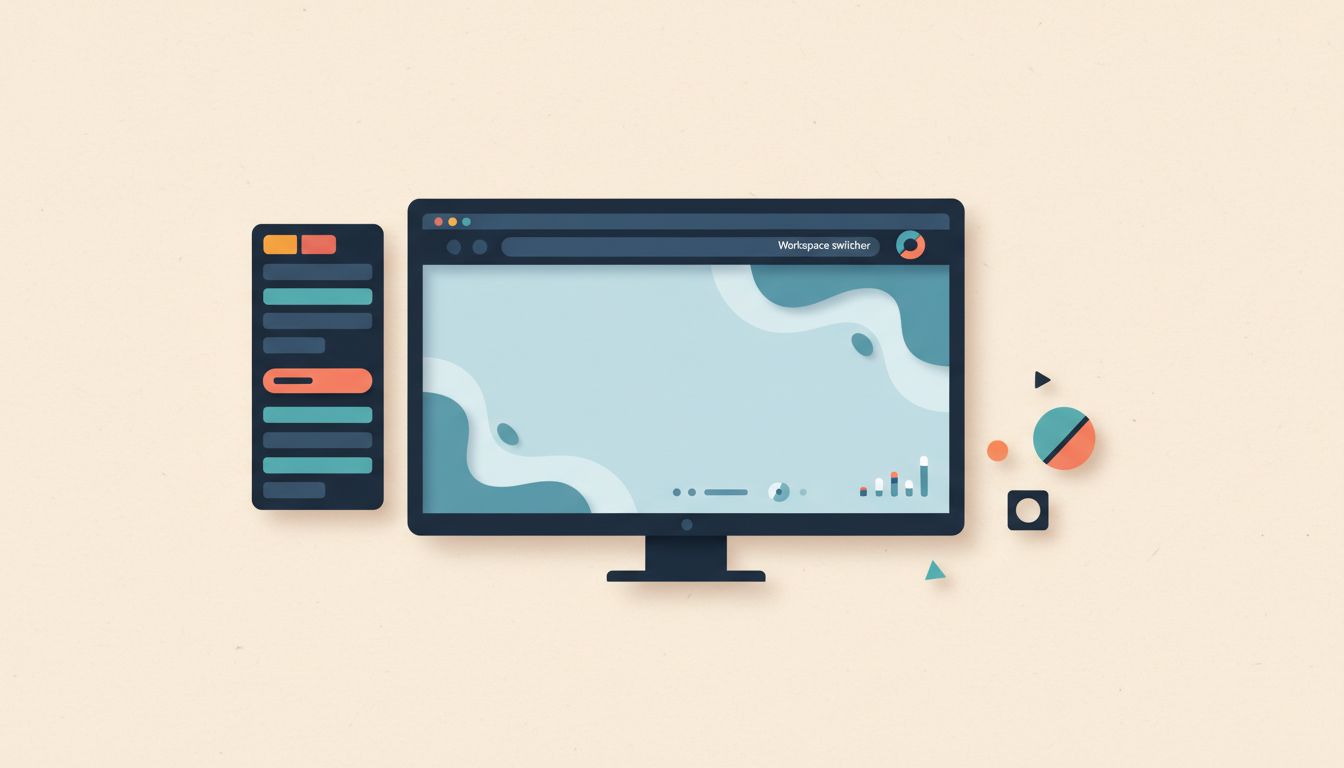
Edge isn't just a browser anymore. It's become a proper productivity workspace, with features for organising research, separating project contexts, and keeping Office apps a sidebar click away. Most people don't know half of what it does.
Vertical tabs are worth switching on immediately if you have a wide monitor. Click the toggle at the far left of the tab bar (or go to Settings > Appearance > Tab layout > Vertical) and your tabs shift to a collapsible left panel. You can see far more tab titles at once without squinting at tiny favicon slivers.
Workspaces take the concept of virtual desktops and apply it to your browser. Click the briefcase icon in the toolbar, create a new workspace, and that workspace keeps its own tab history and session. You can share a workspace with colleagues via a link, which makes collaborative research genuinely tidy rather than a mess of forwarded URLs. Tab Groups add colour-coded collapsible sections within a workspace, and Collections (Ctrl+Shift+Y) let you save and annotate pages for research without losing them in bookmarks you'll never revisit.
- Vertical tabs: click the vertical tab toggle at the far left of the tab bar, or enable it via Settings > Appearance > Tab layout > Vertical.
- Tab Groups: right-click any tab and select "Add tab to new group"; name and colour-code the group, then collapse it to save tab bar space.
- Workspaces: click the briefcase icon in the toolbar, select "Create new workspace", and each workspace maintains its own tabs and history.
- Collections: press Ctrl+Shift+Y, then add pages, highlights, and notes; export to Word or Excel when needed.
- Microsoft 365 sidebar: click the sidebar icon on the right edge of the toolbar to pin Outlook, OneNote, or Office apps as panels alongside any webpage.
Gotchas
- Workspace sharing requires all collaborators to be signed into Edge with a Microsoft account.
- Vertical tabs hide website favicons from the horizontal bar. Worth considering before a screen-share or demo.
- Collections don't sync in real time. Export manually when sharing research with anyone not using Edge.
Fix Windows Search So It Actually Finds Things
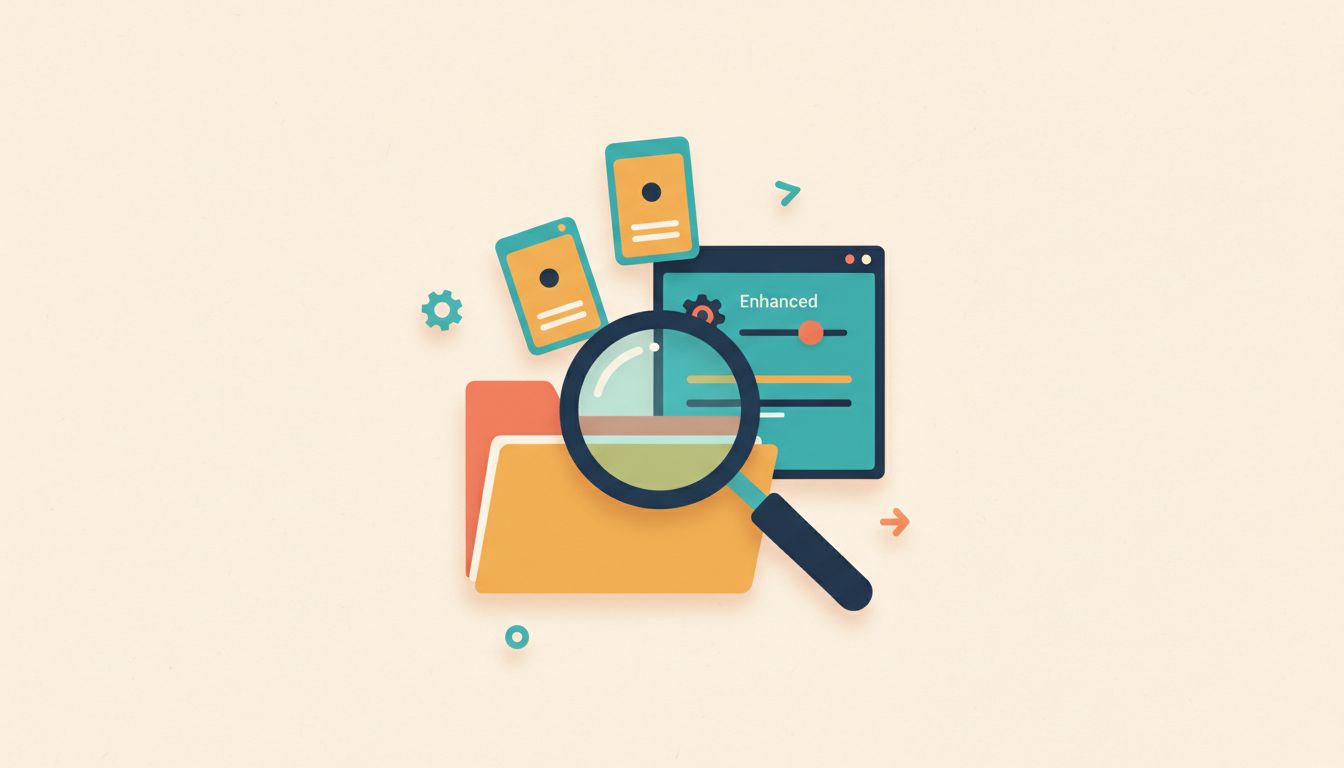
Windows Search has had a rough reputation, often surfacing web results when you wanted a file, or missing local content entirely. Recent updates have genuinely improved it. But you still need to configure indexing properly or you'll keep getting poor results.
By default, Windows only indexes a limited set of locations: your libraries, Desktop, and a few standard folders. Switch to Enhanced indexing by going to Settings > Privacy & security > Searching Windows and selecting "Enhanced". This extends the index to cover all folders on your drive, which means pressing Win+S and typing a filename actually finds it rather than returning a Bing suggestion.
You can also use search filters to narrow results without digging through folders at all. Typing "kind:document" or "kind:image" filters by file type. Adding "modified:this week" narrows to recent files. It's not fancy, but it's faster than opening File Explorer and clicking through four subdirectories to find a PDF you know exists somewhere.
- Go to Settings > Privacy & security > Searching Windows and select "Enhanced" indexing mode.
- Add specific folders to the index or exclude sensitive directories via the "Add an excluded folder" option on the same page.
- Press Win+S or click the taskbar Search bar to search; type a filename, app name, or setting.
- Use filters such as "kind:document", "kind:image", or "modified:this week" to narrow results quickly.
- If results seem stale or incomplete, rebuild the index via Settings > Searching Windows > Advanced indexing options > Rebuild.
Gotchas
- Enhanced indexing increases disk activity during the initial build. On a traditional spinning HDD, it's worth scheduling this for when you're not using the machine.
- Network drives aren't indexed by default. You can add them manually, but expect a performance hit on slow network connections.
- If your index gets corrupt or very stale, the Rebuild option is the nuclear fix. It'll take a while but fully resolves most search reliability problems.
Audit Your Startup Apps and Reclaim Your Boot Time
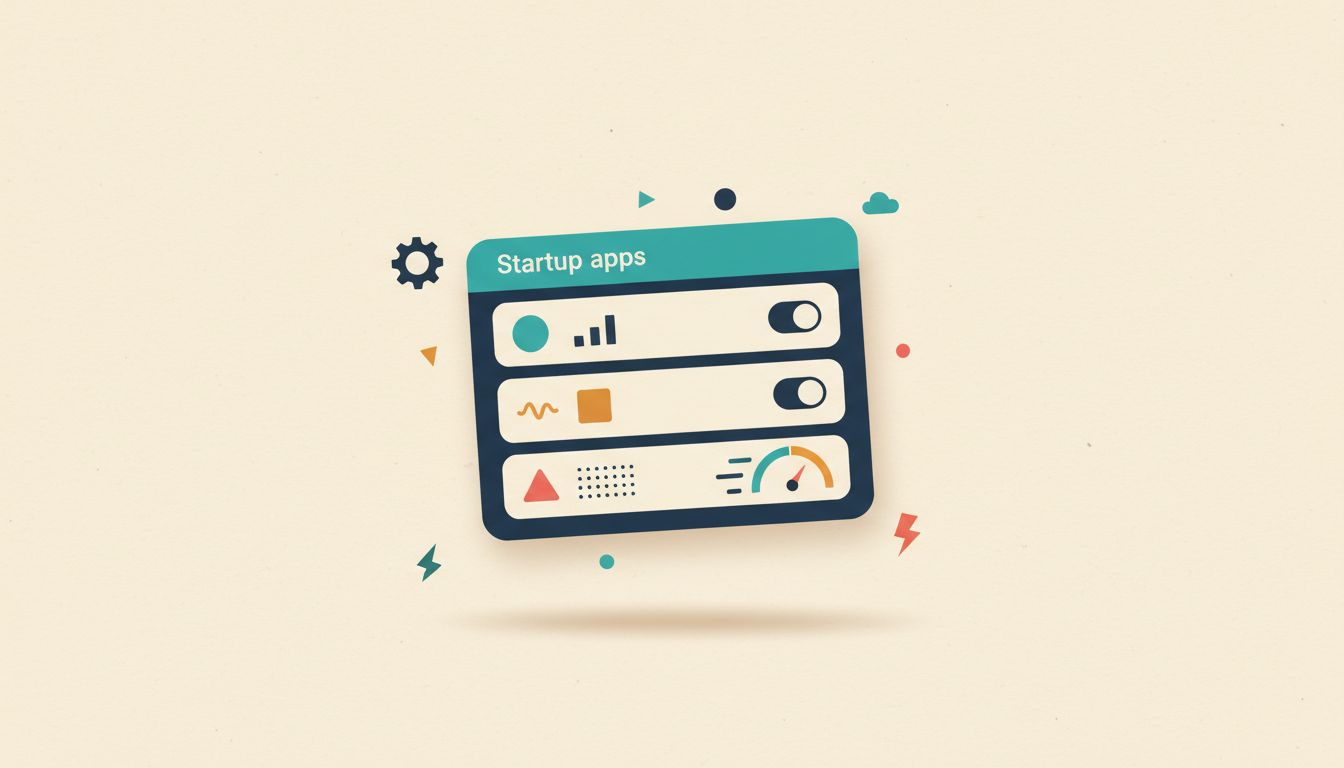
Every app that launches at startup adds to your boot time and then sits quietly consuming CPU and RAM for the rest of your session. Most of them you don't need running in the background at all. This is one of the quickest single actions you can take to make Windows feel faster.
Go to Settings > Apps > Startup and you'll see every app configured to run at login, each with a measured impact rating of Low, Medium, or High. High-impact entries are the ones making your machine feel sluggish after a restart. Toggle off anything you don't need the moment you log in. You can still launch them manually whenever you actually want them.
Task Manager gives you more detail. Press Ctrl+Shift+Esc, click the Startup apps tab, and you'll see startup time contributions alongside each entry. Right-click anything unfamiliar and choose "Open file location" to investigate it before you disable it. Better cautious than accidentally switching off something important.
- Open Settings > Apps > Startup to see all startup apps with their Low, Medium, or High performance impact ratings.
- Toggle off any app you don't need immediately after login. You can still launch it manually whenever needed.
- Open Task Manager (Ctrl+Shift+Esc) and go to the Startup apps tab for more detail including startup time contribution.
- Right-click any unfamiliar entry and select "Open file location" to investigate it before disabling.
- Re-enable an app promptly if you notice expected background behaviour has stopped, such as OneDrive sync not running.
Gotchas
- Disabling OneDrive at startup stops background sync entirely until you open it manually. Files won't sync while it's closed.
- On a managed work device, some entries are security agents or MDM clients. Don't disable those without checking with your IT team first.
- The "High impact" label reflects startup delay, not ongoing RAM consumption. A high-impact app might still be worth keeping if you genuinely need it running.
Use Windows Sandbox and Built-In OCR to Work Safer and Faster
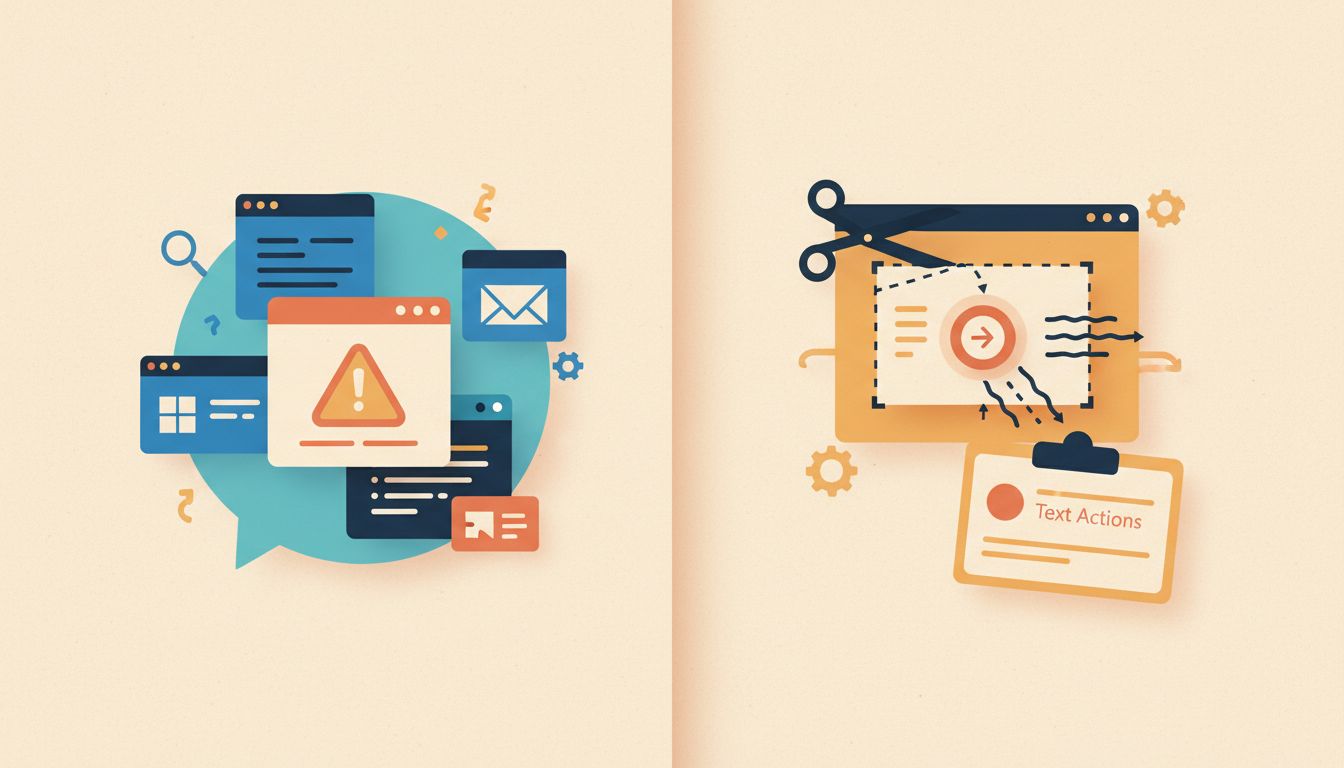
Two underrated Windows features that most people have never heard of, let alone used. One keeps your machine safe when testing anything sketchy. The other saves you from manually retyping text you can literally see on your screen.
Windows Sandbox creates a completely isolated, disposable desktop environment. Install something inside it, test a suspicious link, run an unfamiliar script, and when you close Sandbox it resets completely. Nothing carries over to your real system. To enable it, open "Turn Windows features on or off" from the Start search, tick "Windows Sandbox", click OK, and restart. Available on Windows 11 Pro and above.
The OCR side of things is genuinely handy for day-to-day work. Press Win+Shift+S to take a screen capture with the Snipping Tool, then in the Snipping Tool window click the "Text actions" icon. Windows detects the text in your screenshot and lets you copy it straight to the clipboard. No retyping. No transcription errors. Works on screenshots of PDFs, error messages, images, anything on screen with readable text. If you want a more powerful version of this, PowerToys Text Extractor (available free from the Microsoft Store) lets you draw a selection over any on-screen text at any time via a keyboard shortcut and copies it instantly.
- Windows Sandbox: search "Turn Windows features on or off" in Start, tick "Windows Sandbox", click OK, and restart your PC.
- Launch Windows Sandbox from Start and install or test any software or link inside it safely. Everything resets on close.
- Snipping Tool OCR: press Win+Shift+S, capture any screen region containing text, then click the "Text actions" icon in the Snipping Tool window to copy detected text.
- PowerToys alternative: install PowerToys from the Microsoft Store, enable Text Extractor in the dashboard, and use the shortcut (default Win+Shift+T) to extract text from any screen region.
- For bulk OCR of scanned PDFs, a dedicated tool will give better results than either built-in option.
Gotchas
- Windows Sandbox is only available on Windows 11 Pro, Enterprise, and Education. It's not on the Home edition.
- Sandbox has no persistent storage. Any files you create or download inside it are gone the moment you close the window. Copy them out first.
- Snipping Tool OCR accuracy drops with low-resolution images, stylised or handwritten fonts, or complex patterned backgrounds.
- PowerToys Text Extractor can misread characters in small or densely packed text. Always verify what it captures before using it.