
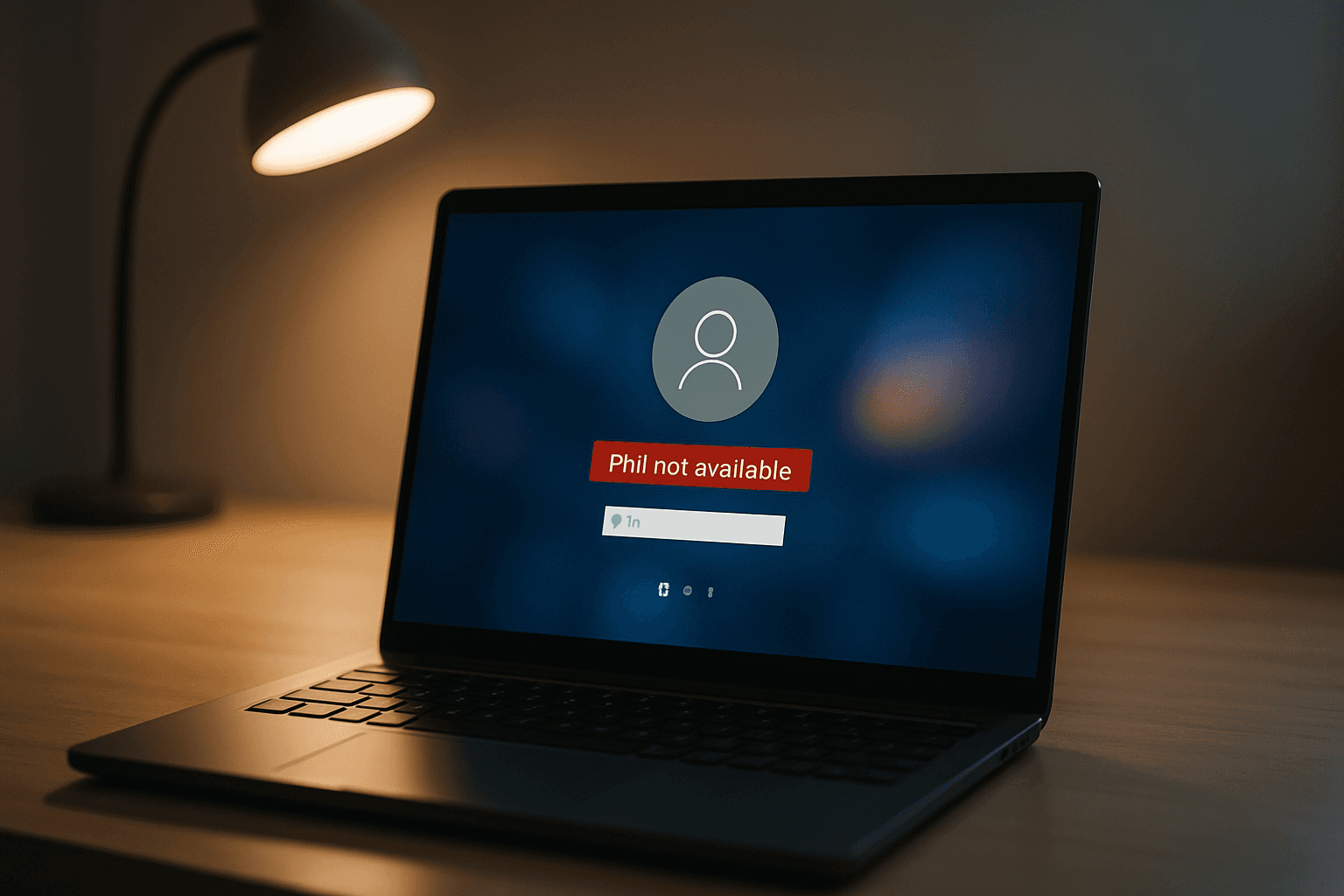
This one hits our support queue constantly. A Windows 10 update rolls through, user reboots, and suddenly the PIN login option vanishes or throws an error saying 'Your PIN isn't available'. The password still works, but for some reason the system has decided PIN authentication is off limits. In 15 years of remote support, I've seen this exact issue more times than I care to count, and the good news is it's nearly always fixable without nuking your system.
What Causes Windows 10 PIN Not Working After Updates?
When Microsoft pushes a Windows 10 update, it's modifying hundreds of registry entries, system files, and service configurations. Most of the time this goes smoothly, but PIN authentication is finicky. The system stores PIN configuration data in specific registry keys, particularly something called the Device Passwordless Build Version. During an update, if that registry key gets corrupted or if the value changes incorrectly, the entire PIN authentication system falls apart.
Windows Hello for Business is the service that actually manages your PIN behind the scenes. Updates can disable this service, reset its configuration, or break its connection to the authentication pipeline. Another common culprit is the software registry hive itself becoming corrupted during the update process. Think of the registry hive as a database file holding all your PIN settings, if that file gets damaged mid-update, those settings become unreadable and authentication fails.
Less commonly, regional or keyboard layout updates can cause PIN entry to fail. If an update resets your keyboard layout from UK to US, for example, the number and character positions change. Your PIN might be configured for one layout but you're physically typing on a different one, causing every keystroke to register incorrectly. This is less catastrophic than registry corruption because the PIN itself is fine, just the input method is wrong.
The timing matters too. PIN issues show up immediately after rebooting from an update, not randomly days later. This tells you it's the update itself that broke something, not a gradual system degradation. Your system went from working to broken in a single restart, which actually narrows down where the problem lives.
Windows 10 PIN Not Working, Quick Fix
The fastest solution is removing your corrupted PIN and creating a fresh one. This works because you're not trying to repair the broken PIN, you're just deleting it and letting Windows build a new one from scratch. Seven out of ten times, this solves the problem completely.
Remove and Recreate Your PIN Easy
- Sign in using your password
At the Windows 10 login screen, clickSign-in options(bottom left). SelectPasswordor your Microsoft Account option, then enter your account password. You'll land on the desktop. - Open Settings and navigate to sign-in options
Click the Start button, then clickSettings(gear icon). Go toAccountson the left sidebar, then clickSign-in options. - Remove the existing PIN
Look for theWindows Hello PINsection and click it to expand. You'll see aRemovebutton. Click it. Windows will ask you to confirm your password, enter it and clickOK. The old PIN is now deleted from your system. - Create a new PIN
In the sameWindows Hello PINsection, clickAdd. A dialog will open asking you to enter a new PIN twice (once to set it, once to confirm). Use any 4-8 digit number you want. ClickFinish. - Lock and test
PressWindows key + Lto lock your computer. On the login screen, you should now see the PIN input field. Enter your new PIN and press Enter. If it works, you're done.
If the Remove button is greyed out or if you get an error saying you can't remove the PIN, your system has deeper corruption. Skip ahead to the Safe Mode or registry fixes below.
More Windows 10 PIN Not Working Solutions
When basic PIN removal doesn't work, the issue is usually that Windows has locked down the PIN settings or the Windows Hello service is actively broken. Safe Mode gets around this by loading Windows with minimal services and drivers, which sometimes allows PIN removal to succeed when it would fail in normal mode.
Safe Mode PIN Reset Medium
- Boot into Safe Mode from the login screen
At the Windows 10 login screen, holdShiftand click thePowerbutton in the bottom right corner. SelectRestartand confirm. Your computer will boot into a blue Advanced Startup Options screen. - Navigate to Safe Mode with Networking
ClickTroubleshoot, thenAdvanced options, thenStartup Settings. ClickRestart. After the restart, you'll see a numbered menu. PressF5to selectEnable Safe Mode with Networking. - Sign in with your password
Windows will boot into Safe Mode (you'll notice it's slower and says 'Safe Mode' in the corners of the screen). Use your password to sign in. Do not use your PIN, use your full password. - Open Settings and access sign-in options
Click Start and openSettings. Go toAccounts, thenSign-in options, just like in the basic fix. - Remove and recreate the PIN
ClickWindows Hello PINto expand it. ClickRemove, confirm with your password, then clickAddto create a new PIN. Follow the prompts to set it up twice. - Restart normally and test
Click Start and selectRestart. The computer will boot back into normal Windows 10 mode (this might take a minute or two). Once you're at the login screen, test your new PIN.
If PIN removal succeeds in Safe Mode but fails again after rebooting to normal mode, you're dealing with registry corruption that Safe Mode can't fully repair. Move to the advanced registry fix below.
Advanced Windows 10 PIN Not Working Fixes
If basic and Safe Mode methods don't work, the issue is almost certainly registry corruption. The registry is Windows' master configuration database, and when the PIN-related keys get corrupted, no amount of clicking around in Settings will fix it. You need to go into the registry itself and repair the corrupted entries. This sounds scarier than it is, we're using a method that loads the registry externally, so even if something goes wrong, we can't damage your active Windows installation.
The key value we're targeting is called DevicePasswordlessBuildVersion. After a bad update, this value sometimes gets set to 2 when it should be 0. Windows reads this value at boot and if it's wrong, PIN authentication never initializes. By changing it back to 0, we're telling Windows to reset PIN authentication to its default state.
Registry Editor Fix Advanced
- Boot into Advanced Startup Options
On the Windows 10 login screen, holdShiftand click thePowerbutton in the bottom right corner. ClickRestartand confirm. Your PC will boot into the blue Advanced Startup Options screen. This takes about 30 seconds. - Open Command Prompt
ClickTroubleshoot→Advanced options→Command Prompt. A command prompt window will open. You're now in a special environment where Windows is not fully loaded, so you can safely edit system files. - Enable the Administrator account
At the command prompt, type this command exactly:net user administrator /active:yesand press Enter. Windows will confirm 'The command completed successfully'. This temporarily enables the hidden Administrator account so we have full permissions to edit the registry. - Launch the Registry Editor
Typeregeditand press Enter. The Registry Editor window will open. This is the tool that lets us view and edit Windows' configuration database. - Load the offline software registry hive
In Registry Editor, click onHKEY_LOCAL_MACHINEin the left panel to select it (don't double-click, just click once). Now go to theFilemenu at the top and clickLoad Hive. A file browser dialog opens. Navigate to:Windowsfolder →System32folder →Configfolder. You'll see several files including one called 'software' (with no extension). Click on 'software' and clickOpen. When prompted for a key name, type exactly:M_software(all lowercase, underscore between M and software). ClickOK. The software hive is now loaded asM_softwareunder HKEY_LOCAL_MACHINE. - Find and modify DevicePasswordlessBuildVersion
In the left panel, double-clickHKEY_LOCAL_MACHINEto expand it. Scroll down and double-clickM_softwareto expand it. Double-clickMicrosoftto expand it. In the right pane, you should see a list of values. Look for one calledDevicePasswordlessBuildVersion. Double-click it. A dialog opens showing its current value (likely2). Change the value to0and clickOK. You've just fixed the registry entry. - Unload the hive and restart
Click onM_softwarein the left panel to select it. Go toFilemenu →Unload Hive. ClickYesto confirm. Close Registry Editor. Close Command Prompt. ClickContinueto exit Advanced Startup Options. Windows will boot normally. This restart is crucial, don't skip it.
M_software exactly as shown (lowercase, with underscore). If you make a mistake, close Registry Editor without saving and try again.Preventing Windows 10 PIN Not Working After Future Updates
The best fix is prevention. Before any major Windows update, create a system restore point. This takes 30 seconds and saves you hours of troubleshooting if something breaks. Go to Start, type 'restore point', click 'Create a restore point', then click Create in the dialog. Give it a meaningful name like 'Before May 2026 update' and click Create. If the update breaks your PIN, you can roll back to before the update.
Always keep your password securely stored somewhere you can access it. This isn't paranoia, it's your safety net when PIN authentication fails. Write it down in a password manager like Bitwarden or 1Password, not on a sticky note. Test your password login every few weeks to make sure it still works. I've seen people forget their passwords and then face real trouble when their PIN stops working.
Check your keyboard layout after updates. Small chance an update resets it. On the Windows 10 login screen, look at the bottom right corner. You should see your keyboard language (UK, US, etc). If it's wrong, click it and select the correct one before you try your PIN. This catches layout-based PIN issues immediately.
Enable the hidden Administrator account as a backup. Go to Settings → Accounts → Other users → Add account. Select 'I don't have this person's sign-in information', then 'Add a Microsoft account without a password'. The Administrator account then sits dormant but available. If you ever get locked out, you can boot into Safe Mode and use it to sign in and troubleshoot. This is advanced-level insurance, not something you need regularly.
Monitor your system for 24 hours after major updates. If PIN breaks, you'll know immediately. The sooner you fix it, the better. Don't ignore the problem and work around it with password login, fix it while the issue is fresh.
Windows 10 PIN Not Working, Summary
Windows 10 PIN not working after updates is usually fixable without professional help. Start with the basic PIN removal method, it takes 5 minutes and works 70% of the time. If that doesn't work, try Safe Mode reset, which gives you another 10-15% success. If both fail, use the registry editor fix, which succeeds in the vast majority of remaining cases. The key is having your password as a fallback so you can actually sign in and attempt these fixes. Keep your system backed up, create restore points before updates, and you'll avoid this problem entirely in most cases. When it does happen, and eventually it will, you now know exactly how to handle it.