
Most people use their iPhone the same way every day. Tap, swipe, wait. Tap again. But buried inside iOS is a shortcuts and automation layer that can genuinely change how you interact with your phone. Not gimmicks. Real time-savers. Here are ten that most people have never touched.
Build a Personal Command Centre with a Menu Shortcut
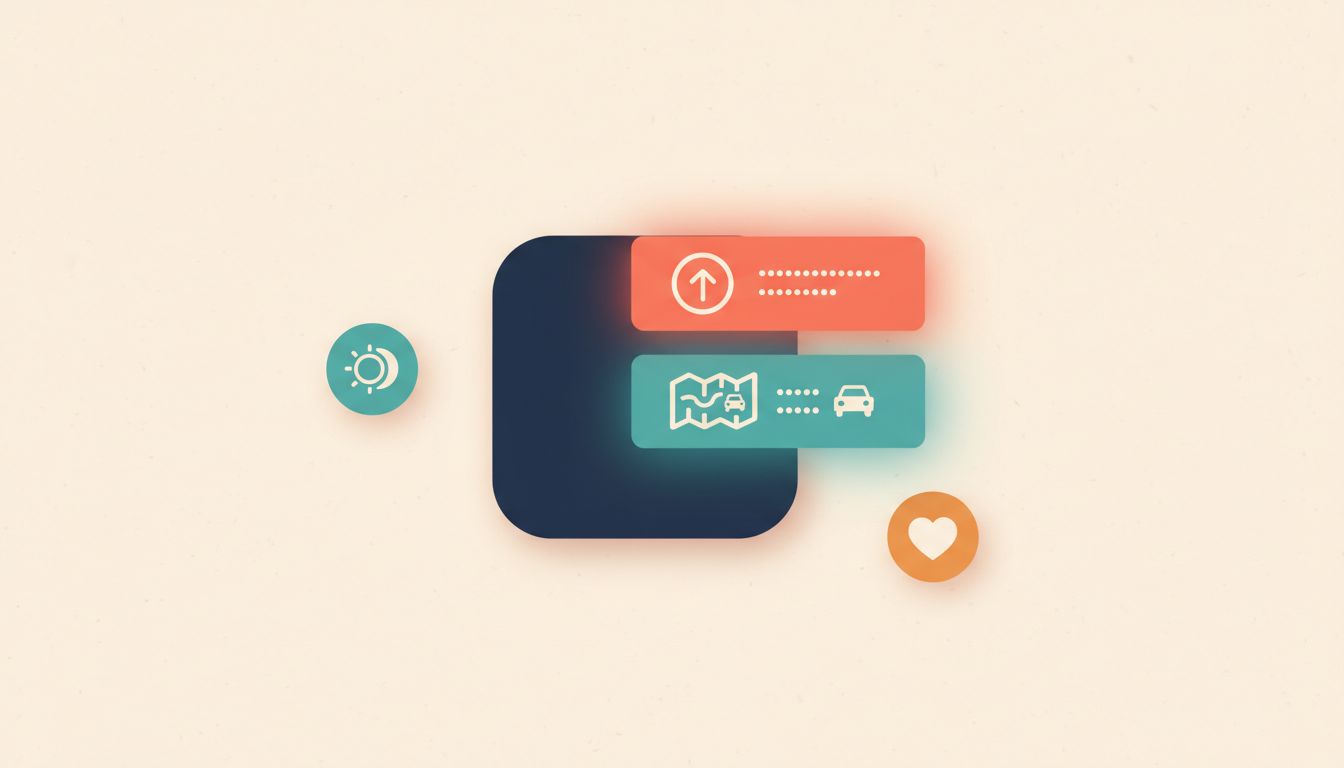
One icon on your Home Screen. Dozens of tasks behind it. That's the whole idea.
Instead of cluttering your Home Screen with ten different shortcut icons, you can build a single shortcut that presents a tappable menu when you open it. Log water, start a Focus mode, send your ETA, check the weather, whatever you actually do every day. All behind one tap. It sounds small. It isn't.
The action you want is called 'Choose from Menu'. Each menu item gets its own branch of actions underneath it. Keep it to five or six options though, because deeply nested menus become their own problem.
- Open the Shortcuts app and create a new shortcut.
- Search for and add the 'Choose from Menu' action.
- Label each menu item with something clear, like 'Log Water' or 'Start Work Focus'.
- Under each item, add the specific actions for that task.
- Add the finished shortcut to your Home Screen as a single icon.
Watch out for
- Each branch runs actions in sequence, so a branch with several steps can feel sluggish. Keep individual branches lean.
- More than seven menu items and you'll start scrolling to find what you want, which defeats the point entirely.
Automate Your Entire Morning Routine with One Time Trigger
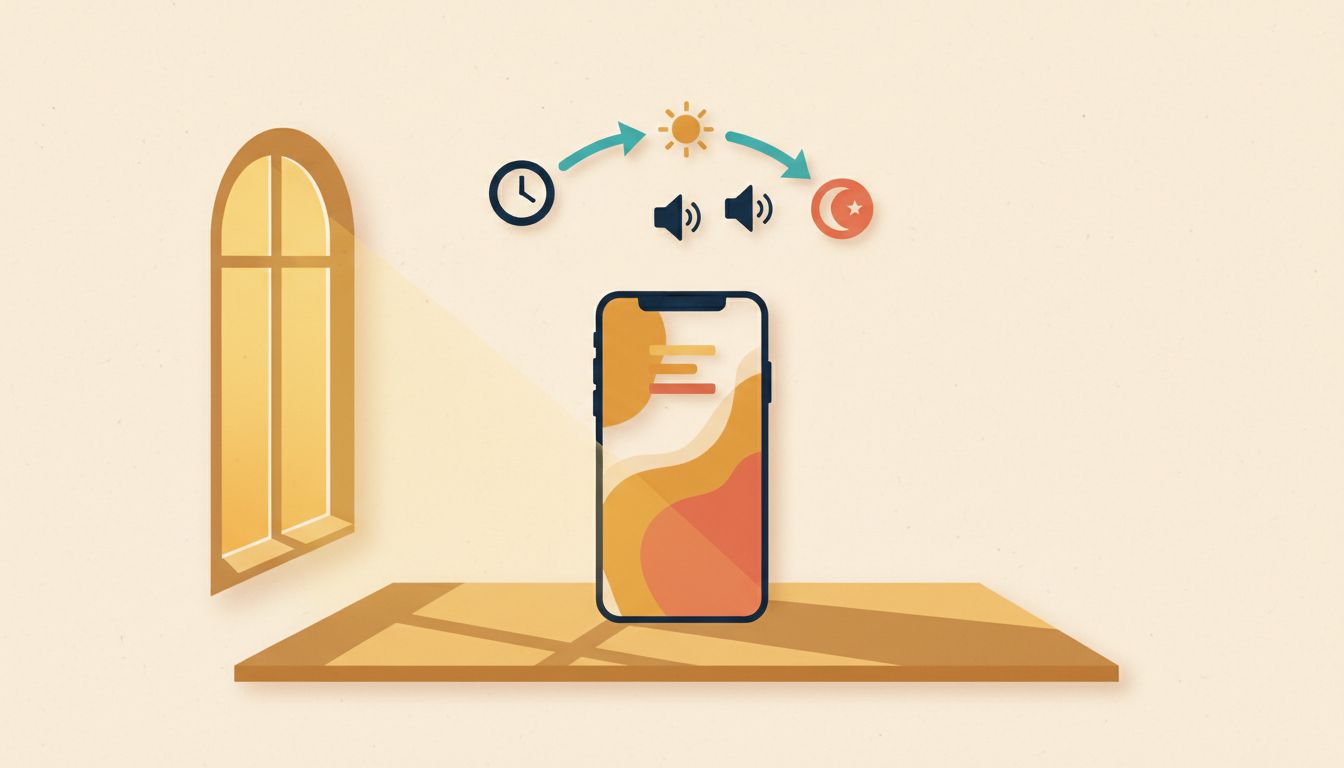
Your iPhone can prepare itself before you've even picked it up.
A time-based automation can fire every weekday at 7am and, without you touching anything, enable your Morning Focus, crank the brightness up, set the volume to a sensible level, and open your first app of the day. All of it. Automatically. The trick is enabling 'Run Immediately' so you don't get a confirmation notification you have to tap first.
- Open the Shortcuts app and go to the Automation tab.
- Tap the + button and choose 'Time of Day' as your trigger.
- Set your time and choose your repeat frequency, such as weekdays only.
- Add your chain of actions: Set Focus Mode, Set Brightness, Set Volume, open a specific app.
- Look for the 'Run Immediately' toggle and enable it so the automation fires without asking.
Watch out for
- 'Run Immediately' isn't available for every action type. Anything involving sending messages will still prompt for confirmation.
- If you have two automations set for the exact same time, they can conflict. Stagger them by at least a minute.
Assign a Shortcut to the Action Button for One-Press Access

That little button on the side of your iPhone 15 Pro or 16 Pro? It can run literally anything.
Most people leave the Action Button set to silent mode, which is fine. But you can assign any shortcut to it instead. A single press runs a full automation instantly. Your clipboard manager, your morning log, your translate tool, whatever you need most. One press, done. No unlocking, no finding an icon.
And even if you don't have a Pro model, placing a shortcut icon on your Home Screen still reduces any multi-step workflow to a single tap. Worth doing regardless.
- On iPhone 15 Pro or 16 Pro, go to Settings, then Action Button.
- Swipe through the options until you reach Shortcut.
- Tap 'Choose a Shortcut' and select the one you want to assign.
- For any iPhone, open a shortcut, tap the share icon, and choose 'Add to Home Screen' with a custom name and icon.
Watch out for
- The Action Button only holds one shortcut at a time. Make it a menu shortcut (see tip one) if you want multiple options behind a single press.
- Home Screen shortcuts briefly open the Shortcuts app before running. That's normal, not a bug.
Build a Clipboard Manager Because iOS Still Only Holds One Thing
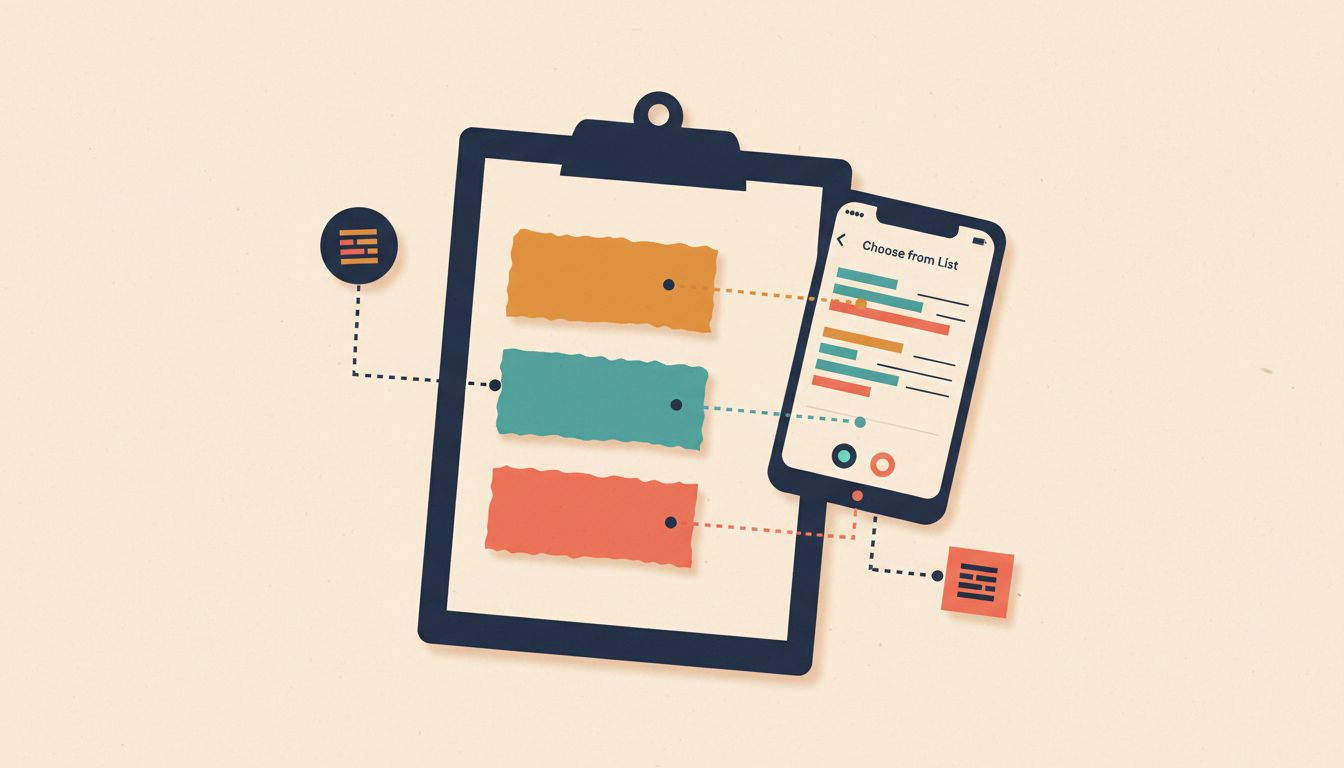
Copied something, then copied something else. First thing is gone. Forever. Unless you do this.
iOS has no native multi-item clipboard. One item, one slot. But you can build a simple shortcut that grabs whatever's on your clipboard and appends it to a running text file in iCloud Drive. Then, when you need to retrieve something, a second shortcut shows you the list and lets you tap to copy. It's genuinely one of the most useful things you can build, especially if you're doing any kind of research or writing.
- Create a new shortcut and add a 'Get Clipboard' action.
- Add an 'Append to File' action, pointing to a text file in iCloud Drive, with a line break as the separator.
- Create a second shortcut that reads the same file and uses 'Choose from List' to display each saved clip.
- Add a 'Set Clipboard' action on the chosen item so it's ready to paste immediately.
- Add both shortcuts to your Home Screen, or combine them with a menu shortcut.
Watch out for
- Shortcuts may ask for clipboard permission each session due to iOS privacy rules. Annoying but expected.
- A very long history file will make the Choose from List action slow to load. Periodically clear old entries.
Set Up Location and App Triggers So Your iPhone Reacts to Context
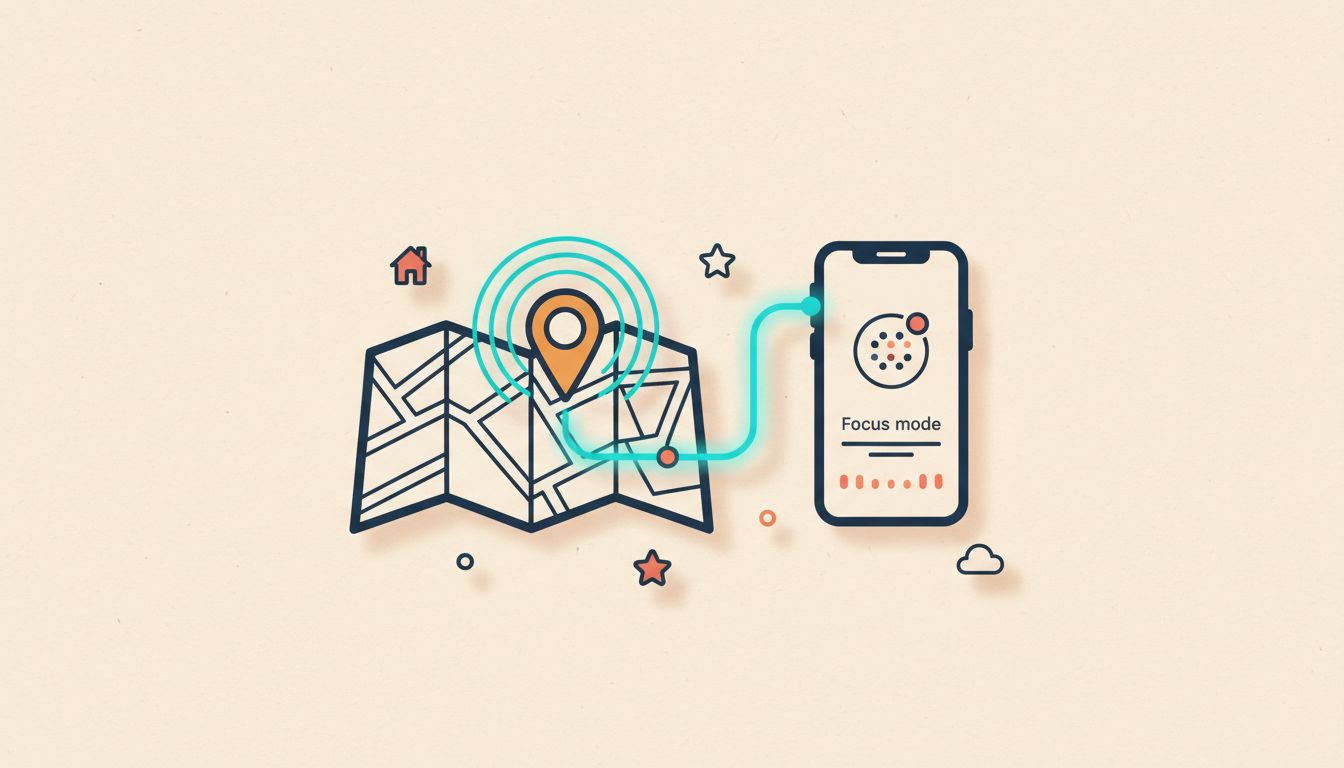
Your phone should know you've just arrived home. It can.
Personal automations go way beyond time triggers. You can set a shortcut to fire when you arrive at a specific location, when you open a particular app, when you plug in to charge, even when you connect to a specific wifi network. Arriving home could automatically enable your Personal Focus and turn off Work notifications. Opening your gym app could start a workout playlist. Connecting to your car's charger could launch Maps and turn on Do Not Disturb. Context-aware. Proactive.
- Go to the Automation tab in Shortcuts and tap +.
- Choose a trigger type: Location, App (opened or closed), Charger, or Wi-Fi network.
- Configure the trigger details, such as the specific location radius or which app.
- Add the actions you want to run when that condition is met.
- Enable 'Run Immediately' where it's available to avoid needing a confirmation tap.
Watch out for
- Location triggers need Always-on location permission for Shortcuts, which you'll need to grant in Settings.
- Some trigger types don't support 'Run Immediately', so you may still get a notification you have to act on.
Log Health Metrics in Seconds with a Prompted Shortcut
Opening the Health app to log a glass of water takes eleven taps. This takes two.
A shortcut with a simple number-input prompt can log water intake, body weight, sleep, or any other Health metric directly from your Home Screen or a widget. No app-switching, no navigating menus. It asks you the number, you type it, done. The entry shows up in Health immediately. Small friction reduction, but you'll actually use it because of that.
- Create a new shortcut and add an 'Ask for Input' action set to Number type.
- Write a clear prompt, like 'How many glasses of water so far today?'.
- Add a 'Log Health Sample' action, choose your metric (such as Dietary Water), and pass the input as the value.
- Add a 'Show Notification' action at the end to confirm the log with a quick message.
- Add the shortcut to a Home Screen widget for completely frictionless access.
Watch out for
- You must grant Shortcuts write permission inside the Health app's privacy settings, not just in the main Settings app.
- Watch your units. Logging in oz when the Health app expects mL will silently record wrong data with no error.
Translate Anything Instantly Without Leaving Your Current App
Stop switching to the Translate app. Just don't.
A shortcut can grab text from your clipboard, translate it to whatever language you specify, and either show you the result or read it aloud. All without leaving Safari, Messages, or wherever you are. Add it to the share sheet and you can translate selected text in one tap from almost anywhere. Actually useful when you're reading something in French and don't want to lose your place.
- Create a new shortcut and set it to accept Text input from the share sheet in the shortcut's details.
- Add a 'Translate Text' action, set source language to 'Detect Language', and pick your target language.
- Alternatively, add a 'Get Clipboard' action before the translate step to work from copied text instead.
- Add a 'Show Result' or 'Speak Text' action at the end to present the translation.
Watch out for
- Some languages need an internet connection unless you've downloaded the offline language pack in the Translate app settings first.
- In the shortcut's details, the input type must be explicitly set to Text, otherwise the share sheet option won't appear correctly.
Trigger Shortcuts from URL Schemes, NFC Tags, or Any Other App
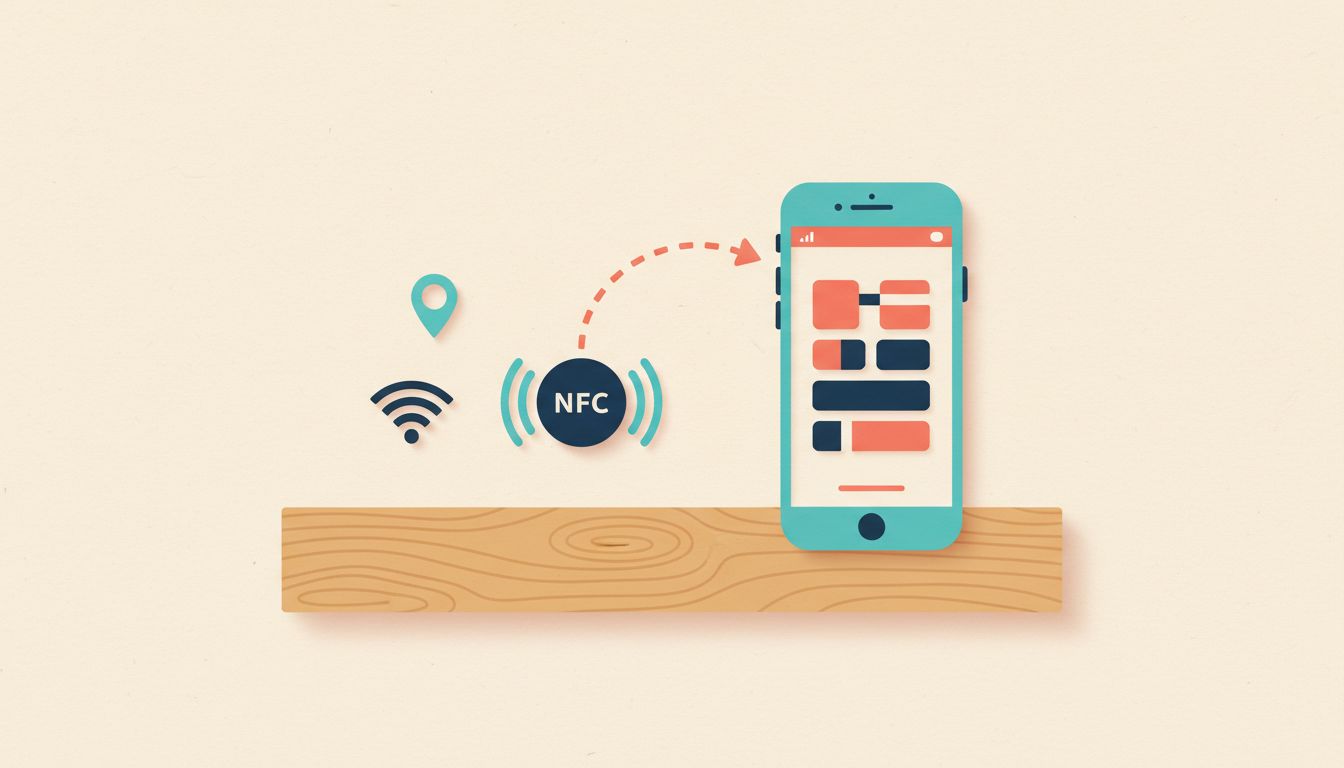
Tap a physical sticker on your desk. Your iPhone runs a shortcut. No screen interaction required.
Every shortcut can be triggered by a URL that starts with shortcuts://run-shortcut?name=YourShortcutName. That URL works from a browser bookmark, from inside another app, from a web page, or written to an NFC tag you stick anywhere. Tap the tag with your phone and the shortcut fires. It's the closest thing to physical automation buttons that iOS offers natively, and most people have no idea it exists.
- Note the exact name of your shortcut inside the Shortcuts app.
- Construct the URL:
shortcuts://run-shortcut?name=YourShortcutName(replace spaces with %20). - To use with NFC: go to Shortcuts, create a new automation, choose NFC as the trigger, scan your tag, and add a 'Open URLs' action with your constructed URL.
- To use from another app or web page: paste the URL into any URL field or link that app supports.
Watch out for
- Special characters in shortcut names, like apostrophes or ampersands, must be URL-encoded or the link will fail silently.
- Some actions inside the triggered shortcut may still show permission prompts the first time they run.
Use 'Ask Each Time' to Make One Shortcut Do Many Jobs
Hard-coded shortcuts break. Flexible ones last forever.
If you build a shortcut that always sends a message to the same person, it's useful exactly once before you want it to do something slightly different. The 'Ask Each Time' variable changes any fixed field into a prompt at runtime. Same shortcut, different contact, different message, different date, whatever you need. One well-built flexible shortcut beats ten rigid ones every time.
The key is restraint. Two or three 'Ask Each Time' fields is fine. Six is an interrogation. Nobody wants that.
- While building a shortcut, tap any field that accepts input, such as a contact name or message body.
- In the variable picker that appears, choose 'Ask Each Time'.
- Optionally type a default value that pre-fills the prompt so you can just confirm it quickly.
- Run the shortcut. It pauses only at those fields and then continues automatically.
Watch out for
- Inputs from 'Ask Each Time' aren't saved between runs. If you need to remember a value for next time, pipe it into a note or file action at the end.
- Too many prompt fields and the shortcut starts feeling like a form. Keep flexible fields to the minimum that actually varies.
Use Apple Intelligence Inside Shortcuts to Summarise and Rewrite Text (iOS 26)
Summarising a long email used to mean reading the whole thing. Not any more.
iOS 26 adds Apple Intelligence actions directly into Shortcuts. We're talking native 'Summarise Text' and 'Rewrite Text' actions that you can drop into any workflow. Feed them content from Mail, Notes, your clipboard, or a file, and pipe the output wherever you need it: a notification, a new note, a Messages draft. You can build a one-tap shortcut that grabs your last unread email, summarises it, and shows you the key points before you've even opened the app. That's not a gimmick. That's actually useful.
- Update to iOS 26 and confirm Apple Intelligence is enabled in Settings under Apple Intelligence & Siri.
- Open Shortcuts, create a new shortcut, and search for actions tagged 'Apple Intelligence'.
- Add 'Summarise Text' or 'Rewrite Text' and connect it to a content source: clipboard, a Mail message, a file, or a Notes entry.
- Add a 'Show Result' or 'Show Notification' action to display the output, or route it into a new note or draft message.
Watch out for
- Apple Intelligence currently requires an A17 Pro chip or any M-series chip, so older iPhones won't see these actions at all.
- Processing long documents adds a noticeable pause to the shortcut run. For very long content, consider summarising in chunks.
- Language and region availability is still expanding. If you don't see the actions, check your device language and region settings first.