
Your Android phone knows a lot about you. Where you sleep, who you call, what you search at 2am. Most of that exposure isn't inevitable, it's just default. These ten settings take under an hour to change and they make a real difference.
Review and Restrict App Permissions
That torch app you downloaded in 2021? It might still have access to your microphone. Permissions don't expire on their own, and most people never check them after installation.
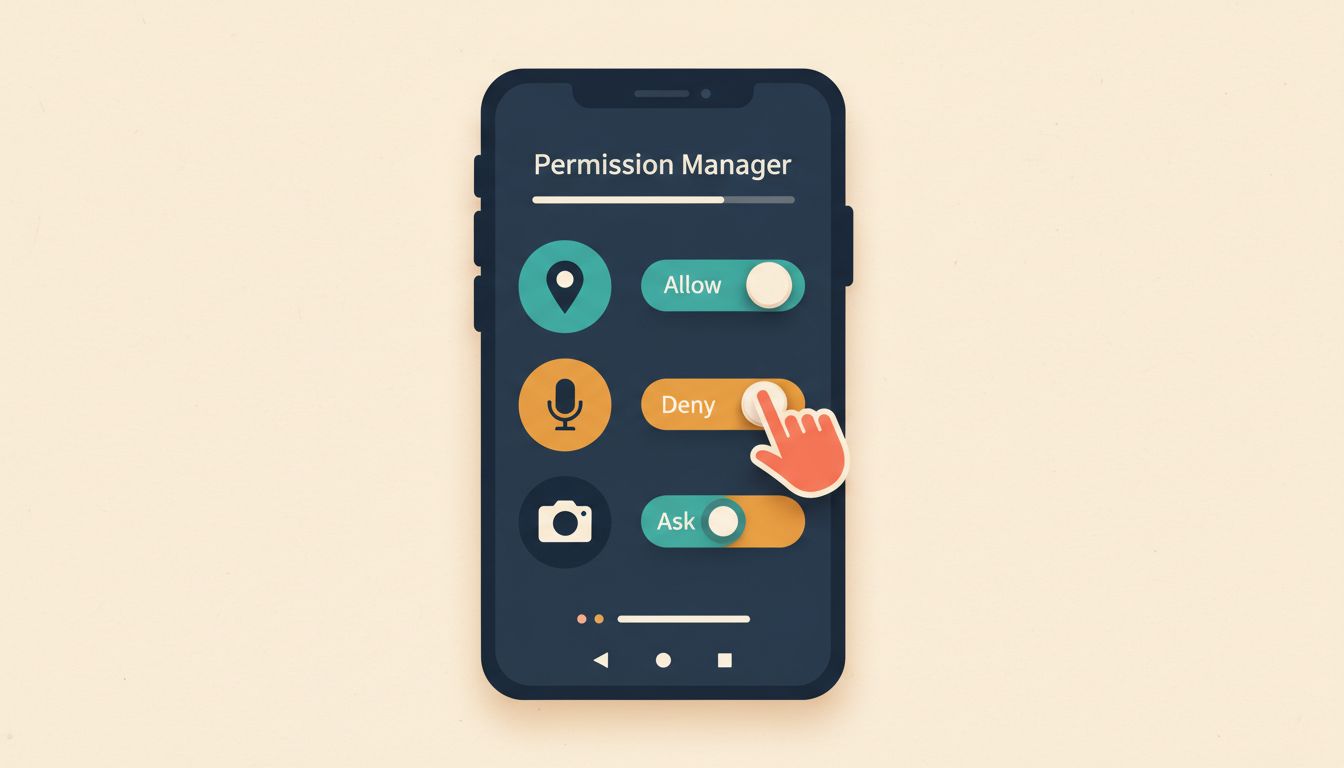
Android's Permission Manager gives you a category-by-category view of exactly which apps can see your location, contacts, camera, and more. It's surprisingly revealing. Go through it once and you'll almost certainly find something that shouldn't be there.
- Open Settings > Privacy > Permission Manager.
- Tap each category (Location, Microphone, Camera, Contacts) in turn.
- For each app listed, choose Only while using, Ask every time, or Deny as appropriate. If you can't remember the last time you used the app, Deny is usually fine.
- Open Settings > Privacy > Privacy Dashboard to see which permissions were accessed in the last 24 hours. Anything unexpected is worth investigating.
- On Android 11 and above, unused apps should have permissions auto-revoked, but don't rely on it. Manual checks are more thorough.
How to verify it's working
After revoking a permission, open the app in question and trigger the feature that needed it. A permission prompt should appear. If it doesn't, the app either cached old access or has an alternative path, so revisit its settings.
Watch out for
- System apps often require certain permissions and can't be fully restricted without breaking core functionality.
- Revoking location from a navigation app will obviously break turn-by-turn directions. Keep that one.
- Auto-revoke isn't guaranteed on all devices or older Android versions, so don't assume it's happened.
Delete Your Android Advertising ID

There's a little number living on your phone right now that advertisers use to track everything you do across every app you open. The good news: you can delete it entirely.
The Android Advertising ID is a persistent identifier that lets data brokers and ad networks stitch together a profile of your behaviour across dozens of unrelated apps. On Android 12 and above, you don't just reset it, you delete it permanently. That's a meaningful break in cross-app tracking.
- Go to Settings > Privacy > Ads.
- Tap Delete advertising ID and confirm. On Android 11 or older, tap Reset advertising ID and toggle Opt out of Ads Personalisation.
- Visit adssettings.google.com in a browser and turn off Google ad personalisation for your Google account too.
- Make a note to repeat this after any factory reset, because the ID is regenerated automatically.
How to verify it's working
After deletion, return to Settings > Privacy > Ads. The advertising ID field should show as blank or display a message confirming it's been deleted.
Watch out for
- Deleting the Ad ID doesn't stop all tracking. Apps can still use device fingerprinting (screen size, font list, battery status combined). It just makes it harder.
- Some free apps may show less relevant ads, or occasionally nag you.
- Factory resets regenerate the ID, so re-apply this setting afterwards.
Lock Down Location to Approximate and One-Time Only
Precise, continuous location access tells an app where you live, where you work, and when you're on holiday. Most apps don't need any of that.
Android 12 introduced approximate location (accurate to roughly 3km, enough for weather but not enough to track your daily route). Android 17 goes further with a temporary precise location option for apps that occasionally need a proper GPS fix. Used together, these two settings drastically reduce your location exposure.
- When an app asks for location, choose Only this time for one-off requests.
- On Android 12+, when prompted choose Approximate location unless precise GPS is genuinely necessary (navigation, for example).
- On Android 17, use the new Share precise location temporarily option for apps that just need a single fix.
- Go to Settings > Privacy > Permission Manager > Location and audit everything that currently has background location access. Revoke anything that doesn't obviously need it.
- Disable Location History in your Google account at myaccount.google.com/data-and-privacy.
How to verify it's working
Open Permission Manager and check that no unexpected apps have "Allowed all the time" location access. A weather app should show "While using" at most. A torch app should show "Denied".
Watch out for
- Navigation apps need precise, continuous location. Don't restrict those.
- Approximate location won't satisfy some check-in or delivery apps. You'll know quickly if something breaks.
- Some apps request background location without any real justification. Deny it first and see if the app still works. It usually does.
Enable Strong 2FA and Advanced Protection on Your Google Account

Your Google account is the master key. If someone gets into it, they get into your email, your photos, your backups, and likely your banking apps too. SMS codes alone won't protect it.
Two-factor authentication with an authenticator app or hardware key is a genuinely significant upgrade. Advanced Protection (available on Pixel 6 and later) goes further, enforcing stricter install policies and malware scanning automatically. Takes ten minutes to set up. Worth every second.
- Visit myaccount.google.com > Security > 2-Step Verification.
- Enrol a passkey, a hardware security key (like a YubiKey), or an authenticator app. Avoid SMS if you can.
- On supported devices (Pixel 6+), go to Settings > Security & Privacy > Advanced Protection and enable it.
- Register a backup authentication method in case you lose your primary one.
How to verify it's working
Sign out of your Google account on a spare device or browser and sign back in. You should be prompted for your second factor. If you skip straight to your home screen without any challenge, 2FA isn't active.
Watch out for
- Hardware security keys can be lost. Always register a backup method before you need it.
- Advanced Protection may block sideloading apps from unknown sources, which affects power users who install APKs manually.
- SMS-based 2FA is vulnerable to SIM-swapping attacks. It's better than nothing, but only just.
Set a Strong Screen Lock and Enable Biometrics
No screen lock means no encryption. Someone who picks up your unlocked phone has access to everything on it. Everything.
Android's file-based encryption is only as strong as your screen lock. A fingerprint or face unlock layered on top of a six-digit PIN (minimum) gives you quick, convenient access without compromising the underlying protection. Swipe-to-unlock is not a screen lock, it's just a delay.
- Go to Settings > Security & Privacy > Screen Lock.
- Choose a PIN of at least 6 digits, a strong password, or a pattern. Not swipe. Not none.
- Go to Settings > Security & Privacy > Biometrics and add a fingerprint (and face if supported with 3D sensing).
- Enable Require unlock for sensitive actions in your biometric settings.
How to verify it's working
Lock the screen and check that you're prompted for biometrics or PIN before you can access anything. Try opening a sensitive app like your bank directly from the lock screen, it should require authentication first.
Watch out for
- Face unlock on many mid-range devices uses 2D image recognition, which can be fooled by a photograph. Fingerprint is generally more secure on those devices.
- Biometrics can be compelled legally in some jurisdictions. A PIN or password offers stronger legal protection in certain situations.
- Forget your PIN and you may need a factory reset, losing anything not backed up. Write it down somewhere safe.
Audit Google Account Activity and Set Auto-Delete
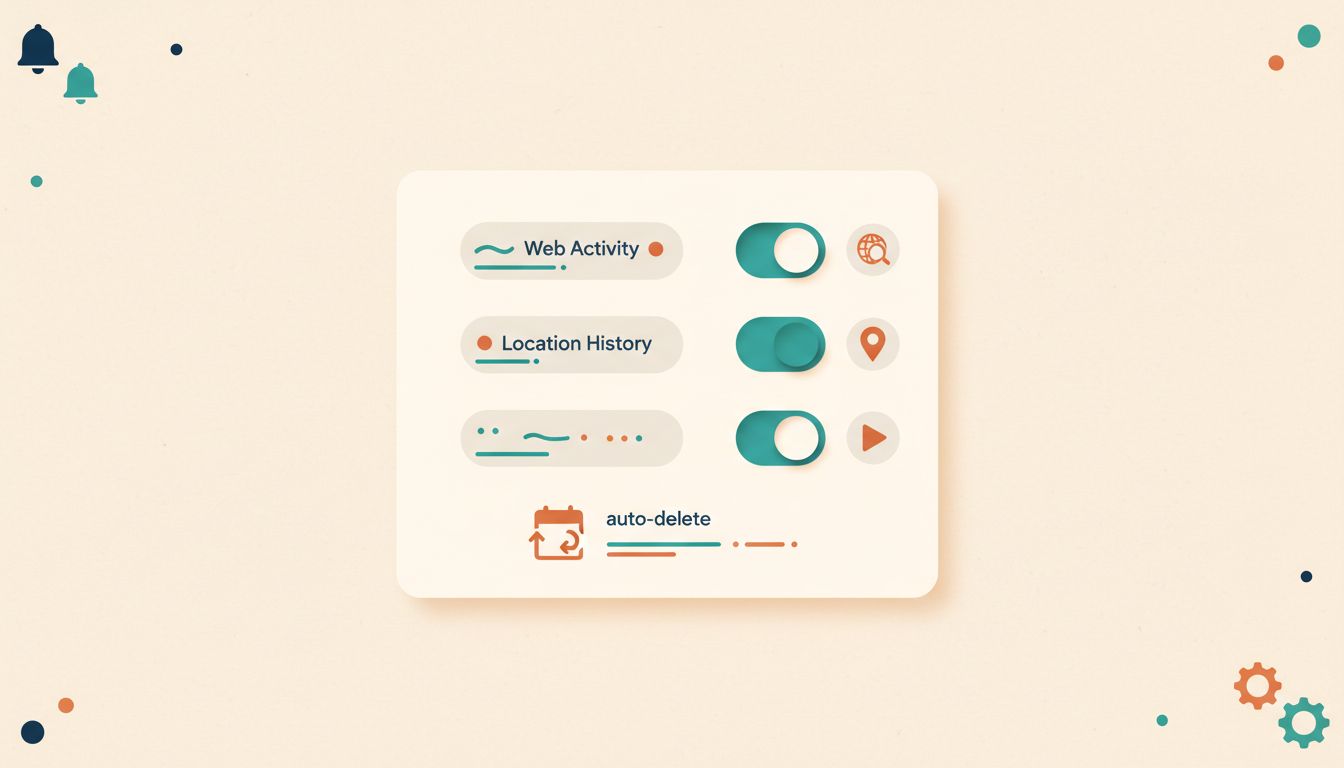
Google has been logging your searches, your location, and your YouTube history by default. That data doesn't disappear unless you tell it to.
Web & App Activity, Location History, YouTube history: three separate toggles, each building a detailed profile used for ad targeting. You can pause them, auto-delete what's there, and strip back third-party app access while you're at it. None of this takes more than a few minutes.
- Go to myaccount.google.com > Data & Privacy > History settings.
- Pause Web & App Activity, Location History, and YouTube History individually.
- For any activity type you choose to keep, click Auto-delete and set it to 3 months maximum.
- Tap Delete all on each history type to clear existing data.
- Go to myaccount.google.com > Data & Privacy > Third-party apps with account access and revoke access for any apps you no longer use or recognise.
How to verify it's working
After pausing Web & App Activity, search for something unusual in Google, then check myaccount.google.com/activitycontrols. Your search should not appear in the activity log.
Watch out for
- Pausing Web & App Activity reduces the relevance of Google Assistant suggestions and Search personalisation. That's a feature, not a bug, for privacy purposes.
- Commute predictions in Google Maps rely on Location History. Turning it off breaks that feature.
- Deleting your history doesn't retroactively remove data already shared with third parties before deletion.
Switch to Private DNS (Encrypted DNS-over-TLS)
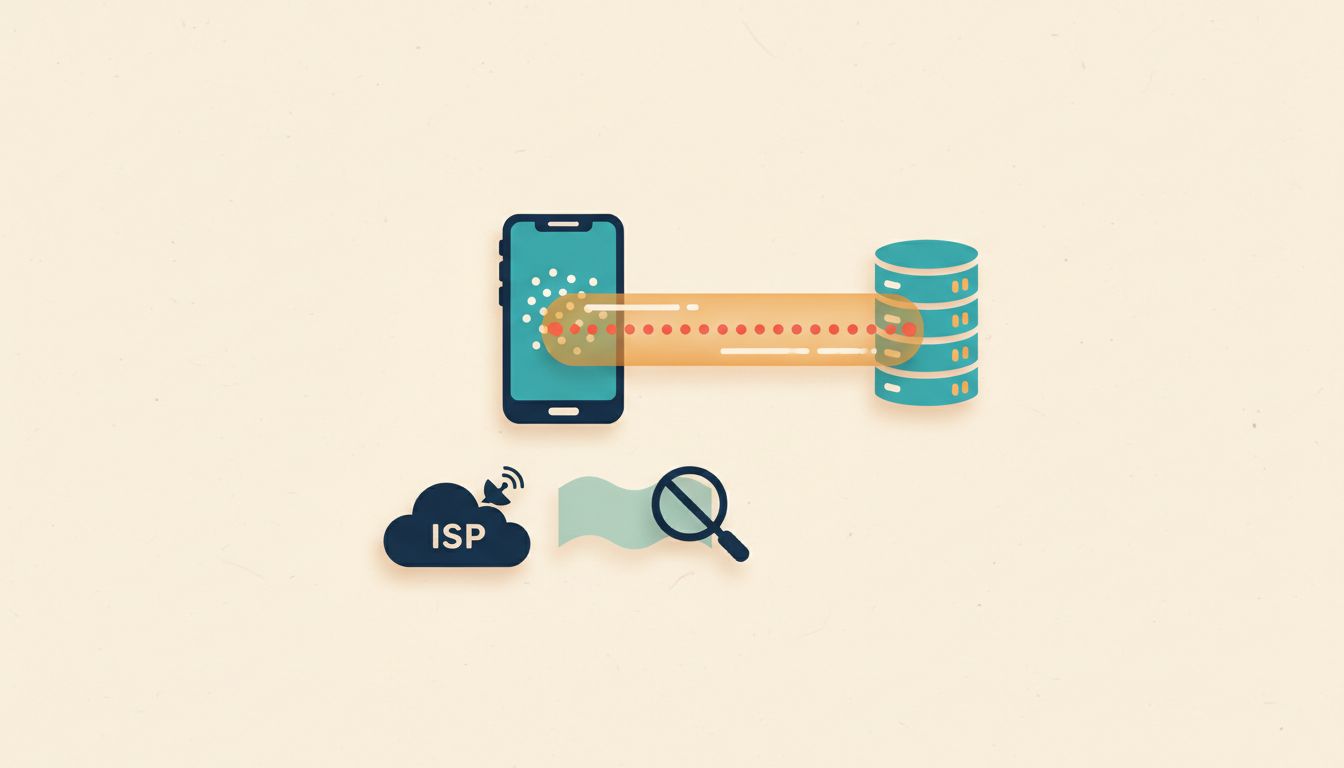
Every website you visit starts with a DNS query. By default, that query travels across your network in plaintext, completely readable by your ISP, your mobile carrier, or anyone on the same Wi-Fi.
Android has a built-in Private DNS setting that routes those queries over an encrypted connection to a provider of your choosing. It takes about 90 seconds to configure and it quietly blocks a significant amount of passive surveillance and ad-tracking at the network level.
- Go to Settings > Network & Internet > Private DNS.
- Select Private DNS provider hostname.
- Enter a trusted hostname. For Cloudflare:
1dot1dot1dot1.cloudflare-dns.com. For Quad9 (which blocks malicious domains):dns.quad9.net. - Tap Save. The connection status should show Connected shortly after.
- Verify by checking the Wi-Fi details page, Private DNS should show as connected there too.
How to verify it's working
Visit a DNS leak test site in your browser (search "DNS leak test"). Your queries should resolve through your chosen provider, not your ISP's default servers.
Watch out for
- Hotel and airport Wi-Fi captive portals sometimes block encrypted DNS. You may need to temporarily switch back to automatic to authenticate, then re-enable Private DNS afterwards.
- Using dns.google keeps your query data with Google. If you're already trying to reduce Google's view of your behaviour, choose Cloudflare or Quad9 instead.
- Private DNS encrypts your DNS queries only, not your traffic content. A VPN is a separate tool for a different problem.
Enable and Verify Google Play Protect
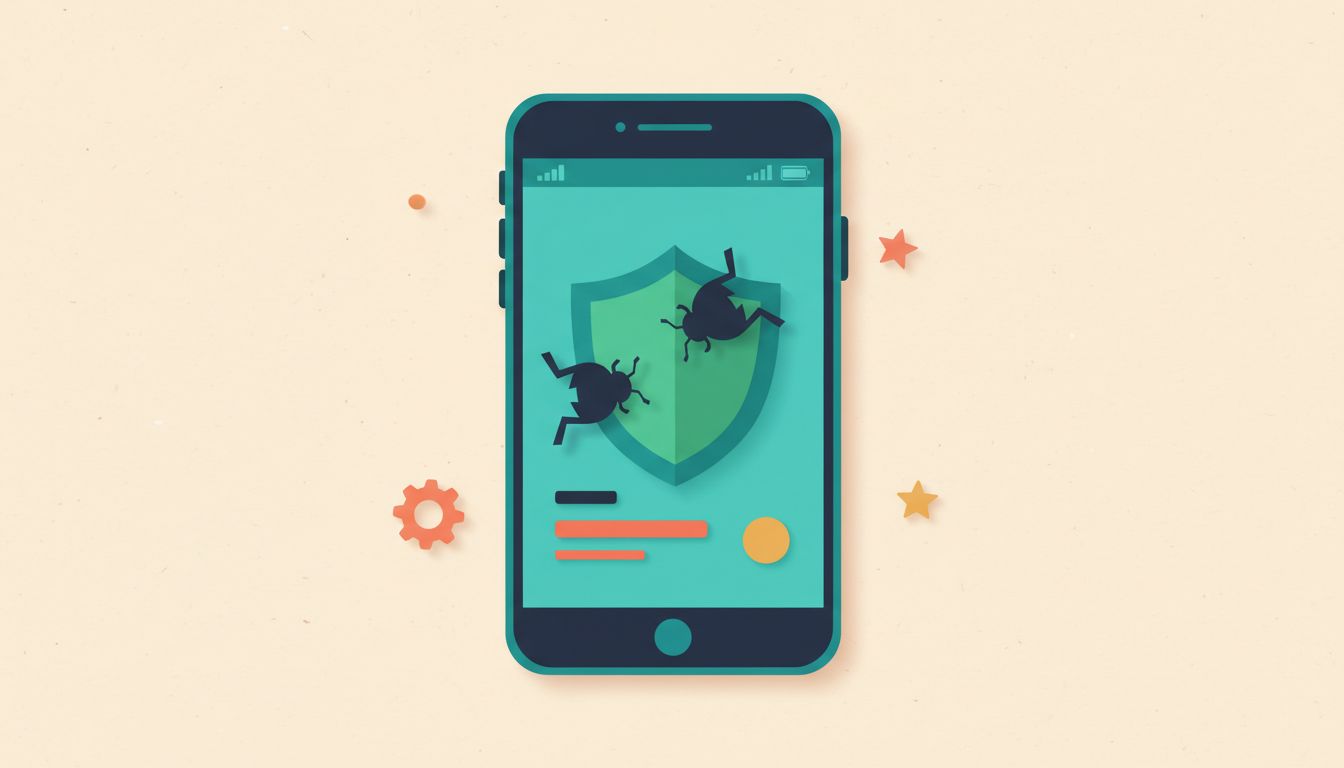
Malicious apps do get onto Android devices. Play Protect is the continuous scanner that catches them. It's free, it's built in, and a surprising number of people have accidentally turned it off.
Play Protect scans every installed app (including sideloaded ones) against known malware signatures and policy violations. It's not perfect, but it's the primary line of defence against apps that quietly abuse permissions in the background. Check it's on. Run a scan. Done.
- Open the Google Play Store app and tap your profile icon in the top right.
- Tap Play Protect.
- Ensure Scan apps with Play Protect is toggled on.
- Tap Scan to run an immediate check on all installed apps.
- Enable Improve harmful app detection to send unknown APK metadata to Google for cloud analysis. It's a minor privacy trade-off, but the protection benefit is worth it for most people.
How to verify it's working
After a scan, Play Protect should display "No harmful apps found" alongside a timestamp showing it scanned recently. If it shows the toggle is off or the last scan was weeks ago, something has interrupted it.
Watch out for
- Play Protect can't function on de-Googled devices or custom ROMs without Google Play Services. Those users need alternative scanning solutions.
- Enabling "Improve harmful app detection" sends app metadata to Google. A minor trade-off, but worth knowing about.
- Play Protect won't catch genuinely novel zero-day threats immediately. Keep your OS updated too.
Restrict Background Data and App Activity
Apps don't just collect data when you're using them. Many are doing it constantly in the background, uploading your usage patterns and location while your phone sits in your pocket.
Background data restrictions and battery optimisation settings are underused privacy controls. Combine them with Android's Data Saver mode and you can put a hard limit on what apps can do when you're not actively looking.
- Go to Settings > Apps, select an app, then tap Mobile data & Wi-Fi and toggle Background data off for apps that have no reason to run in the background.
- In the same app settings, tap Battery and select Restricted to prevent background wakeups.
- Go to Settings > Network & Internet > Data Saver and enable it. This blocks background data for all apps by default. Whitelist the ones that genuinely need it (messaging apps, email).
- Review auto-sync settings at Settings > Accounts > [Your account] > Account sync and disable sync for categories you don't need.
How to verify it's working
Check your mobile data usage in Settings > Network & Internet > Data usage a week after making changes. Background data consumption for restricted apps should drop noticeably.
Watch out for
- Restricting background data for messaging apps like WhatsApp or Signal will delay notifications when the app isn't open. Whitelist those specifically.
- Data Saver can break widgets that display live information (sports scores, weather).
- Calendar and email sync requires background data. Keep those whitelisted if you need real-time updates.
Turn Off Wi-Fi and Bluetooth Scanning When Not Needed
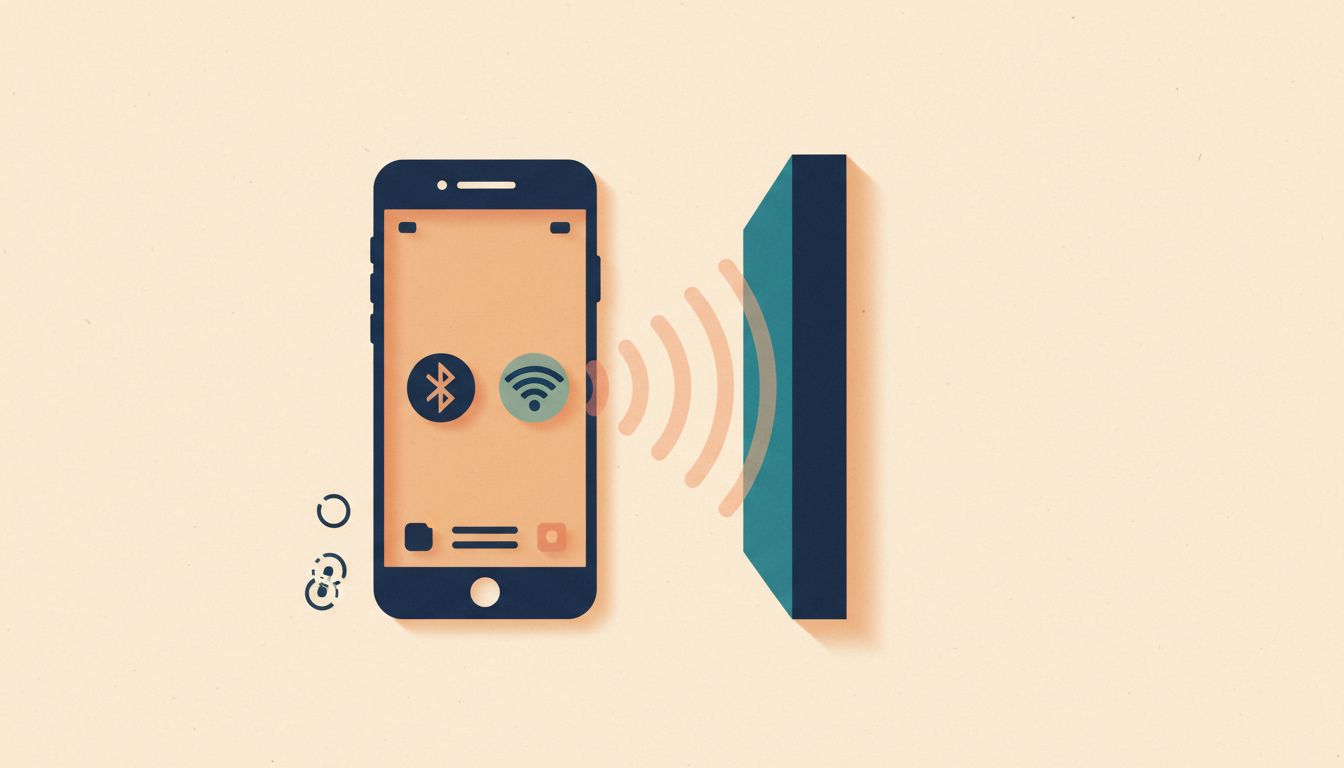
Even with Wi-Fi and Bluetooth switched off, your phone might still be broadcasting identifiers that let retailers, advertisers, and others track your physical movements through a building or city.
Android has a separate setting called Wi-Fi and Bluetooth scanning that allows apps and services to use those radios for location, even when the radios appear off in Quick Settings. Most people don't know it exists. Disabling it closes a real tracking loophole.
- Swipe down for Quick Settings and toggle Bluetooth off when you're not using wireless devices.
- Similarly, toggle Wi-Fi off in public spaces if you're on mobile data and don't need it.
- Go to Settings > Location > Wi-Fi and Bluetooth scanning and disable both Wi-Fi scanning and Bluetooth scanning.
- On Pixel devices, check Settings > Connected devices > Connection preferences > Bluetooth and review auto-connect settings.
How to verify it's working
After disabling scanning, go back to Settings > Location > Wi-Fi and Bluetooth scanning. Both toggles should be off. You can also check that location accuracy is slightly reduced (acceptable unless you need precise positioning indoors).
Watch out for
- Disabling Bluetooth breaks wireless headphones, smartwatches, and car connectivity. Be selective about when you turn it off.
- Android 10+ already randomises your device's MAC address by default, which mitigates some Wi-Fi tracking. Disabling scanning adds another layer on top.
- Features like Nearby Share and Find My Device network require Bluetooth or Wi-Fi scanning to operate.