

Slow Wi-Fi is maddening. You've paid for a decent broadband package, your router's sitting there blinking away, and yet video calls stutter, games lag, and streaming buffers at the worst possible moment. The good news? Most of the fixes are free. They live inside your router's admin panel, waiting for you to find them. These ten hacks cover everything from where you put the box to how your network handles a security breach you don't know about yet.
Sort your router's placement first (it matters more than anything else)
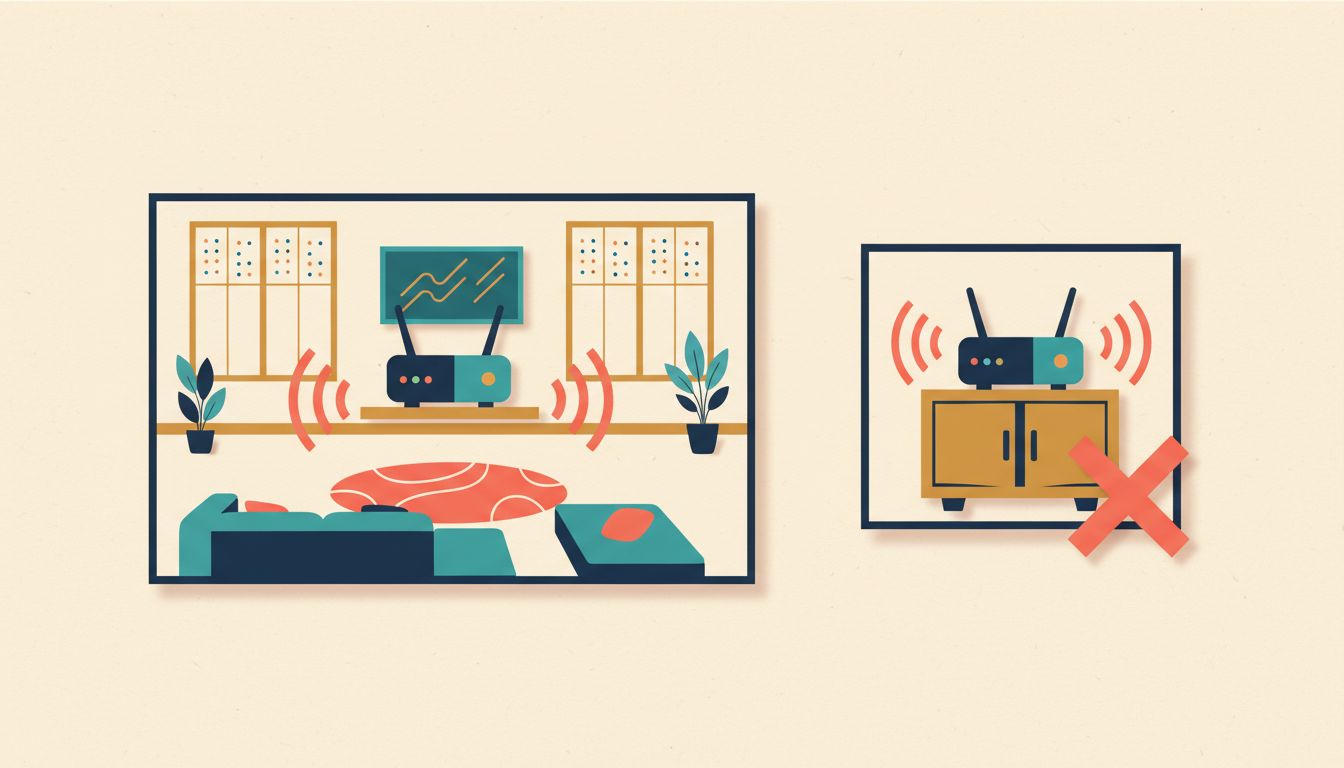
Before you touch a single setting, move the router. Physical placement is, genuinely, the single biggest lever you have over Wi-Fi performance, and most people get it completely wrong.
Routers shoved inside cabinets, tucked behind televisions, or left on the floor are fighting their own environment. Concrete walls, microwaves, and cordless phones all absorb or interfere with the signal. Central. Elevated. Open air. That's the rule.
Once it's in a better spot, log into your admin panel (usually 192.168.1.1 or 192.168.0.1) and head to Wireless, then Advanced or Transmit Power. If all your devices are within ten metres, reducing transmit power to 50-75% actually improves signal quality for nearby clients by reducing co-channel interference. Sounds counterintuitive. Works.
Enable beamforming while you're there, if it's supported. It focuses the signal toward connected devices rather than broadcasting equally in all directions, which is wasteful. And if you've got dead zones in a large house, please resist the urge to buy a cheap repeater. They halve your effective bandwidth on the backhaul. A mesh node or a wired access point is the proper fix.
How to verify it's working
Check RSSI on your connected devices. You're aiming for -65 dBm or better for reliable throughput. Your phone's Wi-Fi settings or a free app like WiFi Analyzer will show you the number.
Watch out for
- Cutting transmit power too aggressively creates coverage holes for devices further away.
- Range extenders (repeaters) halve effective backhaul bandwidth. Wired or mesh is strongly preferred.
- Beamforming only benefits devices that also support it on their end.
- Place the router centrally, elevated, in open air, away from microwaves and thick walls.
- Log in to the admin panel and navigate to Wireless, then Advanced or Transmit Power.
- If devices cluster nearby, set transmit power to medium (50-75%).
- Enable beamforming if the option exists.
- For large homes, add a mesh node or wired access point rather than a repeater.
- Verify signal strength on devices, targeting -65 dBm or better.
Manually pick your Wi-Fi channel and width

Your router defaulting to "auto" channel selection sounds sensible. In practice, it often parks itself on the same congested channel as six of your neighbours, and your speeds suffer for it.
The 2.4 GHz band only has three non-overlapping channels: 1, 6, and 11. That's it. In a flat building, everyone's fighting over the same three slots. The fix is straightforward: scan, find the quietest one, and lock your router to it.
Download WiFi Analyzer on Android (it's free) and scan both bands. Then log into your admin panel, go to Wireless, then Channel settings, and make the change manually.
Channel width matters too. On 2.4 GHz, 20 MHz is almost always the right choice in any built-up area. Wider channels grab more spectrum but collide with more neighbours. On 5 GHz, 80 MHz is a solid default, and 160 MHz is fine if you can see from your scan that few neighbours are using that band. The 6 GHz band (Wi-Fi 6E routers) is essentially empty right now, so 160 MHz there is a genuine treat.
How to verify it's working
Run a speed test immediately after changing channels, then again 24 hours later. Consistency is the goal, not just peak speed.
Watch out for
- Some routers revert to auto-channel after a reboot unless you explicitly save the locked setting.
- Very wide 5 GHz channels (160 MHz) cause interference in dense apartment buildings.
- Bluetooth and microwaves both trash 2.4 GHz performance, so prioritise 5 GHz or 6 GHz for anything performance-sensitive.
- Install a Wi-Fi analyser app and scan nearby networks on both 2.4 GHz and 5 GHz.
- Identify the least-used non-overlapping channel (2.4 GHz: channels 1, 6, or 11).
- Log in to the admin panel and navigate to Wireless, then Channel settings.
- Set 2.4 GHz to your chosen channel with 20 MHz width in dense environments.
- Set 5 GHz to 80 MHz width on a clear channel (160 MHz if the band looks uncrowded).
- Enable 6 GHz band separately at 160 MHz if your router supports Wi-Fi 6E.
Set up QoS so one device can't ruin it for everyone

Someone starts a large cloud backup and suddenly every video call in the house turns into a pixelated mess. Quality of Service (QoS) stops that from happening by telling your router which traffic deserves priority.
Without QoS, your router treats a Zoom call and a torrent download as equally important. They're not. Latency-sensitive traffic, voice and video calls, gaming, needs to jump the queue. Large background transfers can wait a few milliseconds without anyone noticing.
Head to QoS, Traffic Control, or Bandwidth Management in your admin panel. The exact label varies by router brand. Enable it, then assign highest priority to video conferencing apps and gaming consoles, lowest priority to cloud backups and file transfers. One important detail: set your upload and download speed limits to 90-95% of your actual ISP speed. That headroom lets the scheduler do its job properly.
How to verify it's working
Start a large file download on one device, then run a video call on another. If QoS is working, the call should remain smooth despite the download running in the background.
Watch out for
- QoS can't create bandwidth that doesn't exist. It only helps when you're at or near your connection limit.
- Some budget routers implement QoS poorly and actually reduce throughput. Test before and after.
- OpenWRT-based routers offer CAKE and fq_codel QoS, which handle bufferbloat far better than basic priority queuing.
- Log in to the admin panel and navigate to QoS, Traffic Control, or Bandwidth Management.
- Enable QoS and select a mode (device-based, application-based, or automatic).
- Assign highest priority to video conferencing apps (Zoom, Teams) and gaming consoles.
- Assign lowest priority to cloud backups and torrents.
- Set upload and download speed limits to 90-95% of your actual ISP speed.
- Test by running a large download and a video call simultaneously.
Switch to a faster, encrypted DNS resolver

Every time you visit a website, your device asks a DNS server to translate the domain name into an IP address. Your ISP's default DNS servers are often slow, log every query, and send that data unencrypted. You can do much better.
Cloudflare's 1.1.1.1 is consistently one of the fastest public resolvers in the world. Google's 8.8.8.8 is another solid choice. NextDNS gives you granular filtering on top. Any of them will beat a typical ISP resolver on both speed and privacy.
Log into your admin panel and go to Network, then DHCP or Internet, then DNS settings. Replace the primary and secondary DNS entries with your chosen resolver IPs. If your router supports DNS-over-HTTPS or DNS-over-TLS (common on TP-Link, ASUS, and recent Netgear hardware), enable that too. It encrypts your DNS queries so your ISP can't see which sites you're looking up. After saving, run a check at dnsleaktest.com to confirm the change took effect.
How to verify it's working
Visit dnsleaktest.com and run the extended test. The resolver listed should match your chosen provider, not your ISP.
Watch out for
- Router-level DNS changes don't always override individual device DNS settings, particularly on newer Android and iOS versions. Configure devices directly if needed.
- Some ISP routers block custom DNS entries entirely to enforce content filtering. You may need a third-party router.
- Switching DNS occasionally causes issues with geo-restricted streaming services that rely on DNS for region detection.
- Log in to the admin panel and navigate to Network, then DHCP or Internet, then DNS settings.
- Replace primary DNS with 1.1.1.1 (Cloudflare) or 8.8.8.8 (Google), and set a secondary.
- If supported, navigate to Advanced, then DNS-over-HTTPS, and enable it with your preferred provider.
- Save settings.
- Visit dnsleaktest.com and run the extended test to confirm the new resolver is in use.
Update router firmware (and keep it updated)
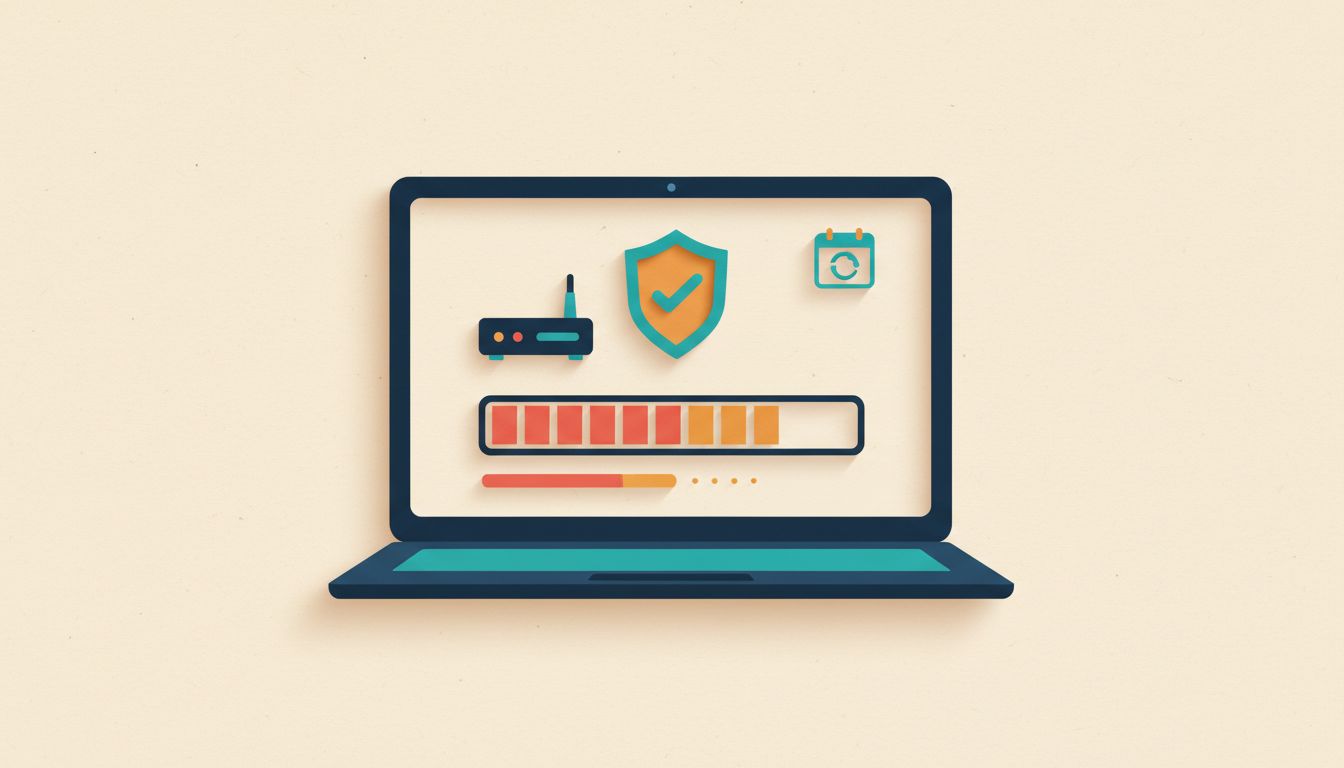
Your router is running software, and that software has bugs. Some of those bugs affect performance. Others are security vulnerabilities that attackers are actively exploiting right now. Updating firmware fixes both.
Manufacturers push patches regularly. Many routers now support automatic updates, which you should absolutely enable if the option exists. If not, you'll need to check manually every few months.
Log in to the admin panel and look for Administration, then Firmware Update. Note your current version number, check for available updates, and apply the latest one. If your router doesn't have auto-update, bookmark the manufacturer's support page and set a reminder. After the update, reboot and verify the version number changed. Simple.
How to verify it's working
After the update, log back in and check the firmware version number under System Info or Status. Confirm it matches the version you downloaded.
Watch out for
- Never interrupt power during a firmware flash. It can brick the device permanently.
- Some firmware updates reset custom settings. Export your config first.
- ISP-supplied routers may restrict updates to ISP-approved firmware versions only.
- Log in to the admin panel and navigate to Administration, then Firmware Update.
- Note your current firmware version.
- Check for available updates. Apply from the manufacturer's official site if auto-update is unavailable.
- Enable automatic firmware updates if supported.
- Reboot after the update and verify the version number has changed.
Change your default admin credentials and login address
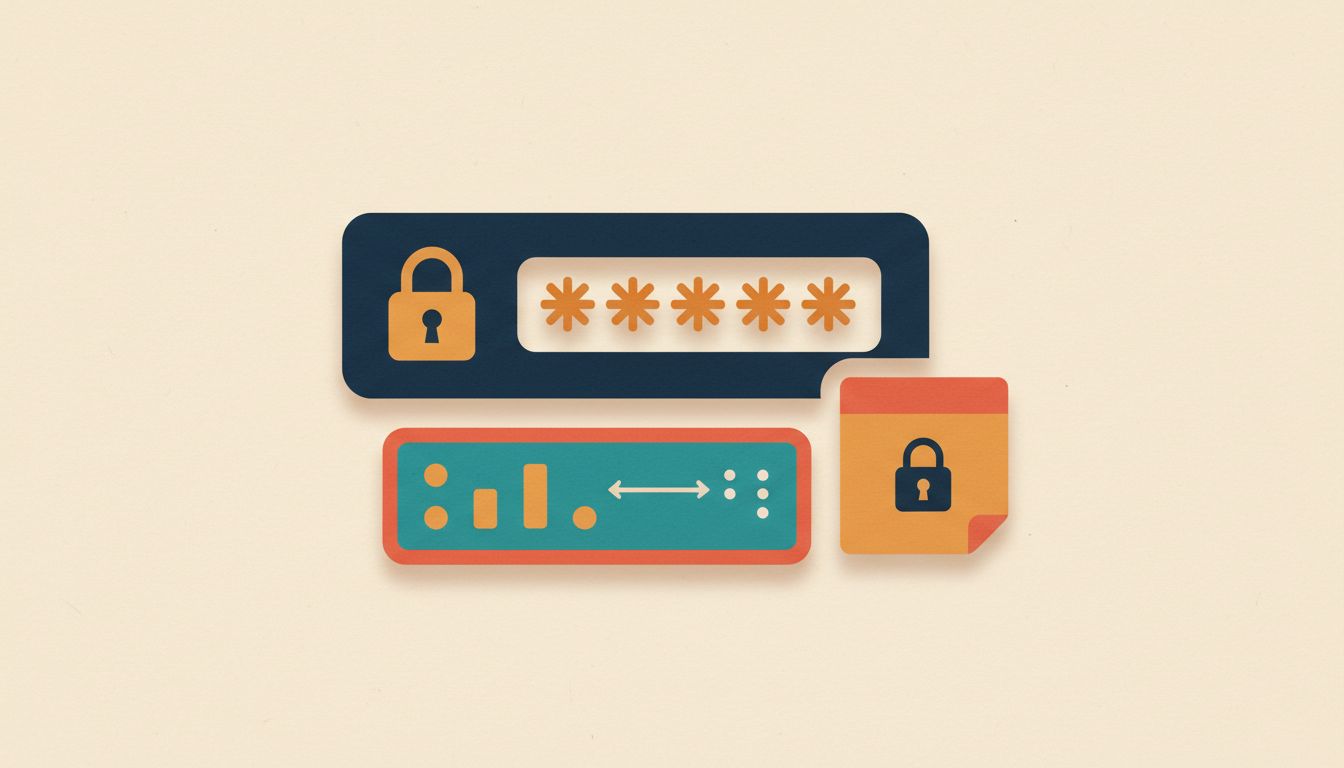
"admin" and "password". Or "admin" and "admin". These are the default credentials on millions of routers, and automated attack tools know them all. If you haven't changed yours, your router's admin panel is essentially unlocked.
This isn't paranoia. It's a documented, ongoing problem. Changing the admin password takes two minutes and closes off a genuinely exploited attack surface.
Log into the admin panel and find Administration or System settings. Change the default admin username and set a strong, unique password, at least 16 characters, mixed case, numbers, and symbols. Write it down somewhere secure before saving. Getting locked out means a factory reset.
If your router supports it, also change the default LAN management IP address from 192.168.1.1 to something non-standard like 192.168.50.1. It's a small additional hurdle for automated attack tools. Not a silver bullet, but worth doing alongside everything else.
How to verify it's working
After saving, log out completely and log back in using your new credentials. If it works, the change is confirmed.
Watch out for
- Write down new credentials before saving. Lockout requires a factory reset to recover.
- Changing the LAN IP temporarily disconnects all current DHCP leases.
- Some ISP-locked routers restrict admin credential changes through the UI.
- Log in to the admin panel (commonly 192.168.1.1 or 192.168.0.1).
- Navigate to Administration or System settings.
- Change the default admin username and set a password of 16+ characters with mixed case, numbers, and symbols.
- Write down the new credentials somewhere secure before saving.
- Where supported, change the LAN management IP to a non-standard address like 192.168.50.1.
- Save, then log back in with new credentials to confirm.
Upgrade to WPA3 encryption (or at least WPA2/WPA3 mixed mode)
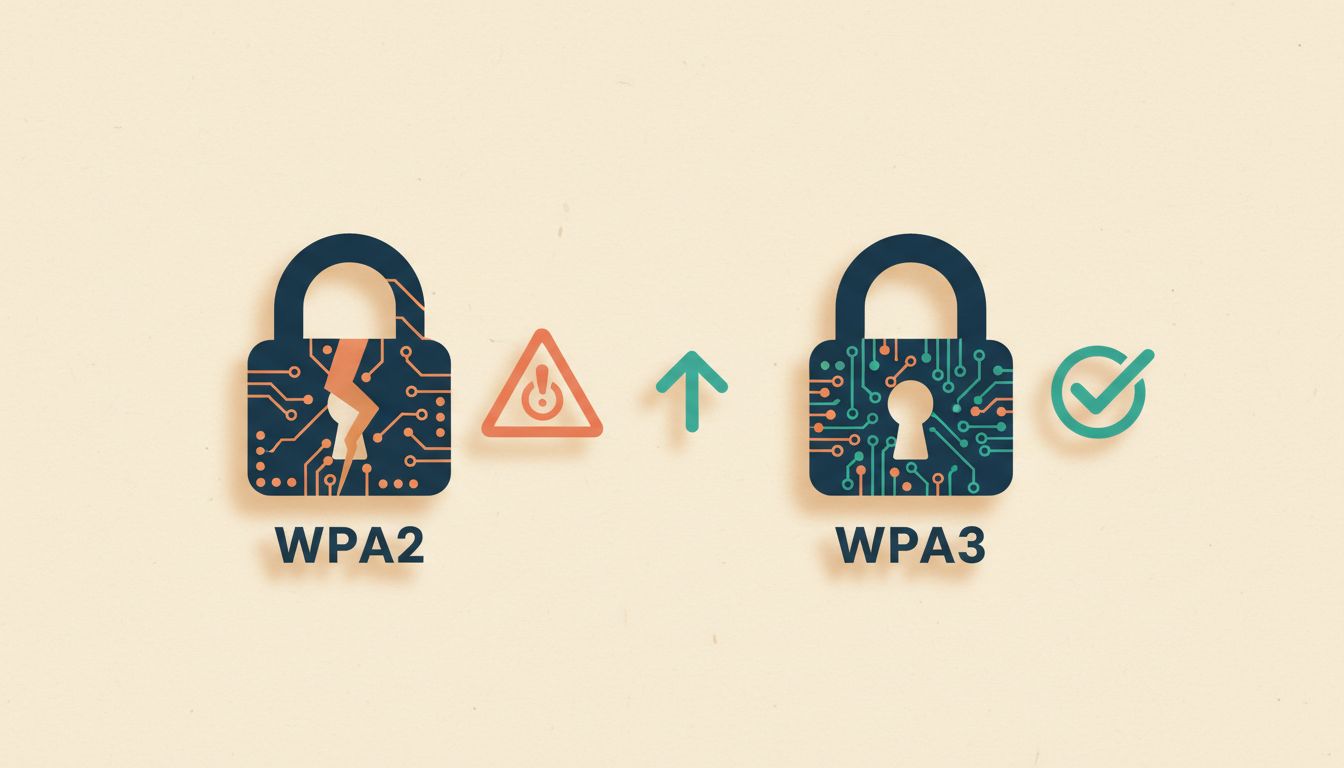
WPA2 was the standard for years. It's also vulnerable to KRACK attacks and brute-force dictionary attacks against weak passwords. WPA3 fixes both problems, and most routers bought in the last couple of years support it.
Log in to the admin panel, go to Wireless, then Security settings. If all your devices are reasonably modern (smartphones, laptops, tablets from the last three years), you can select WPA3-Personal outright. If you've got older kit, including some smart-home devices and legacy laptops, use WPA2/WPA3 mixed mode instead. You get WPA3 for capable devices and backward compatibility for everything else.
While you're there, disable WEP and TKIP completely. They're obsolete and actively insecure. Set a Wi-Fi passphrase of at least 16 characters while you're at it. And if you see an option for PMF (Protected Management Frames), enable it. Apple specifically recommends this alongside WPA3.
How to verify it's working
On a modern device, connect to the network and check the Wi-Fi details. On most iPhones and Android devices you can see the security protocol listed under the network info screen.
Watch out for
- Older IoT devices and legacy laptops may not support WPA3. Use mixed mode to avoid disconnections.
- Some WPA3 implementations have interoperability bugs on early firmware. Check the changelog before updating.
- Disabling TKIP and enabling PMF alongside WPA3 is recommended for best compatibility with Apple devices.
- Log in to the admin panel and navigate to Wireless, then Security settings.
- Select WPA3-Personal if all devices support it, or WPA2/WPA3 mixed mode for backward compatibility.
- Set a Wi-Fi passphrase of at least 16 characters.
- Disable WEP and TKIP options entirely.
- Enable PMF (Protected Management Frames) if the option is available.
- Save and reconnect all devices.
Disable WPS and UPnP
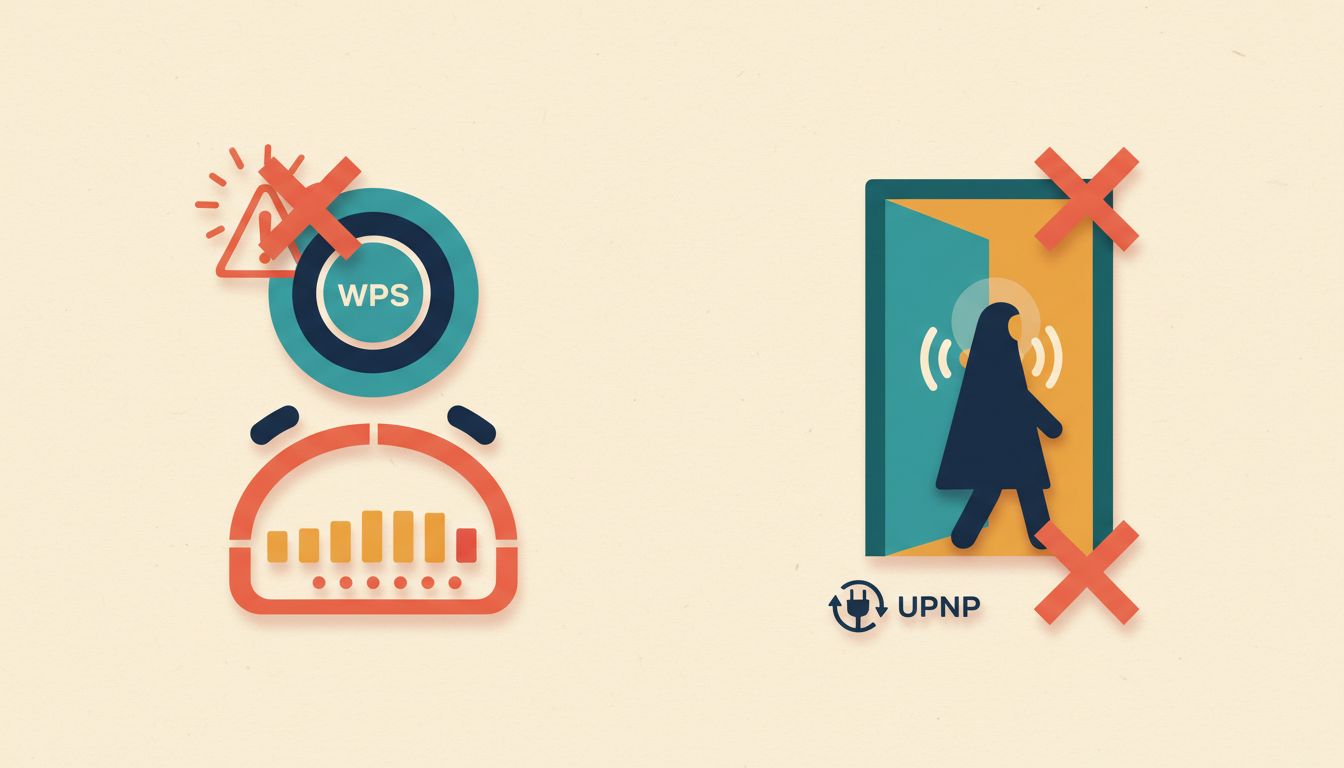
Two features. Both enabled by default on most routers. Both well-documented security liabilities. Neither of which you probably need.
WPS (Wi-Fi Protected Setup) was designed to make connecting devices easier. Its PIN-based authentication method has a brute-force vulnerability that lets attackers recover your Wi-Fi password in a matter of hours. There is no practical reason to keep it enabled once your network is set up.
UPnP (Universal Plug and Play) lets devices automatically open ports in your firewall without asking you. Convenient for game consoles. Exploited by malware. Any compromised device on your network can use UPnP to punch persistent holes in your firewall, creating backdoors you won't know about.
Disable both. Log in, find WPS under Wireless settings, toggle it off. Find UPnP under Advanced or NAT settings, toggle that off too. If a game console or smart-home device stops working, create a manual static port forward instead. It's safer because you can see and audit exactly what's open.
How to verify it's working
For WPS: check the WPS indicator light on the router (if present) is off. For UPnP: a port scanner tool like ShieldsUP (from GRC) can confirm no unexpected ports are open.
Watch out for
- Some routers silently re-enable WPS after a firmware update. Recheck after every update.
- A small number of ISP routers don't expose a WPS disable option in their UI at all.
- Smart-home devices and game consoles that relied on UPnP will need manual static port forwards after disabling it.
- Log in to the admin panel and navigate to Wireless, then WPS or Advanced Wireless settings.
- Toggle WPS to Disabled and save.
- Navigate to Advanced, then UPnP or NAT/Gaming settings.
- Disable UPnP and save.
- Test any game consoles or smart-home devices that relied on UPnP.
- Create manual static port forwards for any services that need them.
Segment your network with a guest network and IoT isolation
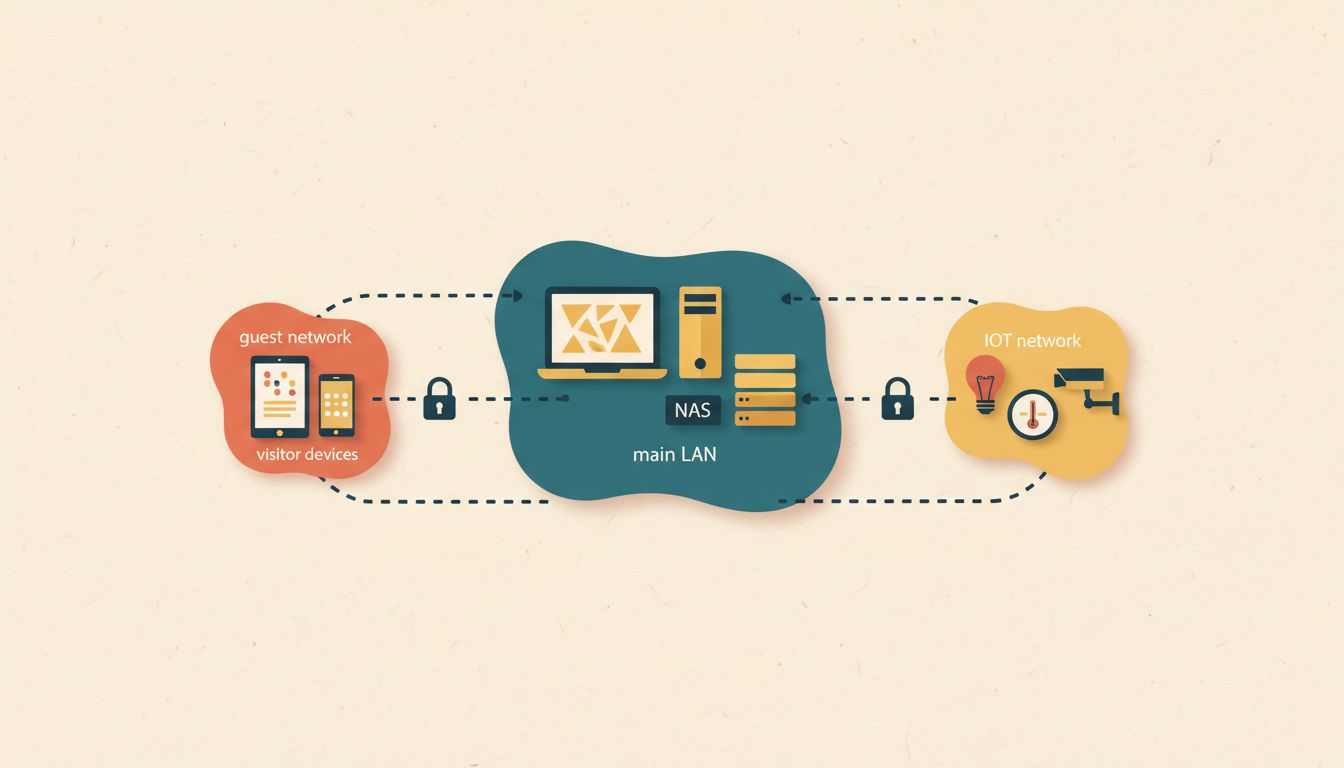
Your smart bulbs, your smart thermostat, your visitor's laptop, your work computer, all on the same network. If any one of those devices gets compromised, it has direct access to everything else. That's a problem.
Network segmentation is the fix. It's not just for businesses. Log into your admin panel, find the Guest Network option under Wireless settings, and enable it with its own SSID and a strong separate password. Enable client isolation on that network so guest devices can't see each other or anything on your main LAN. Put visitors on it. Done.
For IoT devices, the same logic applies, but ideally you want a separate VLAN rather than just a guest network. If your router supports VLANs (more common on prosumer models like ASUS, TP-Link Omada, or anything running DD-WRT or OpenWRT), create a dedicated IoT VLAN and set firewall rules to block it from initiating connections back to your main LAN. Your smart speaker can still reach the internet. It just can't reach your NAS or your work laptop.
How to verify it's working
Connect a device to the guest network and try to ping a device on your main LAN. You should get no response. That's exactly what you want.
Watch out for
- Some IoT devices require local network discovery (mDNS/Bonjour) to function. Look for VLAN bridging or mDNS proxy features on your router.
- Guest networks on budget routers often share the same radio and can reduce overall throughput.
- VLAN configuration complexity varies widely. Some consumer routers make it very straightforward; others require CLI access.
- Log in to the admin panel and enable the Guest Network feature under Wireless settings.
- Assign a unique SSID and strong password to the guest network.
- Enable client isolation on the guest network.
- If VLANs are supported, create a dedicated IoT VLAN and assign smart-home devices to it.
- Set firewall rules to block the IoT/guest VLANs from initiating connections to your main LAN.
- Move all IoT and guest devices to these isolated networks.
Enable logging, schedule reboots, and back up your config

Routers accumulate problems silently. Memory leaks slow them down over weeks. Rogue devices connect without you noticing. Intrusion attempts go completely undetected. None of this has to happen.
Three simple housekeeping habits fix most of it. First: enable logging. Log in to the admin panel, go to Administration, then Logging or System Log, and switch on firewall events, DHCP leases, admin logins, and Wi-Fi associations. Router logs are stored in RAM by default and disappear on reboot, so if your router supports a remote syslog server address, point it at something persistent. Review the DHCP client list weekly. Unknown devices appear there.
Second: schedule automatic reboots. Most routers support this under Administration or Reboot Schedule. Weekly is plenty. Do it at 3am. Nobody notices, the router's memory clears, and performance stays consistent. Memory leaks are real, and a simple reboot sorts them.
Third: back up your config. Before any firmware update, before any major change, export your configuration from Administration, then Backup Config. Store it offline. If something goes wrong, or if you ever suspect a compromise, you can factory-reset and restore in minutes rather than hours.
How to verify it's working
After enabling logging, log out and back in. Then check the system log. You should see the login event recorded. If you do, logging is working.
Watch out for
- Excessive logging levels can slow budget routers noticeably. Use Warning or Error level unless you're actively investigating an incident.
- DHCP lease review only works reliably if MAC address randomisation is disabled on your trusted devices.
- Some malware survives factory resets that don't reflash firmware. If you suspect a serious compromise, use the manufacturer's full firmware reinstall procedure, not just the reset button.
- Log in to the admin panel and navigate to Administration, then Logging or System Log.
- Enable logging for firewall events, DHCP leases, admin logins, and Wi-Fi associations.
- If supported, configure a remote syslog server address to preserve logs off-device.
- Navigate to Administration, then Reboot Schedule, and set a weekly automatic reboot during low-usage hours.
- Export your current router configuration via Administration, then Backup Config, and store it securely offline.
- Review the DHCP client list weekly to check for unexpected devices.