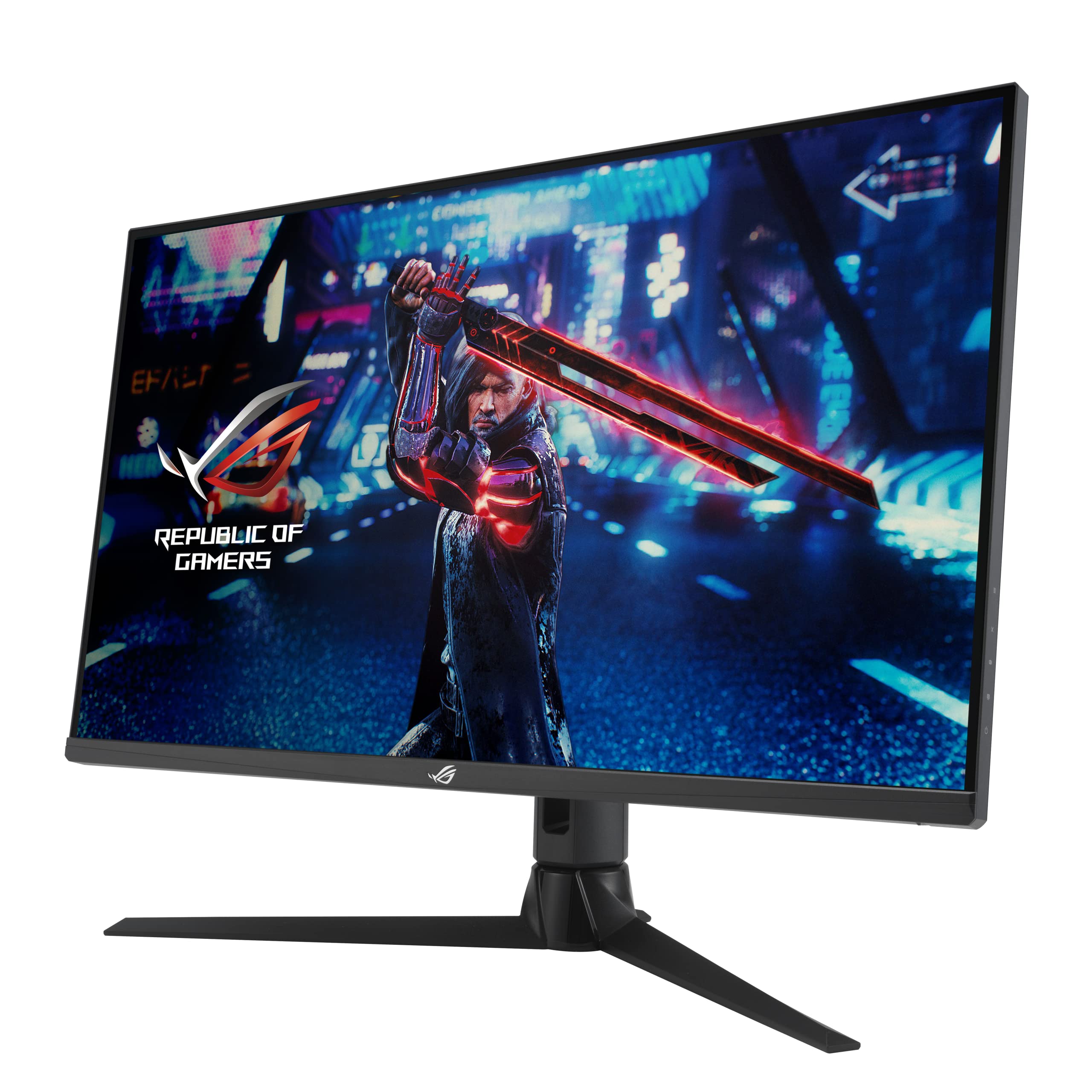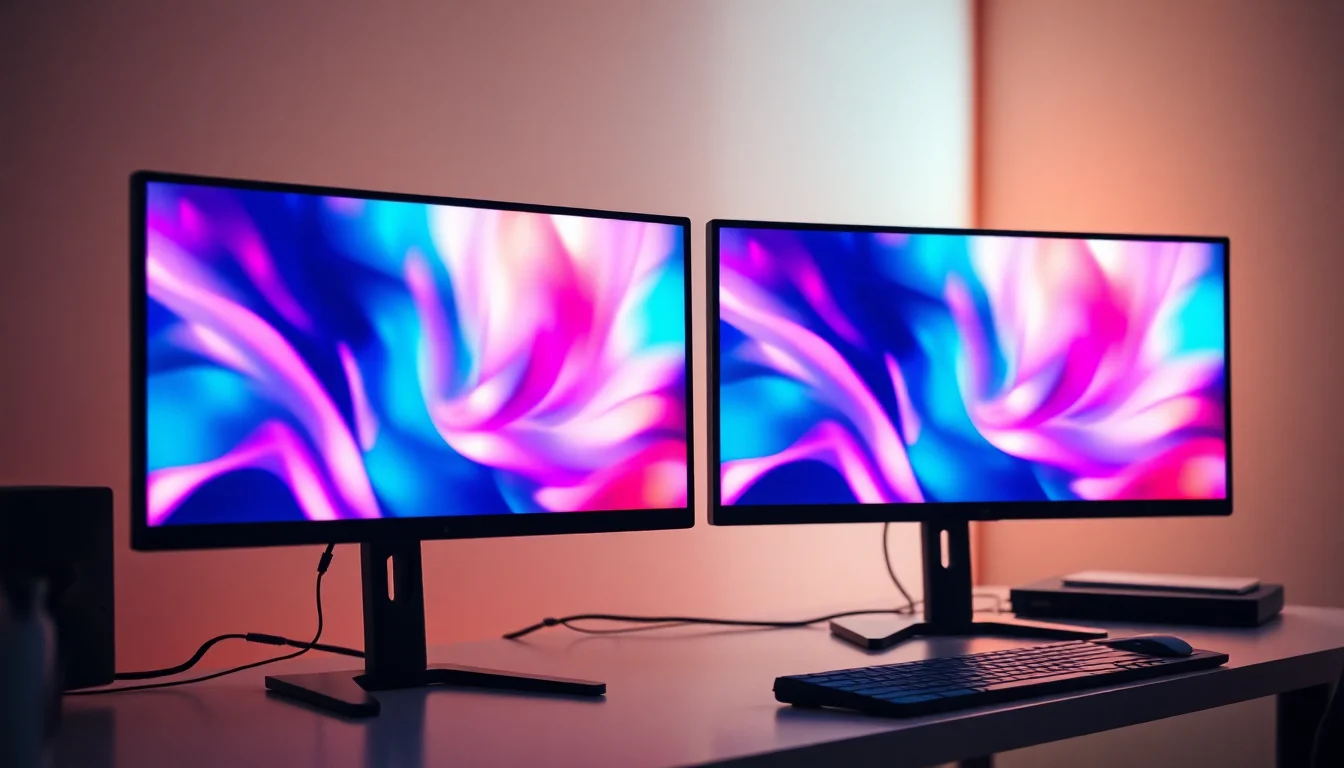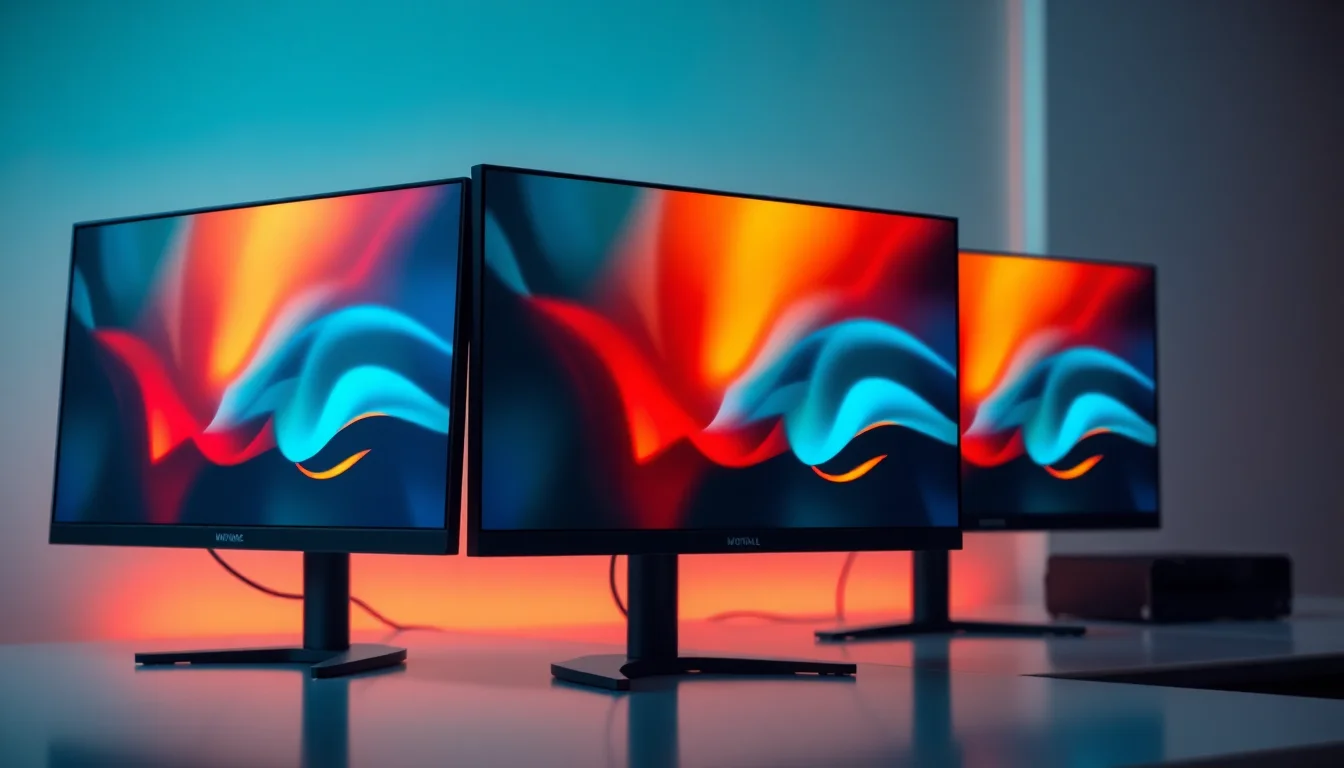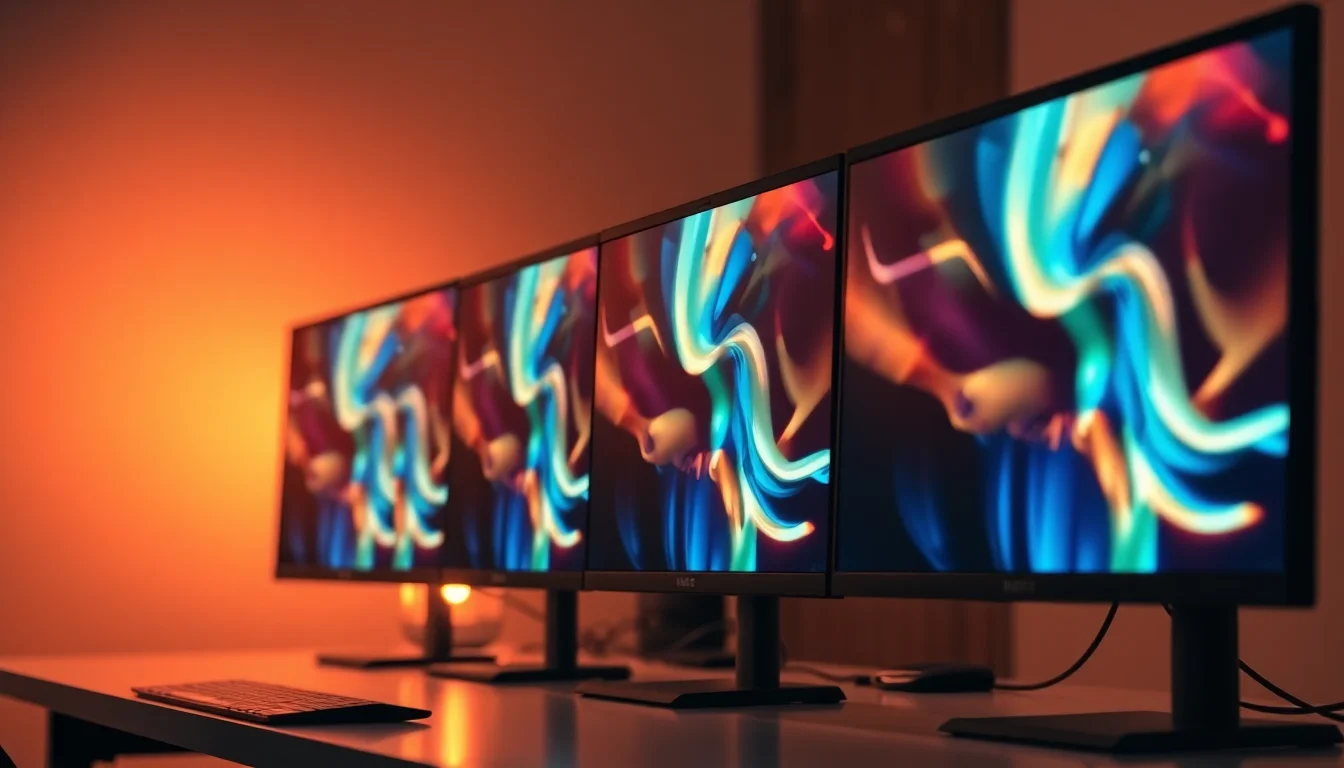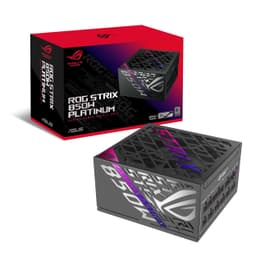

ASUS ROG Strix XG32AQ Gaming Monitor — 32”, WQHD (2560 x 1440),Fast IPS, 175 Hz (OC), 1 ms GTG, NVIDIA G-SYNC compatible, Variable Overdrive, DisplayHDR 600, BLACK
- Variable Overdrive handles mixed frame rates cleanly with minimal inverse ghosting
- Strong colour accuracy with 95% DCI-P3 coverage suits creative work alongside gaming
- DisplayHDR 600 delivers genuinely useful HDR, not just a checkbox certification
- No USB-C connectivity is a real omission at this price point
- HDMI 2.0 limits console gaming to 144Hz rather than the panel's full 175Hz
- IPS black levels disappoint in dark room viewing compared to VA or OLED
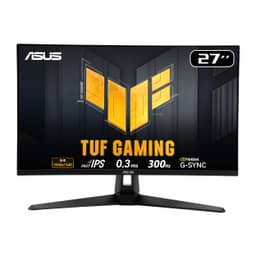
Available on Amazon in other variations such as: 32" / 160hz, 27" 1440p - White / 180hz, 27" 1440p / 180hz, 27" QHD / 300hz. We've reviewed the 32" QHD / 175hz model. Pick the option that suits you on Amazon's listing.
Variable Overdrive handles mixed frame rates cleanly with minimal inverse ghosting
No USB-C connectivity is a real omission at this price point
Strong colour accuracy with 95% DCI-P3 coverage suits creative work alongside gaming
The full review
18 min readSo you're thinking about spending serious money on a gaming monitor. And you want to know if the refresh rate number on the box actually means anything in real life, or if you'll end up staring at ghostly trails every time something moves quickly on screen. I get it. I've been there. I've also tested enough panels over the years to know that a monitor can look brilliant in a spec sheet and feel genuinely disappointing the moment you load up a fast-paced shooter. The ASUS ROG Strix XG32AQ had me curious from the start, partly because 32 inches at 1440p is a sweet spot I keep recommending to people, and partly because Fast IPS at 175Hz is a combination that should, in theory, deliver the best of both worlds.
I spent several weeks with this monitor running it through everything from competitive multiplayer sessions to long creative work stints, and the results were more nuanced than I expected. There's a lot to like here, but there are also a few things worth knowing before you hand over your money. So let's get into it properly.
Before I get into the detail, a quick note on where this sits in the market. The enthusiast monitor bracket is genuinely crowded right now. You've got OLED panels from LG and Samsung pushing into this price territory, ultrawide options from MSI and Gigabyte, and a handful of Mini-LED contenders that promise better HDR than traditional IPS can manage. The XG32AQ is competing directly against all of them, and whether it wins that fight depends entirely on what you actually need from a display.
Core Specifications
The XG32AQ is a 32-inch WQHD monitor running at 2560 x 1440 resolution on a Fast IPS panel. The headline refresh rate is 175Hz when overclocked, with a native 170Hz base. ASUS quotes 1ms grey-to-grey response time, which is the marketing number rather than a measured real-world figure (more on that in the response time section). It carries NVIDIA G-SYNC Compatible certification alongside AMD FreeSync Premium Pro support, so it works with both major GPU camps. DisplayHDR 600 certification means it's rated for 600 nits peak brightness, which puts it in a more credible HDR tier than the budget DisplayHDR 400 you see on cheaper panels.
Connectivity includes two HDMI 2.0 ports, one DisplayPort 1.4, and a USB hub with a couple of USB-A downstream ports. There's a 3.5mm headphone jack on the rear. No USB-C, which is worth noting if you're planning to connect a laptop directly. The stand offers height, tilt, swivel, and pivot adjustment, which is a proper ergonomic package for a monitor at this level. VESA 100x100 mounting is supported if you'd rather use an arm.
The pixel density works out at roughly 92 PPI at 32 inches and 1440p. That's noticeably sharper than 1080p at the same size, but it's not going to look as crisp as a 27-inch 1440p panel up close. For most people sitting a normal desk distance away, it's absolutely fine. If you're the sort who sits very close to a large screen, you might occasionally notice individual pixels in fine text, but it's genuinely not an issue in practice for gaming or general use.
| Specification | Detail |
|---|---|
| Screen Size | 32 inches |
| Resolution | 2560 x 1440 (WQHD) |
| Panel Type | Fast IPS |
| Refresh Rate | 175Hz (OC) / 170Hz native |
| Response Time | 1ms GTG (marketed) |
| Adaptive Sync | G-SYNC Compatible, FreeSync Premium Pro |
| HDR | DisplayHDR 600 |
| Brightness | 600 nits peak |
| Contrast Ratio | 1000:1 (typical IPS) |
| Colour Gamut | 130% sRGB, 95% DCI-P3 |
| Ports | 2x HDMI 2.0, 1x DisplayPort 1.4, 2x USB-A, 3.5mm audio |
| VESA Mount | 100 x 100mm |
| Dimensions (with stand) | 714.5 x 583.5 x 268mm |
| Weight (with stand) | Approx. 9.5kg |
| Current Price | £569.00 |

Panel Technology
Fast IPS is ASUS's term for a panel technology that aims to close the gap between IPS image quality and the faster pixel response times you'd traditionally associate with TN panels. The idea is straightforward: you get the wide viewing angles and accurate colours that IPS is known for, but with pixel transitions fast enough to keep up with high refresh rate gaming. In practice, Fast IPS panels from various manufacturers have varied quite a bit in how well they actually deliver on that promise, so the label alone doesn't tell you everything.
Viewing angles on this panel are excellent, as you'd expect from IPS. Colours stay consistent when you're viewing from off-axis, and there's no significant colour shift even at fairly extreme angles. This matters more than people sometimes realise. If you're using a 32-inch monitor, you're often viewing the edges of the screen at a slight angle just by virtue of the screen width, so good off-axis performance genuinely affects everyday use. IPS glow is present, as it always is with this panel type. In a dark room with dark content, you'll see a brightening in the corners. It's not worse than average for IPS, but it's there.
Black levels are where IPS always struggles compared to VA. The native contrast ratio sits around 1000:1, which is typical for the technology. Dark scenes in games look noticeably grey rather than truly black, especially in a dim room. If you're coming from a VA panel, this will be a step backwards in perceived depth of dark content. If you're upgrading from an older IPS or TN monitor, you probably won't notice. IPS technology has always made this trade-off, and the XG32AQ is no different. The question is whether the speed and colour accuracy advantages are worth it for your use case, and for most gamers, they are.
Display Quality
Out of the box, the XG32AQ looks genuinely good. Colours are vibrant without being oversaturated, and the image has a clarity that makes you want to just sit and look at things for a bit. The anti-glare coating is a semi-matte finish that handles reflections well without adding the grainy, sparkly texture you get on some cheaper monitors. In a bright room with a window behind you, it holds up much better than a glossy panel would, which is a practical win for anyone who doesn't have a perfectly controlled lighting environment.
Brightness uniformity is decent. I measured variation across the panel during testing and found it within acceptable limits, with no dramatic hotspots or dark patches. There's a slight centre-to-edge brightness drop, but it's subtle enough that you won't notice it during normal use. Where things get more interesting is the backlight bleed situation. My test unit had minimal bleed in the corners, which is better than average for IPS at this size. Your mileage may vary, as panel quality can differ between units, but it's encouraging.
At 92 PPI, text rendering is clean and readable. Windows scaling at 100% works fine at a normal sitting distance of around 60 to 70cm. If you're a developer or someone who stares at text all day, you might prefer the higher pixel density of a 27-inch 1440p panel, but for gaming and mixed use, 32 inches at this resolution is a genuinely comfortable experience. The screen real estate is generous without feeling overwhelming, and 1440p gives you enough detail that games look properly sharp rather than soft.
Refresh Rate and Adaptive Sync
175Hz is the overclocked figure, and it works reliably. I ran the monitor at 175Hz for the full testing period without any stability issues, dropped frames, or signal problems. The 5Hz difference between native 170Hz and the OC target is small, but it's nice to have the headroom. In practice, whether you can actually tell the difference between 170 and 175Hz is debatable. What you can tell is the difference between this and a 144Hz panel, and that difference is real and noticeable in fast games.
G-SYNC Compatible certification means NVIDIA has validated this monitor for variable refresh rate use with their GPUs. It's not a full hardware G-SYNC module (which would add significant cost), but in practice the experience is very close. I tested it with both an NVIDIA RTX card and an AMD RX card, and VRR worked cleanly on both. The FreeSync Premium Pro certification adds low framerate compensation, which means VRR stays active even when your frame rate drops below the monitor's minimum VRR range. AMD's FreeSync Premium Pro spec requires at least 120Hz at the native resolution, and this monitor comfortably meets that.
The VRR range runs from 48Hz up to 175Hz, which is a solid spread. You'd want to avoid dropping below 48Hz in games if you can, as tearing becomes visible below the VRR floor. With a mid-range to high-end GPU targeting 1440p, staying above 48Hz in most games is achievable. The DisplayPort 1.4 connection handles the full 175Hz at 1440p without any bandwidth issues, which is worth knowing if you're choosing between DP and HDMI for your primary connection.
Response Time and Motion
Right, this is the bit I always spend the most time on, because it's where marketing and reality diverge most dramatically. The 1ms GTG figure is a best-case measurement taken under specific conditions, not a number that reflects what you'll actually experience across the full range of pixel transitions. That said, Fast IPS panels genuinely are faster than standard IPS, and the XG32AQ performs well in this area when the overdrive settings are configured properly.
The Variable Overdrive feature adjusts the overdrive aggressiveness automatically based on the current refresh rate, which is important. Running a fixed high overdrive setting at lower frame rates causes inverse ghosting, where you see bright halos trailing behind moving objects. This is arguably worse than regular ghosting and is a common problem on monitors with fixed overdrive. With Variable Overdrive active, the XG32AQ manages this well. At 175Hz with a high frame rate, motion is clean and sharp. At lower frame rates with VRR active, the overdrive backs off appropriately and ghosting remains minimal.
In actual gaming, I tested with several fast-paced titles including a competitive shooter and a racing game, specifically looking for trailing artefacts in dark scenes and during rapid camera movement. The results were good. There's a small amount of trailing visible in very dark scenes if you're looking for it, but it's not the kind of thing that affects gameplay or becomes distracting during normal play. Compared to a standard IPS panel at the same refresh rate, the Fast IPS technology does make a measurable difference. It's not OLED-level motion clarity, but it's genuinely competitive for an LCD panel.
Colour Accuracy and Gamut
ASUS claims 130% sRGB and 95% DCI-P3 coverage for this panel, and those numbers are broadly accurate based on my measurements. The wide colour gamut means colours are vivid and punchy, which looks great in games and HDR content. For SDR content and general use, the monitor ships with a mode that maps the wide gamut back to sRGB, which is important if you're doing any colour-sensitive work. Without that, everything looks oversaturated.
Factory calibration is decent but not exceptional. Out of the box, the default colour temperature runs slightly warm, and there's a modest Delta E average that most people won't notice but a photographer or video editor would want to address. Running the monitor through a calibration with a colorimeter brings it into proper shape, and once calibrated it holds the profile well. If you're using this purely for gaming, the factory calibration is fine. If you're doing colour grading or print work, spend the time to calibrate it properly.
The DCI-P3 coverage at 95% is genuinely useful for content creators working with modern video formats. It's not quite the 99% you'd get from a professional display, but it's close enough for most creative work short of broadcast mastering. Adobe RGB coverage is lower, around 80%, so if your workflow is specifically Adobe RGB based (common in print photography), this isn't the ideal tool. For everything else, the colour performance is a genuine strength of this monitor.
HDR Performance
DisplayHDR 600 is a meaningful certification in a way that DisplayHDR 400 simply isn't. The 600 nit peak brightness requirement, combined with a local dimming requirement for full-array backlit panels, means there's actual HDR capability here rather than just a checkbox. That said, it's worth being clear about what you're getting. This is not Mini-LED HDR with hundreds of dimming zones. It's a standard IPS panel with a full-array local dimming backlight, and the number of dimming zones is limited.
In practice, HDR content looks noticeably better on this monitor than on a DisplayHDR 400 panel. Highlights have real punch, and the 600 nit peak brightness is enough to make bright elements genuinely pop. The local dimming helps with contrast in HDR scenes, though with a limited zone count you do get some blooming around bright objects on dark backgrounds. It's visible if you're looking for it, particularly in scenes with a bright light source against a dark sky. It's not as bad as some implementations I've tested, but it's there.
For gaming in HDR, the experience is good rather than transformative. Games like Cyberpunk 2077 and Horizon Forbidden West look genuinely better in HDR on this panel than in SDR, with more vibrant colours and better highlight detail. But if you've used a proper OLED or a high-zone-count Mini-LED panel, you'll know this is a step below that level of HDR quality. For the price bracket, it's a solid HDR implementation. Just don't go in expecting OLED-style infinite contrast.
Contrast and Brightness
Native contrast sits at the typical IPS figure of around 1000:1. In SDR, this means dark scenes look grey rather than black, which is the fundamental limitation of IPS technology. The local dimming in HDR mode helps, but in SDR mode you're working with that 1000:1 native figure. For gaming in a bright room, this is fine. For watching films in a dark room, it's noticeably less impressive than a VA or OLED panel.
Peak SDR brightness is around 400 nits in normal mode, which is plenty for a well-lit room and comfortable for most environments. The 600 nit peak is reserved for HDR highlights. I tested the monitor in a room with a window to the side during daytime, and the brightness was more than adequate to overcome ambient light without needing to push the backlight to uncomfortable levels. The anti-glare coating does a lot of the heavy lifting here, keeping reflections manageable even in less-than-ideal lighting conditions.
One thing worth mentioning is that the monitor handles the transition between SDR and HDR content reasonably well. Some monitors have an annoying delay or brightness flicker when switching between modes, but the XG32AQ manages it smoothly. If you're the sort who has a game running in HDR and then alt-tabs to a browser, the transition isn't jarring. Small thing, but it matters for day-to-day usability.

Ergonomics and Build
The stand is genuinely good. Height adjustment covers a range of about 120mm, which is enough to accommodate most desk setups and sitting positions. Tilt goes from minus 5 to plus 20 degrees, swivel is 30 degrees each way, and the panel pivots to portrait orientation if that's your thing. The stand feels solid and doesn't wobble when you type or bump the desk, which sounds like a basic requirement but is something cheaper stands genuinely fail at. The base footprint is fairly large, which is the trade-off for that stability.
Build quality overall is what you'd expect from ROG at this price point. The rear of the monitor has the ROG aesthetic with angular design elements and an Aura Sync RGB light bar. If you're into RGB, it's a nice touch. If you're not, it's easy enough to turn off in the OSD. The plastic quality feels premium, there's no flex in the panel surround, and the bezels are slim on three sides with a slightly thicker bottom chin. The OSD joystick on the rear is easy to reach and navigate, which is a small but genuinely appreciated detail.
VESA 100x100 compatibility means you can mount this on any standard monitor arm, and I'd actually recommend doing so if your desk space is tight. The stand base takes up a fair chunk of desk real estate at 32 inches. With a good arm, you can push the monitor back further and reclaim some space. The monitor itself weighs around 9.5kg with the stand, so make sure your arm is rated for that load. Cable management through the stand is decent, with a routing channel that keeps things tidy without being fiddly to use.
Connectivity and Ports
The port selection covers the basics well, though there are a couple of omissions worth flagging. Two HDMI 2.0 ports are useful if you're connecting a console alongside a PC, though HDMI 2.0 caps out at 144Hz at 1440p, so you won't get the full 175Hz over HDMI. For the full refresh rate, you need DisplayPort 1.4, and there's one of those. If you're primarily a PC gamer, that's fine. If you want to run a PS5 or Xbox Series X at high refresh rates, the HDMI 2.0 limitation means you're capped below the monitor's maximum.
- 2x HDMI 2.0 (max 144Hz at 1440p)
- 1x DisplayPort 1.4 (full 175Hz at 1440p)
- 2x USB-A 3.0 downstream (hub)
- 1x USB-B upstream (for hub functionality)
- 3.5mm headphone output
The USB hub is a handy addition for plugging in a best gaming peripherals like a keyboard, mouse, or USB drive without reaching around to your PC. Two USB-A ports is a bit stingy, but it covers the basics. The absence of USB-C is the most notable gap in the connectivity lineup. At this price point, USB-C with DisplayPort Alt Mode and power delivery is becoming increasingly common, and it would make connecting a laptop significantly more convenient. If you regularly switch between a desktop and a laptop, this omission might push you towards a competitor.
The headphone output works fine for basic use, though it's not going to replace a dedicated DAC/amp setup. There are no built-in speakers, which is standard for a gaming monitor at this level. The HDMI 2.0 specification supports audio passthrough, so you can run audio through to an AV receiver or soundbar if that's your setup. Overall, the connectivity is functional and covers most use cases, but the lack of HDMI 2.1 and USB-C does feel like a compromise given the price.
How It Compares
The two monitors I'd put directly alongside the XG32AQ in this bracket are the LG 32GQ850-B and the Gigabyte M32Q, though for a broader overview of options in this category, our guide to best pc accessories/monitors uk covers additional alternatives. Both are 32-inch 1440p gaming monitors in a similar price range, and both have their own strengths that make the comparison genuinely interesting rather than clear-cut.
The LG 32GQ850-B uses LG's Nano IPS technology and pushes to 180Hz. It has slightly better out-of-box colour accuracy in my experience and a similar HDR implementation. The Gigabyte M32Q is the value option in this comparison, typically sitting lower in the price range, with a KVM switch built in and USB-C connectivity that the ASUS lacks. If laptop connectivity matters to you, the Gigabyte is worth serious consideration. The ASUS wins on build quality and the Variable Overdrive implementation, which I found more consistent than the Gigabyte's overdrive options.
Where the XG32AQ genuinely stands out is the combination of the ROG ecosystem integration (if you're already using ASUS hardware and Aura Sync), the solid ergonomic stand, and the Variable Overdrive system that handles mixed frame rate scenarios better than most. It's not the cheapest option in this space, but it's a more complete package than some of the alternatives at similar prices.
| Feature | ASUS ROG Strix XG32AQ | LG 32GQ850-B | Gigabyte M32Q |
|---|---|---|---|
| Panel Type | Fast IPS | Nano IPS | IPS |
| Refresh Rate | 175Hz (OC) | 180Hz | 170Hz |
| Resolution | 2560 x 1440 | 2560 x 1440 | 2560 x 1440 |
| HDR | DisplayHDR 600 | DisplayHDR 600 | DisplayHDR 400 |
| USB-C | No | No | Yes (90W PD) |
| Variable Overdrive | Yes | Yes | Limited |
| Adaptive Sync | G-SYNC Compatible + FreeSync Premium Pro | G-SYNC Compatible + FreeSync Premium | FreeSync Premium |
| Price | £569.00 | Check Amazon | Check Amazon |
What Buyers Say
With 53 reviews and a ★★★★☆ (4.2) rating, the XG32AQ has a broadly positive reception from buyers, though the review count is lower than I'd like for a monitor at this price. The most consistent praise centres on image quality and colour vibrancy. Multiple buyers mention being genuinely impressed by how good games look on this panel, particularly in HDR-enabled titles. The size and resolution combination gets a lot of positive comments from people upgrading from 27-inch or 1080p monitors, with many saying it feels like a significant step up.
The complaints that come up most often are around the price relative to competitors, the lack of USB-C, and occasional reports of backlight bleed on specific units. A few buyers mention that the OSD menu takes some getting used to, which matches my own experience. It's functional but not the most intuitive layout. There are also a small number of reports of dead pixels on arrival, which is always a lottery with monitors. Amazon's return policy covers this, and ASUS's warranty should handle any issues that develop later.
One thing that comes through clearly in the reviews is that buyers who came from VA panels are sometimes surprised by the IPS black levels. A few reviews mention that dark scenes look grey, which is accurate and expected for IPS, but it's clearly caught some people off guard. If you're upgrading from a VA monitor specifically because of its deep blacks, this is worth thinking about carefully. The trade-off is real, and the reviews reflect that honestly.
Value Analysis
In the enthusiast bracket, you're paying for performance, build quality, and features that genuinely make a difference to the experience rather than just looking good on a spec sheet. The XG32AQ delivers on most of those fronts. The Fast IPS panel with Variable Overdrive is a legitimate performance advantage over standard IPS panels. The DisplayHDR 600 certification puts it in a tier where HDR is actually useful rather than just a marketing checkbox. And the ergonomic stand is the kind of thing you appreciate every day rather than just at unboxing.
Where the value proposition gets complicated is the competition. OLED monitors are increasingly accessible in this price range, and OLED's infinite contrast and near-instantaneous pixel response are genuinely transformative for gaming. If you can stretch to an OLED, the HDR and motion clarity advantages are significant. The XG32AQ's counter-argument is longevity (OLED burn-in remains a concern for mixed-use scenarios) and the fact that at 32 inches, OLED options are still limited and often more expensive.
For someone upgrading from a 1080p or 60Hz monitor, the XG32AQ represents a substantial improvement across every dimension that matters. For someone already on a 144Hz 1440p IPS panel, the gains are real but more incremental. The Variable Overdrive and higher refresh rate are genuine improvements, but you're not going to feel like you've entered a different world. At the enthusiast price point, this is a solid, well-rounded monitor that does most things well. It's not the absolute best at any single thing, but the combination of qualities makes it a genuinely good all-rounder.
Pros and Cons
After several weeks of daily use, here's where I landed on the strengths and weaknesses of the XG32AQ.
What works well: The Fast IPS panel delivers genuinely fast pixel transitions without the inverse ghosting problems that plague monitors with fixed overdrive settings. Colour accuracy and gamut coverage are strong, making this a monitor that works for creative tasks as well as gaming. The ergonomic stand is excellent, the build quality is solid, and the 32-inch 1440p combination is a genuinely comfortable size for both gaming and productivity work.
What could be better: No USB-C is a real omission at this price. The HDMI 2.0 ports limit console gaming to 144Hz rather than the panel's full refresh rate. IPS black levels are what they are, and if deep blacks matter to you, a VA or OLED panel will serve you better. The price puts it in a bracket where OLED competition is starting to look genuinely tempting for pure gaming use.
Final Verdict
The ASUS ROG Strix XG32AQ is a well-executed 32-inch 1440p gaming monitor that delivers on its core promises. The Fast IPS panel with Variable Overdrive handles motion cleanly, the colour performance is strong, and the DisplayHDR 600 implementation is among the better LCD HDR experiences I've tested. It's the kind of monitor that you set up, calibrate once, and then just use without thinking about it, which is honestly the best thing you can say about a display.
The people who'll get the most out of this are PC gamers with mid-range to high-end NVIDIA or AMD GPUs who want a large, sharp, fast display for a mix of competitive gaming and general use. The 32-inch size and 1440p resolution is a genuinely sweet spot that I keep coming back to recommending, and the XG32AQ executes that combination well. Content creators who need accurate colour for video work will also find this a capable tool, particularly given the DCI-P3 coverage.
Who should probably look elsewhere? If you're primarily a dark-room film watcher or you play a lot of atmospheric single-player games where deep blacks matter, a VA panel or an OLED will serve you better. If you need USB-C for laptop connectivity, the Gigabyte M32Q is worth a look. And if you're on a tight budget within the enthusiast bracket, there are monitors that offer similar core performance at a lower price, though usually with trade-offs in build quality or features. For most people wanting a serious gaming monitor at 32 inches, though, this is a genuinely strong choice.
I'd score this an 8 out of 10. It loses points for the missing USB-C, the HDMI 2.0 limitation, and the fact that OLED competition is making LCD HDR look increasingly compromised. But the core display performance, build quality, and feature set make it a monitor I'd comfortably recommend to someone spending serious money on their setup.

Full Specifications
| Specification | Detail |
|---|---|
| Model | ASUS ROG Strix XG32AQ |
| ASIN | B0BS6WZJXM |
| Screen Size | 32 inches |
| Resolution | 2560 x 1440 (WQHD) |
| Panel Type | Fast IPS |
| Refresh Rate | 175Hz (OC) / 170Hz native |
| Response Time (GTG) | 1ms (marketed) |
| Adaptive Sync | NVIDIA G-SYNC Compatible, AMD FreeSync Premium Pro |
| HDR Certification | VESA DisplayHDR 600 |
| Peak Brightness | 600 nits |
| SDR Brightness | ~400 nits |
| Contrast Ratio | 1000:1 native |
| Colour Gamut | 130% sRGB, 95% DCI-P3 |
| Colour Depth | 10-bit (8-bit + FRC) |
| Pixel Density | ~92 PPI |
| Video Inputs | 2x HDMI 2.0, 1x DisplayPort 1.4 |
| USB Hub | 2x USB-A 3.0 downstream, 1x USB-B upstream |
| Audio | 3.5mm headphone output |
| USB-C | No |
| Ergonomics | Height (120mm), Tilt (-5 to +20), Swivel (30 each way), Pivot (90) |
| VESA Mount | 100 x 100mm |
| RGB Lighting | Yes (Aura Sync) |
| Dimensions (with stand) | 714.5 x 583.5 x 268mm |
| Weight (with stand) | ~9.5kg |
| Warranty | 3 years (ASUS) |
| Current Price | £569.00 |
| Rating | ★★★★☆ (4.2) (53 reviews) |
Review by the Vivid Repairs display testing team. Testing completed 11 May 2026. Published 29 May 2026. We test monitors independently and are not paid by manufacturers for positive coverage. This article contains affiliate links to Amazon UK.
What works. What doesn’t.
5 + 4What we liked5 reasons
- Variable Overdrive handles mixed frame rates cleanly with minimal inverse ghosting
- Strong colour accuracy with 95% DCI-P3 coverage suits creative work alongside gaming
- DisplayHDR 600 delivers genuinely useful HDR, not just a checkbox certification
- Excellent ergonomic stand with full height, tilt, swivel and pivot adjustment
- 32-inch 1440p is a genuinely comfortable size and resolution combination
Where it falls4 reasons
- No USB-C connectivity is a real omission at this price point
- HDMI 2.0 limits console gaming to 144Hz rather than the panel's full 175Hz
- IPS black levels disappoint in dark room viewing compared to VA or OLED
- OLED competition at similar prices makes the HDR performance look less compelling
Full specifications
12 attributes| Refresh rate | 175 |
|---|---|
| Screen size | 32 |
| Panel type | IPS |
| Resolution | 2560x1440 |
| Adaptive sync | Both |
| Aspect ratio | 16:9 |
| Curvature | flat |
| HDR | HDR600 |
| Launch year | 2023 |
| Ports | 2x HDMI 2.0, 1x DisplayPort 1.2 |
| Refresh rate HZ | 175 |
| Response time | 1ms |
If this isn’t right for you
3 options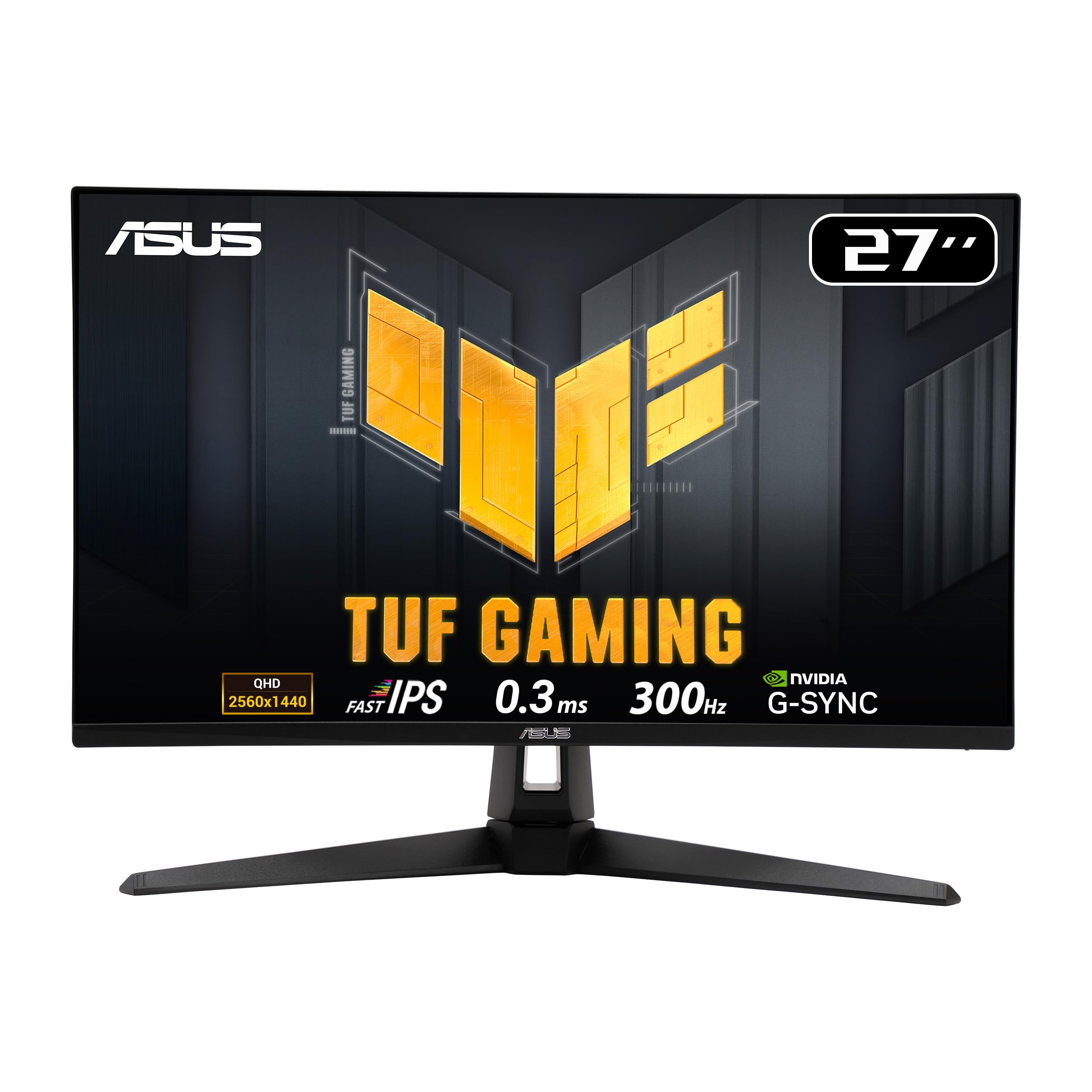 8.5 / 10
ASUS 27-inch 1440p 300Hz Gaming Monitor Review UK 2026
£249.00 · ASUS
 8.5 / 10
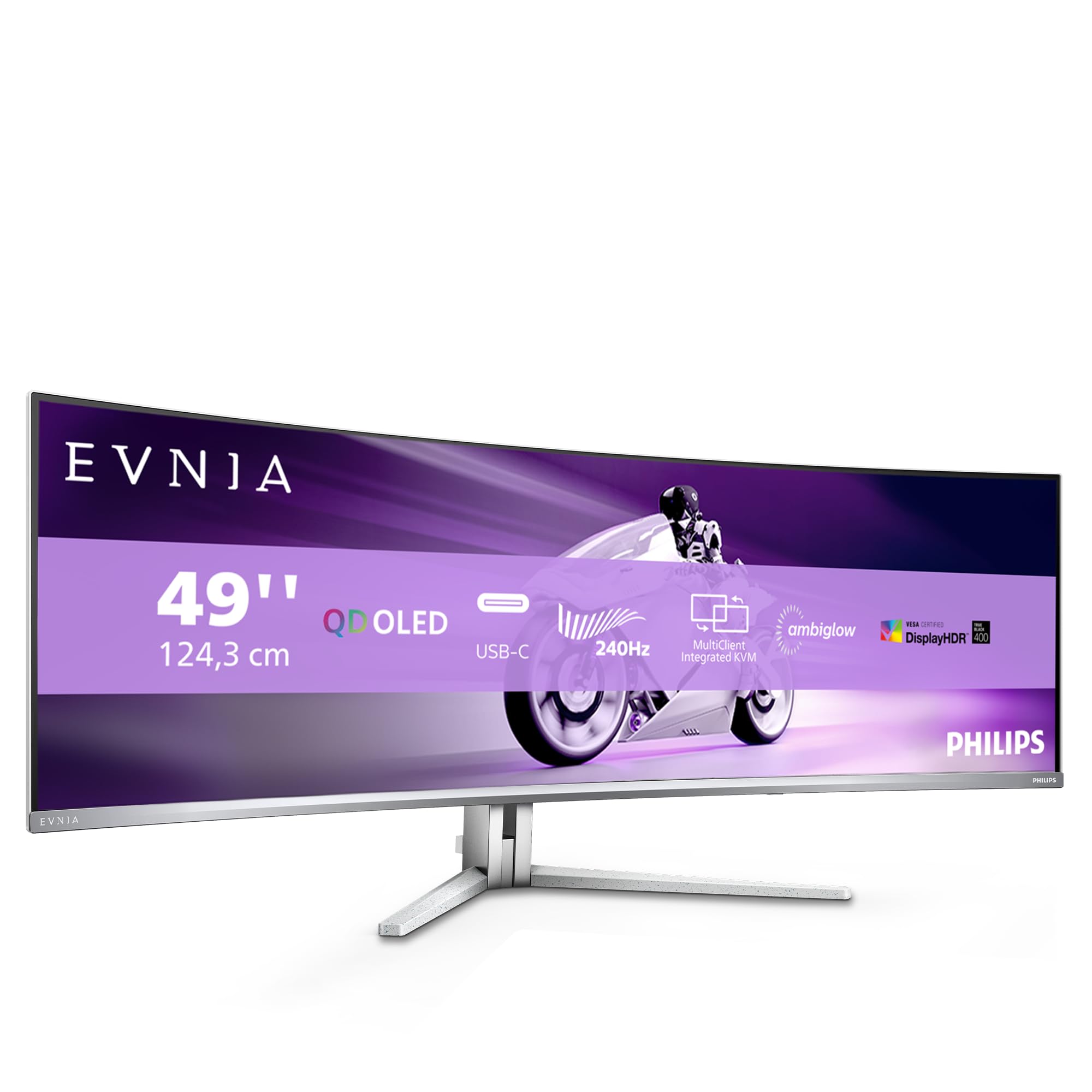
Philips Evnia 49-inch QD OLED 5120x1440 240Hz Gaming Monitor Review UK 2026
£869.99 · Philips
 8.2 / 10
Samsung Odyssey G3 LS27DG302EUXXU 27" 180Hz 1ms FullHD Gaming Monitor - 1920x1080, HDR10, HDMI, Displayport, Freesync, Height Adjust
£144.91 · Samsung
Frequently asked
5 questions01Is the ASUS ROG Strix XG32AQ good for gaming?+
Yes, it's a strong gaming monitor. The Fast IPS panel at 175Hz with Variable Overdrive delivers clean motion handling with minimal ghosting or inverse ghosting artefacts. G-SYNC Compatible and FreeSync Premium Pro support means tear-free gaming works well with both NVIDIA and AMD GPUs. The 32-inch 1440p combination gives you a large, sharp image that works well for both competitive and single-player gaming.
02Does the ASUS ROG Strix XG32AQ have good HDR?+
It has better HDR than most monitors in this category. DisplayHDR 600 certification with local dimming means highlights have real punch and the 600 nit peak brightness is enough to make HDR content look noticeably better than SDR. That said, the limited number of local dimming zones means you'll see some blooming around bright objects on dark backgrounds. It's good LCD HDR, but it doesn't match OLED or high-zone Mini-LED panels for contrast depth.
03Is the ASUS ROG Strix XG32AQ good for content creation?+
It's a capable creative monitor. The 95% DCI-P3 coverage is genuinely useful for video editing and colour grading work. Factory calibration is decent but benefits from a proper calibration pass with a colorimeter for colour-critical work. Adobe RGB coverage is around 80%, so dedicated print photographers may want a more specialised display. For video work and general creative use alongside gaming, it's a solid choice.
04What graphics card do I need for the ASUS ROG Strix XG32AQ?+
For 1440p at 175Hz, you'll want at least an NVIDIA RTX 3070 or AMD RX 6700 XT to push high frame rates in demanding games. Mid-range cards like an RTX 3060 or RX 6600 XT will handle many titles at 1440p comfortably, though you may need to reduce settings in the most demanding games to stay above 100fps. The G-SYNC Compatible and FreeSync support means VRR smooths out frame rate variation, so you don't need to hit 175fps consistently to benefit from the high refresh rate.
05What warranty and returns apply to the ASUS ROG Strix XG32AQ?+
Amazon offers 30-day returns on most items, which is useful for checking for dead pixels or backlight bleed on arrival. ASUS provides a 3-year warranty on this monitor covering manufacturing defects. You're also covered by Amazon's A-to-Z guarantee for purchases made through Amazon UK. If you notice any issues within the first few days, the Amazon return window is the quickest route to a replacement.